After the Cloud PC works, manage it like a Windows endpoint through Microsoft Intune. Test one change at a time. This makes a mismatch between the Intune report and the desktop easier to diagnose.
Before you run the labs
Use one assigned Enterprise Cloud PC and a pilot group. Record the Cloud PC name and the test account in a private lab log. Keep the published captures free of tenant IDs, user names and other private data. For each change, save the assignment, the Intune status with time, and the device-side result with time. These are three different checks; a green service report alone does not prove the user sees the intended result.
| Lab | Admin-side check | Cloud PC check | Existing pilot evidence |
|---|---|---|---|
| A: Edge setting | Settings catalog assignment and device report | Effective Edge setting | Both views captured on September 24; the follow-up explains the comparison limit. |
| B: application | Required app installation status | Company Portal Installed view and app launch | Required app and launch views captured; an Available assignment and uninstall were not tested. |
| C: updates | Ring assignment and reporting | Windows Update history and build | Update history captured; a controlled ring rollout and restart were not demonstrated. |
| D: restart | Action status and later Intune check-in | Reconnect, desktop and Edge policy | Restart and reconnect passed on October 7; Intune action report and new check-in were not captured. |
The steps below let a reader repeat each lab. The status in the last column describes only my existing pilot evidence.
Lab A: a visible setting
- Open Devices > Configuration in Intune and select the pilot settings catalog profile. Record the target group and configured Edge setting.
- Open Device status. Find the pilot Cloud PC and record the status and last check-in. A success result in a report is a service-side result.
- Connect to the Cloud PC, open Edge's relevant policy or settings view, and compare the effective value. If it differs, record both values and the time instead of declaring success.
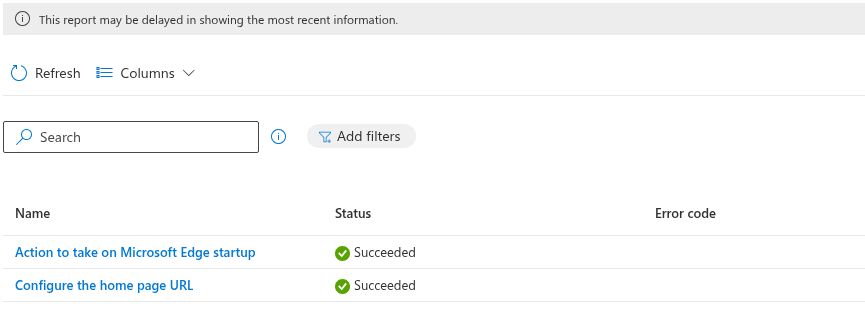
This is the sanitized Intune report from my September 24 pilot. It is paired with the device-side Edge capture below; check the dated follow-up for the limits of the comparison.
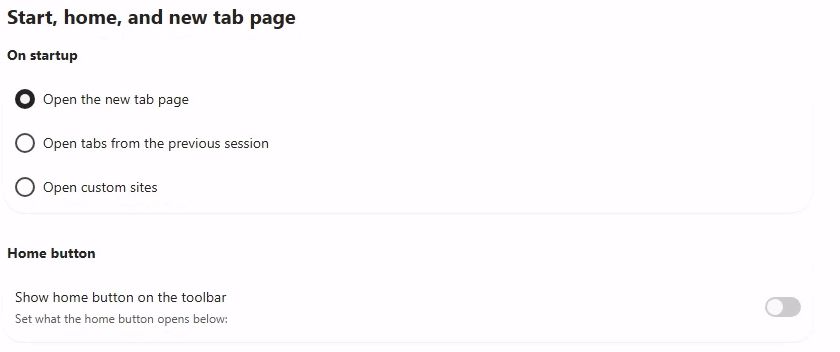
My sanitized Edge setting capture records a setting observed on the Enterprise pilot. Consult the configuration use case for its limited evidence scope. The image alone does not establish every policy assignment step.

Lab B: an application
- In Apps > All apps, choose an approved app and inspect its assignments. Distinguish Required from Available for enrolled devices before describing user choice.
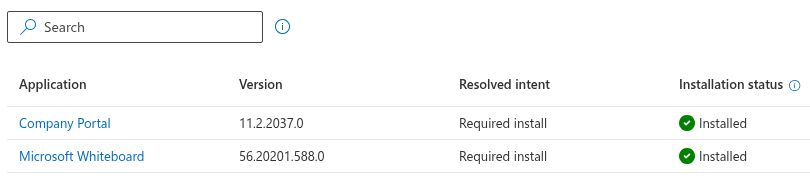
- Open the application's device or user installation status and find the Cloud PC. In my pilot, two Required applications appeared in the Intune status view.
- Inside the Cloud PC, open Company Portal, inspect the catalog and Installed view, then launch the app you intend to test. Record the result of each action separately.
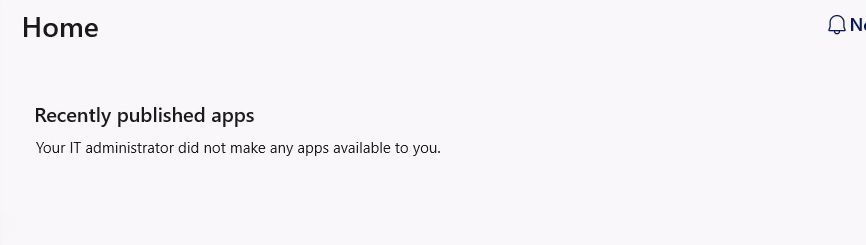
The Company Portal catalog was empty in this captured session. That does not imply Company Portal was broken: Required apps can be installed without appearing as user-initiated Available apps.
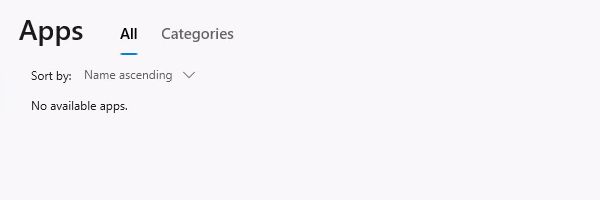
The Company Portal screenshot in my repository shows an installed view. It does not prove a new Available assignment or uninstall. The application use case retains that distinction.

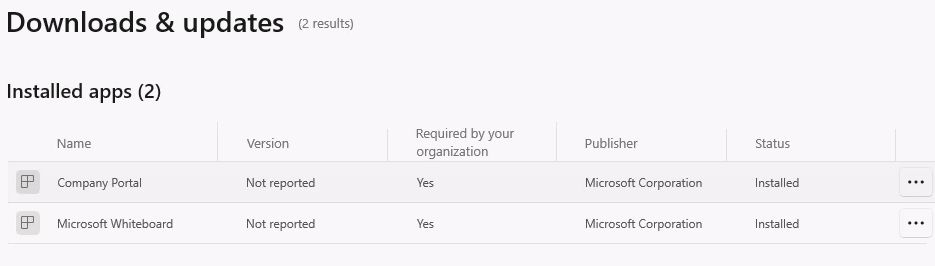
An app launch view was also captured, but a full Available assignment and controlled uninstall were not. See the Company Portal lab record.
Lab C: updates
- Review the update ring and its pilot assignment in Intune. Record its settings and device reporting.
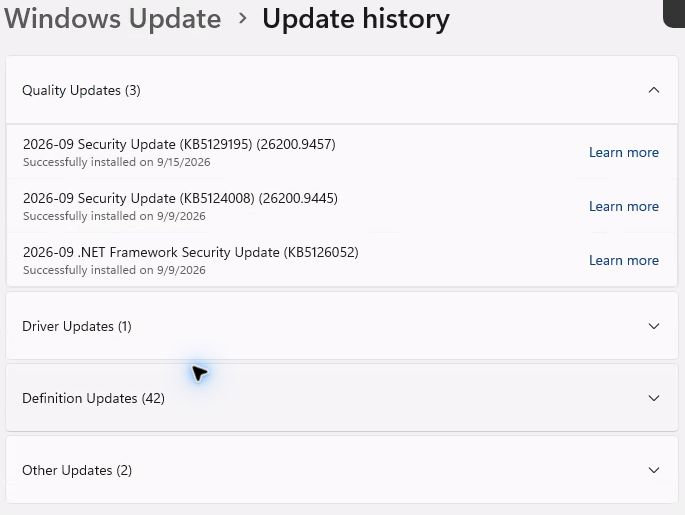
- In the Cloud PC, open Settings > Windows Update > Update history and record the installed updates, build and time.
- Compare the two views. Coordinate a restart before it occurs; capture before and after builds if claiming that an update completed during the test.
This screenshot establishes the installed update history visible on September 24. The October 6 ring review does not demonstrate a controlled ring deployment and restart.
Lab D: controlled restart and remote actions
A remote action can interrupt a user's work. Read the action's impact before selecting it. In this pilot, only Restart was tested. Resize, Move, Restore and Reprovision are separate lifecycle tests, not a completed part of this lab. The lifecycle decision guide includes a draw.io diagram and explains the data impact of each choice.
- Ask the user to save work. Confirm the Cloud PC, its owner and the intended action. Record the starting state and time.
- In Windows App, open Devices, select the Cloud PC's More options, then Restart. Read the confirmation before proceeding. In an Intune-managed workflow, check the available remote actions on the Cloud PC device record; the exact menu depends on role and device state.
- Watch for the restart state. Wait until Connect returns. Open a fresh session and check sign-in, desktop and the setting or app that matters to the user.
- In Intune, review Devices > Monitor > Cloud PC actions and the device's last check-in when those views are available. Record their time separately from the user reconnect. A browser reconnect by itself does not prove the Intune report or app health.
Observed on 7 October 2026: The existing Enterprise Cloud PC showed Restarting; the active session disconnected; Connect returned; a new web session reached the signed-in desktop. Edge still reported the device's HomepageLocation policy as OK. See the dated restart record. That test did not capture the Cloud PC actions report, a new Intune check-in or post-restart app status, so the full management validation remains open. The original lab record is the evidence for this result; no portal screenshot of that restart sequence is published here.
Do not try the other actions on the sole working Cloud PC to fill a blog gap. Restore rolls back local changes after the selected point, and Reprovision rebuilds the Cloud PC. A separate disposable device and a recorded recovery path are needed before those labs. See Microsoft's remote management action reference.
What counts as a completed test
- Setting: Match the exact configured Edge value to the effective value in the Cloud PC. Preserve both timestamps and the policy assignment. The screenshots here show a report and a setting; review the linked follow-up before calling the full change cycle proven.
- Application: Record the app's assignment type and target group, installation status, a successful launch and the time of each check. Required installs to its targeted devices; Available for enrolled devices lets the targeted user choose it in Company Portal. My pilot did not complete the Available or uninstall paths.
- Update: Record ring settings, target, reporting, installed KB/build, restart and after-state. Update history by itself cannot attribute an installed update to a particular ring. My pilot does not prove that full sequence.
When a result differs, note the exact status, last check-in, error and time. Review assignment and device sync before changing the profile. Keep a failure in the log even if a later attempt works.
Use Microsoft's Windows 365 management guidance to check current Intune options. The engineering use cases provide the project-specific records. In your evidence log, preserve a failure with its timestamp rather than replacing it with a later success screenshot without explanation.
Next: secure access and plan recovery.