Security controls need a test plan because a policy can block the administrator and the pilot user at the same time. Use a small group, preserve an emergency access path under your organization's policy, and compare sign-in logs with the intended rule before enforcement.
Conditional Access lab
- Define the exact users, cloud apps and condition you intend to test. Read Microsoft's Windows 365 Conditional Access guidance for the relevant service apps.
- Exclude the organization's designated emergency access accounts according to its established process. Start a new policy in report-only mode and target the pilot group.
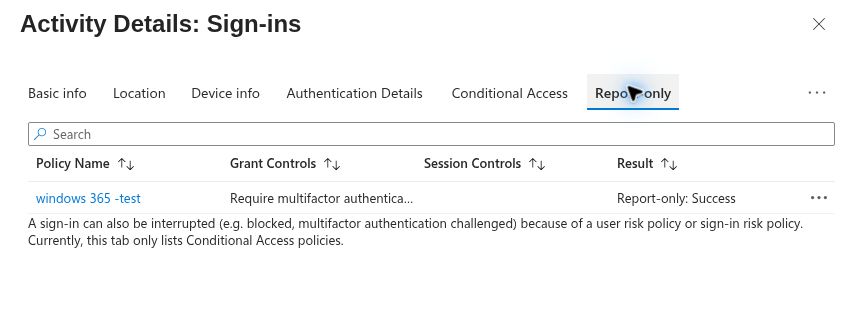
- Have the pilot user perform an ordinary sign-in and inspect the Microsoft Entra sign-in log's report-only result. Check both an expected allowed and an expected challenged scenario when the design calls for it.
- Review the impact with the identity owner before enabling the policy. After enforcement, test a real session and record the result.
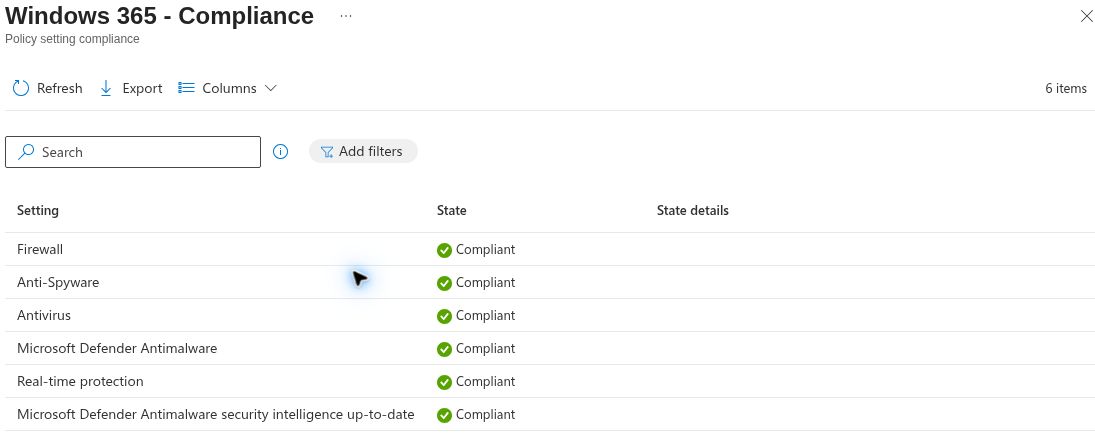
A report-only prediction is evidence about the proposed rule, not proof that enforcement worked. Likewise, a configured compliance policy is not proof that the Cloud PC is compliant. Check the device's actual compliance state and the sign-in decision independently. Microsoft's security overview covers Defender, compliance and endpoint controls.
My October 6 record contains three resource simulations and one gateway sign-in with a sanitized report-only result. The screenshot below shows that report-only evaluation. It does not demonstrate a user being blocked by an enforced rule. Read the validation record before drawing a broader conclusion.
Inspect device security separately
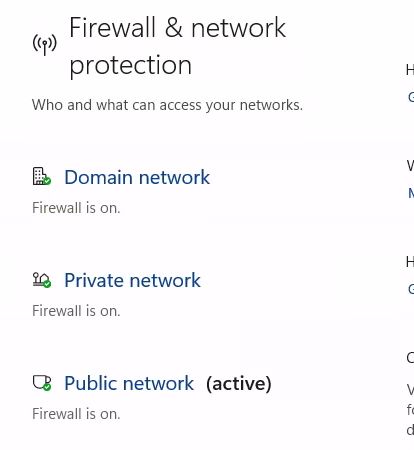
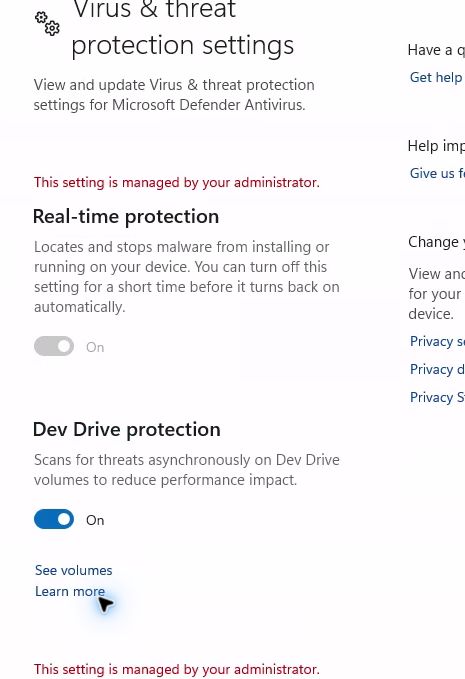
Open the Cloud PC in Intune and check its compliance rule results. Then connect to the device and compare Windows Security's firewall, Defender and real-time protection views. A local security screen and a compliance decision have different meanings; note both. My September 24 captures show the displayed device security and protection states, while the device security check identifies policy freshness and other open checks.
Cloud PC policy exceptions to check
Microsoft's security guidelines state that Cloud PCs do not support BitLocker. Exclude a BitLocker requirement from compliance policies that target Cloud PCs. The same guidance says Administrator protection is unsupported on Cloud PCs; use an assignment filter to exclude them from a policy that enables it. Check the current guidance before applying an endpoint baseline unchanged. These are design checks, not controls I deployed in this pilot.
Choose the least disruptive support action
| Action | Before you use it |
|---|---|
| Disconnect and reconnect | Capture the error and test user connectivity. |
| Restart | Warn the user and save work; check whether the session returns. |
| Restore | Inspect available restore points and the data impact; agree on the chosen point. |
| Resize | Confirm the licensing path, target size and user impact. |
| Reprovision | Treat as a rebuild and plan for data and application consequences. |
Read restore overview, resize guidance and reprovision guidance before taking these actions. Preserve user data through the organization's approved storage and backup practices. Never experiment with reset or reprovision on the only working demonstration Cloud PC.
Plan a point-in-time restore before you need one
Windows 365 Enterprise supports short-term, long-term and on-demand restore points. The administrator can configure intervals and inspect the available points before choosing one. A restore returns the Cloud PC to the selected earlier state. Changes made after that point, including local files, installed apps and settings, can be lost; changes held in an external cloud service such as OneDrive are outside that restored disk. Rolling passwords, certificates or keys may also be out of date after a restore. Select a recent healthy point, inform the user of the exact data window, and verify sign-in and required apps afterwards. Follow the point-in-time restore guidance.
Pilot status: No restore was executed on the existing Enterprise Cloud PC. The October 7 record covers a controlled restart and reconnect only.
The security and lifecycle use cases in my repository are procedures with explicitly limited live validation. A sanitized report-only result was recorded, but there is no evidence of an enforced Conditional Access block or a completed restore.
A controlled restart and reconnect were observed on October 7; that is a narrower result than a restore. The restart record describes what was checked and what still needs a post-action report.
Next: read the ANC failure as a troubleshooting case.