In the identity and network article, we chose an identity and network path. Here we use Microsoft Entra join and a Microsoft-hosted network for a small Enterprise pilot. You can follow the same order in your own tenant. The Azure network connection (ANC) path is a separate lab in the ANC health failure article.
What you will build: one licensed pilot user in one Microsoft Entra group, targeted by one provisioning policy. The intended result is a provisioned Cloud PC that the user can open and that an administrator can inspect in Intune.
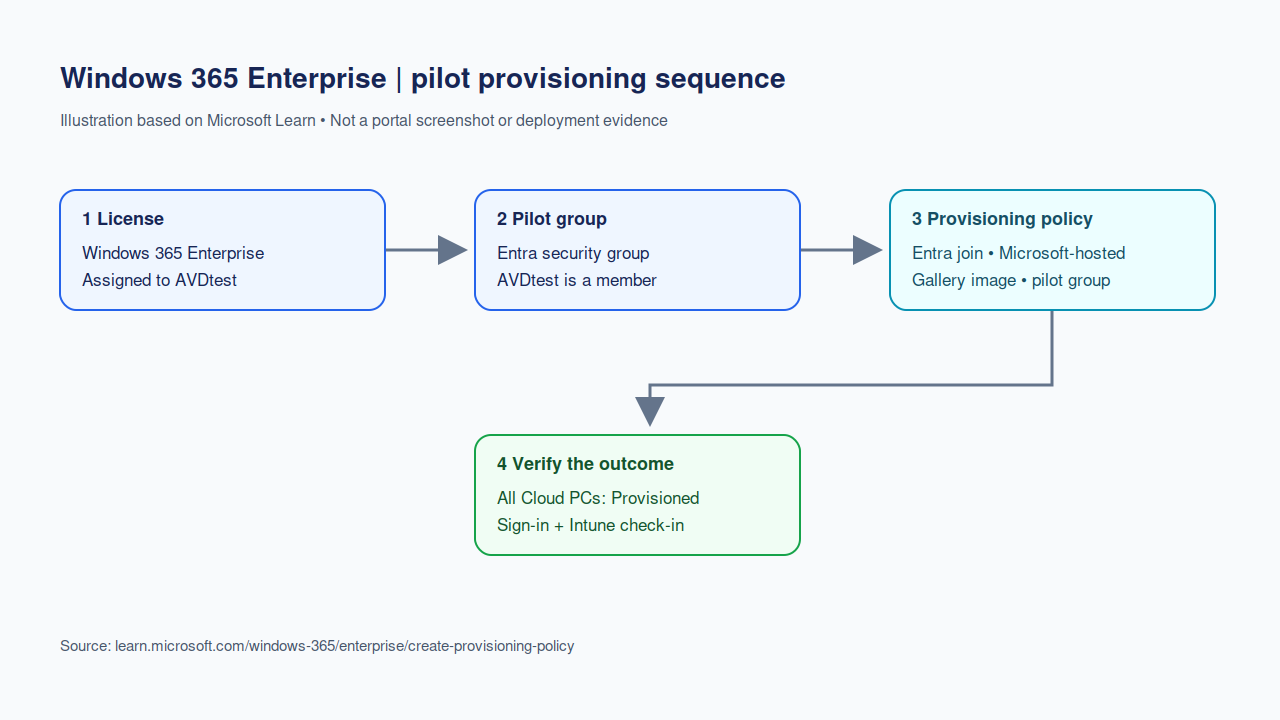
Illustration 1. Example user AVDtest. This is an original workflow diagram, not an Intune screenshot or proof of a completed lab. Edit the draw.io source.
Evidence boundary: My tenant already has a Provisioned Enterprise Cloud PC. I verified its current policy and inventory on October 12, 2026. On October 12, I opened a new policy wizard in my own Intune tenant and captured its six pages as an unassigned draft. I closed the wizard without creating a policy. These screens show the current controls, not the original creation of the already Provisioned Cloud PC or a fresh license-to-first-sign-in run.
1. Check the prerequisites
Before you create anything, check the Windows 365 Enterprise requirements. You need a suitable Windows 365 Enterprise license, a user who receives that license, a Microsoft Entra group for the policy assignment, and an administrator with the required Windows 365 permissions. For this Microsoft-hosted, Entra joined path, you do not need to create an Azure virtual network.
| Check | Where | Continue when |
|---|---|---|
| Enterprise license | Microsoft 365 admin center > Billing > Licenses | The intended user has the license assigned |
| Pilot group | Microsoft Entra admin center > Groups | The intended user is a member |
| Administrator | Intune and Entra roles | You can create a provisioning policy |
| Network choice | Pilot design | Microsoft-hosted network is selected |
My sanitized license inventory from September 24 shows one assigned Enterprise seat and zero available. It proves inventory, not which user received the license.

Figure 1. Real pilot license inventory. Verify the user's license assignment separately in your own tenant.
2. Assign the license to the pilot user
Open the Microsoft 365 admin center, go to Billing > Licenses, and select your Windows 365 Enterprise product. Assign a license to the intended user and confirm it appears on that user's license page. If your organization uses group-based licensing, check that the assignment has completed before expecting a Cloud PC. A purchased seat alone does not trigger provisioning. Follow Microsoft's license assignment guide if the navigation differs in your tenant.
Checkpoint: Record the SKU, assigned user, date and license state in a private lab worksheet. Blur the user principal name before publishing any screenshot.
3. Put the user in a pilot group
In the Microsoft Entra admin center, open Groups > All groups. Create a security group with a clear pilot name, or open a dedicated existing group. Under Members, add the licensed user. Use a narrow group so a new policy cannot accidentally target a wider population.
Checkpoint: Confirm the same user appears in both the license assignment and group membership views. The provisioning policy will target the group, while the license makes the member eligible for a Cloud PC. Microsoft's provisioning policy guide describes this relationship.
4. Choose the network and image
For this first pilot choose Microsoft Entra join and Microsoft-hosted network. Windows 365 manages the Cloud PC network for that choice. If your Cloud PC must use a specific Azure virtual network, DNS path or private resources, plan an ANC, meet its Azure permissions and network requirements, and wait for the ANC health checks before selecting it in a policy. Do not select my failed ANC for a production policy.
Choose a gallery image for the first exercise. This avoids adding custom image maintenance to the initial pilot. A custom image can come later when an application or configuration requirement justifies it; see device images.
5. Walk through the provisioning policy wizard
In Microsoft Intune admin center, open Devices > Provision Cloud PCs > Provisioning policies > Create policy. I used a new, unassigned Enterprise draft to capture the current six pages below. I closed it at the end. These images are from my tenant, but they do not prove a second Cloud PC was provisioned.
General: desktop, license, join and network
Enter a policy name and description. For a dedicated Cloud PC, select Access a full Cloud PC desktop and Enterprise. Choose Microsoft Entra Join and Microsoft hosted network. Select the geography and inspect its region groups. The draft below used the example name AVDtest-pilot-draft and US Central. Choose geography based on your own data residency and user needs. The single sign-on setting is optional and was left off in this draft.
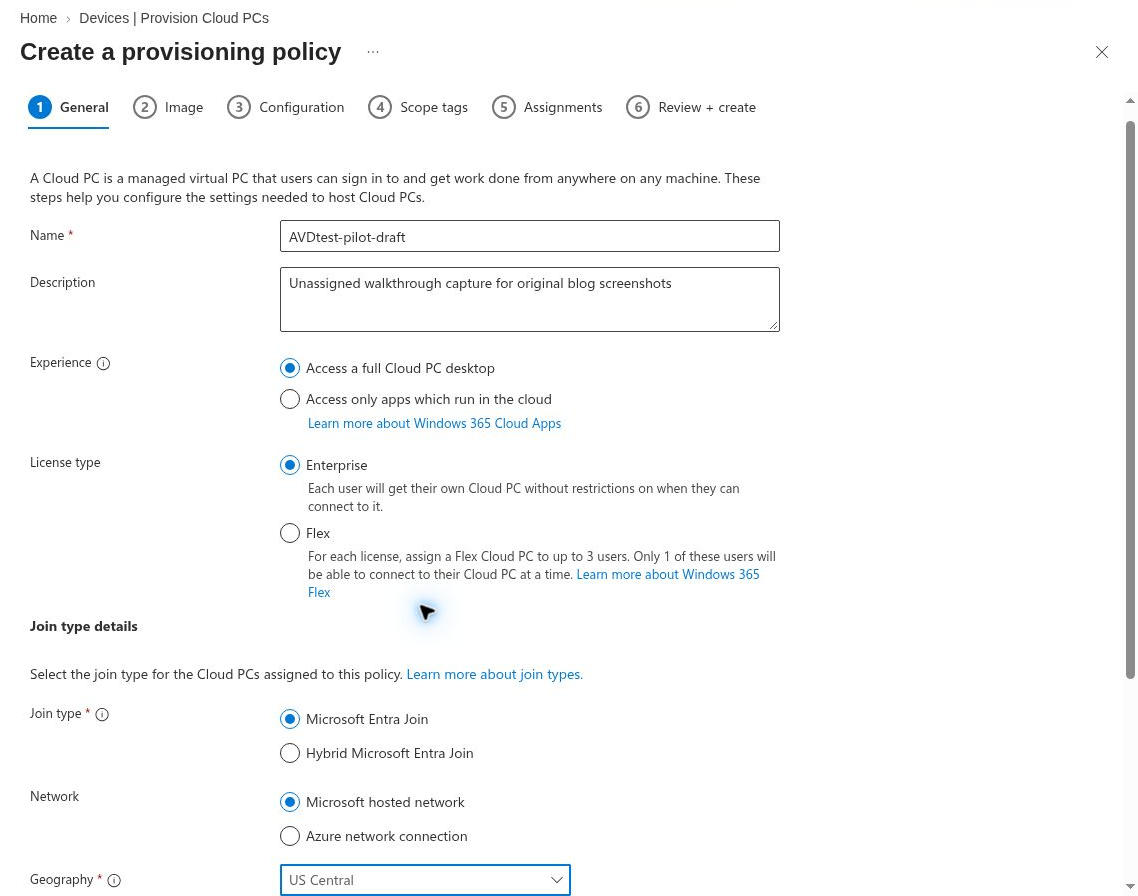
Figure 2. General page captured October 12, 2026. This draft was not saved or assigned.
Before Next: Record the join type, network, geography and region group. An ANC is not selected here.
Image: operating system
Select a gallery or custom image that meets the pilot's requirements. The wizard offered Windows 11 Enterprise + Microsoft 365 Apps 26H2 as the draft gallery selection when I opened it. The existing working policy in this tenant uses 25H2. A visible gallery choice is not evidence that I deployed or tested that version.
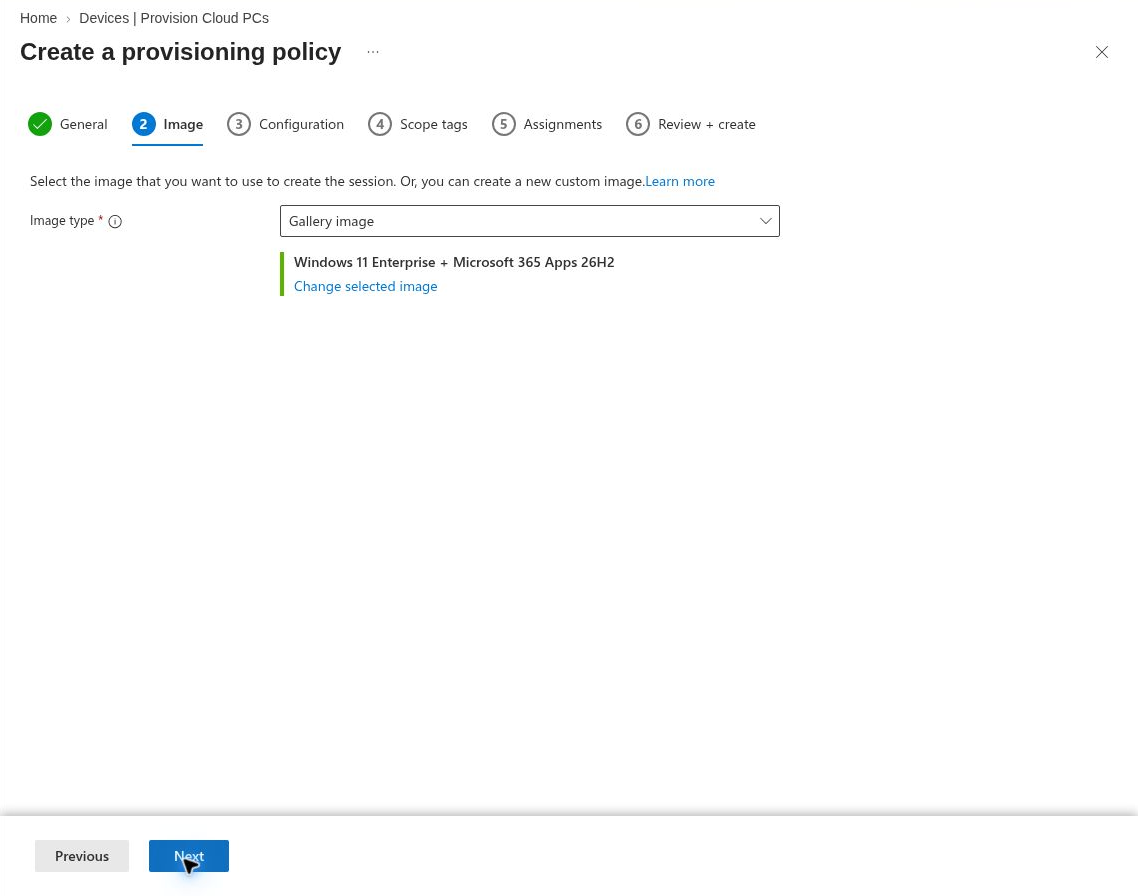
Figure 3. Image page captured October 12, 2026; the 26H2 gallery image was not deployed in this walkthrough.
Before Next: Check image support, application compatibility and the pilot license size. See Microsoft's device image guidance.
Configuration: language, naming and services
Choose a language and region. The draft showed English (United States), optional device naming, an optional Windows Autopilot device preparation policy, and Windows Autopatch or None under Additional Services. I left optional naming and Autopilot unset and selected None for the draft. Do not describe Autopatch as enabled merely because the option is visible.
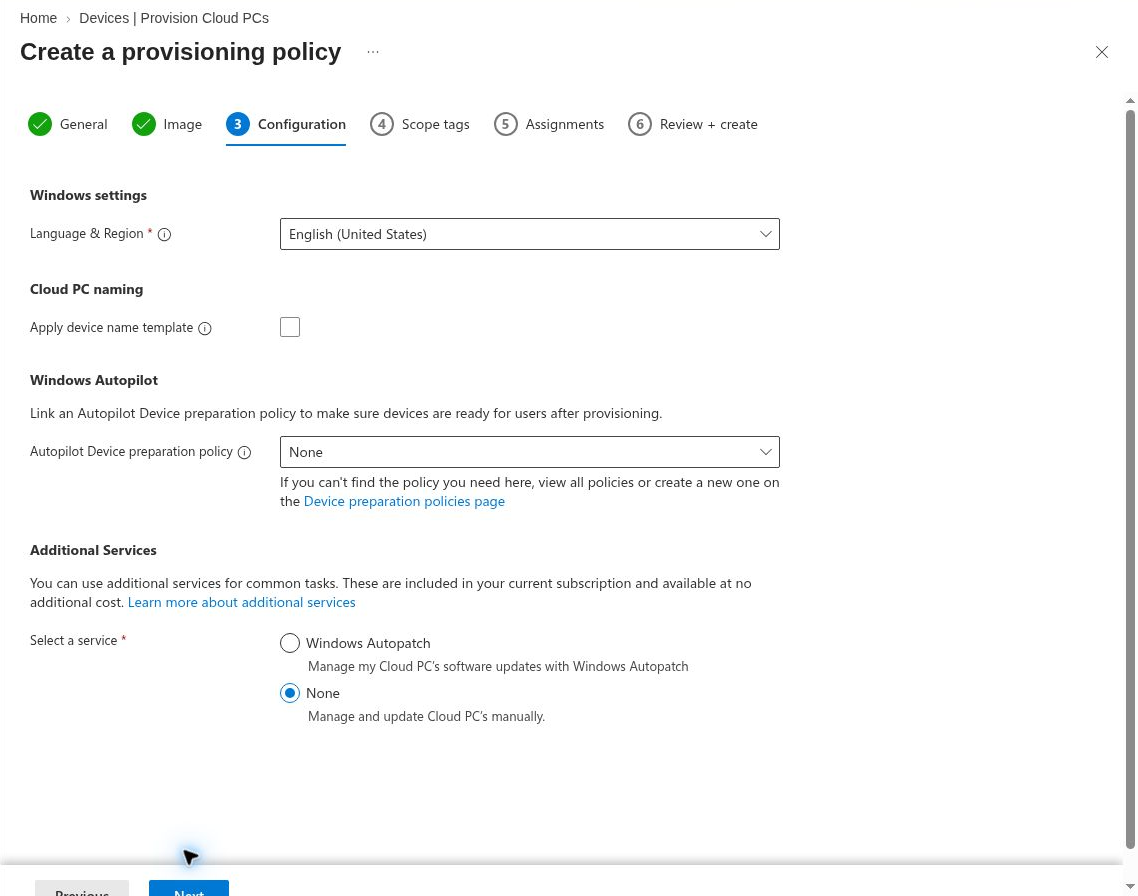
Figure 4. Configuration page captured October 12, 2026. Autopatch was not configured or tested here.
Scope tags: administrator visibility
Review the scope tags for the policy. The draft showed Default. Use your organization's delegated administration design before adding or removing tags.
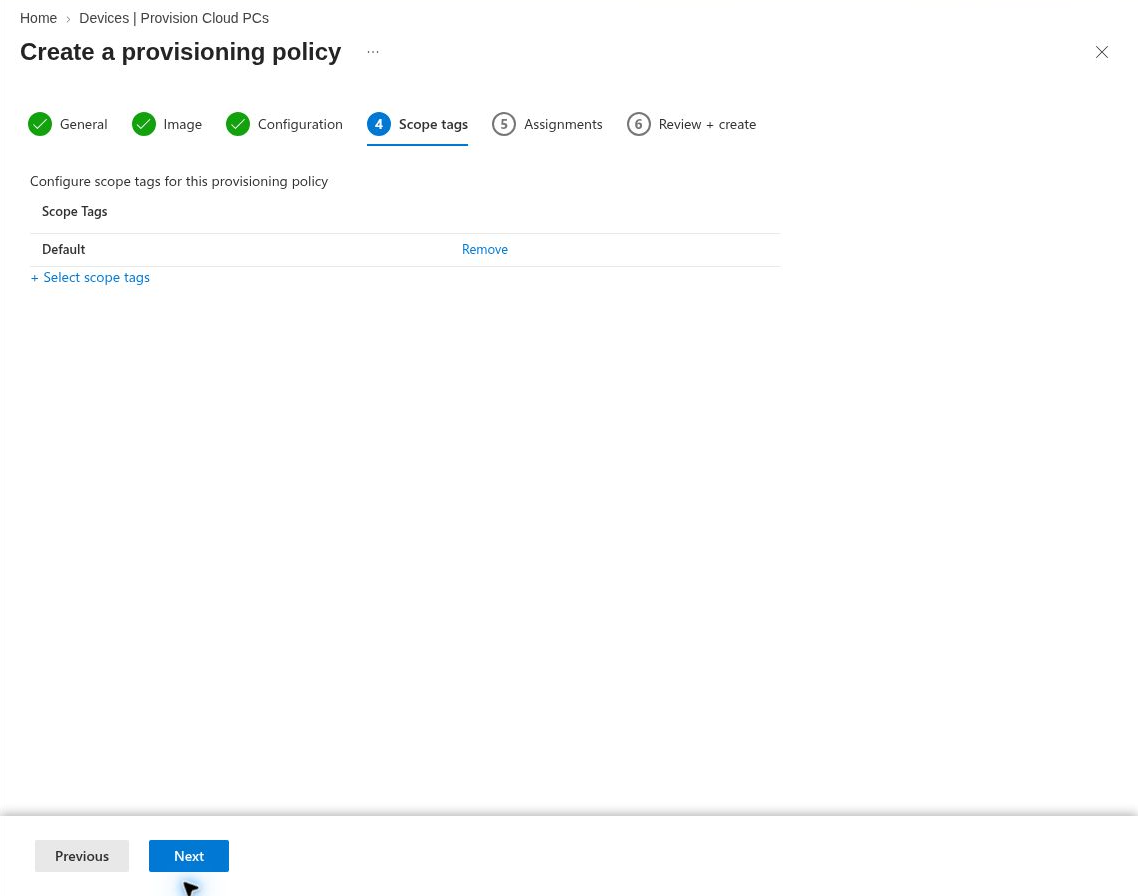
Figure 5. Scope tags page captured October 12, 2026. No scope tag change was made.
Assignments: who receives the policy
For a real pilot, select the dedicated pilot user group from step 3, then confirm its members are licensed. The screenshot below intentionally has no group selected. I did not target the working Cloud PC user or any other user while recording these pages.
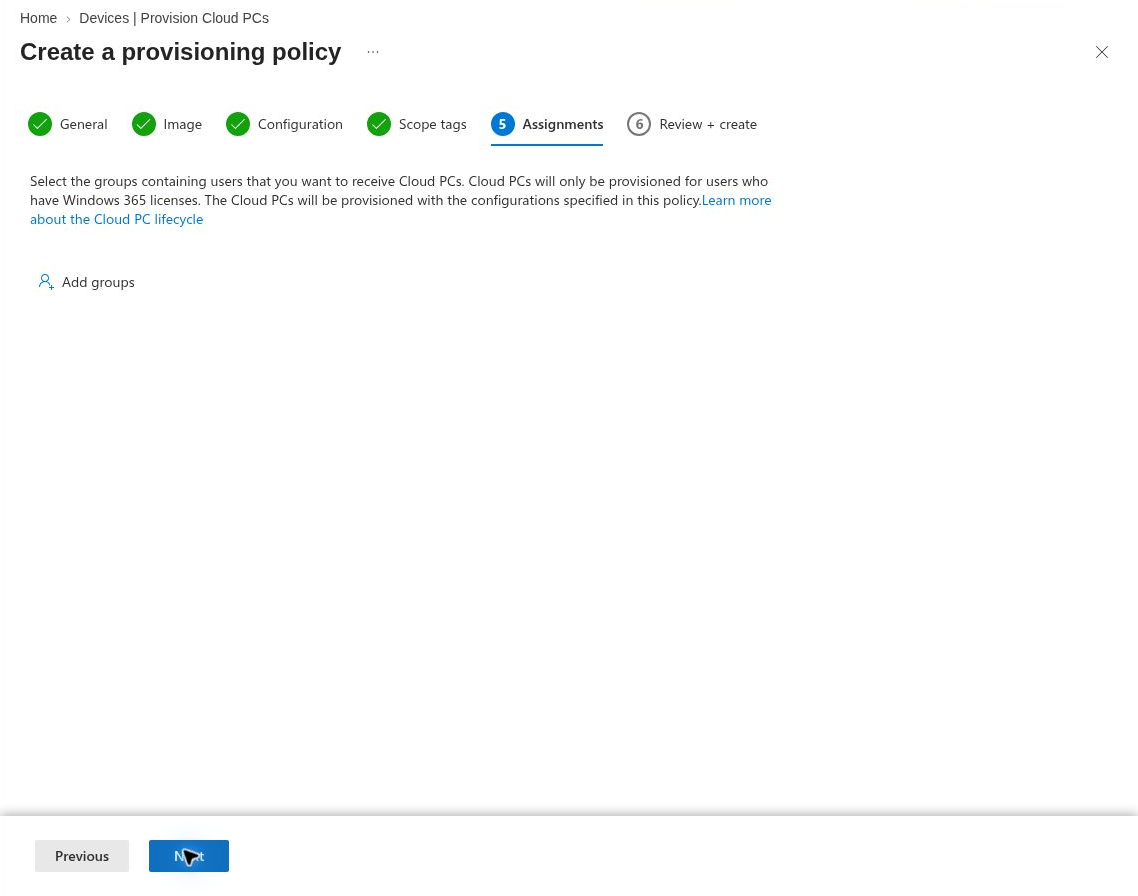
Figure 6. Assignments page captured October 12, 2026. No user or group was assigned.
Review + create: inspect before saving
Compare the join type, network, region, image, configuration, scope tags and group with your worksheet. The draft review below confirms Microsoft Entra Join, US Central, a gallery image and an empty assignment table. I used Close, not Create. In your own deployment, selecting Create saves the policy; provisioning for an eligible licensed user must then be verified separately.
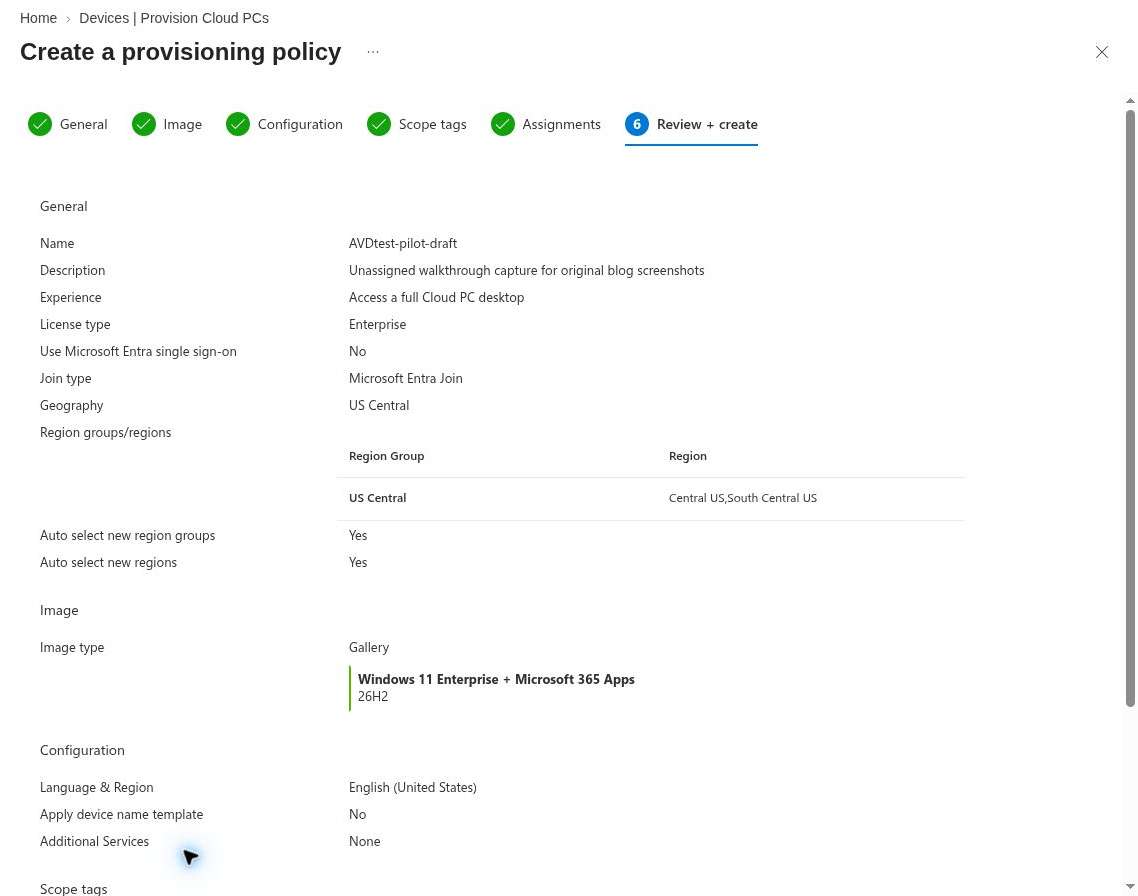
Figure 7. Review + create page captured October 12, 2026. The draft was closed without creating a policy.
Follow the current Microsoft Learn provisioning policy instructions if a portal control differs from these captures.
6. Watch provisioning, then test the user session
In Intune, open Devices > Provision Cloud PCs > All Cloud PCs. Find the pilot user and record the policy, status and any error. If the status fails, note the exact stage before changing a setting. Microsoft's automated provisioning steps explain where to investigate.
When the Cloud PC is Provisioned, have the user open windows365.microsoft.com, select the Cloud PC, sign in, then disconnect and reconnect. Back in Intune, inspect its managed device record and last check-in. A Provisioned status and a working user session are two separate checks.
| Result | Evidence to record |
|---|---|
| Eligible user | License assignment and pilot group membership |
| Policy in scope | Assigned group, join, network and image |
| Provisioning complete | All Cloud PCs row with Provisioned status |
| Usable desktop | User sign-in and reconnect |
| Managed device | Intune device record and check-in |
What my lab currently proves
On October 12, the live policy showed Microsoft Entra join, a US Central Microsoft-hosted geography, and a gallery image labelled Windows 11 Enterprise with Microsoft 365 Apps 25H2. All Cloud PCs showed one Provisioned Enterprise Cloud PC associated with this policy, sized 2 vCPU, 4 GB RAM and 64 GB storage; its row showed no ANC. The policy's separate Devices action view displayed zero entries, so I used All Cloud PCs for this count. The dated inventory note records exactly what I checked. The September portal check records a user session and Intune device state.
That evidence does not establish a fresh end-to-end provisioning run. It also does not turn the separate failed ANC health check into a successful ANC deployment. The six wizard captures above document only an unassigned draft from October 12; the working Cloud PC remains on its existing policy.
If your result differs
| Symptom | First place to look |
|---|---|
| No Cloud PC row | User license, pilot group, policy assignment and time since assignment |
| ANC unavailable | ANC health and network prerequisites; return to the Microsoft-hosted pilot path |
| Provisioning failed | Exact Intune stage and error, then identity and network requirements |
| Provisioned but cannot sign in | User access, authentication and connection diagnostics |
| Sign-in works but device is missing | Intune enrollment and device record |
Continue to connect and verify. The Enterprise provisioning use case has the deeper operator checklist.