Attackers use credential theft to target administrator accounts and other privileged access, to reach sensitive data. Traditionally, security watched the entry and exit points of a network, called the perimeter. In Microsoft Entra ID, authentication in your organization's identity layer takes the place of that perimeter. The people in privileged administrative roles hold the control, so their access must be protected.
The identity and access post listed MFA, Conditional Access and PIM as part of protecting privileged access. This post explains each one, and how to turn them on in a safe order. These are Microsoft Entra topics that the Azure landing zone identity and access page points to. They are not a separate landing zone design area. So this post combines the landing zone identity page with the Microsoft Entra pages on PIM, Conditional Access and emergency access. There is a catch: the safeguards can lock you out if they are set up the wrong way. A policy requiring phishing-resistant MFA, turned on before administrators have registered the right sign-in methods, risks locking you out of your tenant (your organization's own dedicated instance of Microsoft Entra ID). And an emergency account that falls under a Conditional Access policy that requires MFA might be unusable in the exact emergency it was made for.
Key terms
The identity and access post already defined these terms that this post uses: Global Administrator, privileged role, phishing-resistant MFA, emergency access (break-glass) account, legacy authentication, just-in-time access, least privilege, administrative unit, workload identity, service principal, managed identity and Zero Trust.
| Word | What it means |
|---|---|
| Passkey (FIDO2) | A sign-in credential that works only for the website or app it was created for, so it cannot be used on a fake site. It is kept on a device, in an app or on a hardware security key. You unlock it with a fingerprint, a face scan or a PIN. FIDO2 is the standard it follows. Passkeys are phishing-resistant, and they can serve as MFA. |
| Temporary Access Pass | A time-limited passcode that can be used once or several times. A user can sign in with it to set up passwordless methods, such as a passkey. It also makes recovery easier when someone loses or forgets a strong sign-in method. |
| Authentication strength | A Conditional Access control that sets which combinations of sign-in methods users can use to reach a resource. Microsoft Entra ID has three built-in ones (below), and you can create your own. |
| Microsoft Entra ID Protection | A tool that detects and reports risks to your organization's identities, and can respond to them automatically. |
| Report-only mode | A state for a Conditional Access policy. It lets administrators test most Conditional Access policies before they turn them on. The policy is checked at each sign-in but not enforced. |
| Service account | An account for a program, not a person. It is not tied to one user and is typically used by backend services. |
| Security defaults | Microsoft Entra settings that help protect against identity-related attacks. They are available to all customers. |
| Privileged Role Administrator | A Microsoft Entra role. For Microsoft Entra roles in PIM, only this role or Global Administrator can manage assignments for other administrators. |
| Federation | A trust set up between domains. With federation to your on-premises environment (your own servers, not the cloud), all user sign-in checks happen on-premises. |
| Privileged Access Workstation (PAW) | A dedicated, hardened device used only for administrative tasks. It is separate from regular user devices. |
Three controls, three jobs
| Control | The job in one line | What it does |
|---|---|---|
| Multifactor authentication (MFA) | Prove who is signing in, with more than a password | Reduces the risk of an attack from a compromised password |
| Conditional Access | Set the rules for sign-in | "If" a user wants a resource, "then" they must do an action, such as perform MFA |
| Privileged Identity Management (PIM) | Give privileged access only when it is needed | Time-based and approval-based role activation |
Here is my own simple summary of how they fit together. Conditional Access decides what a sign-in must prove. MFA is one of the things it can demand. PIM decides when a privileged role is switched on. Emergency access accounts are the way back in if the other three fail.
MFA: more than a password
A password alone is a weak spot. If it is weak or has been exposed somewhere else, an attacker can use it to sign in. Multifactor authentication (MFA) asks for an extra proof at sign-in, such as a code on a phone or a fingerprint scan. This extra factor is not something that is easy for an attacker to get or copy.
MFA works by requiring two or more of these:
| Factor | Example |
|---|---|
| Something you know | A password |
| Something you have | A trusted device that is not easily copied, such as a phone or a hardware key |
| Something you are | A fingerprint or a face scan |
So a stolen password is not enough on its own. The attacker also needs the second factor. In Microsoft Entra ID, the sign-in prompt asks for this automatically when it is needed, and you do not need to change your apps.
Pick a strong method
Not every method is equally strong. Microsoft Entra ID offers three built-in authentication strengths:
- Multifactor authentication strength (less restrictive).
- Passwordless MFA strength (methods that satisfy MFA without a password).
- Phishing-resistant MFA strength (most restrictive). Use this one for administrators.
Require phishing-resistant MFA for at least these roles: Global Administrator, Application Administrator, Authentication Administrator, Billing Administrator, Cloud Application Administrator, Conditional Access Administrator, Exchange Administrator, Helpdesk Administrator, Password Administrator, Privileged Authentication Administrator, Privileged Role Administrator, Security Administrator, SharePoint Administrator and User Administrator. Organizations can add or remove roles based on their needs.
Also require MFA for all users, and give extra thought to people who would cause serious harm if their account were compromised, such as financial officers. For the landing zone, enforce MFA for everyone with rights to the Azure environment, and include users with Reader roles. SMS codes, email codes and push notifications are becoming less effective, because they can be intercepted or spoofed, so use phishing-resistant MFA.
Conditional Access: if this, then that
Conditional Access takes signals, makes a decision and enforces your policy. It works as the Zero Trust policy engine.
- Signals include: the user or group; IP location; the device; the application; and risk detected by Microsoft Entra ID Protection.
- Decisions are: block access, or grant access. Granting access can require things such as MFA, an authentication strength or a password change.
- Common policies: MFA for administrator roles, MFA for Azure management tasks, blocking legacy authentication, and requiring devices managed by the organization for specific apps.
Things to know before you rely on it:
- Policies are enforced after the first sign-in step (first-factor authentication) is complete. Conditional Access is not meant to be the front line of defense against attacks such as denial-of-service attacks (attacks that try to use up a service's resources so that legitimate users cannot reach it).
- When a policy targets administrator roles, it supports built-in roles. It is not enforced for custom roles or administrative unit-scoped roles.
- Policies for users do not block service principals. Use Conditional Access for workload identities, and replace service accounts in scripts with managed identities.
- Use report-only mode to see the effect of a policy before you turn it on.
- Licenses: Conditional Access needs Microsoft Entra ID P1 (P1 and P2 are license levels). Risk-based policies need Microsoft Entra ID Protection, which is a P2 feature. Security defaults are available to all customers.
PIM: privilege only when needed
Privileged Identity Management is a service in Microsoft Entra ID to manage, control and monitor access to important resources, including Microsoft Entra ID, Azure and other Microsoft online services. Its idea is simple: fewer people with access to important resources means less chance of a malicious actor getting access, or of an authorized person changing a sensitive resource by mistake.
| Term | Meaning |
|---|---|
| Eligible | The person can activate the role when needed. The access is the same as a permanent role, but they do not need it all the time |
| Active | The person can use the role right away |
| Activate | The steps to use an eligible role, such as an MFA check, a business reason, or approval |
| Permanent active | The person can always use the role, with no action and no end date |
| Time-bound | The assignment works only between a start date and an end date |
| Just-in-time (JIT) | Temporary permissions, so access exists only while it is needed |
What PIM can do: just-in-time access to Microsoft Entra ID and Azure resources, time-bound assignments, approval before activation, MFA to activate any role, a reason (justification) for each activation, notifications when privileged roles are activated, access reviews to check that people still need roles, audit history, and protection against removing the last active Global Administrator and Privileged Role Administrator. PIM needs licenses (the PIM documentation describes it as included in Microsoft Entra ID P2; check current licensing for your tenant).
In the landing zone, also follow these points:
- Use PIM for groups for highly privileged Azure roles such as Owner and User Access Administrator, so they need the same activation as Microsoft Entra roles. PIM for groups gives users just-in-time membership of a group, and they activate that membership, for example with approval, MFA or a reason, in a way similar to activating a role.
- Use PIM access reviews to check regularly that people still need their access.
- Use privileged identities for automation runbooks (scripts that automate management tasks) and deployment pipelines that need elevated access, and govern them with the same tools and policies as human users with the same privilege.
- Use protected actions with PIM. A protected action is a permission tied to a Conditional Access policy. For example, you can require phishing-resistant MFA before an administrator can change the settings that control collaboration with other Microsoft Entra organizations (cross-tenant access settings).
- If a platform administrator needs access to a workload landing zone, give it through PIM, with the least privilege and for a limited time.
Emergency access (break-glass) accounts
Emergency access accounts stop you from locking yourself out of your own tenant. These are situations where you might need one:
- Federation is down, so people cannot sign in.
- Every administrator's MFA device is unavailable.
- The last Global Administrator leaves the organization.
- A disaster takes down phone or other networks.
- All Global Administrator and Privileged Role Administrator assignments are eligible, activation needs approval, and no approver is left. Nobody can approve, so tenant administration is locked.
Rules for these accounts:
- Create two or more. They are cloud-only accounts (created only in Microsoft Entra ID) on the
*.onmicrosoft.comdomain, not federated and not synchronized from on-premises. - Assign the Global Administrator role, and in PIM make it permanent active (not eligible).
- Use a passkey (FIDO2), the recommended method (or certificate-based authentication if you already run a public key infrastructure). Use a method that is different from your other administrator accounts. Microsoft's mandatory MFA for Azure and admin portals applies to emergency access accounts too, which is why a password alone is not enough.
- Do not tie them to one person or to a personal device. Store credentials securely, in a place several authorized people can reach. (Individual emergency accounts per administrator are also allowed, which adds accountability.)
- Exclude them from Conditional Access policies that block or restrict sign-in. A dedicated security group, for example named EmergencyAccess, makes this easy. Report-only policies do not need the exclusion.
- Monitor every sign-in, with alerts through a monitoring tool such as Microsoft Sentinel.
- Test that they work at least every 90 days, and after changes in IT staff or in the organization's Microsoft Entra subscriptions. After any use, hold a review to learn if it was a drill, a real emergency or misuse.
- Use a designated secure workstation, for example a Privileged Access Workstation, when you use them.
If you use federation, keep emergency access for on-premises systems and for cloud services separate, with no dependency on each other.
A careful order to roll this out
The roadmap for securing privileged access has four stages. The timelines are approximations. These are the main actions of each.
| Stage | When | Main actions |
|---|---|---|
| 1. Critical items | 24 to 48 hours | Start using PIM. Find and sort accounts in highly privileged roles, and remove those not needed. Create at least two emergency access accounts. Turn on MFA for individual accounts permanently assigned to the Global Administrator, Privileged Role Administrator, Exchange Administrator and SharePoint Administrator roles |
| 2. Stop frequent attacks | 2 to 4 weeks | List who has administrator roles and why. Replace Microsoft accounts from other programs in admin roles with work or school accounts. Give Global Administrators separate cloud-only accounts. Require MFA for privileged and exposed users (people who would have a significant impact if their account were compromised). Use Microsoft Entra ID Protection |
| 3. Take control of admin activity | 1 to 3 months | Run access reviews of administrators. Use PIM for more roles. Move people with no clear need out of admin roles. Use dedicated administration workstations. If you use Exchange Online, check exposure to password-based sign-in protocols; you can block legacy authentication with Conditional Access |
| 4. Keep building | 6 months and later | Review administrator roles regularly. Validate the incident response plan. Keep audit activity logs for privileged accounts |
Here is a safe order for turning on a Conditional Access policy for administrators. It combines the phishing-resistant MFA policy steps with the emergency access advice:
- Make sure administrators have registered the sign-in method first (for example a passkey, or use a Temporary Access Pass to help register).
- Create the policy for the administrator roles, with the emergency access group excluded.
- Set it to Report-only and check the results.
- Move it to On.
- Test the emergency access accounts again, for example every quarter.
How the access controls fit together
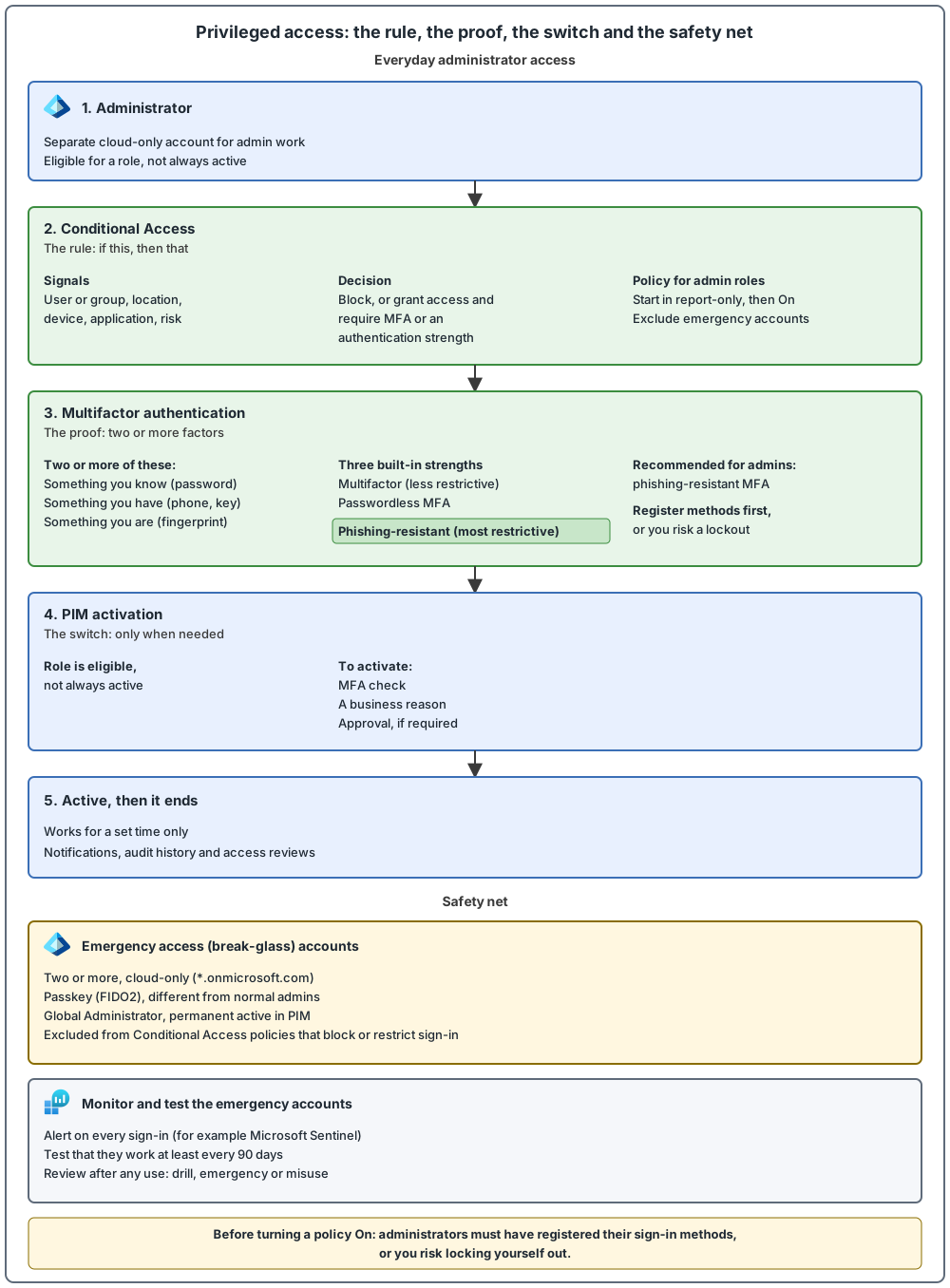
Common mistakes
- Turning on a phishing-resistant MFA policy before administrators have registered the method. This risks locking you out of the tenant.
- Emergency accounts caught by a blocking policy. If an emergency account is subject to a policy that requires MFA or another control, it might be unusable in the emergency.
- Emergency accounts that are never tested. Validate them at least every 90 days.
- Privileged roles that are always on. Grant privileged access only when needed and remove it afterward (just-in-time).
- One account for daily work and administration. Web and email are common attack vectors, so use separate, cloud-only accounts for privileged roles.
- MFA missing on privileged accounts. This is one of the first four actions in the roadmap for securing privileged access.
- Expecting Conditional Access to cover every role. It is not enforced for custom roles or administrative unit-scoped roles.
From my own projects
These situations came up in my own work: permanent admin access with no PIM, MFA not enforced for administrators, a Conditional Access policy that caused a lockout, and emergency access accounts that were untested or blocked. Typical results are lockouts or delays in getting access, and a security risk.
The files in my repo
- Privileged access, PIM and Conditional Access baseline: privileged-access.md
Sources
Microsoft Learn, checked October 2026: PIM · Conditional Access · Emergency access