The billing and tenant post showed that billing access is not Azure access. Identity has a similar trap inside Azure itself.
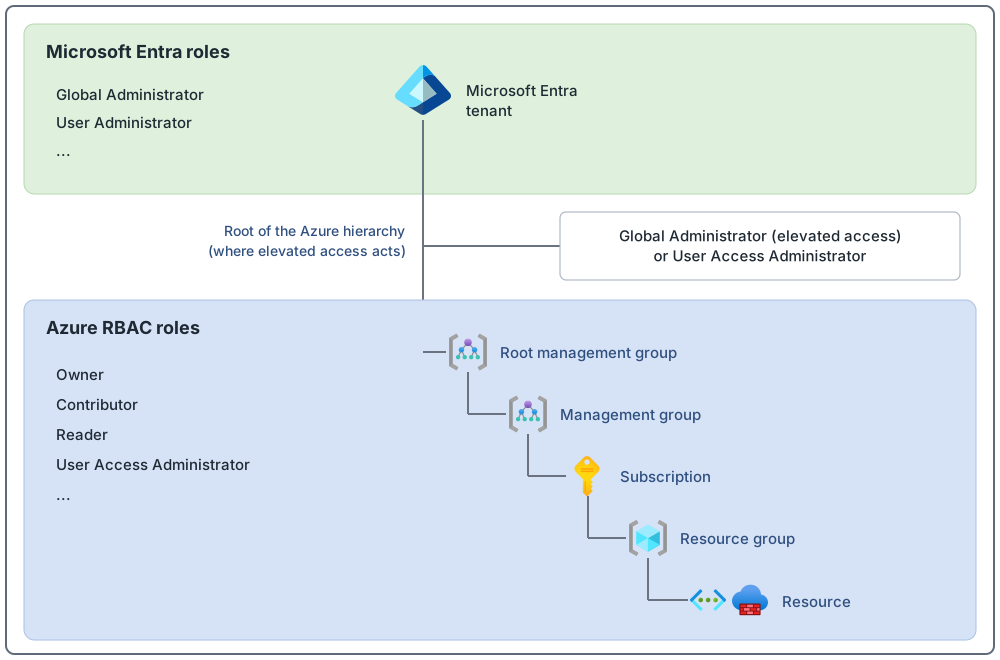
There are two sets of roles (a role is a set of permissions). Microsoft Entra ID roles control tenant-wide services. A tenant is your organization's own dedicated instance of Microsoft Entra ID, the cloud-based identity and access management service. Azure role-based access control (Azure RBAC) roles control Azure resources. Azure RBAC is the system that manages who has access to Azure resources and what they can do with them. By default, the Microsoft Entra Global Administrator role (the role that manages all aspects of Microsoft Entra ID and the Microsoft services that use Microsoft Entra identities) does not have permission to manage access to Azure resources. It must be explicitly enabled. So a Global Administrator does not automatically get control of Azure resources.
Poorly secured identity and access can let stolen credentials or wrong permissions help attackers get more access than they should, reach sensitive data and disrupt critical workloads. This is called privilege escalation. For example, someone changes a user account or group that has platform or landing zone administration privileges. There is a second risk: credentials stored in code or other text. Breaches of public cloud resources often start with leaked credentials like these.
Key terms
These are the words the rest of this post depends on. Other terms are explained where they first appear.
| Word | What it means |
|---|---|
| Authentication and authorization | Authentication checks who or what is asking, for example with a password or a fingerprint. Authorization checks that they are allowed to use a resource. |
| Identity | A digital record that stands for a person, an application or a device. It is used to check who or what is asking, and to give access. |
| Security principal | Whoever asks for access to Azure resources: a user, a group, a service principal or a managed identity (the last two are explained in the next rows). |
| Service principal | An application's identity in a tenant. To use Microsoft Entra ID for sign-in, an application is registered with the tenant. This is called an app registration, and it sets up the application's identity in that tenant. A service principal is created automatically when you register the application. |
| Managed identity | A special kind of service principal. It gives an application an identity to connect to resources that support Microsoft Entra authentication, so developers do not have to manage credentials. |
| Privileged role | A powerful role. Privileged Microsoft Entra ID and Azure RBAC roles are marked PRIVILEGED in the Azure portal and in the documentation. |
| Least privilege | Give people only the lowest level of access they need to do their work. |
| Scope | The set of resources an access applies to. Azure has four levels: management group, subscription, resource group and resource. They have a parent-child structure, so a role given at a higher level also applies below it. |
| Role assignment | How access is given. It attaches a role (a set of permissions) to a security principal at a scope. |
The four tasks
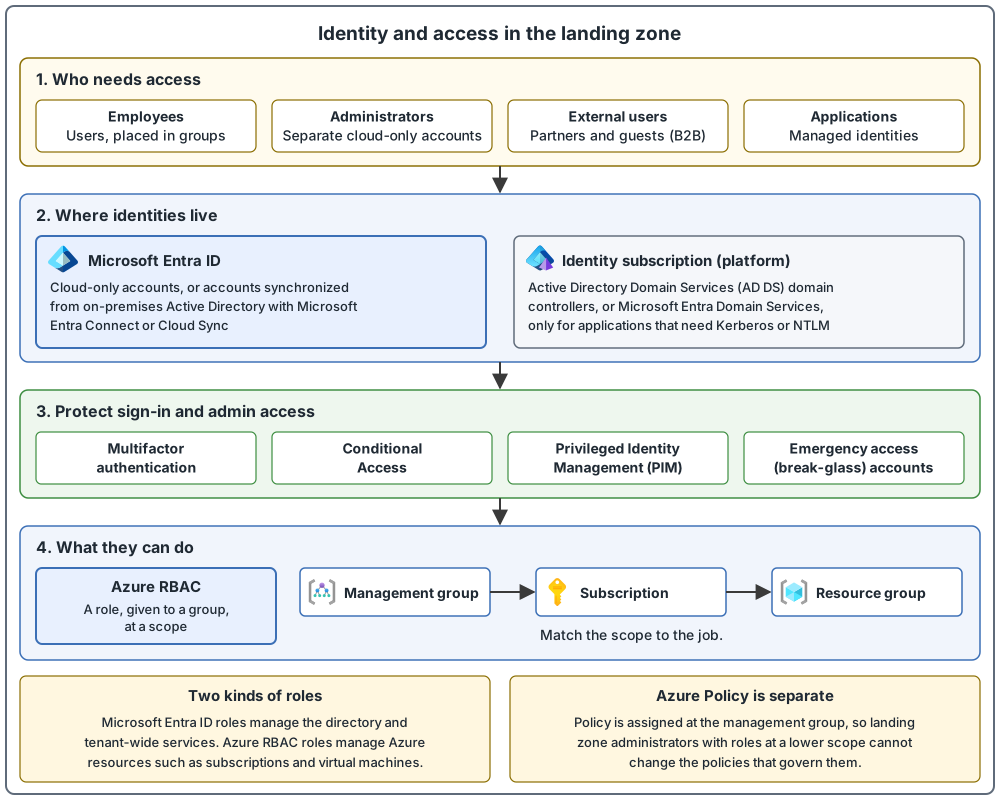
Identity and access is a big topic, so here is a map. This design area covers four tasks:
- Authenticate users and workload identities (identities for software, such as an application, service, script or container). Authenticating means proving who or what is asking.
- Assign access to resources (decide what they can do).
- Decide the core requirements for separation of duties (splitting sensitive tasks between different people). This way, one person does not have all the permissions needed to do something harmful. For example, a platform administrator has no routine access to application data or code. They ask for access, and it lasts for a limited time.
- Synchronize hybrid identities with Microsoft Entra ID. Hybrid identity means unifying on-premises (your own servers, not the cloud) and cloud directory services (systems that store user accounts and control access to resources), so one identity works in both.
The sections below do not follow this list exactly. They start with who needs access and where identities live, then cover roles, rules for assigning access, protecting privileged access, and application identities.
Who needs access: four groups to plan for
- Employees (users). Put them in groups.
- Administrators. Use separate cloud-only accounts (users created only in Microsoft Entra ID) for privileged roles, not the account used for email and browsing.
- External users, such as partners, guests and customers. Decide whether this is a case for Microsoft Entra B2B or Microsoft Entra External ID. External ID covers people outside your organization. B2B collaboration, covered in the billing and tenant post, is the part for business guests. External ID also supports apps for consumers and business customers.
- Applications and Azure resources, called workload identities. Prefer managed identities, covered later in this post.
Where identities live: three directory options
Three terms first.
- Active Directory Domain Services (AD DS) is the Windows Server Active Directory service. It is a distributed database that stores and manages information about network resources, such as users, computers and devices.
- A domain is a section of the directory. The domain controllers are the servers that make up a domain. They store user accounts and credentials (such as passwords or certificates) securely and provide authentication services for the users in the domain.
- Microsoft Entra Domain Services is a managed Active Directory domain in Azure. Microsoft creates and manages the resources, so administrators are not responsible for patching (installing updates on) the domain controllers.
AD DS is not the old name of Microsoft Entra ID. Microsoft renamed Azure Active Directory to Microsoft Entra ID, partly to avoid confusion with Windows Server Active Directory. The name Active Directory did not change, and Microsoft continues to support Windows Server Active Directory for on-premises use.
| Option | What it is | When to use it |
|---|---|---|
| Microsoft Entra ID | A cloud-based identity and access management service. It is globally redundant | Modern, secure identity and access management for Azure and Microsoft 365. Works alone, or together with Microsoft Entra Domain Services or AD DS |
| Microsoft Entra Domain Services | The managed Active Directory domain described above | Applications that need Kerberos or NTLM. These are traditional ways, called protocols, for applications to check who is signing in. They are used with AD DS, and Microsoft Entra Domain Services supports them too |
| Active Directory Domain Services (AD DS) on Azure virtual machines (VMs) | Your own domain controllers. You manage and maintain them | Applications that need AD DS, when you want full control of the domain |
Keep these points in mind:
- Legacy authentication means older sign-in protocols. It is a significant security risk. A Conditional Access policy (rules that decide when and how someone may sign in) can block legacy protocols that do not support multifactor authentication (a sign-in that needs more than a password). Disable legacy methods where possible, and work with application owners to move away from them.
- Existing on-premises domains sometimes allow legacy protocols for backward compatibility, which can hurt security. So, if you need a domain for legacy applications, consider Microsoft Entra Domain Services to create a new domain that does not allow legacy protocols, instead of extending an on-premises domain.
- Microsoft Entra ID is globally redundant, but Microsoft Entra Domain Services and AD DS are not, so plan resilience for them, for example with several regions.
- Document which authentication provider each application uses. That tells you what your identity solution must support.
Hybrid identity: cloud-only or synchronized
Cloud-only accounts exist only in Microsoft Entra ID. If your organization already has on-premises Active Directory, you can synchronize users to Microsoft Entra ID with Microsoft Entra Connect (a tool that synchronizes identity data between your on-premises directories and Microsoft Entra ID) or Microsoft Entra Cloud Sync (a service managed from the cloud that synchronizes users, groups, contacts and devices from Active Directory to Microsoft Entra ID), so people use one identity for both on-premises systems and the cloud. This is called hybrid identity. Cloud Sync is replacing Microsoft Entra Connect Sync, which will be retired after Cloud Sync has full functional parity. The billing and tenant post covered how several Active Directory forests can sync to one tenant.
Domain controllers and Microsoft Entra Connect servers belong in the Identity subscription. This is a subscription in the platform management group that holds identity services such as domain controllers and Microsoft Entra Connect servers. Do not delegate domain controllers to workload teams. This lets application owners use identity services without running them, and it reduces the risk to a critical security point. Also:
- Put domain controllers in an isolated subnet (a range of IP addresses in a virtual network, which is a private network in Azure) with a network security group (it provides firewall functionality), and allow a network route only for applications that need them.
- Control Azure RBAC permissions on the domain controller VMs. Two terms help here. The control plane is how you create and manage resources, for example creating a virtual machine or a storage account. The data plane is how you use them, for example signing in to the virtual machine, or reading and writing data in the storage account.
- Three Azure roles matter here. Owner grants full access to manage all resources, including the ability to assign roles. Contributor grants full access to manage all resources, but does not allow you to assign roles. Virtual Machine Contributor allows a user to create and manage virtual machines.
- People with Contributor, Owner or Virtual Machine Contributor at the Azure control plane can run commands on the domain controller VMs. So do not let overly permissive roles be inherited from higher management groups.
Two kinds of roles
Two more Azure roles appear below. Reader lets you view Azure resources. User Access Administrator lets you manage user access to Azure resources.
| Comparison | Microsoft Entra ID roles | Azure RBAC roles |
|---|---|---|
| What they control | Administrative privileges for tenant-wide services, such as Microsoft Entra ID, Microsoft Teams, Exchange Online and Intune | Administrative privileges for Azure resources, such as virtual machines, subscriptions and resource groups |
| Example | Global Administrator | Owner, Contributor, Reader |
The Azure RBAC Owner and User Access Administrator roles can change role assignments on Azure resources. Global Administrator does not manage access to Azure resources by default. First, a term. Each directory (tenant) has a single top-level management group called the root management group. By default its display name is Tenant root group (Platform scope). Anything assigned there applies to the whole tenant, so keep assignments at this scope to a minimum. An explicit step, elevating access, enables Global Administrator to manage access. Only a Global Administrator can take this step, to give themselves access to all Azure subscriptions and management groups in the tenant. It assigns the User Access Administrator role at the root management group. Remove the elevated access when the changes are made.
Before Azure RBAC existed, access to a subscription was managed with three older roles called classic administrators: Account Administrator, Service Administrator and Co-Administrator. The Service Administrator and Co-Administrators had the same access as the Owner role at the subscription scope. Classic resources (the older kind of Azure resources) and classic administrators retired on August 31, 2024. Azure has since given the Owner role at subscription scope to users who still held the Service Administrator or Co-Administrator role, so review those Owner assignments and use Azure RBAC with least privilege.
Who owns what
In the landing zone, identity infrastructure is a core platform responsibility. The identity team is accountable for the central directory services, and other teams use them. When the platform team creates a landing zone, it sets up the access controls so the application owner can manage their own resources and delegate access inside it. The application owner is responsible for the identity and access of their own application. This follows the subscription democratization principle: workload teams work on their own, inside the guardrails the platform team sets.
Five rules for assigning access
- Assign roles to groups, not to users. It keeps the number of role assignments down (there is a limit per subscription). And when someone moves teams, group membership changes, while a role given directly to the user stays with them.
- Give the least privilege, at a scope that fits the job. Think about whether someone needs a narrow scope (one application) or a broad one (a network administrator across many workloads), and give only the roles they need. Azure includes several built-in roles that you can use, such as Virtual Machine Contributor. Use them where possible, and create custom roles (roles you create yourself) only when necessary.
- Give each landing zone its own groups. Do not create generic groups and assign them to several landing zones. Keep separate groups and role assignments for environments such as dev/test and production.
- Create role assignments at subscription or resource group scope. Azure Policy (the service that sets rules for what is allowed in Azure) is assigned at the management group in the reference architecture. Give landing zone teams roles at subscription or resource group scope, and use roles that exclude
Microsoft.Authorizationwrite (like the reference architecture's Application Owner custom role), so they have full control of their resources but cannot change the policies assigned above them. - Use Microsoft Entra-only (cloud-only) groups for Azure control-plane access. These are groups that exist only in Microsoft Entra ID. Synchronized users and groups can be members. This helps protect the cloud control plane from unauthorized changes to the on-premises directory.
A PIM group is a group managed with Privileged Identity Management (PIM for Groups), a feature that lets people hold a role only when they need it. It gives users just-in-time membership of the group, which means a role is active only when it is needed, and the permissions are removed when the task is done. For example, a user can request the Owner role when required, and at all other times has only the permissions needed for typical activities.
A few example rows from a role assignment table (names are illustrative):
| Scope | Group | Role |
|---|---|---|
| Organizational top-level management group | Platform Team | Reader |
| Organizational top-level management group | Security Ops | Security Operations (custom) |
| Organizational top-level management group | FinOps Team | Billing Reader |
| Platform management group | Platform Admins (a PIM group) | Contributor |
| Application X production subscriptions | Application X Prod Admins | Application Owner (custom) |
| Application X dev/test subscriptions | Application X DevTest Admins | Application Owner (custom) |
Protect privileged access
- Multifactor authentication (MFA) for everyone with rights to the Azure environment, including the platform subscription, the application subscriptions and the Microsoft Entra tenant. Include users with the Reader role, and use phishing-resistant MFA (MFA that is hard for an attacker to trick you into) instead of SMS, email or push. Text messages, email codes and push approvals are less effective, because they can be intercepted or spoofed.
- Conditional Access policies that fit the risk of the role, for example admin work only from certain locations or workstations.
- Privileged Identity Management (PIM) for just-in-time access, so privileged roles are active only when needed. Use PIM for groups for highly privileged Azure roles such as Owner and User Access Administrator. PIM needs licenses (the PIM documentation describes it as included in Microsoft Entra ID P2; check current licensing for your tenant).
- Emergency access (break-glass) accounts. These are highly privileged accounts kept for emergencies, so you do not lock yourself out of your Microsoft Entra organization. Use them only when normal administrator accounts cannot be used. Store their credentials securely, monitor their use, and test them regularly. The privileged access post has the details.
- Fewest permissions. Do not give a higher-privileged role for a task that a lower-privileged role can do, for example the User Administrator role to manage users, not Global Administrator. Limit Global Administrator to cases where no less-privileged role can do the task, and assign it to no more than five people.
- Administrative units let a team manage only part of the directory, for example a service desk that manages users in only one business unit. They can help remove the need for separate tenants as a security boundary, for example when different teams manage Microsoft 365 and Azure in the same organization.
- Delegation with conditions. If workload teams can assign roles, use delegated role assignments with conditions, so they can only assign certain roles, or only to certain types of identity. Anything more privileged goes to the platform team.
Where do MFA, Conditional Access and PIM fit? They are general recommendations in this design area, so this post only shows what to turn on. The privileged access post explains each one. Deeper topics, such as the Zero Trust model, the operational management of elevated privileges, and automated guardrails, belong to the security and governance design areas. Zero Trust is a security model based on three principles: verify explicitly, use least privilege access, and assume breach. Assume breach means limiting the damage if one happens.
Applications: use identities, not stored passwords
Application owners are responsible for the identity and access of their own application, using the central services the platform team provides.
- Managed identities. An Azure resource gets an identity that Azure manages, so the application can connect to resources that support Microsoft Entra authentication without any stored credentials. A system-assigned identity is tied to one resource. A user-assigned identity can be used by several resources. Prefer managed identities over service principals and app registrations, which need privileged roles that are usually held by the platform or identity team.
- Do not share identities or credentials between environments or applications. For example, do not use the same identity for production and dev/test, even for the same application.
- Pipelines. For pipelines that deploy applications automatically (continuous integration and continuous delivery, or CI/CD), use OpenID Connect (workload identity federation), a sign-in standard that uses a temporary, credential-free token and no stored secret. If it is not supported, use a service principal.
- Azure Key Vault for secrets, keys and certificates. Use Azure RBAC for access, managed identities for the application, and separate key vaults for each environment in each region.
- Virtual machines. Where possible, use Microsoft Entra ID to sign in to VMs, so Conditional Access, audit logging and MFA apply.
- Know the limits. Not every Azure service can use managed identities to reach other services. A resource that has a managed identity cannot be moved to another subscription or region as it is. Delete the managed identity before the move, then re-create it and assign it to the resource afterward.
When you request a landing zone from the platform team, work through seven questions: who the end users are (internal, partners or the public); how they sign in; who needs which Azure RBAC permissions; whether built-in roles are enough for control plane and data plane access; whether the app works with the platform's authentication services; which application components talk to each other; and whether you need services such as Microsoft Entra Domain Services.
Identity and access at a glance
Common mistakes
- Assigning roles directly to users. Users who change teams keep the role. Use groups.
- Too many powerful administrators. Global Administrator is for emergencies, with no more than five people. Use the role with the fewest permissions for each task.
- One account for daily work and administration. Web and email are common attack vectors, so use separate cloud-only accounts for privileged roles.
- Generic groups shared across landing zones. This can lead to misconfiguration and security breaches, and is hard to manage at scale.
- Sharing managed identities or service principals between environments. Treat each environment as a separate landing zone.
- MFA that skips some users. Include Reader roles, and prefer phishing-resistant methods over SMS, email and push.
- Credentials stored in code. Use managed identities and Azure Key Vault instead.
From my own projects
This situation came up in my own work: too many Global Administrators and Owners. Typical results are access that is hard to manage at scale, and a security risk.
The files in my repo
- Identity and access baseline: identity-and-access.md
Sources
Microsoft Learn, checked October 2026: Identity and access · Landing zone identity · Hybrid identity