All session hosts in a host pool should look the same: the same Windows version, the same apps, the same settings. Building each virtual machine by hand does not give you that. A golden image does. It is the one approved, tested image version from which a pool's hosts are built, and every new session host is created from it.
When something changes, such as a Windows update or a new app version, you make a new version of the image once and create session hosts from it.
This article follows one image from its source to the place session hosts are created from. It covers the two ways to build the image, what must stay out of it, what Sysprep does, and where Azure Compute Gallery keeps the versions and how it copies them to regions. How a new version then reaches the session hosts is covered in a later article in this series. Choosing the operating system and the license is covered in the operating system and licensing post. Deciding which apps belong in the image is covered in the host pool planning post.
Key terms
| Term | Meaning |
|---|---|
| Session host | A virtual machine that runs the desktops or apps users connect to. |
| Host pool | A group of session hosts that have the same configuration and serve the same workload. All session hosts in a host pool should be created from the same image. |
| Pooled host pool | A host pool where user sessions are spread across the session hosts. A user can land on a different session host each time. |
| Personal host pool | A host pool where each session host is assigned to one user. |
| Image | A copy of a whole virtual machine, or of just its operating system disk. When you create a virtual machine from an image, Azure uses a copy of the image's disks. The image stays in storage and can be used again and again. |
| Golden image | The one approved, tested image version from which a pool's hosts are built. It is a custom image that already holds the apps and settings you want on those hosts. |
| Source image | The image a build starts from, such as an Azure Marketplace image or an existing custom image. |
| Customization | A step that changes the source image during a build, such as a script, a built-in setting or a Windows update. |
| Snapshot | A saved state of a disk. You can go back to it if a step in the build goes wrong. |
| Generalize | Remove the machine-specific information from a virtual machine so that one image can create many virtual machines. On Windows this is done with Sysprep. |
| Sysprep | The Windows tool that prepares a Windows installation for imaging. Among other things, it removes computer-specific information from the installation. |
| Specialized image | An image made from a virtual machine that was not generalized. It keeps the machine-specific information and the accounts. |
| Azure Compute Gallery | An Azure service that stores images and shares them. You decide who can use them. It can also copy images to other Azure regions. |
| Gallery | The top-level resource in Azure Compute Gallery. It holds image definitions. |
| Image definition | A resource inside a gallery that describes one kind of image: whether it is Windows or Linux, whether it is generalized or specialized, the generation of the virtual machine, and similar details. You do not create a virtual machine from a definition. |
| Image version | A resource under an image definition. It is one release of the image, and it is what you create a virtual machine from. |
| Replica | A copy of an image version stored in a region. More replicas let you create more virtual machines at the same time. |
| Region | An Azure location where resources are stored and run. |
| Managed image | An older, standalone image type that is not kept in a gallery. |
| Azure Virtual Desktop Agent | Software installed on a session host that registers it to a host pool. Also called the AVD agent. |
| Registration token | A time-limited key that lets a new virtual machine join a host pool as a session host. The Azure portal labels it Registration key. |
| Azure Image Builder | An Azure service (full name Azure VM Image Builder) that builds an image from a configuration you submit: a source image, customizations, and where to put the result. |
| Custom image template | The Azure Virtual Desktop way to describe such a build: a JSON file with the source image, where to store the result, build properties and customizations. Azure Image Builder runs it. |
Two routes to a golden image
This article covers two documented ways to get a golden image into a gallery. They end in the same place, an image version, and you can use either one for session hosts. A third documented path, preparing a VHD and uploading it as an image, is described on the master image page and is not covered here.
| Route 1: build by hand | Route 2: Azure Image Builder | |
|---|---|---|
| Start | A new virtual machine from a supported operating system image. | A source image: Azure Marketplace or an existing custom image, plus a list of customizations. |
| Who customizes | You, signed in to the virtual machine. | The service, running your scripts and the built-in ones on a temporary build virtual machine. |
| Generalize | You run Sysprep and shut the machine down. | The service does it for you. |
| Result | You capture the machine into a gallery (or as a managed image). | The service distributes the image to a gallery, to a managed image or to a VHD, and to the regions you list. |
| Repeat a build | You repeat the steps. | You submit the same template again. |
What is documented: the steps of each route, and that Azure Image Builder generalizes the image for you. The golden image page also says the best strategy depends on the size and complexity of your planned environment and your current app deployment process, and it names Intune and Azure Image Builder with Azure DevOps as other approaches. What is the author's own reading, not a documented rule: the last row of the table, and this advice. If you will rebuild the image every month, the template route is easier to repeat and review than a list of manual steps, and the manual route is easier to learn from. Neither route is required.
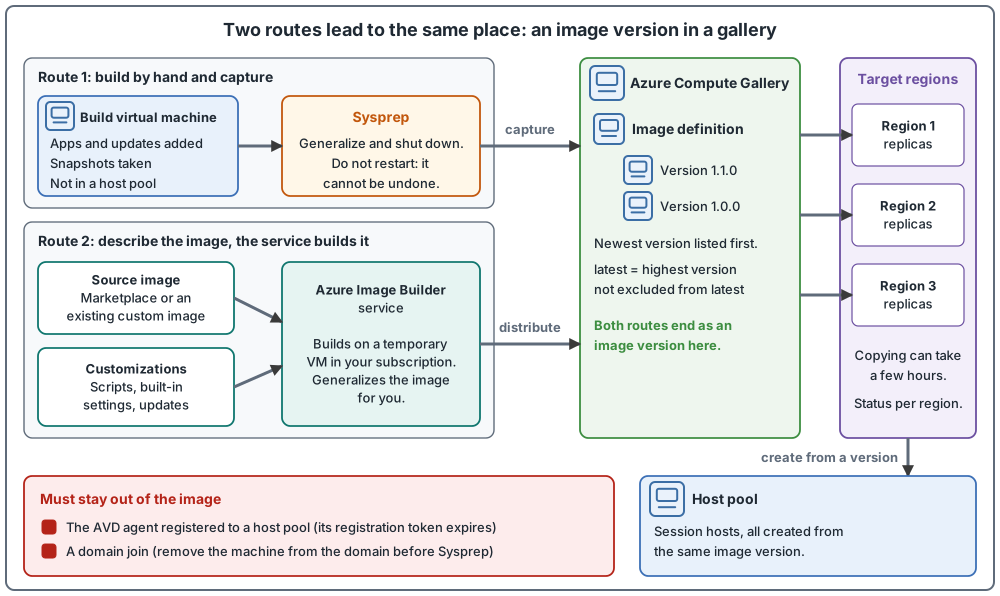
Route 1: build a virtual machine and capture it
The usual way to make a golden image by hand in the Azure portal is to start with a virtual machine, customize it, and capture it (create a golden image in Azure).
- Choose a supported operating system image. For pooled host pools, a Windows 10 or 11 multi-session image (with or without Microsoft 365 apps) or a Windows Server image is recommended. For personal host pools, Windows 10 or 11 Enterprise is recommended. Generation 1 and generation 2 virtual machines both work, and generation 2 supports features that generation 1 does not.
- Do not deploy the virtual machine with the "Login with Microsoft Entra ID" flag. The virtual machine used for the image must be deployed without it.
- Take a first snapshot of the disk of the new virtual machine. Take more snapshots as you build, and give each one a name you can recognize.
- Customize the virtual machine. Install the latest Windows updates, install your apps, and clean up: temporary files, disk defragmentation and unnecessary user profiles.
- Take a final snapshot when the apps are installed. If Sysprep or the capture fails, you can create a new base virtual machine from this snapshot with the apps already installed.
- Run Sysprep, shut the machine down in the Azure portal, then use Capture to save it as an image. The golden image page goes from Sysprep and shutdown to Capture without mentioning marking the virtual machine as generalized, while the Azure generalize page marks it as generalized in Azure (see the generalize step below).
More points from the AVD image preparation steps (prepare and customize a master image). That page is written around Windows 10 and a VHD you upload, so treat its registry examples as examples for that case:
- If you install FSLogix as part of the image, set it up and add the antivirus exclusions FSLogix needs. The page links to steps for setting up an FSLogix profile container. Its Storage Sense note refers to user data being stored remotely through profile roaming.
- It lists settings you can make in the image, such as turning off Automatic Updates, and turning off Storage Sense on Windows 10 Enterprise images. Storage Sense can treat the small operating system disk as critically low on free space, because user data is stored remotely. The same page says you can also turn Storage Sense off with Group Policy or Intune after the hosts are deployed.
- If you use Microsoft 365 Apps, install them with the separate instructions for a master image. If users need line-of-business apps, install them after the basic image settings.
The golden image page also says Unified Write Filter is not supported on session hosts, so make sure it is not turned on in the image (create a golden image in Azure).
What must stay out of the image
Two things must not be in the image: a registered AVD agent, and a domain join. The golden image page states these for the manual route. For Azure Image Builder the pages used here do not state them. Applying the same rule to what your scripts install is the author's advice.
The AVD agent registered to a host pool. Do not join the image virtual machine to a host pool by installing the AVD agent on it. If the agent is in the image, session hosts created from it later fail to join the host pool, because the registration token will have expired. The host pool deployment process joins new session hosts to the host pool for you while it creates them. If a virtual machine you want to use already has the agent installed, uninstall the agent and all its related components first (the master image page gives this advice, and the agent troubleshooting steps list the components), or create a new image from a virtual machine without the agent.
The domain join. If the virtual machine has to be domain joined while you customize it, remove it from the domain before you run Sysprep. Session hosts get their own directory join when they are created.
Related rules from the same steps:
- The golden image page says not to capture a virtual machine that is already in a host pool: the image conflicts with the existing virtual machine's configuration, and the new virtual machine will not work. The session host update page describes a rule for an image taken from an existing session host. The pages do not reconcile the two; this is covered in a later article in this series.
- The golden image page says not to create a new base virtual machine from an existing custom image, and that it is better to start with a brand-new source virtual machine. The Azure VM Image Builder overview, below, lists existing custom images as a source. See the notes on where the pages differ.
Generalize the image with Sysprep
Generalizing removes the machine-specific information, such as user accounts and the computer security identifier (SID), so one image can create many virtual machines. For Windows, the tool is Sysprep. The checks and steps below follow the Azure generalize page, the golden image page and the Windows Sysprep page.
Before you run it:
- Remove the virtual machine from the domain, as above.
- Turn off antivirus programs. An antivirus app can cause problems when Sysprep starts.
- Make sure the DVD drive is enabled in the operating system. Azure mounts an ISO file to the DVD drive when it creates a virtual machine from a generalized image. If the drive is disabled, the new virtual machine gets stuck at the first-start setup screen.
- Make sure drives are not encrypted, and that the server roles and apps on the machine support Sysprep. Some apps, such as security software, Store apps and virtualization agents, do not support Sysprep or need a special preparation process.
- Do not install or update Microsoft Store apps through the Store before generalizing. The Sysprep page says this makes
Sysprep /generalizefail, because the app is tied to the signed-in user and not provisioned for all users. The error appears in the Sysprep logs under%WINDIR%\System32\Sysprep\Panther. - Do not use a custom answer file in this step (see the notes on where the pages differ).
- The Azure generalize page also lists, as a check before Sysprep, that no policy restricting removable storage access is applied (for example, a policy that denies all access to removable storage classes). The page does not say what happens if one is applied.
To generalize, delete the folder C:\Windows\Panther if it exists, because logs from earlier Sysprep runs can make Sysprep fail. Then run sysprep.exe /generalize /shutdown from %windir%\system32\sysprep. The virtual machine shuts down when Sysprep finishes. Do not restart it. The Azure generalize page then has you mark the virtual machine as generalized in Azure. The golden image page does not mention this step before Capture, and neither page says whether Capture does it itself. Check the current pages for the route you use.
Things to know:
- A generalized virtual machine cannot be restarted, and this cannot be undone. That is why the snapshots matter. If you need the original virtual machine to keep working, take a snapshot of its OS disk, create a virtual machine from the snapshot, and generalize that copy.
- Capture only once. After the capture, delete the base virtual machine and do not capture the same one again, even if the capture had a problem. Create a new virtual machine from your latest snapshot, run Sysprep again, and capture that one. You then update and patch the new base virtual machine on a regular basis.
- Sysprep has a run limit. The Windows Sysprep page says you can run it up to 1001 times on one Windows image (Windows 8.1 and Windows Server 2012 and later), and after that you must recreate the image. The author's reading, not a documented rule: building each new image from a fresh base, as above, should keep the count low.
- A gallery does not force you to generalize. The Azure generalize page says generalizing is not necessary to create an image in a gallery unless you want an image with no machine-specific information, such as user accounts, and that the gallery supports specialized images. It is still required when creating a legacy image outside of a gallery. The AVD steps in this article generalize the image. The pages used here do not say whether a specialized image can be used for session hosts, so this article does not cover that case.
Route 2: build with Azure Image Builder
Doing the build by hand works, but it is hard to repeat. Azure Image Builder, built on HashiCorp Packer, builds the image from a description you submit (Image Builder overview). You give it a source image, customizations, and where the result should go. It hides some Azure requirements, such as generalizing with Sysprep, and an advanced user can override them.
How a build runs
- You submit the configuration (PowerShell, the Azure CLI, an Azure Resource Manager template or a DevOps task, which the overview labels as a preview; the DevOps task page says the task does not currently support Windows Restart or running elevated commands as Administrator, calls it unsuitable for Azure Virtual Desktop scenarios or Windows customizations that need those, and suggests nesting the template in an Azure Resource Manager task with Azure CLI or PowerShell tasks). Azure creates an image template resource and a staging resource group in your subscription, named
IT_<DestinationResourceGroup>_<TemplateName>_<GUID>. The staging group holds the files and scripts your customizations use. - You run the template. The service deploys additional resources for the build, such as a virtual machine, a network, a disk and a network adapter. Without an existing virtual network it also deploys a public IP and a network security group, and connects by SSH or WinRM. With an existing virtual network it uses Azure Private Link and needs no public IP.
- The customizations run on the build virtual machine.
- The service generalizes the image and distributes it to the targets you listed: a gallery, a managed image or a VHD. For a gallery, the build creates the image version, and you can list the regions to replicate to.
- When the build ends, the build resources are deleted. The staging resource group and its storage account stay until you delete the image template (see the notes on where the pages differ).
Using it for Azure Virtual Desktop
Azure Virtual Desktop wraps this in custom image templates (custom image templates, portal steps in creating images with custom image templates).
- The source image must be supported for Azure Virtual Desktop. It can come from Azure Marketplace, a gallery image, a managed image, or an existing custom image template.
- The result can go to a gallery, to a managed image, or both. For a gallery, you create the gallery and the image definition first, and you do not create an image version. The build creates the version, and gives it a number automatically if you do not enter one. You can also mark the new version as excluded from latest and choose the regions to replicate to.
- Built-in scripts cover common settings: language packs, time zone redirection, Storage Sense, FSLogix, RDP Shortpath, screen capture protection, Teams optimizations, session timeouts, and Windows updates. You can add your own scripts if they are hosted at a publicly available location. You set a build time limit, so allow enough time for the scripts.
- Azure Image Builder uses a user-assigned managed identity. It creates a resource group, a temporary build virtual machine, a Key Vault and a storage account in your subscription. The build virtual machine needs internet access to download the scripts.
Facts from the Image Builder overview worth knowing before you plan
- The service is available in a list of regions, and you can still distribute images outside that list.
- The distributed image has the same Hyper-V generation as the image you start from.
- For Trusted Launch images: a
TrustedLaunchSupportedsource is supported only when the distribution target is alsoTrustedLaunchSupported. A source that is already aTrustedLaunchorConfidentialVMimage is not supported. - By default the build virtual machine is a Standard_D1_v2 for generation 1 images and a Standard_D2ds_v4 for generation 2 images. You pay for compute, networking and storage during the build, and distributing the image to other regions might add network egress charges.
- The overview says the service does not currently support Azure Hybrid Benefit for Windows Server. Check this against your licensing before you choose the route for a Windows Server image.
- An image template resource is immutable and cannot be moved. Keep a copy of the template so you can recreate it.
- Image Builder can rebuild a golden image from the latest patched version of a source image. The overview presents this as a security benefit.
The custom image template pages carry no preview notice. The what's-new page has a May 2023 entry that calls custom image templates "now in preview" and a September 2023 entry that calls the feature "now generally available".
Keep the image in Azure Compute Gallery
Both routes can end in a gallery. The golden image page recommends gallery images for production environments because of capabilities such as replication and image versioning (create a golden image in Azure). The store-and-share page used below describes the gallery, definitions and versions (store and share images).
Gallery, image definition and image version
A gallery stores images in three levels, and each level is its own resource:
- The gallery is the repository. You control who has access.
- The image definition is a logical grouping for the versions of one image. It holds information such as the operating system, whether the image is generalized or specialized, and the generation of the virtual machine. Each definition is found by a unique combination of three values: Publisher, Offer and SKU. Keeping these consistent with Azure Marketplace images helps you recognize operating system versions.
- The image version is what you create virtual machines from. Its name is a version number in the form major.minor.patch, such as 1.0.0. Each version records its source (for example a virtual machine, a disk or a snapshot) and can carry an end-of-life date. End-of-life dates are informational: people can still create virtual machines from a version after that date.
The gallery page includes a graphic of how you can have multiple versions of an image in your gallery. Some pages, such as the golden image page, still call the service Shared Image Gallery; the Image Builder overview says Azure Compute Gallery was formerly Shared Image Gallery. The drawing above shows one definition with two versions.
Replication, replicas and the latest version
Azure Compute Gallery can copy each image version to other regions (gallery overview). You choose the regions for each version, and you can change them later. Copying can take a few hours in some cases. While it runs, you can see the status per region, and once the copy is complete in a region you can create virtual machines from that version in that region. When you create a version, the source region must be one of the target regions (store and share images, frequently asked questions).
Each region holds one or more replicas of the version. Each replica is a copy, so more replicas let you create more virtual machines at the same time, and you can set a different replica count for each target region. The replica numbers below come from two pages, the gallery overview and the page titled "Update session hosts using session host update in Azure Virtual Desktop" (page on configuring session host update). Read each with the scope the page gives it:
- Concurrency guideline, per region. The gallery overview gives general guidelines for replicas in a region: one replica for every 20 virtual machines you create at once.
- Production images. The gallery best practices say to keep a minimum of three replicas for production images. The page does not say whether that count is per region or per image version.
- Session host update. The prerequisites of the page on configuring session host update recommend at least two replicas of a gallery image you use. The page does not say whether that count is per region or per image version.
- Upper limits. The gallery overview limits list says a maximum of 100 replicas per image version, and that 50 should be sufficient for most use cases. Its best practices, in an example of 1,000 virtual machines created at once, say you can have a maximum of 50 replicas per region.
These are recommendations and limits stated in different places and in different terms (per region, per image version, and for one feature). The pages do not say how the 100 and the 50 relate, so this article does not say whether they agree or conflict. The gallery page gives three replicas as the minimum for production images, and the page on configuring session host update recommends at least two. The pages do not say whether either count is per region or per image version, so this article does not compare them. Plan the number from your own deployment size, and check the current gallery page and your subscription limits before you plan a large deployment.
When a virtual machine is created with the version set to latest, Azure picks the version with the highest major number, then the highest minor number, then the highest patch number. To keep a version out of that choice, mark it as excluded from latest. A regional setting can exclude a version in one region only, and the regional setting wins if both are set.
Other gallery practices worth knowing (the gallery overview lists most of them):
- Keep separate galleries for production and test images. Do not mix them in one gallery.
- Use zone-redundant storage where the region supports it.
- For disaster recovery, keep at least two galleries in separate regions. The gallery is not a global resource.
- Use a resource lock on the gallery to prevent accidental deletion of images.
- Deleting a gallery image does not affect virtual machines already created from it, but scale set scale-out operations that depend on the image reference fail. (The page's question names the gallery and its answer names the image.)
- You pay for the storage of each replica, and for the network traffic of the first copy to other regions. The gallery service itself has no extra charge.
A section of the gallery overview covers Trusted Launch validation for gallery images. The page labels it as a preview ("Trusted Launch validation for Azure Compute Gallery images (preview)") and says it is for testing, evaluation and feedback and not recommended for production workloads. Check the page for the current state before you rely on it.
From image version to session hosts
Making a new image version does not change any session host that already exists, because a session host is created from a copy of the image. The new version reaches a host pool only when hosts are created or replaced from it. How that works, including replacing hosts, drain mode and session host update, is covered in a later article in this series. That article also covers the rule the session host update page gives for an image taken from a virtual machine that was a session host. The golden image page advises against capturing a virtual machine that is already in a host pool, and the pages do not reconcile the two.
Where the pages differ or are unclear
The pages word a few points differently, or leave them unclear, in ways that affect this article. This article does not settle them.
- Starting from an existing custom image. The golden image page says not to create a new base virtual machine from an existing custom image. The Image Builder and custom image template pages list an existing custom image or gallery image as a valid source, and the master image page offers, as one of two options, creating a virtual machine from a managed image. The pages do not say whether the golden image advice applies to the Image Builder route or to a managed image. Check the current wording of each page for your case.
- Custom answer files. The Azure generalize page says custom answer files are not supported in the Sysprep step. The Windows Sysprep page describes using Sysprep with an unattend answer file and shows
/generalize /shutdown /oobe. The pages do not say how they relate for an image of an Azure virtual machine. Check the current text of both pages before you use an answer file. - What is left after an Image Builder build. The custom image template page says most of the resources in its resource group are temporary and are deleted after the build, except the storage account, and that you can delete the resource group afterwards if you do not need the logs. The Image Builder overview says all resources are deleted except the staging resource group and the storage account. The wording differs ("most" and "all"), and the two pages may describe the same result. The template page also lists a Key Vault among the resources created and does not say whether it stays. Check what is left in your subscription after a build before you clean up.
- Replica numbers. The numbers are stated in different places and in different terms, and the pages do not say how they relate. This article does not say whether they agree or conflict. See the replication section above.
Where the pages differ about session host update itself (status, images in another subscription, how hosts join the directory) is covered in a later article in this series.
Common mistakes
- Leaving the AVD agent in the image. New hosts fail to register because the registration token has expired.
- Leaving the image virtual machine joined to the domain when running Sysprep.
- Capturing a virtual machine that is in a host pool.
- Trying to restart a generalized virtual machine. It cannot be restarted. Use your snapshots.
- Capturing the same virtual machine twice. Build a new base from the latest snapshot.
- Running Sysprep with antivirus still on, with encrypted drives, or after updating Store apps.
- Giving a build too little time. For Azure Image Builder, set a build time long enough for all scripts.
- Forgetting replication. A version can be used in a region only after it has finished copying there.
Sources
Golden image, Azure VM Image Builder overview and Compute Gallery.