A session host is a virtual machine that users connect to. It does not become part of a host pool just because it exists in Azure. It has to be registered, it has to stay healthy, and one day it has to be updated or replaced.
This article follows one session host on Azure through that life. Session hosts on Azure Local or in Azure Extended Zones, hibernation, autoscale and complete cross-region disaster recovery are not covered; the section on a failed session host summarises what the product pages document and is not a procedure. Building the image is covered in a later article in this series.
Key terms
| Term | Meaning |
|---|---|
| Session host | A virtual machine that runs the desktops or apps users connect to. |
| Host pool | A group of session hosts that have the same configuration and serve the same workload. A pooled host pool is shared by many users. A personal host pool gives each user their own session host. |
| Image | The saved copy of an operating system, with its settings and apps, that new session hosts are created from. An image can come from the Azure Marketplace, from an Azure Compute Gallery, or be a managed image. |
| Azure Compute Gallery | An Azure service that stores your own images in versions and can copy them to other regions. |
| Microsoft Entra ID | The Microsoft cloud directory that signs users in. A session host can be joined to it, or to an Active Directory domain. |
| Microsoft Intune | A Microsoft service for managing devices, apps and settings. It can install software and apply settings to session hosts. |
| Broker | The part of the Azure Virtual Desktop service that works out which session host a connection goes to. |
| Gateway | The part of the service that both the user's device and the session host connect to. It passes the data between them. |
| Standard management | The host pool approach where you create, update and scale the session hosts yourself. |
| Session host configuration | The host pool approach where Azure Virtual Desktop creates and updates the session hosts for you. The name also means the saved settings that describe what those hosts should look like. |
| Session host management policy | The saved rules that say how hosts in a session-host-configuration pool are created and updated. |
| Session host update | A feature that replaces the session hosts in a session-host-configuration pool with new ones that use the updated configuration. |
| Registration token | A time-limited key that lets a new virtual machine join a host pool as a session host. The Azure portal labels it Registration key. |
| Agent, boot loader, SxS stack | Programs installed on a session host so the service can use it. The next sections explain each one. |
| Drain mode | A setting on a session host that stops it taking new user sessions. Sessions already on it stay until the user signs out or an administrator ends them. |
| Health check | A test the agent runs on the session host. The results decide the host's status. |
| Status | The label the portal shows for a session host, such as Available or Unavailable. |
| Patch in place | Updating the existing virtual machine without replacing it, for example with Windows Update or Intune. |
Two ways to manage a host pool
A host pool uses one of two management approaches (host pool management approaches). The choice is made when the host pool is created and cannot be changed later. A host pool created without a session host configuration cannot get one afterwards.
| Task | Session host configuration | Standard management |
|---|---|---|
| Host pool types | Pooled only, with session hosts on Azure. | Pooled and personal. |
| Create hosts | You choose how many to add, and the service creates them from the saved configuration. You cannot retrieve a registration token to add hosts created outside the service. The pages disagree on which tools can add hosts (see the last section). | You create the virtual machines in the Azure portal through the service, or with another method such as a pipeline, the Azure CLI or Azure PowerShell. Hosts created outside the service are registered separately, with a registration token. In the portal you enter the configuration each time. |
| Keep hosts the same | The saved configuration keeps them consistent. | You keep them consistent yourself. |
| Update the image and settings | Use session host update. | Use your own tools and processes, such as automated pipelines and scripts. Session host update cannot be used. |
| Power on hosts when needed | Start VM on Connect lets users turn on their own session hosts only when they need them. | The same. |
If you already have pipelines or scripts that build session hosts, you need standard management. Tools made for it do not work on a session-host-configuration pool, and there you cannot create, update or scale hosts outside the service with those tools.
What the session host configuration holds
The session host configuration says what the hosts should be. It stays with the host pool for its whole life. New hosts are created from it. To change the hosts that already exist, you first change the configuration and then schedule a session host update. If the pool has no hosts, any property can be changed without an update.
It holds: the image, the name prefix, the resource group, the VM size, the OS disk, the domain join information, the network, the location, the availability zones, the security type, the administrator credentials, boot diagnostics, tags and an optional custom PowerShell script.
The session host management policy says how. The values below are the defaults the Azure portal sets.
| Setting | What it does | Portal default |
|---|---|---|
| Time zone | Time zone used to schedule updates. | UTC |
| Max VMs removed during update | How many hosts are updated at the same time (the batch size). | 1 |
| Logoff delay in minutes | How long to wait after the update starts before signing users out, from 0 to 60. | 2 |
| Logoff message | The message users see. | "You will be signed out" |
| Leave in drain mode | Whether new hosts stay in drain mode so you can finish setup before users sign in. Does not apply to updates. | False |
| Failed session host cleanup policy | Whether to keep none, some or all hosts that fail during creation. Does not apply to updates. | KeepAll |
That table does not list a setting for what happens to the original virtual machines after an update. A setting named UpdateDeleteOriginalVM appears in PowerShell and the API; what it does is not established by the pages used (see the update steps below).
How a session host is registered
This section describes standard management (add session hosts to a host pool). The steps below are for virtual machines created outside the service, such as by a pipeline; they must be registered separately. If you create the hosts through the service in the Azure portal, generate the registration token first and the service creates and registers them. All hosts in one host pool should have the same configuration, including the same identity provider, so do not mix Microsoft Entra joined and Active Directory joined hosts in one pool. A host pool holds hosts on Azure or on Azure Local, not both.
The account that creates hosts needs the Desktop Virtualization Host Pool Contributor role, plus Virtual Machine Contributor to create the virtual machines, on the resource group; the administration post explains roles and scopes.
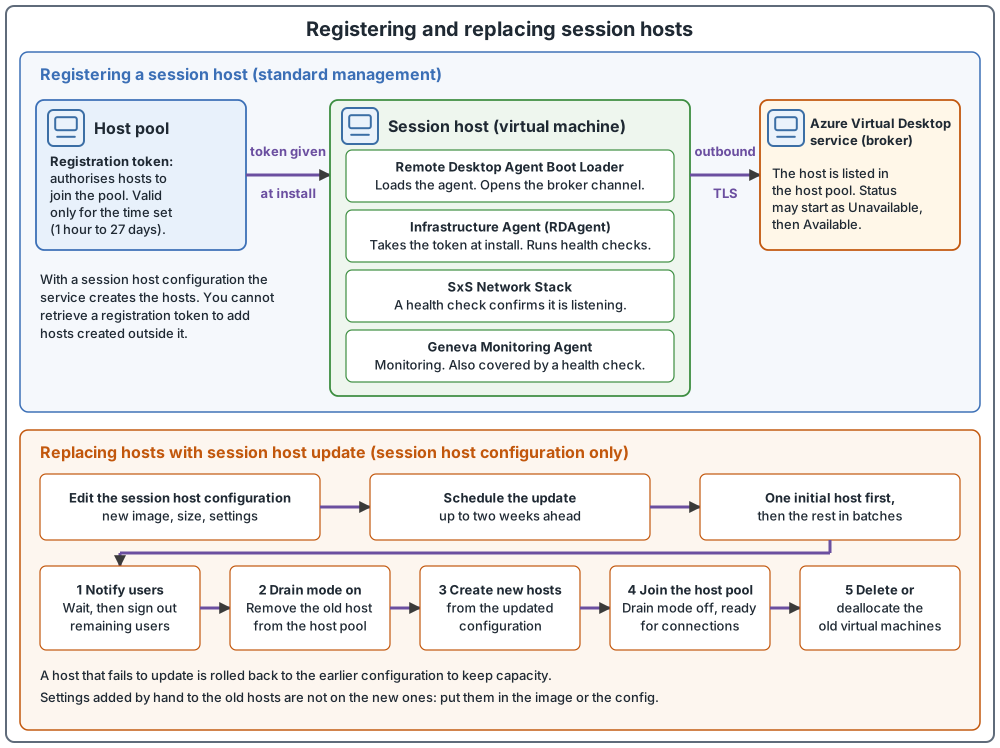
The steps are:
- Generate a registration token on the host pool (in the portal, select Registration key, then Generate new key). The token is valid only for the time you set. It can be no shorter than one hour (agent troubleshooting page) and no longer than 27 days. For an interactive rollout, one to four hours is typical. For a rollout that lasts days, set the lifetime to cover all of it, and if the rollout will run past 27 days, generate a new token before the old one expires.
- Make sure the virtual machine is joined to Microsoft Entra ID or to an Active Directory domain (Active Directory Domain Services or Microsoft Entra Domain Services). On Windows Server, install the Remote Desktop Session Host role first.
- Install the Azure Virtual Desktop Agent. The installer asks for the registration token. Then install the Agent Boot Loader. Both can also be installed from a command line, for example from Intune or Configuration Manager.
- After a short time the virtual machine is listed as a session host in the host pool. Its status can start as Unavailable. When it shows Available, restart the virtual machine.
- The agent updates itself from then on when a newer version is available.
Two lifetime limits are easy to miss (both are in a tip on the add session hosts page). A rollout that outlasts the token lifetime can leave later hosts unable to register, with the error EXPIRED_MACHINE_TOKEN. The tip says a host that was created ahead of time and stays powered off for more than 90 days also has its machine token expire. The FAQ gives the same 90-day limit for a virtual machine registered to a host pool without that qualifier: the agent refreshes the token whenever the virtual machine is active. Both pages advise turning the virtual machine on for at least 20 minutes every 90 days so the token refreshes by itself. Another page gives a longer time (a few hours); see the section on a failed session host. This article does not choose between them.
What gets installed
After installation four programs are listed as installed (add session hosts page):
| Program | What it does |
|---|---|
| Remote Desktop Agent Boot Loader (service name RDAgentBootLoader, shown in Services as Remote Desktop Agent Loader) | Loads the agent. When the session host starts, it opens the persistent channel between the host and the broker. That channel is carried over a TLS connection, and the host and the service use it to exchange messages. |
| Remote Desktop Services Infrastructure Agent (the agent, RDAgent) | Takes the registration token. Runs the health checks and assigns the statuses. |
| Remote Desktop Services SxS Network Stack | The side-by-side stack. A health check verifies that it is up, listening and ready to receive connections. Stack updates are installed with agent updates. |
| Remote Desktop Services Infrastructure Geneva Agent | The monitoring agent. A health check verifies that it is installed and running. |
Reinstalling the agent and boot loader installs the stack and the Geneva agent again too.
If the boot loader is stopped, the agent service is not running on the host. If the boot loader starts and then stops again, the agent troubleshooting page says you might have a registration failure.
Registration and a user connection are two different things
Registration happens once. After it, the boot loader keeps the channel to the broker open. A user connecting later is a separate step. Azure Virtual Desktop uses reverse connect (network connectivity page; the connection walkthrough follows it step by step): session hosts do not listen for incoming connections, they connect outward over HTTPS. When a user connects, the gateway asks the broker to orchestrate the connection, and the broker uses the open channel to tell the session host. The Remote Desktop stack on the host then opens its own outbound TLS connection to the same gateway the client uses, and the gateway passes data between the two. That gateway connection is made for each user connection and is not part of registering the host.
When registration fails
Start in Event Viewer on the session host, under Windows Logs and Application (agent troubleshooting page, which also covers each error below). The sources to look for are WVD-Agent, WVD-Agent-Updater, RDAgentBootLoader and MsiInstaller. Several errors appear as event 3277.
| What you see | Meaning | Fix |
|---|---|---|
| Boot loader stopped, or no Remote Desktop Agent Loader service | The boot loader could not install the agent properly, so the agent is not running. | Start the service, wait ten seconds, then refresh. If it stops again, suspect a registration failure. |
INVALID_REGISTRATION_TOKEN or EXPIRED_MACHINE_TOKEN |
The registration token used is not recognized as valid. | Generate a new registration token and register again. The agent troubleshooting page gives registry steps for applying the new token. When that works, IsRegistered reads 1 and RegistrationToken is blank. |
INVALID_FORM |
The agent cannot reach the broker or an endpoint. Firewall or DNS settings might be the cause. | Check that the two broker addresses stored in the agent's registry key open in a browser with /api/health added and show "RD Broker is Healthy". |
| Event 3703, "RD Gateway Url: is not accessible" | The agent cannot reach the gateway addresses. | Allow traffic to the required address list and make sure firewall or proxy settings do not block it. A URL check tool can test this. |
NAME_ALREADY_REGISTERED |
The session host name is already registered and is probably a duplicate. | Remove the host from the host pool and create another virtual machine with a unique name. |
InstallationHealthCheckFailedException |
The stack listener is not working. | Check the listener. If it is not working, uninstall and reinstall the stack. |
DownloadMsiException |
Not enough disk space for the agent. | Free or add disk space. |
The last resort, a full reset, is described in the section on a failed session host.
Before a first deployment, check that the subnet can reach the required addresses, and run the Azure Virtual Desktop Agent URL Tool from the first session host. Skipping that check is named as the most common cause of registration failures during first deployment (deployment page).
Statuses and health checks
The statuses, the health checks behind them and what each means for new sessions are laid out in the post on how Azure Virtual Desktop fails; the source page is session host statuses and health checks. This article adds only three details.
- Instance Metadata Service. The Azure Instance Metadata Service is a service a virtual machine can ask for facts about itself. It is reached at the address 169.254.169.254 (agent troubleshooting page). Its health check verifies that the service can be reached.
- Two wordings that differ. The health check table calls a failed Geneva check "semi-fatal", while the status table lists it among the non-fatal checks. The status table also names a URL health check that the health check table does not list. This article does not settle either point.
- A host stuck in Unavailable or Upgrading. A status that never changes points to an agent or stack that did not install properly. The first step is to reinstall the side-by-side stack. The stack is working when the
qwinsta.execommand showsrdp-tcpandrdp-sxsin the Listen state.
Two ways to keep hosts up to date
There are two approaches, and they suit different hosts.
Patch in place updates the existing virtual machine without replacing it. Windows Update, Windows Autopatch, Intune, Azure Update Manager, automatic guest patching, WSUS and Configuration Manager all work this way.
Image-based servicing builds a new image version, creates new session hosts from it, and removes the old ones. Session host update is image-based, and so is creating new virtual machines from a new Azure Compute Gallery image yourself. The update methods page describes the typical workflow as: update the base image, validate applications and configurations, publish a new Azure Compute Gallery image version (covered in a later article in this series), deploy new session hosts, then drain and remove the old session hosts. What happens to the old virtual machines after removal is not established by the pages used (see the section on removing a session host).
Which one fits depends on the operating system and the host pool type. For monthly security and quality updates the update methods page marks the options like this:
| Method | Windows client Enterprise (single-session) | Windows client multi-session | Windows Server |
|---|---|---|---|
| Windows Update | Recommended | Not recommended | Supported |
| Windows Autopatch | Recommended | Not recommended | Not supported |
| Configuration Manager | Supported | Supported | Supported |
| Azure Update Manager, automatic guest patching | Not supported | Not supported | Recommended |
| Session host update | Not supported | Recommended | Not recommended |
| Azure Compute Gallery with new hosts | Not recommended | Recommended | Not recommended |
For moving to a new operating system version, the recommended method for every operating system is to create new virtual machines from an image of the new version. For multi-session client hosts, that means session host update.
The terminology page states the same split by host pool type: personal hosts are updated with Windows Update, Configuration Manager or other software distribution tools, pooled hosts by redeploying session hosts from updated images.
What session host update does
Session host update works only on a host pool with a session host configuration. It can change the image, the VM size, the disk type, the security type, the domain join credentials, Intune enrollment, the local administrator credentials and the custom script. Settings such as availability, network and location carry over.
To use it, change the session host configuration and then schedule the update. You can start it now or pick a time up to two weeks ahead (update configuration page). Once it is scheduled you cannot edit it. Cancel it and schedule a new one.
For each batch of hosts the service does this:
- It tells connected users, using the message you set, and waits for the delay you set. Then it signs out any users still connected.
- It puts the selected hosts in drain mode and removes them from the host pool. For hosts joined to an Active Directory domain, the computer account is not deleted.
- It creates the same number of new hosts from the updated configuration. The session host update page gives the names of the new virtual machine, OS disk and network interface as
SessionHostName-DateTime, while the update configuration page gives the name of the OS disk of an updated host asSessionHostName-DateTime_Hash. The pages do not say whether these describe the same name, so this article does not state a naming format for the disk. The computer name inside Windows stays the same. Hosts joined to an Active Directory domain reuse the existing computer objects. - The new hosts join the host pool and drain mode is turned off, so they can take connections.
- The pages word what happens to the original virtual machines at this point in different ways. Not established: what happens to them, and what
UpdateDeleteOriginalVMcontrols. The introduction of the session host update page says the update "deallocates or deletes" the existing virtual machines, and the step list of that page says the original VMs are "deleted". The update configuration page says the existing virtual machines are "deleted or deallocated". The management policy has a PowerShell setting namedUpdateDeleteOriginalVM(deleteOriginalVmin the API). The update configuration page recommends$trueso that no cleanup of session host resources is needed afterwards, and the deployment page's example sets it to$false. The API reference describes the property only as "Whether not to save original disk. False by default", and the diagnostics page describes the logged value as "Whether the original virtual machine was preserved". These wordings differ, and none says exactly which resources (virtual machine, disk, network interface) are deleted or kept for each value. The what's new entry that announced the feature also says an update "deletes the existing virtual machines". This article does not say what either value does. Check the resource group after your first update before you rely on a clean-up.
At the start of an update no host is updated yet, so a user who signed in to a host that is still waiting to be updated can be asked to sign out again. The first host is updated alone as a test. If it fails, the update stops. If it works, the rest follow in batches: with ten hosts and a batch size of three, one host goes first and then three batches of three follow, so at least seven hosts stay available once the first one is done. New connections go to hosts that are already updated. The update configuration page says a host takes around 20 minutes (documented, not tested by the author). The existing power state and drain mode of hosts are kept, so an update can run on a pool whose hosts are all deallocated.
If one host fails to update, the service tries to roll it back to the earlier configuration, so the pool keeps its capacity (troubleshooting page for session host update, which also covers the rest of this paragraph except pause and resume). It finishes the current batch and then marks the update as failed. You can retry or cancel. A retry picks up the failed hosts and the hosts not yet tried. If a rollback fails, that host cannot take sessions until you fix it. Failures in the first (initial) host usually come from the configuration and are not fixed by retrying. Failures after it are often intermittent and can be fixed by retrying. An update can also be paused and resumed. If a paused update is not resumed within two weeks, it is canceled. Canceling halfway leaves hosts that differ from each other, so schedule another update soon.
Things to do before and during an update:
- Test the update on a test host pool first.
- Turn autoscale off for the host pool before the update starts, and keep it off until the update ends. A scaling plan that runs during an update can make it fail (scaling plans themselves are covered in a later article in this series).
- Do not remove virtual machines or change drain mode by hand during an update. The service sets drain mode itself.
- Check your subscription quota and your virtual network subnet for room for the new hosts, and keep the batch size within the remaining quota.
- Remove any resource locks on the session hosts or their resource group.
- If you use an image taken from an existing session host, delete the
C:\packages\pluginfolder before you create the image. Otherwise the folder prevents the DSC extension that joins the updated virtual machines to the host pool from running (session host update page). The update troubleshooting page gives a related instruction: if the PowerShell DSC extension is installed on the image, remove the folder from the image. The golden image page advises against capturing a virtual machine that already exists in your host pools, while the update page describes an image taken from an existing session host. The pages do not reconcile the two, and this article does not settle which route to follow. - If the image is in an Azure Compute Gallery, keep replicas of it, as the update configuration page recommends. How many to keep, and where the pages differ, is covered in a later article in this series.
- Put any custom files, registry keys or certificates in the image, apply them with Intune or Group Policy, or add them to the custom script. Anything added by hand to the old hosts is not on the new ones, so keep anything users need outside the virtual machine.
- The new hosts must join the same directory as the existing ones. The directory cannot be changed during an update.
- Old computer objects in Active Directory stay behind until the new host reuses them. Because the new virtual machines inherit them, existing Group Policy that filters by computer object keeps applying; check that it still applies if you change the organizational unit. If you change the domain, remove the orphaned objects from the old one.
- If you use Azure Virtual Desktop Insights, the Azure Monitor agent is not installed on updated hosts automatically.
Known limits include: only one update can run or be scheduled per host pool at a time; the OS disk size cannot be changed in an update; the update pages say an image in a different subscription from the host pool is not supported (see the last section); a host pool cannot be deleted while a failed update has not been canceled; the progress figure stays at 0.00 percent until the first host has finished and then moves in steps; using a Key Vault with private network access needs a managed identity; a purchase plan on a gallery image is not kept when hosts are updated; and a very large batch size can cause intermittent AgentRegistrationFailureGeneric errors, which a retry usually fixes.
Drain mode in day-to-day work
Session host update uses drain mode for you. You can also set it by hand (drain mode page), per host, in the Azure portal ("Turn drain mode on") or with the AllowNewSession setting of Update-AzWvdSessionHost. New connections go to the next available host. Existing connections stay until the user signs out or an administrator ends the session, so wait for sessions to end before you do maintenance. Administrators can still connect to a drained server directly. After changing drain mode in the portal, wait at least 60 seconds before refreshing, or the display can look wrong.
Remove a session host
Parts of this section are not established by the documentation. The pages used here document the pieces below. They do not document one complete procedure for removing a host, and this article does not claim one.
What is documented:
- Order. A troubleshooting entry for host pool creation is titled "Can't delete a session host from the host pool after deleting the VM". It gives the cause as needing to delete the session host before you delete the virtual machine, and the fix as: put the session host in drain mode, sign out all users from it, and then delete the host (host pool creation troubleshooting). The entry does not say which management approach it applies to.
- Drain mode. The drain mode page covers draining a host for maintenance and does not mention removing a host (drain mode).
- Removing a host from the pool in the portal. The agent troubleshooting page shows the steps (Host pools, the pool, Session hosts, tick the host, Remove) as one step of re-registering a host, and describes the result as the host no longer being registered to that pool (agent troubleshooting).
- Force. The REST reference for deleting a session host describes a force option as forcing deletion even when a user session exists, so check for sessions before you use it (REST reference). The
Remove-AzWvdSessionHostreference also lists a-Forceswitch; the pages used here do not say what it does. Neither says what happens to the virtual machine. - Deleting a whole host pool. For pool deletion only, the delete page says the virtual machines related to the session hosts are not deleted and remain in the subscription (delete a host pool).
What is not established:
- The virtual machine after removing one host. The statement about virtual machines remaining is made for deleting a pool. Nothing fetched makes the same statement for removing a single host. Look in the resource group afterwards instead of assuming.
- Removing one host from a pool with a session host configuration. Session host update removes old hosts for you, and the update pages say not to remove virtual machines by hand while an update runs. The update troubleshooting page says to remove hosts that are inconsistent with the configuration, but not how, and no page fetched describes removing a single host outside an update.
- What
UpdateDeleteOriginalVMdoes. See the update steps above. - What the failed session host cleanup policy deletes. The management policy table says it decides whether to keep none, some or all hosts that fail during creation. It does not list which resources are removed.
The author's outline, not a documented procedure: put the host in drain mode, wait for its sessions to end, remove it from the pool, then check Azure for the virtual machine and decide whether to delete it.
When a session host fails
This section is limited to what the pages used for this article document. They describe the pieces below, not one complete procedure for replacing a failed session host, and they do not describe what a user's session does when its host fails. Recovery of profile storage is covered in a later article in this series.
See what the service reports. The statuses page says a host shows Unavailable when it is turned off or has failed a fatal health check. For a host that is off, it says to turn it on. It names the domain joined, side-by-side stack listener and domain trust checks as ones whose failure stops users connecting. For the stack listener it says to restart the virtual machine and then contact Microsoft support.
Stop new sessions. Drain mode, described above, sends new connections to the next available host.
Repair or re-register the host. For a host that stays stuck or unregistered, the agent troubleshooting page gives one reset sequence: uninstall the agent, boot loader and stack components, remove the host from the host pool, generate a new registration token (valid from one hour to 27 days), reinstall the agent and boot loader with the new token, restart, and check that the host shows Available. For a duplicate name, it says to remove the host from the pool and create another virtual machine with a unique name. The FAQ points to the same reset for a virtual machine started after 90 days that now fails to register. Not established: whether this reset applies to a host in a pool with a session host configuration. The agent page does not say which management approach it covers, and the management approaches page says a registration token cannot be retrieved there to add hosts created outside the service.
Replace the host. In a pool with standard management, you create a new virtual machine and register it, as described earlier. In a pool with a session host configuration, you add hosts in the Azure portal by number and the service creates them from the saved configuration. The pages used do not describe replacing one failed host as a procedure. To remove the failed host, see the order in the section on removing a session host; what happens to the virtual machine afterwards is not established by the pages used. If a rollback during a session host update fails, the update troubleshooting page says to investigate before scheduling a new update.
Azure virtual machine pointers. These pages cover Azure virtual machines in general, not Azure Virtual Desktop. The redeploy page says redeploying moves a virtual machine to a new Azure node and powers it on, keeps its configuration and resources, loses data on the temporary and ephemeral disks, and updates dynamic IP addresses. It does not say what happens to the host's registration, so this article does not either. The backup and restore options page lists Azure Backup, Azure Site Recovery, managed disk snapshots and restore points.
Where the pages disagree:
- Keeping a powered-off host registered. The add session hosts page and the FAQ say to turn a virtual machine on for at least 20 minutes every 90 days. The multiregion page says to start each session host for a few hours at least once every 90 days. This article does not choose.
- Backing up session host virtual machines. The FAQ says compute-level backup is recommended only for personal host pools. The multiregion page says to back up at virtual machine level for a personal pool that stores data locally. The Cloud Adoption Framework page, which says it will be removed on October 30, 2026, says backup of host pool virtual machines is supported even when they are stateless, and also recommends against using Azure Backup to save the host's state. This article makes no recommendation.
- Site Recovery for pooled hosts. The Cloud Adoption Framework page says Site Recovery is supported for pooled host pools. The multiregion page describes it under its personal host pool model and uses a second host pool for pooled recovery.
Recovery in another region: a summary, not a procedure. The disaster recovery concepts page says session host virtual machines are customer-managed and that Azure Virtual Desktop has no native features for managing disaster recovery, so you use other Azure services. The multiregion page describes active-active and active-passive models for pooled hosts, each with a second host pool, and a personal host pool model with Site Recovery set up per virtual machine and failed over by an administrator. It warns against Site Recovery test failover on session host virtual machines. It says capacity in a second region is not guaranteed unless machines are already running or capacity reservations are in place. It gives approximate recovery estimates, which this article does not repeat. This article gives no failover or failback steps and does not cover complete cross-region disaster recovery.
Before you plan around session host configuration
The product pages do not agree on several points. This article does not settle them. Check the current wording on each page before you commit.
- Preview or general availability. The page on troubleshooting session host update opens with a notice that session host update is in Preview. The host pool management and session host update pages carry no such notice, and the add session hosts page carries a preview notice only about Azure Local in Azure Government and Azure operated by 21Vianet. The pages that show Azure PowerShell for these hosts say those cmdlets are in preview and need the preview module. The what's-new page has a November 2024 entry that calls the feature "now in preview" and a June 2026 entry that says automated host pools are "now available". This article gives the feature no status.
- How hosts are added. The management approaches page says you can add hosts to a session-host-configuration pool with the Azure portal, an ARM template (a file that describes Azure resources to deploy) or PowerShell. The add session hosts page says only the Azure portal can be used and that Azure PowerShell is not available, and the update troubleshooting page also says only the Azure portal is supported. A what's-new entry says the host pool size can be increased through the API or custom ARM templates, which makes the service create the hosts. These three pages word the available add methods differently, and the pages do not reconcile these statements. Check those pages for the current wording before you choose a method.
- How new hosts join the directory. The session host update page says the new hosts are joined to your directory using Azure VM extensions. The update troubleshooting page says the domain join extension is not used with a session host configuration and that the agent completes the domain join instead. This article does not say which mechanism does the join.
- Managed identity. Creating a host pool with a session host configuration offers a managed identity as a choice at creation. The what's-new page says managed identity support is generally available and that, in a future service update, host pools with a session host configuration will require one to add session hosts. Older what's-new entries gave a dated schedule for the same requirement. Check the current state before you create a pool.
- Images in another subscription. The session host update page and the update configuration page say a gallery image in a different Azure subscription from the host pool is not currently supported. The what's-new page has a September 2025 entry that lists support for accessing images hosted in another Azure subscription within the same tenant. Check the current pages before you plan on either.
- Directory and domain. The session host update page says the new hosts must use the same directory and that the directory cannot be changed during an update, and in the same section tells you what to clean up if you change the domain. This article does not say what a domain change means in practice.
- Update advice for Windows Server. The update methods page says image-based servicing through session host update is recommended for pooled environments, while its own table marks session host update as not recommended for Windows Server. Check the table for your operating system.
- Not everywhere. Session host update is available only in the global Azure cloud, not in clouds such as Azure US Government.
After hosts are added
The add session hosts page lists further tasks once the hosts exist. Licenses are applied automatically when the service creates the hosts, but hosts created outside the service may need the license applied separately, and Windows Server hosts also need a Remote Desktop Services client access license; see the operating system and licensing post. Microsoft Entra joined hosts need single sign-on (or earlier authentication protocols), an RBAC role assigned to users and a review of multifactor authentication policies before users can sign in to them. When you create hosts in the portal, do not disable Windows Remote Management, because PowerShell DSC needs it. Microsoft Entra joined hosts are supported only through the AADLoginForWindows extension, which the portal and the service add for you.
Common mistakes
- Letting the registration token expire before the hosts register. Match the lifetime to the whole rollout.
- Leaving hosts off for months. A registered host that stays off more than 90 days can lose its machine token.
- Fixing a registration problem with the wrong component. The boot loader, the agent and the stack are separate programs with separate errors.
- Patching a pooled multi-session host in place and expecting the next update to keep it. Replacing a host starts from the image.
Sources
Host pool management approaches, Session host update and Add session hosts to a host pool.