When users say "AVD is down", the cause can be one of many things. Microsoft's service might have a problem. Your own session hosts, identity, network or profile storage might have one. Or you might have changed a setting and broken something yourself. The symptoms often look alike.
This article gives you a way to sort problems quickly. It splits Azure Virtual Desktop (AVD) into three jobs, explains what Microsoft runs and how it keeps running, and then shows what users see when each part fails. Where the documentation states a behavior, the text says so. Where the table is the author's reasoning, it is labelled.
If you have not yet read how a desktop reaches a user, start with the architecture article.
Key terms
| Term | Meaning |
|---|---|
| Control plane | The Microsoft-run services that decide who can connect and arrange the connection. |
| Management plane | The path you use to create and change AVD objects, which is Azure Resource Manager. |
| Data plane | The remote session itself: screen, keyboard, mouse and redirected devices. |
| Azure Resource Manager (ARM) | The Azure service that creates, updates and deletes Azure resources. The portal, Azure CLI, Azure PowerShell and the REST API all send requests to it. |
| Azure RBAC | Azure role-based access control: roles that decide what a person can do to which Azure resources. |
| Web service | The AVD service endpoint that returns the user's list of desktops and apps. |
| Broker service | The AVD service that arranges incoming connections. |
| Gateway service | The AVD service that relays the Remote Desktop Protocol (RDP) connection between the user's device and the session host. |
| Resource directory | The AVD component that tells the web service which database holds a user's connection information. |
| Feed | The list of desktops and apps a user can see. |
| Metadata | The information AVD stores about your objects, such as host pool names, application group names and the connection files for each resource. |
| Deployment scope | A choice made when you create a host pool: Geographical or Regional. It decides where AVD stores the metadata. |
| AVD agent | Software on each session host that communicates with the service and runs health checks. |
| Azure Service Health | An Azure service that shows incidents and planned maintenance that affect the Azure services and regions you use. |
| Host pool | A group of session hosts that serve the same kind of desktop or app. |
| Session host | A virtual machine in a host pool that runs the users' desktops or apps. |
| Application group | The object that decides which desktop or apps from one host pool a user can open. |
| Workspace | The object that groups application groups and is what users see in their client. |
| Reverse connect | The default connection type. The client and the session host both connect outward to the gateway service, which relays the session between them. |
| RDP Shortpath | An option that sets up a direct connection between the client and the session host, so the session does not pass through the gateway service. |
| TCP and UDP | Two ways of sending data over a network. TCP checks that data arrives. UDP sends data without those checks, which suits live screen and sound. |
| Azure Traffic Manager and Azure Front Door | Two global Azure services that AVD uses to send users to the nearest AVD entry point. |
| Availability zone | A physically separate datacenter location inside one Azure region, with its own power, cooling and network. |
| Log Analytics | An Azure service that stores logs so you can search them. AVD can send its diagnostic events there. |
| User principal name (UPN) | A user's sign-in name, written like an email address. |
| Profile storage | The file share where each user's profile (settings and files) is kept, so it follows the user between session hosts. |
Three jobs, three places a problem can start
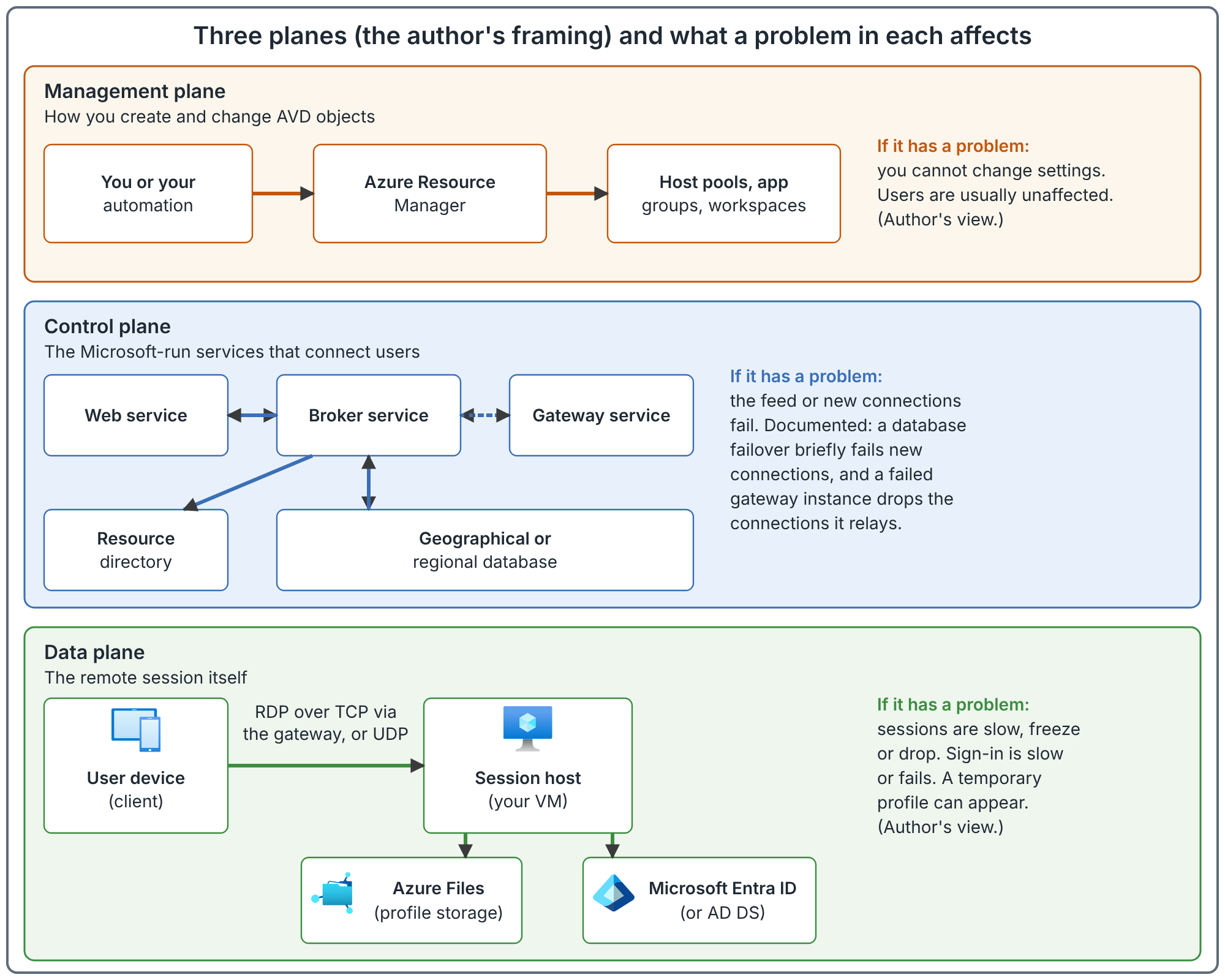
The documentation calls the Microsoft-run parts of AVD the service components, and uses the term control plane for them. The split below into three planes is a framing used in this series. It is a troubleshooting aid, not a list of documented product features.
| Plane | Its job | Who runs it | Example of what you do there |
|---|---|---|---|
| Management plane | Create and change AVD objects such as host pools, application groups, workspaces and scaling plans. | Azure Resource Manager, with your permissions applied through Azure RBAC. | Create a host pool in the portal, or run a script that does it. |
| Control plane | Show users their feed and arrange each connection. | Microsoft. | Nothing. You cannot deploy or scale it. |
| Data plane | Carry the remote session. | Your session hosts, your network and, depending on the transport, the Microsoft gateway service. | Size the hosts, route the network, store the profiles. |
Two details stop this table from being too tidy.
- The gateway belongs to Microsoft but carries session traffic. With the default connection type, called reverse connect, the gateway service relays the RDP traffic between the client and the session host. With RDP Shortpath, a direct UDP path bypasses the gateway. So the gateway sits between the control plane and the data plane.
- AVD objects are Azure resources. Because of that, normal Azure rules apply to them: you need the right Azure RBAC role at the right scope, and you must register the Microsoft.DesktopVirtualization resource provider in the subscription.
What Microsoft runs
The documentation lists these Microsoft-managed components.
| Component | What it does |
|---|---|
| Web service | The user-facing endpoint. It returns the connection information to the user's device. |
| Broker service | Orchestrates incoming connections. |
| Gateway service | A websocket service (a long-lived two-way connection over the web) that provides RDP connectivity between the user's device and the session hosts. |
| Resource directory | Tells the web service which database holds the connection information for each user. |
| Geographical database | Holds the connection files (.rdp) and icons for every resource that a user has, for host pools with the Geographical deployment scope. One database serves all the Azure regions in its geography. |
| Regional database | Holds the same information for host pools with the Regional deployment scope, inside a single Azure region. |
AVD also uses two global Azure services to send users to the nearest entry point. Azure Traffic Manager directs feed discovery to the closest web service. Azure Front Door is the global entry point for every remote session and picks the gateway with the lowest latency for the user's device.
You are responsible for the session hosts, including images and applications, virtual network connectivity, resilience, backup and recovery of those hosts. You also provide the user identities and control access to the service. The documentation names Azure availability zones, Azure Backup and Azure Site Recovery as services that can help with that side.
How the service stays available
A connection has two separate sequences: feed discovery and the RDP connection. Each uses different components. The documentation describes this resilience.
- Global routing. If a web service or gateway service becomes unavailable from one Azure region, or a whole region fails, traffic is redirected to the next closest available instance. Users can still make new connections.
- Databases. The geographical database uses Azure SQL Database failover and replication within its geography. If a database fails, it fails over to a secondary replica. During the failover, new connections fail for a short time. Existing connections are not affected. The regional database uses the same mechanism inside one region, with replicas across availability zones and metadata copied to a paired region where one applies.
- Instances. The Microsoft-run components run in around 40 Azure regions. In each region there are at least six separate instances or clusters of each component, working independently.
- Gateway instance failure. If one gateway instance fails, the TCP-based RDP connections it was relaying are dropped. When those users reconnect, the remaining instances reconnect each user to their existing session. Sessions on other instances are not affected.
Two practical points follow. First, you do not deploy or scale these components. Each has multiple instances in each region, and Microsoft runs them. Second, a brief drop followed by a reconnect to the same session is the documented behavior for a gateway instance failure, so the first response to a few dropped sessions is to reconnect, not to rebuild.
What the service stores, and where
AVD stores information about your objects, such as host pool, application group and workspace names, virtual machine names and user principal names. The documentation groups it as customer input data, customer data, diagnostic data and service-generated data.
| Kind of data | Where it is stored |
|---|---|
| Customer input and customer data (names you enter) | In the geography of the Azure region you chose, or within that one region if the deployment scope is Regional. |
| Diagnostic data | Where the host pool is located, and at the location closest to the user for connection diagnostics. It includes the user principal name, client location and client IP address of connecting users. |
| Service-generated data | Aggregated from all locations where the service runs and sent to the United States. The data sent there is scrubbed and is not customer data. |
| Azure Resource Manager paths to service objects | Outside the chosen geography. They are treated as organizational information, so data residency does not apply to them. |
The service does not directly store user data or application data such as documents or databases. Profiles, files and databases live in the storage you choose, in the Azure region you choose.
The deployment scope is set when you create an object and cannot be changed afterward. Regional and Geographical objects cannot be mixed. A regional host pool can only be in a regional workspace and can only contain regional application groups.
A caution about Regional scope. At the time of writing, the article on regional host pools still describes the feature as a preview and says errors and checkpoints are not reported into Log Analytics for regional session hosts. The data locations article lists the Regional scope in two regions, Central US and East US 2, without preview wording. These pages do not agree on the status, and this article does not settle it. Check the current pages before you choose Regional scope for a production host pool.
Three planes and what a problem in each one affects
What users see when each part fails
The documentation describes two failure behaviors: a database failover briefly fails new connections only, and a failed gateway instance drops the connections it relays. It does not publish a table of symptoms for every component. The table below combines those two documented behaviors with reasoning from what each component does. The last column says which is which.
| Part that fails | What users are likely to see | Evidence |
|---|---|---|
| Web service or resource directory | Cannot sign in to the client, or the feed is empty or wrong. | Reasoning. |
| Broker service | The feed loads but starting a desktop fails. | Reasoning. |
| Database during failover | New connections fail briefly. Existing connections are unaffected. | Documented. |
| One gateway instance | The sessions it relays drop. Reconnecting reaches the existing session through another instance. | Documented. |
| Management plane (Azure Resource Manager, or a missing role) | Administrators cannot create or change objects. Users who are already working are usually unaffected. | Reasoning. |
| Your session hosts | No available resources, or a connection that opens and then drops. The feed still loads. | Reasoning, with documented host statuses below. |
| Your identity service | Windows sign-in fails or hangs. The feed may still load. | Reasoning. |
| Your profile storage | Very slow sign-in, or a temporary profile. The connection itself works. | Reasoning. |
| Your network path | Slow, frozen or dropped sessions. | Reasoning. |
One rule of thumb follows from the two separate sequences, and it is a heuristic, not a documented fact. If the feed loads but the session does not start, the Microsoft-run feed path worked, so look at the connection path and at the parts you run before you look for a Microsoft outage.
Failures in the parts you run
The AVD agent runs health checks on every session host and gives each host a status. The documentation describes these statuses.
| Status | What it means | Is the host used for new sessions? |
|---|---|---|
| Available | The host passed all health checks. It is still Available if it has reached its maximum session limit. | Yes. |
| Needs Assistance | The host failed a non-fatal check: the monitoring agent check, the Azure Instance Metadata Service check or the URL check. Users can connect, but the experience may degrade. | Yes. |
| Unavailable | The host is turned off, or failed a fatal check. | No. |
| Upgrade Failed | The agent could not update. New and existing sessions are not affected. | Yes. |
| Upgrading | The agent update is in progress. The status returns to Available when it finishes. | Yes. |
| Shutdown | The host was shut down. A host that shut down before it could report its status can show Unavailable instead, which does not by itself mean a fault. | No. |
The documentation lists these health checks and what happens when they fail: Domain joined (fatal, users cannot connect), Side-by-side stack listener (fatal), Domain trust check (fatal), Geneva monitoring agent (semi-fatal: connections work but without logging information), App Attach health check (not fatal, but some apps stop working) and Metadata service check (not fatal). The status table shows why "Available" does not mean "healthy for the user": a host at its session limit is still listed as Available.
When a host shows Needs Assistance or Unavailable, the portal lets you open the host and see which check failed. A failed URL check points to a required endpoint that the host cannot reach. The required connectivity article explains those endpoints.
A diagnostic order
This is a recommendation, not a documented procedure.
- Check the Azure status page and Azure Service Health first. The troubleshooting overview tells you to do this before anything else.
- Decide which sequence failed. Did the feed fail (the user sees no desktops, or the wrong ones)? Or did the connection fail (the desktop is listed but does not open, or drops)?
- For a feed problem, check the user's assignment to the application group, the workspace and the user's licensing.
- For a connection problem, check the session host status and health checks, then the host's power state and whether the host accepts new sessions.
- If the connection opens and then fails at Windows sign-in, check identity: the domain join or Microsoft Entra join, DNS and domain controller reachability.
- If sign-in is slow or the profile is temporary, check profile storage reachability, permissions and throttling.
- If the session works but is slow, look at the network path and the host's load.
Common mistakes
- Assuming an outage before checking your own hosts. Host status and agent health are quick to check and are the usual answer.
- Treating the management plane as AVD-specific. A missing Azure role at the right scope looks like an AVD problem but is an Azure RBAC problem.
- Believing "Available" means healthy. A host at its session limit or with a slow profile share is still Available.
- Using one symptom for two causes. "Cannot connect" can mean a blocked endpoint, an unavailable host or an identity problem. Find out which sequence failed first.
- Promising Microsoft's availability in your own agreement. Refer to Microsoft's published terms rather than writing your own promise about components you do not run.
- Forgetting that diagnostics are opt-in. Service events reach your Log Analytics workspace only after you enable diagnostic settings on each AVD object you want to monitor. Connections that never reach the service do not appear in those diagnostics at all, so a network problem on the user's side can look like silence.
How to validate this in your environment
These checks are a recommendation. None of them proves anything until you run them.
- Open a host pool and look at each session host's status. Write down what each status in your pool means for users.
- Stop one session host in a test pool and see what a new connection does. Record whether the user is placed on another host or sees an error.
- Write down which of your own components each plane depends on: identity, DNS, profile storage, the network path. That list is your side of the failure table.
- Configure Service Health alerts for the subscriptions and regions your host pools use. The documentation recommends alerts for the service issue and health advisory event types.
Related book chapter, lab and project
Chapter 2 of the book covers these planes. Lab 1 prepares the subscription: resource providers, quota and a budget alert. The lab walks through those steps; this has not been run end to end. Project 15 is a fictional troubleshooting case study.
Next: Host Pools, Application Groups and Workspaces: The Rules That Connect Them.
Sources
Service architecture and resilience, data locations and session host statuses and health checks.