This article follows one desktop from sign-in to a working Windows session across the Azure Virtual Desktop (AVD) services, your session hosts and the services they depend on. If you are new to the service, start with what Azure Virtual Desktop is.
Key terms
| Term | Meaning |
|---|---|
| Windows App | The app on a user's device that opens remote desktops and apps. |
| Control plane | The Microsoft-run services that decide who can connect and to what. |
| Broker | The control plane service that arranges a connection and picks the session host. |
| Gateway | The control plane service that relays the remote session between the user's device and the session host. |
| Token | A short-lived proof that the user has signed in. |
| Tenant | The Microsoft Entra directory that holds the organization's users, groups, devices and applications. |
| Conditional Access | Microsoft Entra rules that decide whether a sign-in is allowed, for example by requiring multifactor authentication. |
| Multifactor authentication (MFA) | Signing in with more than a password, such as a code from a phone. |
| Reverse connect | The session host opens the connection outward to the service, so users do not need an inbound connection to the host. |
| TCP and UDP | Two ways to send data over a network. TCP checks that the data arrives; UDP sends it without those checks. |
| DNS | The service that turns names into network addresses. |
| FSLogix | Software that keeps a user's Windows profile in a container file and attaches it at sign-in. |
| VHD and VHDX | Virtual hard disk file formats. |
| Log Analytics | An Azure service that stores monitoring data so you can query it. |
| Preview | An early release of a feature that can still change. |
Start with where Windows runs
A user opens Windows App, sees a desktop and selects it. Windows opens on their screen, but the Windows operating system and applications are running on an Azure virtual machine. That VM is called a session host. The user's device displays the session and sends keyboard and mouse input to it.
To understand the architecture, follow that desktop through three parts of the environment.
| Part | What it does |
|---|---|
| User device | Runs the supported client or browser used to access the desktop. |
| Microsoft-managed AVD services | Return the available resources and arrange the remote connection. This is the virtualization control plane. |
| Your Azure environment | Runs the session hosts and provides their network, identity, applications and profile storage. |
What Microsoft operates, and what your team operates
Microsoft operates the AVD connection services. You do not build your own AVD broker or gateway servers. Your team configures the resources the service connects users to and protects the customer-managed parts of the deployment.
| Component | Responsibility |
|---|---|
| Web, broker, gateway and service infrastructure | Microsoft operates the AVD services. |
| Windows and applications on session hosts | Your team manages their configuration and security. |
| User access and endpoint security | Your team or partner manages identities, permissions and user devices. |
| Network, profiles and recovery | Your team or partner designs and operates these dependencies. |
A partner can do this work for the customer. The work still needs an owner.
A typical hybrid setup, box by box
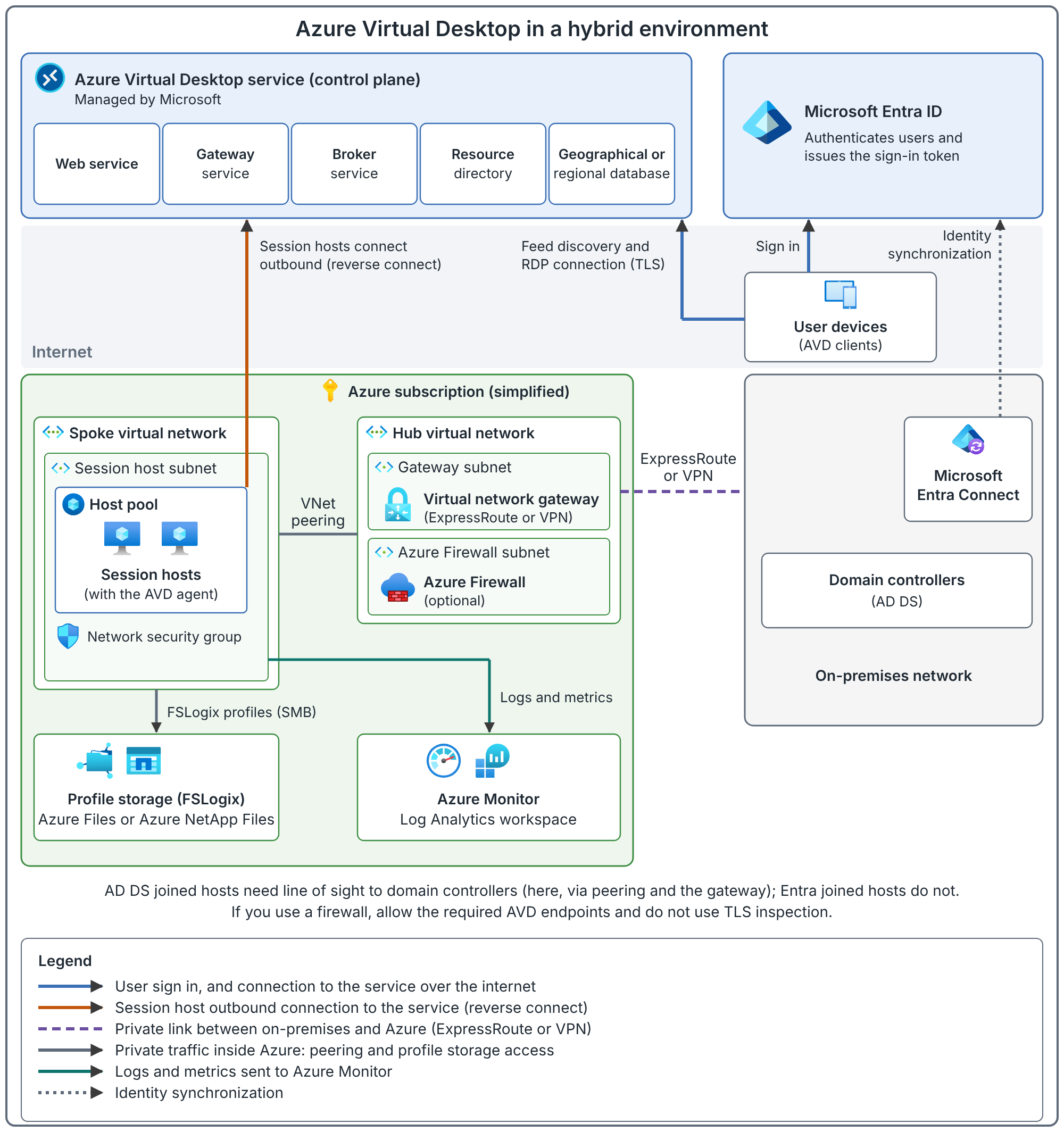
This is one typical example, not a list of components every deployment must buy. ExpressRoute or VPN, on-premises AD DS and the hub-and-spoke layout reflect that example.
The diagram shows an organization extending its existing network and identity environment into Azure. The top row is what Microsoft runs. The lower left is what the customer builds in Azure, and the lower right is the existing on-premises network.
| Box or connection | What it means for the desktop |
|---|---|
| User devices (clients) | The computers and other devices people use to open a remote desktop or app. |
| Domain controllers (AD DS) | Active Directory Domain Services: the organization's domain identity service in this hybrid example. |
| Microsoft Entra Connect | Synchronizes identities from on-premises Active Directory to Microsoft Entra ID, the cloud identity service. |
| AVD service (control plane) | The web service, gateway service, broker service, resource directory and databases that Microsoft runs. |
| ExpressRoute or VPN, and the virtual network gateway | The private connection between the on-premises network and the hub virtual network in Azure. |
| Hub virtual network | Holds shared network resources in this example: the gateway subnet and an optional firewall or network appliance subnet. |
| Spoke virtual network and peering | Holds the session host subnet. Peering connects the spoke to the hub. |
| Session hosts | The virtual machines that run the users' desktops and apps. |
| Azure Files / Azure NetApp Files | File storage reachable from the session hosts. FSLogix profile containers can be stored here. |
VNet means virtual network; a subnet is a portion of it. An Azure subscription groups resources for management and cost tracking. The NVA, or network virtual appliance, is a network appliance VM such as a third-party firewall. Whether a deployment has one, and how traffic is routed through it, depends on the selected design; a box in the diagram does not configure those routes for you.
Read the arrows carefully
The dotted line from Microsoft Entra Connect represents identity synchronization. The dashed ExpressRoute or VPN line represents connectivity between networks. The peering line connects the hub and spoke. The storage arrow shows access from the session hosts to file storage. The blue and orange arrows show how users and session hosts reach the AVD service over the internet.
This overview does not draw every step of a user's remote connection. In particular, the ExpressRoute or VPN line is not proof that every user's display traffic travels over ExpressRoute. The connection diagrams later in this post show how that session is established.
What the control plane actually does
The control-plane box groups services that help a user find and connect to a desktop. Each service has a different job.
| Service | What it does |
|---|---|
| Web service / Web Access | Provides the user-facing access endpoints and returns the resource connection information. |
| Connection broker | Arranges connections, selects the session host and supports reconnection to an existing session. |
| Gateway | Relays the remote connection between the client and the session host. If RDP Shortpath is set up and works, the session moves to a direct UDP path instead. |
| Resource directory and connection databases | Help locate and retrieve the user's published resource connection information. |
| Diagnostics | Records service events that administrators can use to investigate successful and failed operations. |
| REST APIs and management tools | Let administrators and automation create and manage AVD resources. An API is an interface a tool or script can call. |
How the services work together
When the user retrieves the resource list, the web service and broker obtain connection information. When the user selects a desktop, the broker arranges a connection to a host. The gateway carries the initial remote-session traffic. Windows and the application execute on the session host.
The control plane coordinates access and connections. The session host runs Windows and applications; separate storage holds the user profile and application data.
The agent connects the host to the service
The AVD agent on the session host communicates with the service. At startup, the host establishes a persistent communication channel. The broker uses it to tell the host where to connect when a user launches a resource.
This is why creating a Windows VM alone is not enough. The VM must also be registered and able to communicate with AVD as a session host.
Connect the diagram to the AVD objects
The VM icons show where Windows runs. AVD also needs objects that group those VMs and publish their desktops or applications.
| Object | Role in the architecture |
|---|---|
| Session host | The registered VM that runs a user's Windows session. |
| Host pool | A collection of session hosts serving a workload. |
| Application group | Controls access to a desktop or a selected set of RemoteApps from one host pool. |
| Workspace | Groups application groups so users can discover their published resources. |
For example, a desktop application group publishes the full Windows desktop from its host pool. You associate that application group with a workspace and assign the intended users. Their client can then list the desktop.
A RemoteApp application group publishes selected applications instead of the full desktop. RemoteApp application groups are supported with pooled host pools. The applications still run on the session hosts.
Applications can be installed on the hosts or supplied through App Attach. App Attach makes packaged applications available in the user's session from a file share, without installing them in the host image.
Pooled and personal desktops
In a pooled host pool, different users can share a session host. A user can land on a different host after signing out and starting a new session. A multi-session Windows image supports multiple users on the same VM.
In a personal host pool, a desktop is assigned to an individual user. Their connections return to the assigned host. This is a different assignment model from sharing capacity across a pool. The host pool planning post helps you choose between them.
Publishing access and signing in to Windows
Access has more than one layer. Application-group assignment controls which published resource a user can access. Windows sign-in also needs the permissions required by the selected session-host identity configuration. For Microsoft Entra joined session hosts in a host pool that does not use a session host configuration, users also need the Virtual Machine User Login role, assigned on the VMs, their resource group or the subscription. Reaching profile storage and business applications requires their own authorization.
Therefore, seeing a desktop icon confirms resource discovery. It does not confirm that Windows sign-in, profile loading and application access will all succeed.
The workspace is not a server
A workspace and a host pool are management objects. They do not replace the VMs that execute Windows. The broker selects a session host; the application runs on that host. Adding a workspace does not add desktop CPU or memory.
Understand identity before following sign-in
The architecture figure uses a hybrid identity setup. Microsoft Entra Connect synchronizes identities from AD DS to Microsoft Entra ID. The domain controllers in Azure support the domain-joined environment.
Azure Virtual Desktop also supports Microsoft Entra joined session hosts. AD DS is not compulsory for every Azure-hosted AVD deployment. The join model must fit the users, applications and storage authentication you intend to use.
| Identity choice | What the session hosts join |
|---|---|
| AD DS | An Active Directory domain; users also need identities represented in Microsoft Entra ID. |
| Microsoft Entra Domain Services | A managed domain. This is a different service from Microsoft Entra ID. |
| Microsoft Entra join | The Microsoft Entra tenant used for the deployment; supported cloud-only and hybrid identities can be used. |
Three access stages
1. Sign in to the AVD service. Microsoft Entra ID authenticates the user so the client can retrieve the resources they are allowed to access. Conditional Access can enforce requirements such as multifactor authentication.
2. Sign in to Windows on the session host. The remote session must authenticate the user to Windows. With supported single sign-on (SSO) configured, Windows sign-in can happen without a second credential prompt. Without it, a further prompt can appear.
3. Access resources inside Windows. The user's profile share, file shares and applications each have their own access requirements. A successful AVD sign-in does not grant permission to everything inside the desktop.
Use the same supported user identity for AVD and Windows sign-in. AVD does not support signing in to the service with one identity and to the session host with a different one, such as a local Windows account.
Match profile storage to identity
Selecting Microsoft Entra join does not automatically configure Azure Files authentication or file permissions. Choose a supported storage authentication method for the users and hosts, then configure share and file permissions. This is a separate design decision from joining the VM.
The identity model post compares these choices in detail.
First, discover the desktops and apps
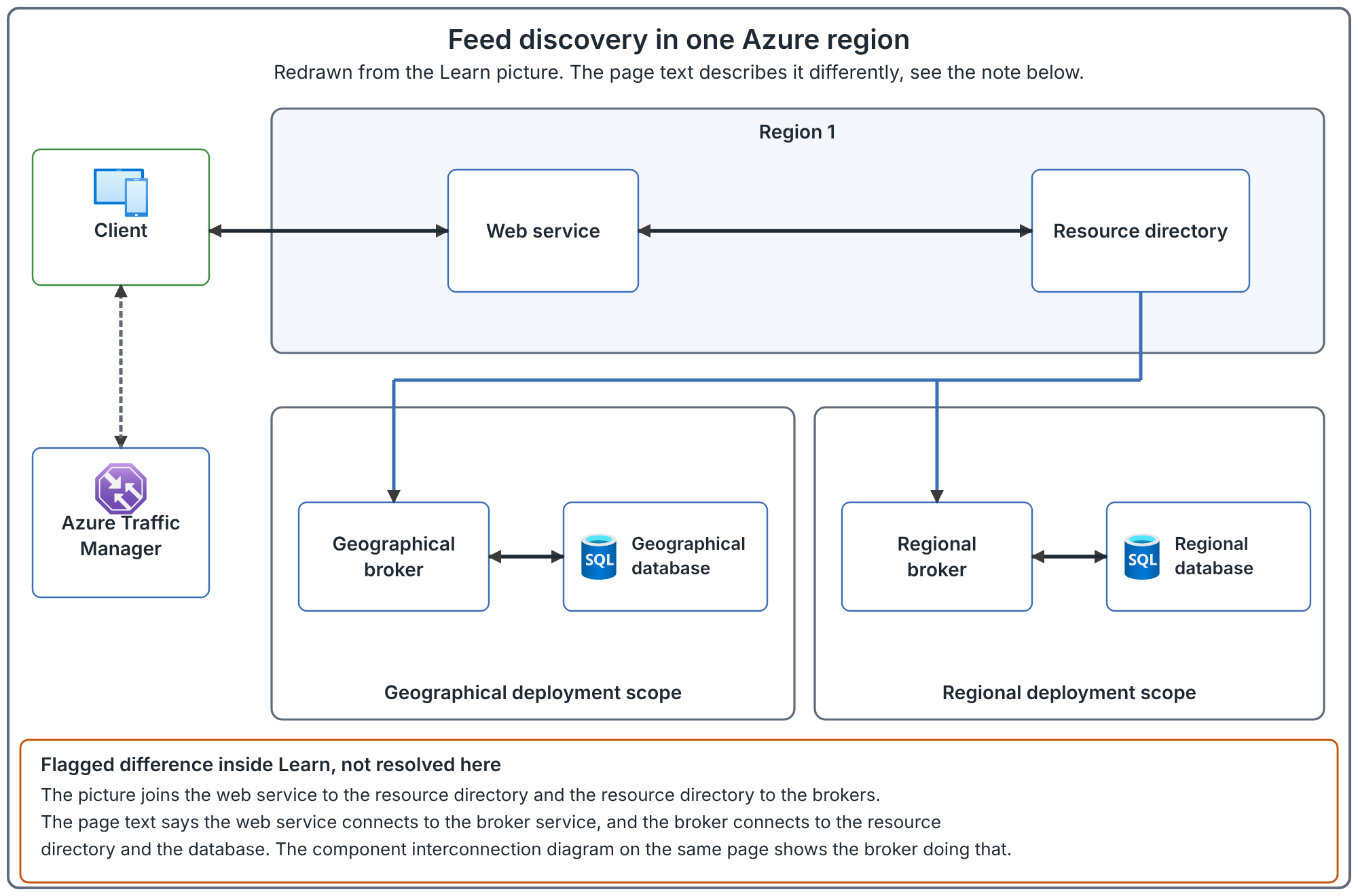
The feed is the list of desktops and applications available to the user. Retrieving that list happens before a desktop session opens.
- The user signs in through a supported client. Microsoft Entra ID authenticates them and returns a token.
- The client sends the token to the AVD feed service, which validates it.
- Azure Traffic Manager directs feed discovery to the web service. The web service uses the broker, resource directory and relevant database to retrieve resource information.
- The client receives the available desktops and apps with their connection configuration.
The resource directory helps find the database holding the connection information. The diagram shows this discovery process within one Azure region. These databases hold service connection information, not the user's FSLogix profile.
How AVD chooses the session host
The next decision happens when the user selects a desktop or app. In a pooled host pool, the configured load-balancing algorithm selects a host for a new session.
| Algorithm | How it uses the available hosts |
|---|---|
| Breadth-first | Aims to spread sessions across hosts. It randomly selects from half of the available hosts with the fewest sessions. |
| Depth-first | Chooses the host with the most sessions that still accepts connections and has capacity under the configured session limit. Depth-first needs a maximum session limit to be set. |
If the user already has an active or disconnected session, AVD reconnects them to that host. Drain mode prevents new sessions on a host but still allows reconnection to existing sessions. It does not move a running session to another VM.
Then, establish the remote connection
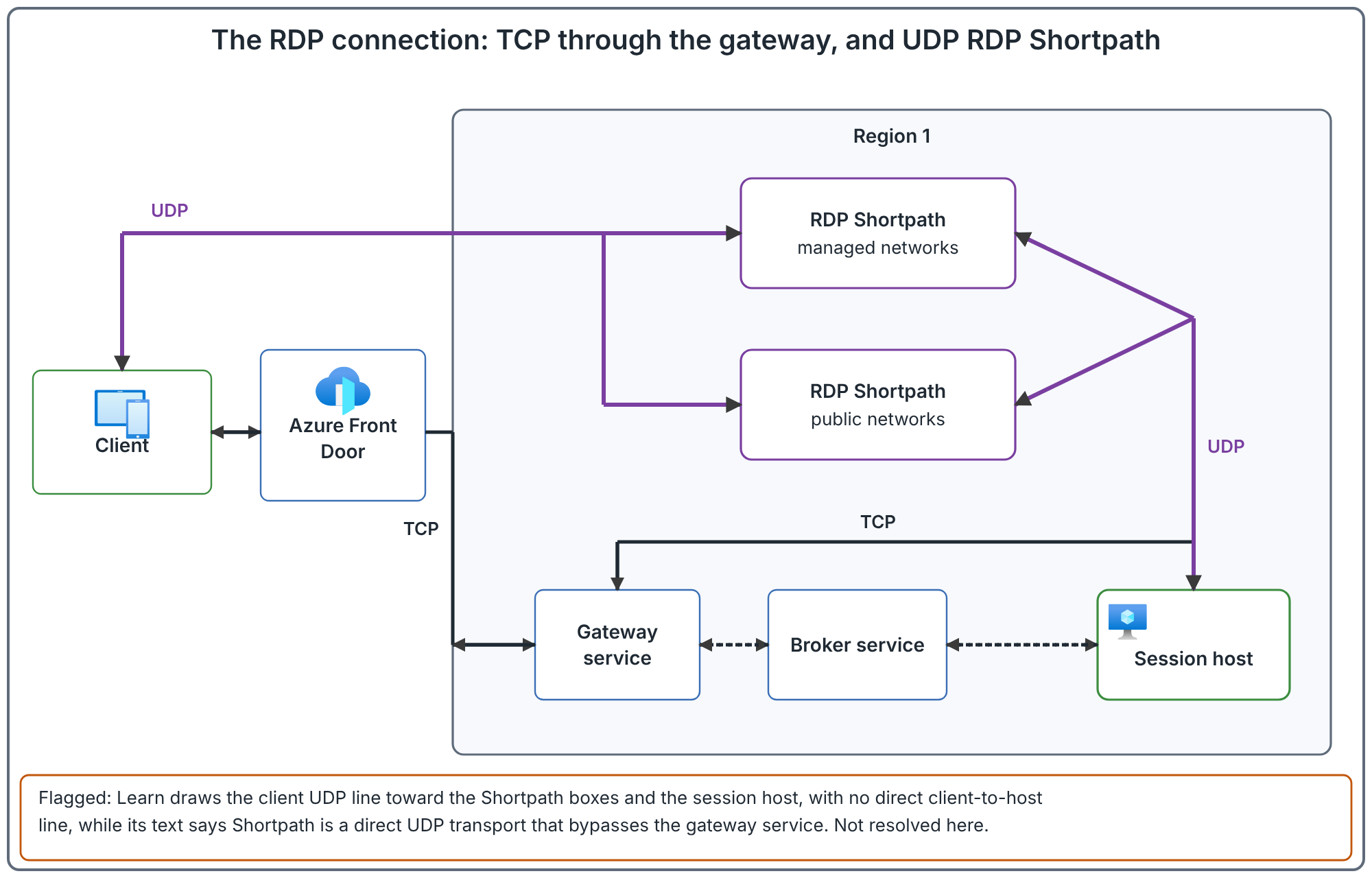
Remote Desktop Protocol, or RDP, carries the remote display and user input. The broker arranges the connection; the session host runs Windows.
- In Azure public cloud, Azure Front Door directs the client to an AVD gateway.
- The gateway validates the request and asks the broker to arrange the connection.
- The broker identifies the host and contacts its AVD agent through the host's existing communication channel.
- The session host opens an outbound connection to the same gateway.
- The gateway relays traffic between the client and host. This establishes TCP reverse connect.
The agent opens its persistent service communication channel when the session host starts. The broker uses that channel to instruct the host to connect; it does not run the user's desktop itself.
Why it is called reverse connect
The host connects outward to the AVD service rather than waiting for a public inbound RDP connection. The base connection uses outbound HTTPS connectivity. You do not need to expose TCP 3389 to the internet for users to connect through AVD.
Choose transport and network paths
Where RDP Shortpath fits
The initial connection uses TCP reverse connect. RDP Shortpath can then establish UDP transport if the client, host and network support it. If UDP fails, TCP is the fallback.
Managed-network Shortpath uses private connectivity, such as VPN or ExpressRoute. Depending on the method, it can use a configured UDP listener or STUN. Public-network Shortpath can use a direct UDP path with STUN or a relayed path with TURN. STUN helps discover a usable direct path; TURN provides a relay.
The other paths the desktop needs
Connecting the user to Windows is only one network path. The session host also needs to reach the services Windows and its applications depend on.
| Path | Why it is needed |
|---|---|
| User device to AVD services | Sign-in, resource discovery and connection establishment. |
| Session host to AVD services | Agent communication, registration and the reverse connection. |
| Session host to DNS and domain services | Name resolution and domain operations where the chosen identity design needs them. |
| Session host to profile storage | Load and use the user's profile container. |
| Session host to application services | Access databases, file shares, Microsoft 365 and other application dependencies. |
Allow the documented AVD endpoints through network controls. These connections use TCP on port 443. The networking post covers the network design in detail. DNS resolves service names to addresses; routes determine the network path; NSGs and firewalls decide which traffic is allowed. Peering connects networks but does not replace the required permissions or firewall configuration.
The hybrid diagram uses ExpressRoute. Other supported designs can use VPN connectivity or an Azure environment without on-premises dependencies. Avoid public IP addresses on session hosts and avoid public inbound RDP access.
Keep profiles, data and service metadata separate
Why FSLogix sits beside the session hosts
A Windows user profile holds settings and personalization. If those settings exist only on one pooled VM, they do not follow the user to a different VM.
FSLogix stores the profile in a VHD or VHDX container. At sign-in, the container is attached so Windows can use it as the user's profile. Hosts can access the same profile storage even when the user starts a later session on another host.
Azure Files and Azure NetApp Files are supported storage options. The storage needs suitable performance, authentication, permissions and network reachability. Keep profile storage in the same Azure region as the session hosts: the AVD profile guidance states that the storage account must be in the same region as the session host virtual machines.
FSLogix needs available profile storage to attach the user's container. Business applications also need their own databases or other back-end services to be available.
Service information and desktop data
Three kinds of information appear in this architecture. They have different locations and owners.
| Information | Where it belongs |
|---|---|
| AVD service metadata | Microsoft-managed service storage: for example, host-pool names, workspace names and connection information. |
| Windows user profile | Your configured profile solution, such as FSLogix containers on file storage. |
| Application and business data | The application's own storage, database or service. |
The host pool's deployment scope controls service metadata placement. Geographical stores metadata in the geography associated with the selected region. Regional stores it in the selected region, with replicas across availability zones and metadata replication to a paired region where applicable for disaster recovery. Regional scope is available only in supported regions. The scope is set when the host pool is created and cannot be changed afterwards. These choices do not choose where your FSLogix profiles or business databases live.
Session-host placement is another decision. Choose it with user latency and application dependencies in mind. A host-pool object's location does not, by itself, relocate the desktop VMs or profile storage.
Where the landing zone fits
A landing zone provides the surrounding identity, network, security, governance and operations foundation. Platform landing zones provide shared services. AVD workload landing zones contain the workload resources.
The enterprise landing-zone pattern separates platform and workload responsibilities through subscriptions, policies and management groups. That organization surrounds the architecture explained here. It does not replace the AVD broker, gateway, session hosts or profiles, and the single customer subscription in the hybrid figure is not a universal subscription count.
Turn the architecture into an operating service
Images and applications
An image provides Windows and can include the applications and configuration used to create session hosts. AVD custom image templates are built on Azure Image Builder, and the resulting image can be stored in Azure Compute Gallery, as a managed image, or both.
RemoteApp publishes applications that run on the session hosts, including installed apps or App Attach packages. Application licensing and back-end permissions need separate configuration.
Session-host management and scaling
With standard management, your tools and processes create and update the hosts. With session host configuration, AVD provides an integrated host creation, update and scaling approach for pooled host pools. These are distinct management approaches; existing standard-management tools are not interchangeable with session host configuration. The approach is chosen when the host pool is created and cannot be changed afterwards.
A scaling plan adjusts capacity against its schedule and usage settings. Power-management autoscale starts and stops existing VMs. Dynamic autoscale, documented as preview on some pages and as available on others, can also create and delete hosts with the supported session host configuration approach.
Load balancing selects a host; scaling controls capacity. Measure application resource needs before choosing VM sizes and session limits. For pooled autoscale, the schedule controls the load-balancing algorithm.
Where monitoring belongs
The control plane's Diagnostics component provides service events. You must still configure collection for the deployment you operate.
AVD Insights uses Azure Monitor Workbooks to display the environment's monitoring data. AVD diagnostic settings send service events to Log Analytics. On session hosts, the Azure Monitor Agent and a data collection rule collect Windows events and performance data.
An AVD workspace publishes resources. A Log Analytics workspace stores monitoring data. They are different objects despite sharing the word workspace.
Availability and recovery
Microsoft operates the resilient AVD service. Your deployment still depends on customer-managed VMs, identities, profiles, applications and data.
Distributing hosts across availability zones can reduce the effect of a datacenter failure. Recovering from a wider outage also needs a plan for the remaining dependencies. AVD does not automatically manage disaster recovery for the entire customer environment.
Consider this consequence: another host may accept a connection, but it cannot provide a usable desktop if the required profile share or application back end is unavailable. If the host that runs a session fails, that session ends (this is the author's reasoning, not a documented guarantee). The user signs in again and the broker places a new session on a host that is working.
A production recovery design must state what users can access during an outage, how much data loss is acceptable, how quickly service must return, and how recovery will be tested. Storage redundancy, backup, secondary-region hosts and application recovery must be evaluated together.
Follow one desktop from sign-in to work
Consider an illustrative pooled-desktop setup for a fictional user, Amina: two session hosts, a desktop application group, one AVD workspace and FSLogix profile storage.
- Amina signs in through Windows App. Microsoft Entra ID authenticates her.
- AVD returns the desktop published through the application group she can access.
- She selects the desktop. The broker selects a session host, or reconnects her to an existing session.
- The client and host establish their connection through the gateway. Shortpath may establish a supported UDP path afterwards.
- Windows signs her in. FSLogix attaches her profile container from the configured share.
- Her application runs on the session host and connects to its back-end services using the configured network and permissions.
Each stage has a separate dependency. The desktop is usable only when all required stages succeed.
Decisions to settle before deployment
| Decision | What must be clear |
|---|---|
| Desktop delivery | Full desktop or RemoteApp; pooled or personal. |
| Identity and access | Host join model, user assignments, Windows sign-in, SSO and storage authentication. |
| Placement and connectivity | Host region, latency, DNS, required endpoints and application network paths. |
| Profiles and applications | Profile location and performance; application installation, licensing and data access. |
| Operations | Image updates, host management approach, scaling and monitoring. |
| Recovery | What fails together, what must recover, and how recovery is tested. |
With these decisions clear, the next step is to prepare the Azure environment before deploying the first host pool.
Next: Prepare Your Azure Environment for Azure Virtual Desktop.
Go deeper: How Azure Virtual Desktop Fails, Host Pools, Application Groups and Workspaces: The Rules That Connect Them, Follow a Connection Step by Step.
Sources
Service architecture and resilience, network connectivity and RDP Shortpath.