In Prepare Your Azure Environment for Azure Virtual Desktop, we checked the subscription, user access and deployment readiness. Now we need to decide how users will sign in to Windows and access their profiles.
Key terms
| Term | Plain meaning |
|---|---|
| Kerberos | A sign-in method where a service gives you a short-lived ticket as proof of who you are, so your password is not sent to every service you use. |
| Domain controller | A server that checks sign-ins and holds the user accounts for a Windows domain, which is a group of computers and users managed together. |
| Group Policy | A way to push the same settings to many Windows computers at once from a domain. |
| Intune | Microsoft's cloud service for managing devices and their settings without needing a domain. |
| LDAP | A standard way for applications to look up users and groups in a directory. |
| NTLM | An older Windows sign-in method that some old applications still need. |
| SID | Security identifier: a unique number that Windows gives to every user account and group. |
| MFA | Multifactor authentication: asking for a second proof of identity, such as a phone approval, in addition to the password. |
| ACL | Access control list: the list of who may open or change a file or folder, and how. |
| SMB | The network protocol Windows uses to open files on a shared folder. Azure Files shares use it. |
| Microsoft Entra ID | Microsoft's cloud directory of users, groups and devices. It handles sign-in to Azure Virtual Desktop. |
| Entra joined | A Windows computer joined directly to Microsoft Entra ID, with no domain involved. |
| Hybrid joined | A Windows computer joined to an AD DS domain and also registered with Microsoft Entra ID, so Entra ID knows the device. |
| AD DS | Active Directory Domain Services: the Windows domain directory that you run on your own servers, on-premises or in Azure. |
| Microsoft Entra Domain Services | A domain in Azure whose domain controllers are run for you, so you do not patch or operate them. |
| Single sign-on | Signing in once and reaching the desktop without a second password prompt. |
| UPN | User principal name: the sign-in name of an account, written like an email address. |
| FSLogix | Software that keeps a user's Windows profile in a file on a share and loads it at sign-in, so the profile follows the user between hosts. |
| SYSTEM account | A built-in Windows account with full rights on the computer. Windows services use it. It is not a signed-in person. |
1. Start with the user, then the Windows host
A desktop can appear in Windows App while the connection to Windows still fails. Windows can also open successfully while the user’s profile fails to load. These are different checks, so we need an identity model that covers all of them.
User identity means where the person’s account is created and managed. A cloud-only user is managed in Microsoft Entra ID. A synchronized user is managed in AD DS and represented in Entra ID through synchronization.
Session-host join means which directory the Windows VM joins. This is a separate decision from the user’s account source.
For example, an employee whose account is synchronized from AD DS can use a Microsoft Entra joined session host. The employee has a hybrid identity; the VM is Entra joined. Those two facts do not make the VM hybrid joined.
Three questions keep the design clear:
- Which account will the user use to access AVD?
- Which directory will Windows trust for the remote sign-in?
- Which identity will the profile storage accept?
Use the same represented user identity for AVD and Windows. Signing in to the AVD service with one account and then using a different local Windows account is unsupported.
2. Understand the three host join options
Microsoft Entra ID authenticates users to the AVD service in every option below. An AD domain does not replace that cloud sign-in.
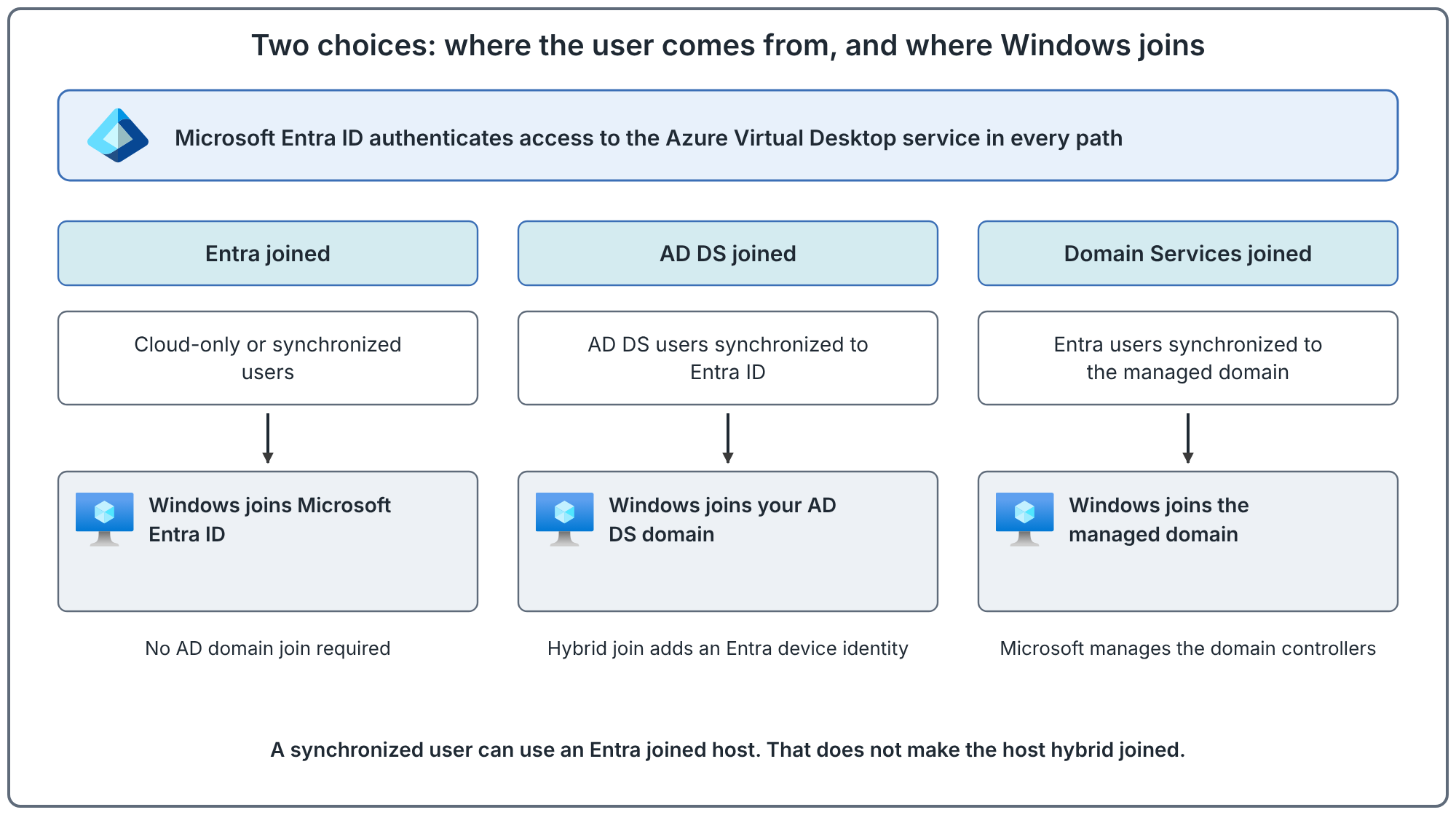
Microsoft Entra joined
Windows joins Entra ID. Both cloud-only and synchronized users can use this model. A domain controller is not required for the VM’s Entra join and cloud sign-in. The host must join the same Entra tenant used by the deployment.
Entra-only means joining Entra ID directly. It does not create a managed AD domain or provide traditional domain Group Policy. Intune enrollment is a separate management option.
AD DS joined
Windows joins a domain that you operate, with domain controllers on-premises or in Azure. AVD users must also exist in Entra ID through synchronization. Domain join needs the correct DNS configuration, connectivity to the domain and an account permitted to join computers.
Microsoft Entra Domain Services joined
Windows joins a managed domain in Azure. Users and groups flow from Entra ID into that domain. You do not run or patch these domain controllers. Session hosts still need the managed domain’s DNS and network connectivity.
3. Choose around the applications you must run
Start with application dependencies. A cloud identity preference cannot remove an application’s need for a domain-joined computer.
| Requirement | Model to evaluate | What must be checked |
|---|---|---|
| Cloud applications, with no AD computer dependency | Entra joined | Windows sign-in, application access and a compatible profile storage path |
| Existing Group Policy or an application that uses AD computer authentication | AD DS joined; evaluate hybrid join where Entra authentication is needed | Domain connectivity, DNS, policy processing and the application itself |
| Legacy LDAP, Kerberos or NTLM requirements in Azure, with a managed domain | Entra Domain Services joined | Managed-domain compatibility, credentials, DNS and network connectivity |
These are starting points for evaluation. Test the actual application and its authentication requirements before selecting the production model.
When hybrid join matters
An Entra hybrid joined host is joined to AD DS and also registered with Entra ID. It retains its domain dependency; it is not a way to remove domain-controller connectivity. Group Policy and applications that depend on AD machine authentication are the reasons to consider this model.
When a managed domain matters
Domain Services provides domain join, Group Policy, LDAP and Kerberos/NTLM for workloads that need those capabilities. It is a separate managed domain, rather than an automatic extension of your existing AD forest. Check that distinction before planning a migration.
Its users also need usable Kerberos/NTLM password hashes. Existing cloud-only users must change their passwords after enablement to generate them. For users synchronized from AD DS, the documented procedure uses Microsoft Entra Connect to synchronize the legacy password hashes. An account appearing in Entra ID is therefore not enough to prove managed-domain sign-in readiness.
Our decision for this series: keep Entra joined session hosts. The existing lab has an Entra joined host and Azure Files with Entra Kerberos. The test user is synchronized from AD DS. We will carry that combination forward, subject to the identity and profile checks later in this post. This is a documented supported combination, not a claim that every lab dependency is already healthy.
4. Include profile storage in the identity decision
FSLogix attaches a stored profile container at sign-in so the profile can follow the user between hosts. Windows sign-in alone does not prove profile access.
For Azure Files over SMB, choose one identity source per storage account. That choice applies to its file shares.
| Azure Files identity source | Identity consequence |
|---|---|
| AD DS | Clients authenticate against your AD domain and need domain-controller connectivity. |
| Entra Domain Services | Clients use the managed domain; the standard Kerberos path requires domain join and connectivity to it. |
| Entra Kerberos | Entra issues the Azure Files Kerberos ticket. Supported Entra joined or hybrid joined clients can use the documented path. |
Cloud-only users and Azure Files: the status depends on the page
The AVD release notes list FSLogix support for cloud-only and external identities as generally available in May 2026. Some other Microsoft pages still say preview or hybrid accounts only, so check the current status before you rely on it. A cloud-only user can keep a profile on Azure Files without an AD-synchronized account or a domain controller for storage authentication and authorization. Entra host join and profile access remain separate capabilities.
Cloud-only storage authentication is supported in Azure public regions, not US Government or 21Vianet. Clients must be Entra joined or hybrid joined and run supported Windows 11 or updated Windows Server 2025. For Windows 11, install at least these updates for the best experience: 24H2: KB5079391, build 26100.8116; 25H2: KB5079391, build 26200.8116; 26H1 or newer: KB5079489, build 28000.1764, or later builds. Storage-client support does not replace AVD host-edition requirements.
The storage application's cloud-group manifest setting is mandatory. Use the cloud-only share and folder-permission procedure, rather than copying hybrid AD ACL steps. The storage post will configure these requirements.
The pages describe cloud-only permissions differently: the Azure Files page says setting permissions in File Explorer is not supported for cloud-only identities, the Entra Kerberos introduction says access uses Azure role-based access control with no NTFS ACL enforcement, and the FSLogix page still tells you to configure storage permissions for profile containers. Check the current guidance for each before you build.
A synchronized user still has AD dependencies
In the documented hybrid path, the AD user and any group used for user-specific share permissions must be synchronized. Setting file and folder permissions requires an administration client that can reach AD DS. The session host does not need that connectivity merely to obtain the Azure Files Entra Kerberos ticket.
On-premises applications can still require AD connectivity.
Azure NetApp Files is a separate choice
Do not transfer the Azure Files cloud-only conclusion to Azure NetApp Files. Azure NetApp Files requires AD-backed authentication for FSLogix profiles. It does not support cloud-only (Entra-only) profile access.
5. See how the selected profile path fits together
The diagram shows the hybrid-user Azure Files path described by Microsoft. The directory supplies the synchronized user identity. Entra supplies the Azure Files ticket. The profile share also needs permissions.
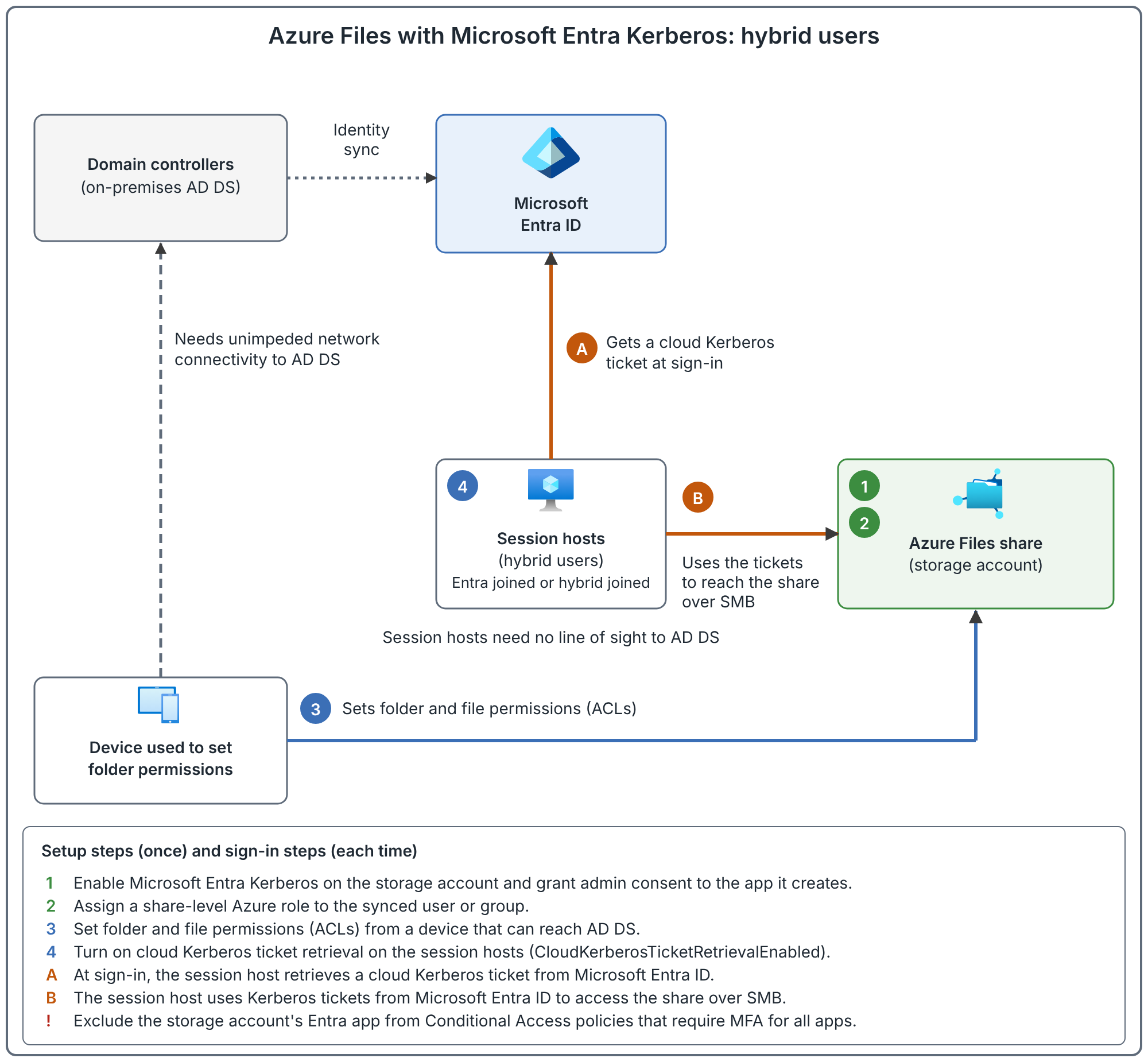
Numbers are one-time setup steps and letters are what happens at each sign-in. The numbers are configuration responsibilities, not network packets, and they are not a strict order: the share role and the folder permissions are separate layers. Enabling authentication does not assign permissions, and granting a share role does not set the user’s folder permissions. For hybrid identities, step 3 needs unimpeded network connectivity to a domain controller. Whether the session hosts themselves need a path to a domain controller depends on how they are joined.
Two permission layers
Share permissions decide whether the identity may access the share. File and folder permissions, also called ACLs, control what it can access inside that share. Both must be correct. Network access and DNS are separate requirements too.
For the selected hybrid route, plan a synchronized AD security group for profile access and verify its membership at the source. Keep the desktop-access group’s purpose clear. A cloud group used to assign an AVD desktop is not proof that the documented hybrid storage group requirements have been met.
6. Decide how Windows sign-in will work
Use Entra single sign-on for Entra joined and hybrid joined session hosts. SSO uses an Entra token for Windows sign-in, avoiding a separate host-credential prompt when the configured authentication flow succeeds.
Entra SSO does not support hosts joined only to AD DS or to Entra Domain Services. Hybrid join is therefore an important distinction when an AD domain-joined design needs this sign-in method.
The SSO configuration includes tenant-side RDP authentication, host-pool settings and a Conditional Access review. Where the documented AD criteria apply, it also needs a Kerberos server object. Hiding the connection consent prompt is a separate configuration choice.
The host-pool setting is Microsoft Entra single sign-on. Its RDP property is enablerdsaadauth:i:1. A legacy targetisaadjoined:i:1 setting is not evidence that SSO is configured.
Access to a desktop and access to Windows
Desktop Virtualization User is assigned at the application group to publish the resource to a user or group. For Entra joined hosts in a host pool without session host configuration, users also need Virtual Machine User Login. Host pools using session host configuration have a documented exception to that extra role requirement. Give administrative login only to people who need it.
External users need their own design
Invited external identities are supported under specific host OS, client, join and SSO conditions. They cannot use Kerberos or NTLM for on-premises resources. Do not assume that a guest invitation alone completes the design. This series uses an internal member user.
Their hosts must be Entra joined and the host pool must use SSO. Windows 11 Enterprise single or multi-session needs version 24H2 or later with KB5065789 or later; Windows Server 2025 needs KB5073379 or later. Windows App supports external identities on Windows, macOS, iOS, Android and in a web browser. Check the minimum client version for each platform.
External-user access to AVD and external-user access to Azure Files have different cloud limits. Azure Files support for these users is limited to FSLogix on AVD in Azure public cloud; government and cross-cloud scenarios are unsupported. Check the storage requirements as well as the Windows sign-in requirements before choosing this route.
7. Check the test user’s actual identity source
This is a practical inspection of the existing lab. It does not require creating a new domain or changing a password.
- Open Microsoft Entra ID → Users → All users.
- Open the test user.
- Select Properties and locate On-premises.
- Check On-premises sync enabled and the last synchronization time. For a hybrid deployment, also compare the represented identity with the source AD account: the supported matching condition is UPN or SID.
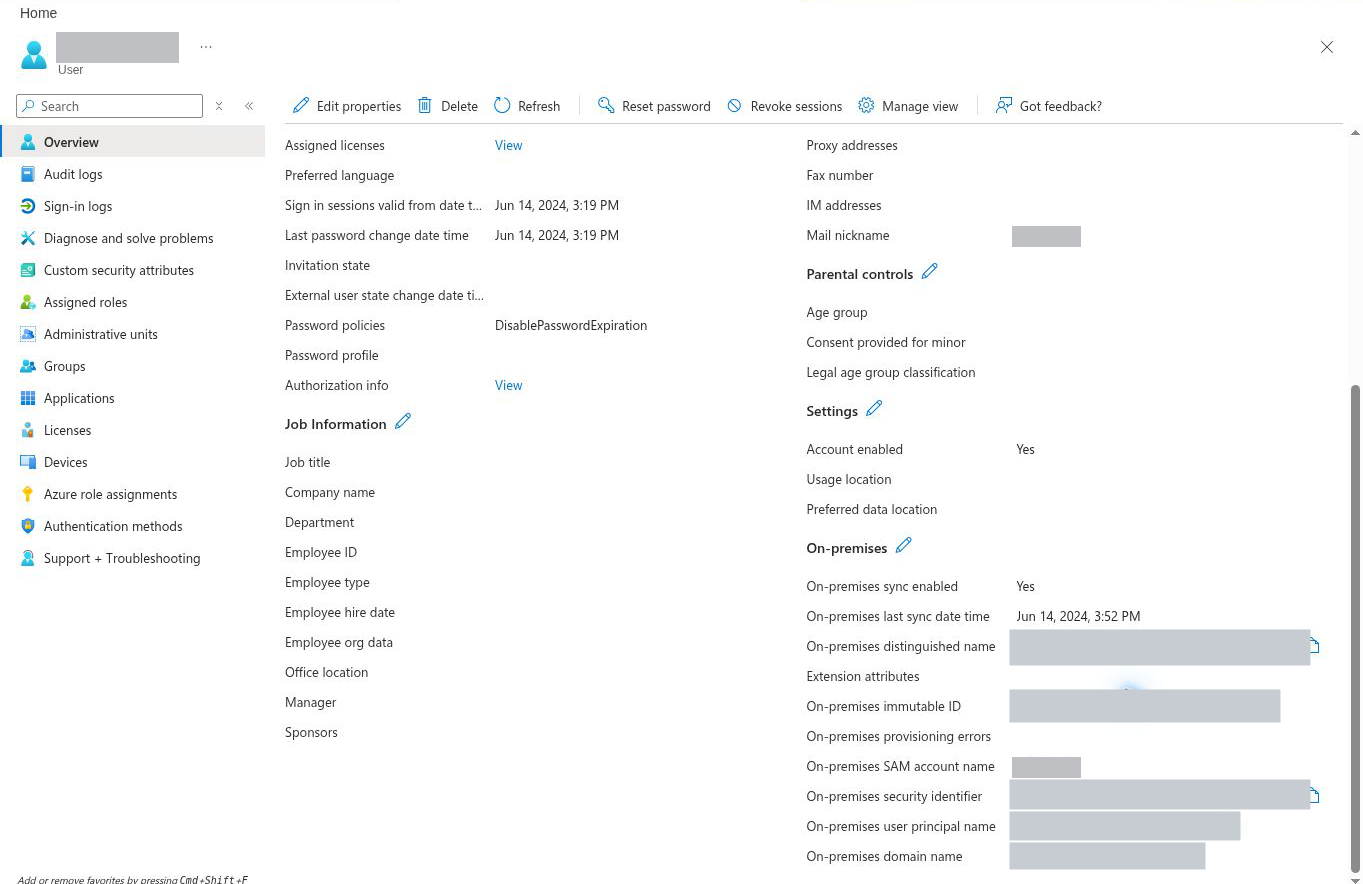
The last synchronization shown is 14 June 2024. This proves that the account is marked as synchronized; it does not establish current synchronization health. Before using this user for the profile lab, check that the source AD account still exists, identity matching is correct and synchronization is working.
If you are following this series with a new environment, decide whether your users will be cloud-only or synchronized before creating profile permissions. A cloud-only user can use the current Azure Files Entra Kerberos path, but its permission setup differs from this selected hybrid route.
8. Verify the Windows host join
The AADLoginForWindows extension is part of deploying an Entra joined AVD host. Seeing its name in the portal is useful, but check the actual Windows join state too.
For an existing running Windows VM, use this read-only inspection:
- Open the VM → Run command → RunPowerShellScript.
- Enter the command below and select Run.
- Wait for completion and read the three returned fields.
dsregcmd /status |
  Select-String 'AzureAdJoined|DomainJoined|DeviceAuthStatus'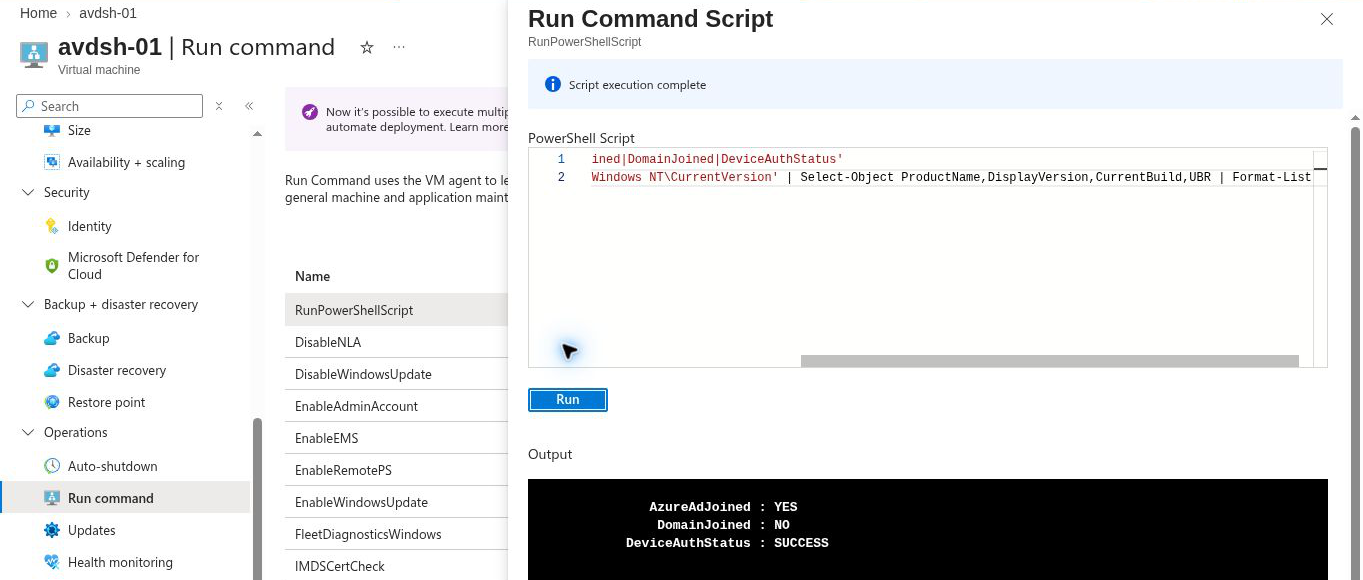
| Result | Interpretation |
|---|---|
| AzureAdJoined YES; DomainJoined NO | Entra joined |
| AzureAdJoined YES; DomainJoined YES | Entra hybrid joined |
| AzureAdJoined NO; DomainJoined YES | Domain joined; identify the actual domain separately |
DeviceAuthStatus SUCCESS means the device is present and enabled in Entra ID. It does not prove that a particular user can sign in or attach a profile. Run Command executes as SYSTEM, so this is a device check; user token and SSO checks belong in a real user session. Keep hosts in a pool on the same join type and check every host before relying on the pool.
9. Inspect the host pool’s SSO setting
- Open Azure Virtual Desktop → Host pools → avd-hp-avd-dev.
- Select RDP Properties → Connection information.
- Read Microsoft Entra single sign-on without changing the selection.
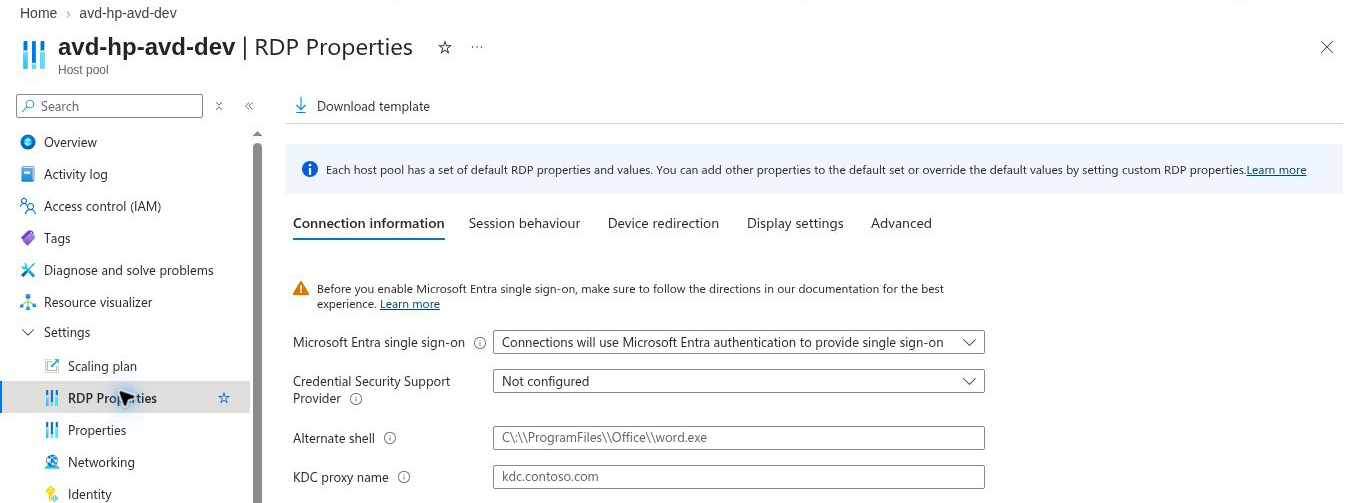
This verifies the host-pool setting. The tenant-side Windows Cloud Login configuration, applicable AD Kerberos requirements and Conditional Access still need review before the user connection test. A selected dropdown is not a successful SSO test.
The host-pool overview also reports Uses Session Host Configuration: No. The extra Virtual Machine User Login requirement for Entra joined hosts therefore applies to this lab. The preparation post recorded the existing VM login assignments; retain the intended group and scope when adding hosts.
10. Check storage authentication
Check the profile storage account
- Open the storage account, avddevprofiles00001.
- Select Data storage → Classic file shares.
- Select the Identity-based access status.
- Read the enabled identity source and default share-permission setting.
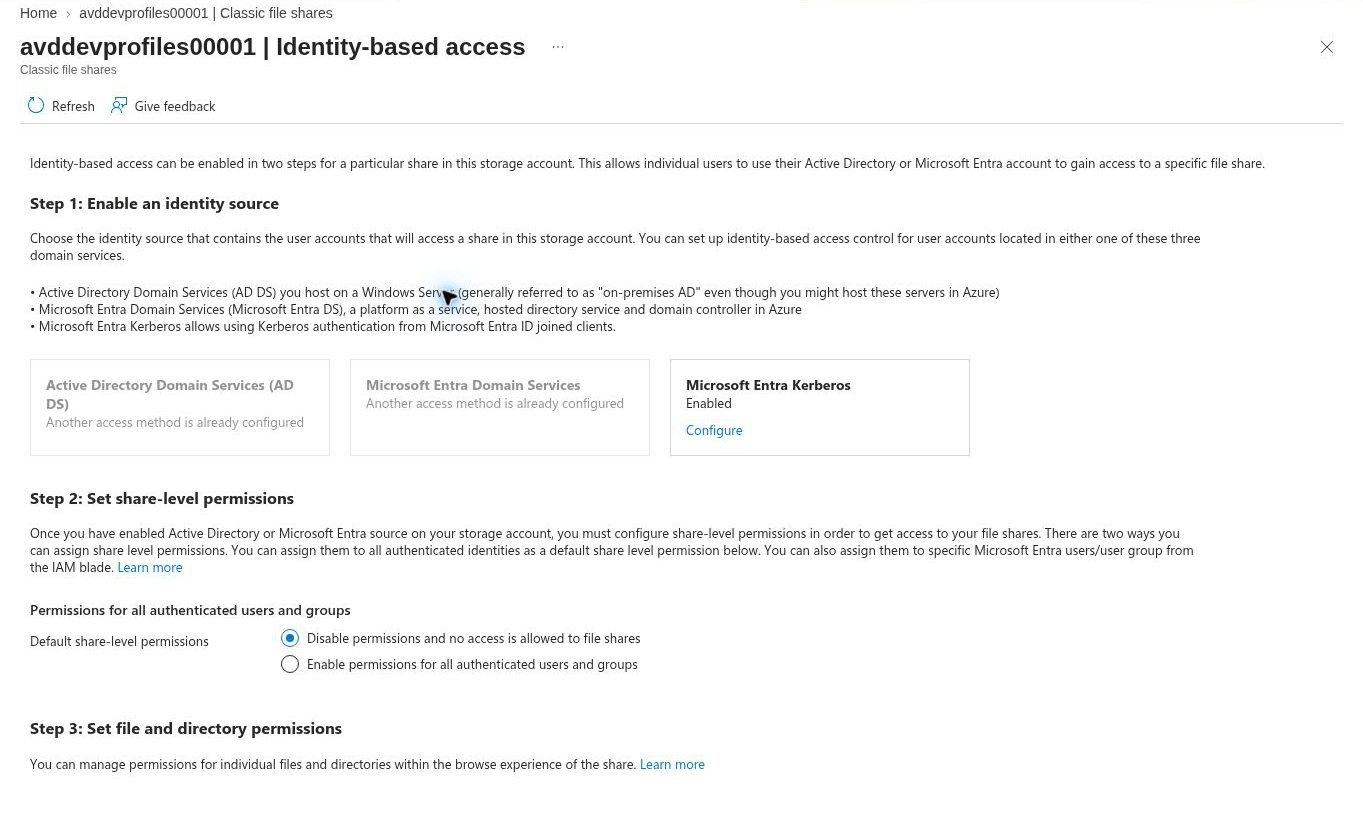
Disabled default permissions do not block identities that have valid explicit share assignments. For the profile lab, verify the selected user or synchronized group’s share role, file permissions, application consent, the client setting CloudKerberosTicketRetrievalEnabled (set to 1 on every client that mounts the share; if you set it through Intune, use the Settings Catalog, because the OMA-URI method does not work on multisession hosts) and ticket acquisition. The enabled label alone proves none of those additional checks.
11. Check the group’s origin
- Open Microsoft Entra ID → Groups → All groups.
- Open AVD_Users → Overview.
- Read Source and Type, then inspect its members and resource assignments.
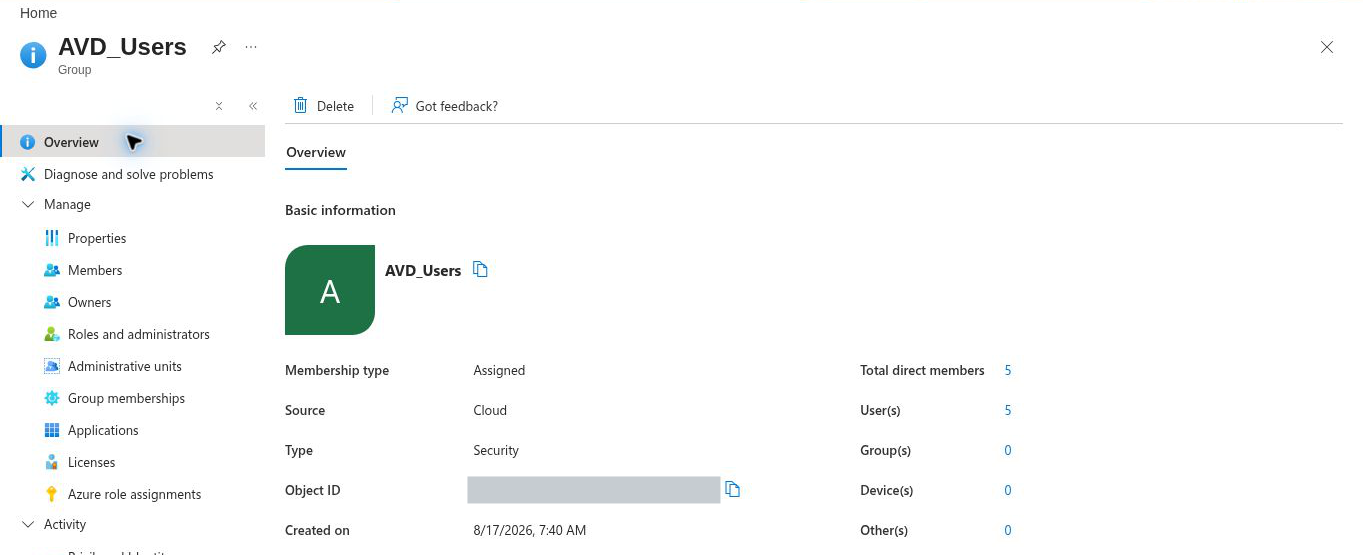
This is the desktop-access group used in the preparation post. Its existing Storage File Data SMB Share Contributor role on the profiles share must not be presented as a verified hybrid profile path, because a group that receives share roles on the hybrid path must be created in AD and synchronized to Entra ID, and this group is cloud-only. For the documented hybrid approach chosen here, establish the synchronized AD profile-access group and its matching file permissions in the storage lab. Current cloud-only group support is a separate configuration path and does not turn this group into an AD-synchronized group.
12. Record the decision before building further
The selected model is a synchronized internal user on Entra joined session hosts, with Azure Files Entra Kerberos for FSLogix. The device join and enabled storage identity source have been inspected. User synchronization health, profile permissions and a successful user session remain separate validation tasks.
| Decision or check | Outcome for this series |
|---|---|
| User source | The test user is marked AD-synchronized; current sync health and matching source identity still need verification. |
| Host join | avdsh-01 is Entra joined, with successful device authentication status. Check the other pool hosts too. |
| Windows authentication | The host-pool SSO setting is enabled. Complete tenant and policy checks, then test the user connection. |
| Profile storage | Azure Files Entra Kerberos is enabled. The complete profile-access path has not been tested. |
| Group purpose | AVD_Users is the cloud desktop-access group. Complete the documented hybrid profile group and ACL design separately. |
Before a production rollout
Apply the same decision process to each application, user population and storage service. Confirm supported OS versions, client support, licensing, Conditional Access and administrator access. A successful device check is one piece of evidence; the acceptance test must include the intended user opening Windows, accessing the required applications and reopening the same profile on another host where applicable.
Entra Kerberos for Azure Files does not support multifactor authentication. Exclude the storage account's Entra application from any Conditional Access policy that requires MFA, or access to the share fails. Keep MFA on the AVD sign-in. Entra join also does not remove connectivity requirements for AD-dependent applications.
Next: Plan Azure Virtual Desktop Networking: Address Space, Subnets, DNS and Connectivity. It designs the network around the identity model selected here: address space, subnets, DNS, outbound access and profile-storage connectivity.
Technical details re-checked on 17 October 2026. Screenshots show the inspected lab state; no successful desktop connection or profile attachment is claimed in this post.
Go deeper: How Sign-in Works: Three Authentications and Single Sign-on, Who Can Administer Azure Virtual Desktop.
Sources
Supported identities and authentication methods, prerequisites and Entra Kerberos on Azure Files.