Two bad habits are easy to fall into. The first is giving every administrator Contributor on the subscription because it is quick. The second is giving the help desk so little that every stuck session needs an engineer. AVD has its own built-in roles that avoid both, and they are less well known than the general Azure roles.
This article lists the roles, explains what each can and cannot do, shows which extra roles a task needs, and ends with a tiered delegation model. The model is the author's judgement. The role facts come from the documentation.
Key terms
| Term | Meaning |
|---|---|
| Azure RBAC | Azure role-based access control. You give a person or group a role at a scope. |
| Role | A named set of permissions. |
| Scope | The level where a role applies: management group, subscription, resource group or a single resource. |
| Least privilege | Giving only the permissions needed for the task. |
| Control plane action | An action on AVD objects, such as a host pool or application group. |
| Data action | An action on what a service does for a user, such as using an application. |
| Session host operator | A person who works with session hosts, for example to drain them. |
| Registration token | A time-limited key that lets a new virtual machine join a host pool as a session host. |
| Resource provider | The Azure service that handles requests for a type of resource. For AVD it is Microsoft.DesktopVirtualization. |
Two kinds of permission
AVD access has two sides, and they are easy to mix up.
- Who can manage AVD. These are Azure roles on the host pool, application group, workspace or the resource groups that hold them.
- Who can use AVD. This is the Desktop Virtualization User role on an application group, which lets a user open what it publishes. It is a data action,
useApplications.
On top of that, Microsoft Entra joined session hosts have a third permission, to sign in to the virtual machine. That is covered later.
The built-in roles
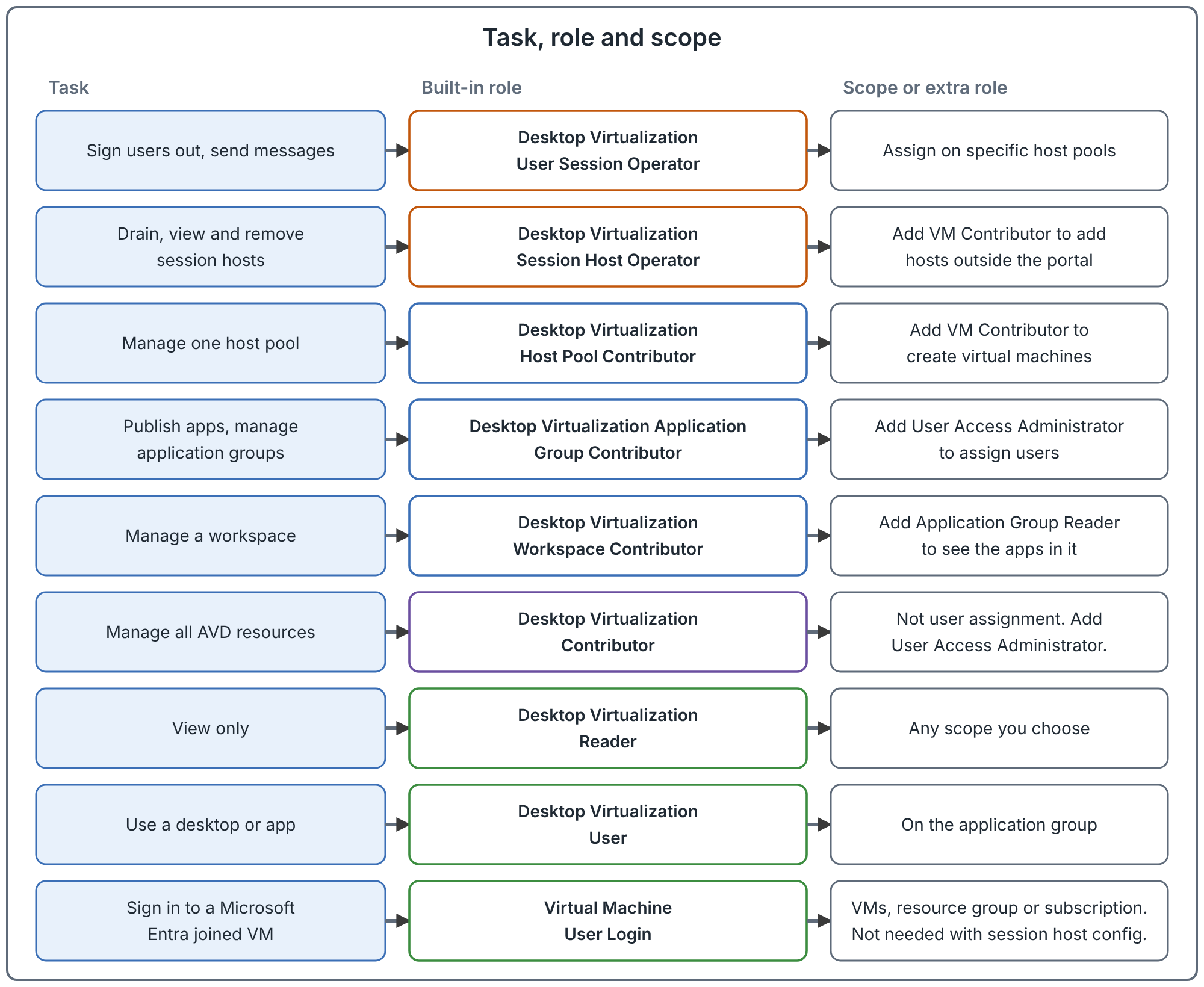
The documentation lists the AVD roles and what each does. This is documented fact. The table summarises them. For the full permission lists, use the documentation.
| Role | What it allows | Watch for |
|---|---|---|
| Desktop Virtualization Contributor | Manage all AVD resources, except user or group assignment. | It does not grant users access to compute resources. For assignments you also need User Access Administrator. |
| Desktop Virtualization Reader | View all AVD resources, no changes. | |
| Desktop Virtualization User | Use an application on a session host from an application group, as a non-administrative user. | Assign it on the application group. |
| Desktop Virtualization Host Pool Contributor | Manage all aspects of a host pool. | To create virtual machines you need Virtual Machine Contributor. To deploy from the portal you also need the Application Group Contributor and Workspace Contributor roles, or use Desktop Virtualization Contributor. |
| Desktop Virtualization Host Pool Reader | View a host pool. | |
| Desktop Virtualization Application Group Contributor | Manage an application group, except user or group assignment. | For assignment add User Access Administrator. |
| Desktop Virtualization Application Group Reader | View an application group. | |
| Desktop Virtualization Workspace Contributor | Manage workspaces. | To see applications in a related application group, add Application Group Reader. |
| Desktop Virtualization Workspace Reader | View a workspace. | |
| Desktop Virtualization User Session Operator | Send messages, disconnect sessions and sign users out. It cannot remove session hosts or change drain mode. It can see assignments but not change members. | Assign it to specific host pools. At resource group level it gives read permission on all host pools in the group. |
| Desktop Virtualization Session Host Operator | View and remove session hosts, and change drain mode. | It cannot add session hosts in the portal, because it has no write permission on host pool objects. Outside the portal it can add hosts if the registration token is valid and Virtual Machine Contributor is also assigned. |
Azure Virtual Desktop has no specific Owner role. You use the general Owner role for the service objects.
Three more roles exist for the service itself. They let the AVD resource provider act on virtual machines: Desktop Virtualization Power On Contributor (start), Desktop Virtualization Power On Off Contributor (start and stop) and Desktop Virtualization Virtual Machine Contributor (create, delete, update, start and stop). The last one is a different role from the general Azure Virtual Machine Contributor that the table above mentions. The role descriptions say they let the AVD resource provider act on virtual machines, and the feature pages assign them to the AVD service principal or a managed identity on the host pool, not to people. Start VM on Connect uses Power On Contributor, and autoscale uses Power On Off Contributor, plus Desktop Virtualization Virtual Machine Contributor for dynamic autoscale. The feature pages give the scope. For autoscale it is the subscription, and assigning the role lower stops autoscale from working properly. For Start VM on Connect, the subscription is recommended for environments with several host pools, but a lower scope is allowed as long as it contains the target session hosts.
Scope matters more than the role
The same role can be harmless or dangerous depending on where you assign it. The documentation says each role can be assigned at the scope you need, and that some features have specific scope requirements.
Judgement from that guidance:
- Assign at the lowest scope that works. A help desk role on one host pool is safer than on a resource group.
- Assign to groups, not people. Membership then becomes a request process, not a role change.
- Keep user access and admin access separate. The Desktop Virtualization User role goes on the application group. Admin roles go on the objects or their resource groups.
- Know the resource group side effect. The User Session Operator documentation says that at resource group level it gives read permission on all host pools in it.
A tiered delegation model
This is a recommended model and the author's judgement. It is an example to adapt. No part of it is a Microsoft prescription.
| Tier | Who | Roles | Scope |
|---|---|---|---|
| 1 | Service desk | Desktop Virtualization User Session Operator | Each host pool they support |
| 2 | Operations | Desktop Virtualization Session Host Operator, plus Desktop Virtualization Reader | Host pools they run |
| 3 | AVD engineering | Host Pool Contributor, Application Group Contributor and Workspace Contributor, plus Virtual Machine Contributor where they create hosts | The AVD resource groups |
| 4 | Platform owner | Desktop Virtualization Contributor, plus User Access Administrator for assignments | The AVD resource groups, with a separate approval for assignments |
Why split assignment out: Desktop Virtualization Contributor and Application Group Contributor do not include user or group assignment. That separation is built in. Use it. User Access Administrator is a general Azure role, not an AVD one, so it can manage access to any resource in its scope (judgement: keep its scope as narrow as you can). The person who publishes an application does not need to be the person who decides who can open it.
Assigning roles
You can assign roles in the portal, with the Azure CLI, with PowerShell or with Terraform. The method does not change the permissions. The commands depend on your environment, so use the documentation for current syntax. Whatever the method, do these checks:
- Assign to a security group, not an individual.
- Pick the scope on the specific resource first. Move up only if it does not work.
- Check the result afterwards. In the portal, use the Access control page of the resource and look at role assignments, including inherited ones.
The Microsoft Entra join exception
Users of Microsoft Entra joined session hosts need one more permission. The documentation says:
- Assign Virtual Machine User Login so users can sign in to the virtual machines.
- Assign Virtual Machine Administrator Login to administrators who need local administrator rights.
- You can assign these on the virtual machines, the resource group that holds them, or the subscription. The documentation recommends assigning Virtual Machine User Login to the same group used for the application group, at resource group level, so it covers all hosts in the pool.
- For host pools that use a session host configuration, this extra role assignment is not required.
Expect a user without this role to be unable to sign in to the host even though the desktop appears in their client and the application group is assigned correctly. That is the author's expectation from the role's purpose, so confirm it in a test.
Common mistakes
- Giving the help desk Contributor. Use User Session Operator on specific host pools.
- Assigning User Session Operator at resource group level. It gives read access to all host pools in the group.
- Assigning users to the host pool or the workspace. Users go on the application group.
- Expecting Desktop Virtualization Contributor to assign users. It does not. Add User Access Administrator.
- Expecting Session Host Operator to add hosts in the portal. It lacks write permission on host pool objects.
- Forgetting Virtual Machine User Login on Microsoft Entra joined hosts. Expect sign-in to fail.
- Using individual accounts for role assignments. Role reviews and leavers become harder.
How to validate your delegation
These are recommended checks to run with test accounts, in a test environment.
- Sign in as a Tier 1 test user. Confirm they can sign a user out and cannot drain a host or change a setting.
- Sign in as a Tier 2 test user. Confirm they can drain and remove a host, and cannot add one in the portal.
- Sign in as a Tier 3 test user. Confirm they can publish an application, and cannot assign users.
- For a Microsoft Entra joined host pool without a session host configuration, remove Virtual Machine User Login from a test user and confirm sign-in fails. Add it back and confirm it works.
- List the role assignments on each resource group and check that each one traces to a group and a reason.
Related book chapter, labs and project
Chapter 10 of the book covers RBAC and delegation. Lab 7 and Lab 9 include role assignments in their steps. The labs walk through those steps. None has been run end to end in Azure.
Next: Required Connectivity for Azure Virtual Desktop: Endpoints, Proxies, DNS and Private Link.
Sources
Built-in Azure RBAC roles for Azure Virtual Desktop, Microsoft Entra joined session hosts and Create and assign an autoscale scaling plan.