Multifactor authentication for AVD looks like one policy and turns out to be two applications, two policies and a handful of ways to create a loop of prompts. It is easy to apply a policy to "all cloud apps", turn on single sign-on, and then lose time finding out why users are asked for a code again and again.
This article explains which Microsoft Entra applications take part in an AVD sign-in, the two-policy structure the documentation recommends, how sign-in frequency behaves, and a set of checks for repeated prompts. The sign-in article explains the three authentications that these policies sit on.
Key terms
| Term | Meaning |
|---|---|
| Conditional Access | Microsoft Entra rules that decide whether a sign-in is allowed, and what must happen first, such as multifactor authentication. |
| Multifactor authentication (MFA) | Asking for a second proof of identity in addition to a password. |
| Target resource | The application a policy applies to. |
| Grant control | What the policy requires before it allows access, for example MFA. |
| Access token | A credential from Microsoft Entra ID that lets an app reach a resource. A new one is requested when an app needs access and does not hold a valid one. |
| Sign-in frequency | How often a user must sign in again. It is a session control. |
| Azure Virtual Desktop application | The Microsoft Entra application for the AVD service. It covers feed subscription, the gateway and diagnostics. |
| Windows Cloud Login application | The Microsoft Entra application used to sign in to the session host when single sign-on is on. |
| Per-user MFA | The older way to require MFA, set on each user account. It is separate from Conditional Access. |
| Security Defaults | A set of baseline settings in Microsoft Entra ID. Conditional Access policies cannot be used while they are on. |
What you need first
Documented prerequisites:
- A license that includes Microsoft Entra ID P1 or P2 for the users.
- A Microsoft Entra group that holds your AVD users.
- Microsoft Entra multifactor authentication enabled.
- At least the Conditional Access Administrator role to create policies.
Conditional Access cannot be used when Security Defaults are on. If your tenant uses them, you must turn them off before you create the policies. Do this on purpose (author's judgement), because it changes baseline protection for the whole tenant.
Which applications to target
When a user connects, several Microsoft Entra applications take part. The documentation names them. This is documented fact.
| Application | What it covers | Guidance |
|---|---|---|
Azure Virtual Desktop (ID 9cdead84-a844-4324-93f2-b2e6bb768d07) |
Subscribing to AVD, signing in to the gateway during a connection, and sending diagnostics from the device. | Target it with your MFA policy. Do not use the Every time sign-in frequency on it. |
Windows Cloud Login (ID 270efc09-cd0d-444b-a71f-39af4910ec45) |
Signing in to the session host when single sign-on is on. | Target it with a second policy. Align it with the first, except for sign-in frequency. |
Azure Virtual Desktop Azure Resource Manager Provider (ID 50e95039-b200-4007-bc97-8d5790743a63) |
Retrieving the feed. | Do not select it. It must not have MFA. |
Windows 365 (ID 0af06dc6-e4b5-4f28-818e-e78e62d137a5) |
Windows App signs in to this application too, even if the user only has AVD resources. | Make sure no policy blocks it. A block causes sign-in failures for AVD users. |
If you use the older Azure Virtual Desktop (classic), the documentation lists a different set of applications. For the main Azure Virtual Desktop application, the documentation also says that if you registered the resource provider before the display name changed, the application may appear as Windows Virtual Desktop, with the same application ID.
When users connect with the web client, the sign-in log lists the client app as Azure Virtual Desktop client (ID a85cf173-4192-42f8-81fa-777a763e6e2c). It is linked internally to the server app where you set the policy, so you do not target it separately.
If you connect with thin clients, the documentation says to ask the client's provider whether Windows Cloud Login is the right target for single sign-on connections.
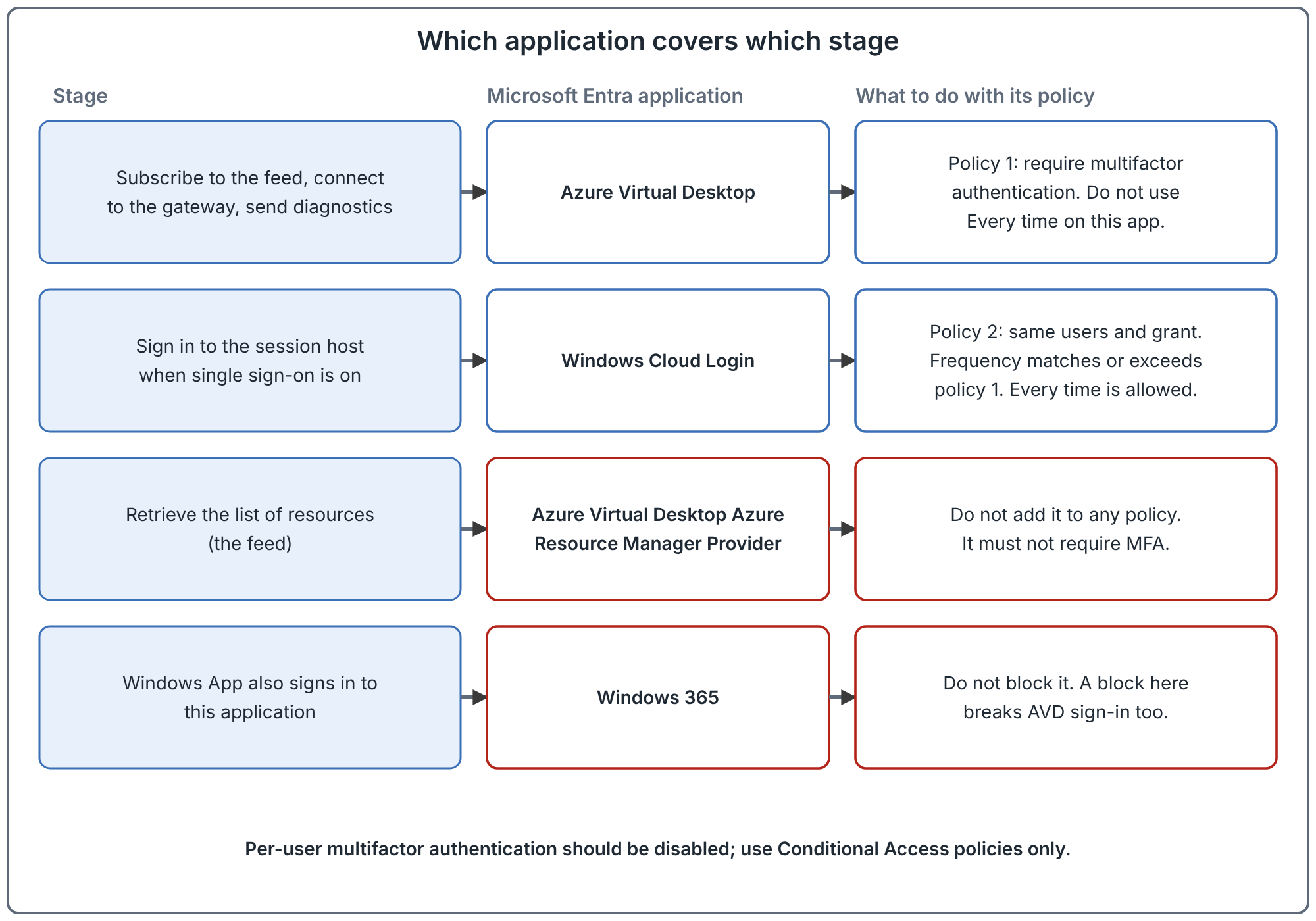
The two-policy structure
The documentation recommends two separate policies rather than one combined policy. Both apps need policies that are aligned, or users see MFA prompts at unexpected times.
| Setting | Policy 1: service | Policy 2: session host |
|---|---|---|
| Target application | Azure Virtual Desktop | Windows Cloud Login |
| Users | The AVD user group | The same group |
| Grant | Require MFA | Require MFA |
| Sign-in frequency | Per your security needs | Match or exceed policy 1. Every time is supported only here. |
| Client apps | Browser, plus mobile apps and desktop clients | The same |
When a user connects, policy 1 is evaluated when Windows App authenticates to the Azure Virtual Desktop application. Policy 2 is evaluated later, when the gateway starts session host single sign-on through Windows Cloud Login. When both are right, the user sees one MFA prompt, if one is needed, and enters the session.
Deselect the legacy authentication client types in the client apps condition.
Sign-in frequency
Sign-in frequency decides how often Microsoft Entra asks again. Documented behaviour:
- A user is asked again only when a new access token is needed. After a connection is up, the user is not prompted even if the session outlasts the frequency.
- Periodic reauthentication takes a time value. If you set one hour, MFA is required when a connection starts more than an hour after the last sign-in.
- Every time is supported only on Windows Cloud Login, with SSO on. Users are then asked when starting a new connection after a period of 5 to 10 minutes since the last sign-in.
- On the Azure Virtual Desktop application, after the period ends, background feed refresh and diagnostics upload fail silently until the user signs in again interactively.
- A network disruption that forces the session to be re-established after the period also forces a new sign-in. That can mean more prompts on unstable networks.
- Some users on devices that are not registered in Microsoft Entra ID may see a "Stay signed in to all your apps" prompt. If they decline organization management of the device, they may be asked more often.
The documentation notes that frequent sign-in matters most on personal devices, where the local operating system might not require MFA or lock after inactivity.
Recommendation (judgement): begin with the same periodic value on both policies. Add Every time on Windows Cloud Login only for high-risk groups, and test reconnects on a bad network first.
Traps to check before you turn policies on
The pre-configuration list in the documentation covers these. It is documented.
- Policies that target "All cloud apps" apply to AVD single sign-on sessions and can block access unexpectedly. List them first.
- Device compliance policies. Microsoft Entra joined session hosts may not satisfy compliance policies written for user endpoints. The troubleshooting page adds that, for connection-time policies, the compliance requirement applies to the client device, and that most deployments should scope connection-time compliance to client endpoints.
- Location policies. For the Azure Virtual Desktop application they evaluate the user's client IP. For Windows Cloud Login the address Conditional Access sees may differ from the client IP, depending on network routing. Test both.
- Per-user MFA. If it is on at the same time as Conditional Access, users on Microsoft Entra joined session hosts get "The sign-in method you're trying to use isn't allowed". Disable per-user MFA for AVD users and use Conditional Access only.
- Microsoft Entra joined hosts and strong methods. If you do not want to restrict sign-in to strong methods such as Windows Hello for Business, the documentation says to exclude the Azure Windows VM Sign-In application from the policy.
When users are prompted again and again
The troubleshooting article lists these causes. Check them in this order, which is the author's suggestion.
| Cause | What to look at |
|---|---|
| Sign-in frequency differs between the two apps | Make the values equal, or have Windows Cloud Login match or exceed the other. |
| Every time is set on the Azure Virtual Desktop application | Move it to Windows Cloud Login. |
| Per-user MFA is on beside Conditional Access | Disable per-user MFA. |
| No policy covers Windows Cloud Login | The user gets MFA once at the service and again at the session host. Add a policy for it. |
| The consent prompt is not hidden | It looks like a sign-in prompt. See the sign-in article. |
| Session lock is not set to disconnect | After a lock, the user must give full credentials. Set the host pool to disconnect on lock. |
For sign-in errors, the documentation gives a short list of codes and what they mean. It says the sign-in log is the main tool.
| Code | Meaning in the documentation |
|---|---|
| AADSTS50058 | The client has no active Microsoft Entra session. Sign out of Windows App and in again, and clear the Web Account Manager cache if needed. |
| AADSTS50076 | MFA is required, by policy or per-user, and was not satisfied. Check the user's registered method and the policy conditions. |
| AADSTS530002 | The device is not compliant. Which device depends on which policy failed. |
| AADSTS530032 | A tenant security control blocked the sign-in. This can be Security Defaults or a policy that blocks access. |
| AADSTS65001 | Consent is required. Hide the consent prompt or give admin consent for Windows Cloud Login. |
The diagnosis steps in the documentation are the same each time. In the Microsoft Entra sign-in logs, filter by the user. Look for entries for the Azure Virtual Desktop and Windows Cloud Login applications. For each failure, note the error code, open the Conditional Access tab to see which policy blocked it, and open Authentication Details to see which method was used.
Common mistakes
- Applying one policy to "All cloud apps" and calling it done. It also catches the apps AVD needs and can cause failures.
- Adding the Resource Manager Provider app to a policy. It is only for the feed and must not have MFA.
- Blocking the Windows 365 app. Windows App signs in to it as well.
- Setting Every time on the wrong application. It causes constant prompts on feed refresh.
- Leaving per-user MFA on. It collides with Conditional Access on Microsoft Entra joined hosts.
- Applying user-device compliance rules to session hosts at connection time. Scope compliance to client devices.
How to validate your policies
These are recommended checks. The documentation lists a similar post-configuration check.
- Connect with Windows App as a test user. Confirm you authenticate once, with MFA if required, and enter without a second prompt.
- In the sign-in logs, filter by the test user. Check that the Azure Virtual Desktop and Windows Cloud Login entries both show success and the expected policy.
- If either shows failure, open the Conditional Access tab to see which policy blocked it.
- Wait past your sign-in frequency and reconnect. Confirm the behaviour you intended.
- Test from an unstable network, and from a location your policies treat differently.
Related book chapter and projects
Chapter 9 of the book covers Conditional Access, MFA and zero trust. There is no lab for this topic. Project 06 and Project 11 are fictional case studies and have not been run against a real environment.
Next: Who Can Administer Azure Virtual Desktop: Roles, Scopes and Delegation.
Sources
Enforce Microsoft Entra multifactor authentication for Azure Virtual Desktop using Conditional Access, Troubleshoot single sign-on and Conditional Access and Configure single sign-on.