The client is the one part of the service your users touch. It is also the part that changes most often and is least under your control, because it runs on devices you may not manage. Most AVD designs spend pages on session hosts and a sentence on the client. That is a risk (the author's judgement), because a client that is out of support is no longer covered by support, and a whole group of users may depend on it.
This article lists the clients the documentation names, what has changed about them, the feature gaps that matter for design, and how to plan a move from an older client.
Key terms
| Term | Meaning |
|---|---|
| Client | The app on the user's device that signs in, shows the feed and opens the remote session. |
| Windows App | Microsoft's current client for Azure Virtual Desktop, Windows 365, Microsoft Dev Box, Remote Desktop Services and remote PCs. |
| Remote Desktop client | The older family of clients. The documentation says Windows App replaces it. |
| MSI client | The Remote Desktop client for Windows, installed from a standalone installer. |
| Store app | The Remote Desktop app for Windows, once available from the Microsoft Store. |
| Web client | A client that runs in a browser, with nothing to install on a desktop or laptop. |
| Redirection | Passing a local device or feature, such as a printer, camera or clipboard, into the remote session. |
| RDP Shortpath | An optional direct UDP path between the client and the session host. The connection article explains it. |
| Teams media optimizations | An optimized Microsoft Teams calling and meeting experience inside a remote session. |
| WebAuthn redirection | Passes sign-in requests made inside the remote session to the local device, so security keys and Windows Hello for Business can be used. |
| Private Link | A way to connect a remote session over a private connection. |
| Microsoft Intune | Microsoft's cloud service for managing devices with policies. |
| Public cloud, Azure Government, Azure operated by 21Vianet | Azure for US Government and Azure operated by 21Vianet (in China) are sovereign clouds, separate from the public cloud. |
| AVD Classic | The older, non-Azure Resource Manager version of the service. The fit article covers its retirement. |
| Feed | The list of desktops and apps a user may open. |
The clients and where they stand
The documentation describes Windows App as the new way to connect to cloud and remote resources, and says it replaces the Remote Desktop client. These facts are from the documentation at the time of checking, and they have dates in them, so check the pages before you rely on them.
| Client | Platforms | Status in the documentation |
|---|---|---|
| Windows App | Windows, macOS, iOS and iPadOS, Android and Chrome OS, web browsers, Meta Quest | The current client. Sign-in needs a work or school account. A personal Microsoft account does not work. The overview lists Meta Quest as a platform, but the get-started page labels Meta Quest as preview, so treat it as preview. |
| Remote Desktop client for Windows (MSI) | Windows | No longer supported for public cloud customers from March 27, 2026. Support was extended to September 28, 2026 for Azure Government, Azure operated by 21Vianet and AVD Classic. That date has passed at the time of writing, so check the page for the current position. |
| Remote Desktop app for Windows (Store) | Windows | No longer supported and no longer available to install. Support ended September 2025. |
| Remote Desktop clients for macOS and iOS/iPadOS | macOS, iOS, iPadOS | Not available to download. Replaced by Windows App. |
| Remote Desktop client for Android and Chrome OS | Android, Chrome OS | Listed as available from Google Play. |
| Remote Desktop web client | Browser | No longer supported for public cloud customers from March 27, 2026. No end-of-support date is announced for Azure Government or Azure operated by 21Vianet. |
Two clients are not supported for AVD at all: the RemoteApp and Desktop Connections client, and the Remote Desktop Connection client (mstsc.exe). This comes from the prerequisites page for AVD, not from the client overview.
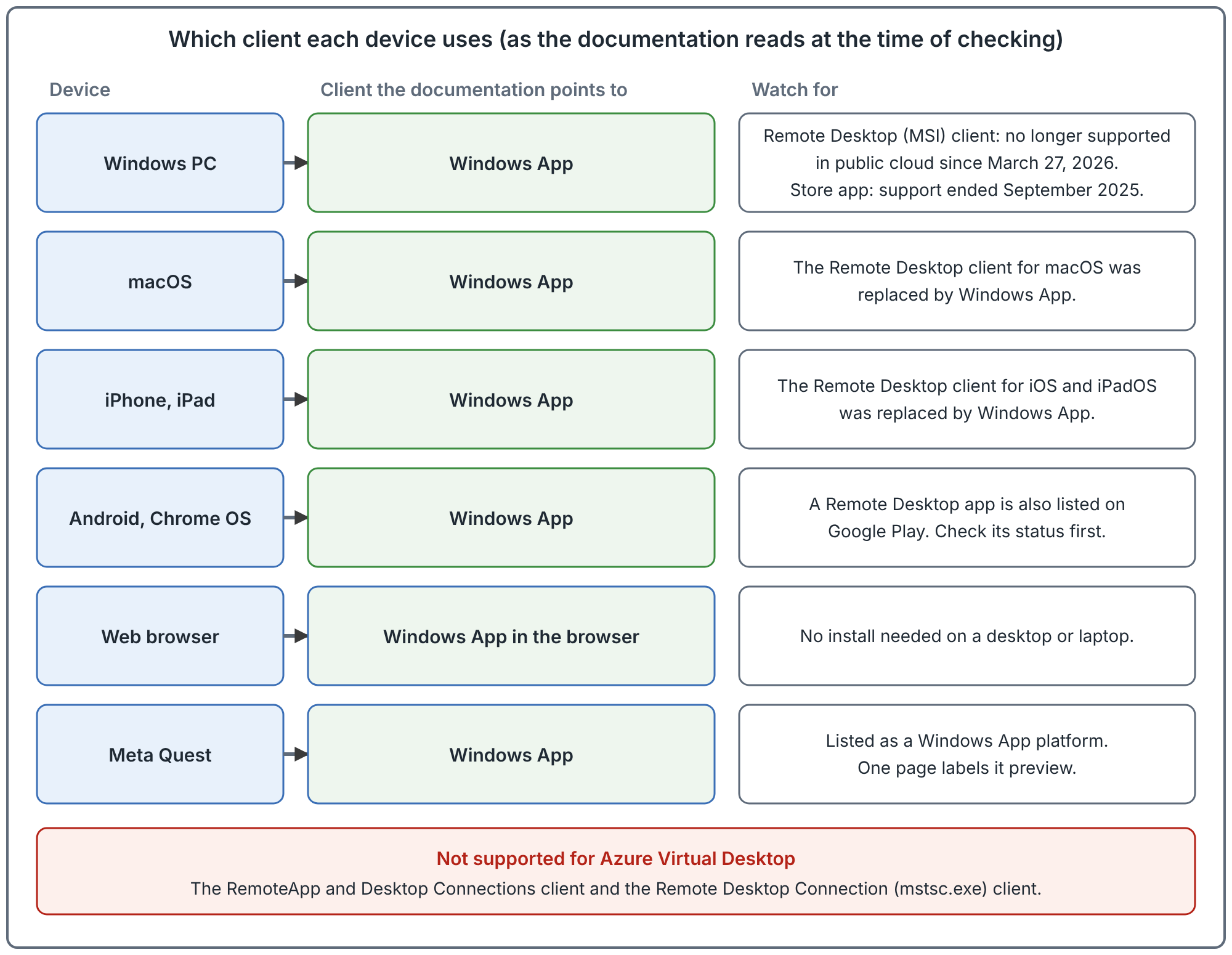
Recommendation (judgement): standardize on Windows App for every platform you support, and treat any user still on an older client as a migration item with a date.
What each choice changes
Documented facts first.
- Windows App needs a work or school sign-in. You cannot sign in with a personal Microsoft account. For AVD, Windows 365, Dev Box and Remote Desktop Services you must sign in. For remote PC connections on supported platforms you can use Windows App without signing in.
- In a browser, nothing is installed. The documentation describes this for desktops and laptops. It is the lowest-effort option for a device you do not manage.
- Windows App on Windows connects to AVD but not to Remote Desktop Services. For Remote Desktop Services on Windows, the documentation says to keep using the Remote Desktop app on Windows. If you have both services, plan for two clients on Windows.
- Features differ by platform. The next section gives examples.
Judgement: a browser is a good fallback for contractors and kiosks. It is a poor primary client if users need local devices, several monitors or heavy media. The feature table below is the reason.
Feature gaps that affect design
The Windows App documentation has a comparison of features across platforms, with a separate view for Azure Virtual Desktop. This section uses that page. The older comparison of Remote Desktop client features is archived, so it is not used for the table below. The table follows the Azure Virtual Desktop view of the Windows App comparison, checked October 2026.
| Feature | Where the Windows App comparison shows support |
|---|---|
| Multiple monitors | Windows and macOS. Not iOS and iPadOS, Android and Chrome OS, the web client or Meta Quest. An external monitor is listed for Windows, macOS, iOS and iPadOS, and Android and Chrome OS (the last depends on the local device), but not the web client or Meta Quest. |
| USB and serial port redirection | Windows only. |
| Scanner redirection | Windows only, and TWAIN scanner redirection is labelled preview. |
| Multimedia redirection (video playback and calls) | Windows only. |
| Teams media optimizations | WebRTC: Windows, macOS, iOS and iPadOS, and Android and Chrome OS. SlimCore: Windows and macOS. Neither is listed for the web client or Meta Quest. |
| WebAuthn redirection | Windows. macOS, iOS and iPadOS, and Android are listed as preview with minimum client versions. Not the web client or Meta Quest. |
| Smart card redirection | Windows and macOS. iOS and iPadOS is preview and supports only YubiKey. Not Android and Chrome OS, the web client or Meta Quest. |
| Printer redirection | Windows (RAW printing is preview for Azure Virtual Desktop), macOS (only the Publisher Imagesetter driver by default) and the web client. Not iOS and iPadOS, Android and Chrome OS, or Meta Quest. |
| Screen capture protection | Windows and macOS. iOS and iPadOS and Android need Intune mobile application management, and Chrome OS is not covered. Not the web client. |
| Watermarking | Windows, macOS, iOS and iPadOS, Android and Chrome OS, and the web client. |
| Connection information (shows the transport in use) | Windows, macOS and the web client. Not iOS and iPadOS, Android and Chrome OS, or Meta Quest. |
| RDP Shortpath for managed networks | Windows, macOS, iOS and iPadOS, Android and Chrome OS, and Meta Quest. Not the web client. |
| RDP Shortpath for public networks | Windows, Android and Chrome OS, and Meta Quest, for both STUN and TURN. macOS only in a beta build. Not iOS and iPadOS or the web client. |
| RDP Multipath | UDP: Windows (version 2.0.559.0 or later) and macOS (beta build). UDP and TCP: Windows (version 2.0.1069.0 or later). |
| Input Protection and Display Protection (preview) | Windows only, with a minimum Windows App version and session host configuration. Input Protection also needs the Windows Cloud Input Protect MSI on the device. |
| Private Link | Windows, macOS, iOS and iPadOS, and Android and Chrome OS. Not the web client or Meta Quest. |
The comparison page marks a feature as present or absent on a platform and labels some entries preview. It gives version numbers for only a few features and does not say how well a feature works, so treat a tick as a reason to test, not a guarantee. Redirection also depends on what your administrator allows and on settings on the local device. The more restrictive setting wins.
Two lessons follow.
- The browser, Meta Quest and mobile clients have the largest gaps. If your design needs Teams optimization, several monitors, USB devices or Shortpath, test the platform you plan to allow.
- Windows has the widest support, and several entries on other platforms are preview or beta builds. Check the Windows App documentation again before you rely on a feature, because these entries change.
The connection article explains why Shortpath support in the client matters: without it, sessions use the gateway relay.
Plan a client change
This is a recommended order. It is judgement, not a documented procedure.
- Inventory the clients in use. Count users by platform and by client. Do not assume everyone is on the client you deployed.
- Pick the target client per platform. Windows App on Windows, macOS, iOS and iPadOS and Android and Chrome OS. The browser as a fallback.
- Check the features you depend on against the Windows App documentation for each platform, using the list in the previous section as a starting point.
- Pilot with a small group that includes your hardest case: multiple monitors, a smart card or a headset.
- Check what the firewall allows. The documentation has a required URL list that includes the addresses clients use. Test the new client from your most locked-down network.
- Set a date and communicate it. Publish the dates in the documentation, because they are not yours to move.
- Remove the old client where you can. Keeping both invites support calls.
Common mistakes
- Assuming the Remote Desktop client still works because it still launches. Support has ended for some of them, so do not expect support for problems with them.
- Using the built-in Remote Desktop Connection (
mstsc.exe). It is not supported for AVD. - Forgetting that users need a work or school account. A personal Microsoft account cannot sign in to Windows App.
- Allowing every platform without testing the one with the fewest features. Users on that platform will report the gaps.
- Treating the browser as equal to a native client. The comparison shows it has fewer redirection options.
- Leaving client choice out of the design. The client decides which transport, redirection and sign-in options a user gets.
How to validate your client plan
These are recommended checks.
- On one device per platform, sign in with a test account and confirm the expected desktops and apps appear.
- Open the connection information on a client that has it, and note the transport. Do this from an office network and from a home network.
- Test the redirections your users need, one at a time, on every allowed platform.
- Remove the old client from a test group and confirm that nothing in your design still depends on it.
Related book chapter and project
Chapter 6 of the book covers clients and the endpoint story. There is no lab for this topic. Project 06 is a fictional case study about personal devices and has not been run against a real environment.
Next: How Sign-in Works: Three Authentications and Single Sign-on.
Sources
Microsoft Learn, checked October 2026: Windows App features across platforms and devices, What is Windows App?, Get started with Windows App, Prerequisites for Azure Virtual Desktop and, for the status of the older clients, the archived Remote Desktop client overview.