A user signs in to Windows App, picks a desktop, and is asked for a password again. Then, inside the desktop, an application asks once more. It can feel like signing in three times. It is actually three different authentications, and each one has its own settings and its own failure modes.
This article names the three, shows how single sign-on joins the first two, covers the extra pieces that Active Directory adds, and lists where an extra prompt comes from. The identity model article covers the choice of join type. This one covers what happens at sign-in once that choice is made.
Key terms
| Term | Meaning |
|---|---|
| Authentication | Proving who you are. |
| Single sign-on (SSO) | Using the sign-in you already did, so you are not asked again. |
| Token | Proof from Microsoft Entra ID that you signed in. |
| Service principal | The copy of an application that exists in your Microsoft Entra tenant. Settings for an application, such as SSO, are made on its service principal. |
| Windows Cloud Login | The Microsoft Entra application that is used to sign users in to the session host when SSO is on (application ID 270efc09-cd0d-444b-a71f-39af4910ec45). |
| Conditional Access | Microsoft Entra rules that decide whether a sign-in is allowed and what must happen first, such as multifactor authentication. The next article covers them. |
| Federation | A trust between two sign-in systems, so that a third-party identity provider can sign users in to Microsoft Entra ID. |
| UPN and SID | The user principal name is the sign-in name, like an email address. The security identifier is the unique ID of a user object in Active Directory. |
| RDP property | A setting on a host pool that is written into the connection file the client uses. |
| Microsoft Entra joined | The session host is a device in Microsoft Entra ID. |
| Microsoft Entra hybrid joined | The session host is joined to Active Directory and also registered in Microsoft Entra ID. |
| Kerberos | A ticket-based sign-in protocol used with Active Directory. |
| Key Distribution Center (KDC) | The service on a domain controller that issues Kerberos tickets. |
| Kerberos server object | An object created in Active Directory and published to Microsoft Entra ID. It is not tied to a physical server. Microsoft Entra ID uses it to generate Kerberos ticket-granting tickets for your Active Directory domain, so a Microsoft Entra sign-in can reach on-premises resources. |
| KDC proxy | A service that carries Kerberos traffic for clients that cannot reach a domain controller directly. |
| Consent prompt | A dialog that asks the user to allow a connection to a new session host when SSO is on. |
| WebAuthn redirection | Sending passkey and security key requests from the session to the local PC. |
| Windows Hello for Business | A Windows sign-in that uses a PIN or biometric instead of a password. |
| Smart card | A physical card with a certificate on it that is used to sign in. |
The three authentications
The documentation says there are three separate authentication phases. This is documented fact.
| Phase | What it is | Where you control it |
|---|---|---|
| Cloud service authentication | Signing in to the AVD service with Microsoft Entra ID. It happens when the client subscribes to resources, connects to the gateway and sends diagnostic information. | Microsoft Entra ID, including Conditional Access and multifactor authentication. |
| Remote session authentication | Signing in to the session host. | SSO, or a prompt, or saved credentials. |
| In-session authentication | Signing in to applications and web sites inside the desktop. | Passwordless through redirection, smart cards, passwords. |
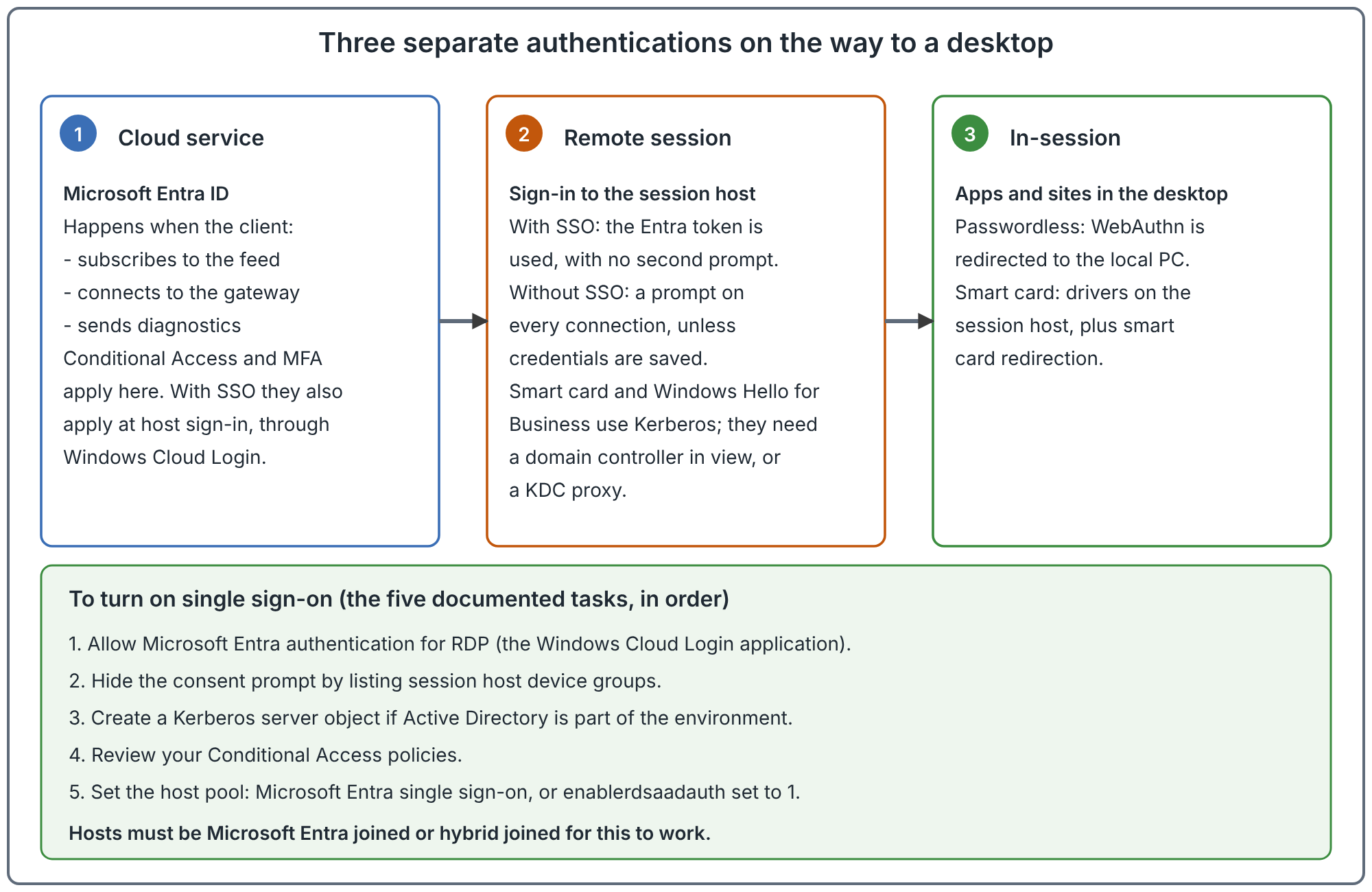
One rule governs all three. AVD does not support signing in to Microsoft Entra ID with one account and then to Windows with a different account. That includes local Windows accounts. The documentation says doing so can reconnect users to the wrong session host, show wrong information in the portal and bypass Microsoft Entra authentication and Conditional Access. Use the same identity throughout.
Phase 1: cloud service authentication
The sign-in uses a Microsoft Entra ID account. The Microsoft Entra resource is Azure Virtual Desktop. This is where you enforce Conditional Access and multifactor authentication, and where you can federate to a third-party identity provider, as long as it federates with Microsoft Entra ID.
Documented points that matter in design:
- Users must be discoverable in Microsoft Entra ID. Accounts that exist only in Active Directory are not supported, which includes standalone AD with AD FS and no Microsoft Entra ID.
- Hybrid identities are supported. If the UPN or the SID differs between Active Directory and Microsoft Entra ID, AVD supports it only when at least one of the two matches.
- Cloud-only identities are supported with Microsoft Entra joined hosts.
- The client device must reach the required URLs for Remote Desktop clients, or authentication will not work.
The Conditional Access article covers the policy side.
Phase 2: remote session authentication and single sign-on
Without SSO, the client asks for the session host credentials on every connection. The only way to avoid the prompt is to save the credentials in the client, and the documentation says to do that only on secure devices.
With SSO using Microsoft Entra authentication, the user is signed in to Windows with a Microsoft Entra token. The documentation recommends it for Microsoft Entra joined and hybrid joined hosts. It adds passwordless sign-in and support for third-party identity providers that federate with Microsoft Entra ID.
What SSO requires
All documented:
- Session host join type. Microsoft Entra joined or Microsoft Entra hybrid joined. Hosts joined only to Active Directory or to Microsoft Entra Domain Services are not supported.
- Session host operating system. Windows 11 Enterprise or Windows 10 Enterprise (single-session or multi-session), or Windows Server 2022, with the October 2022 cumulative update or later.
- A supported client. The page lists versions of Windows App and of the older Remote Desktop clients. All versions of Windows App on Windows are supported, and the local PC does not need to be joined to Microsoft Entra ID or a domain.
- Two-way trust for hybrid hosts in another domain. If hybrid joined hosts are in a different domain from the users, a two-way trust is needed. Without it, connections fall back to older authentication protocols.
- A tenant role such as Application Administrator or Cloud Application Administrator, to configure it.
The five tasks
The documentation lists five tasks to enable SSO, in this order.
- Enable Microsoft Entra authentication for RDP on the Windows Cloud Login service principal. In the portal this is under Devices, Remote connection configuration, then Windows Cloud Login, with the option to enable the Microsoft Entra ID authentication protocol to authenticate users to remote devices. PowerShell with the Microsoft Graph PowerShell SDK does the same by setting
isRemoteDesktopProtocolEnabledto true. - Hide the consent prompt. By default users see a dialog when they connect to a new host. Microsoft Entra remembers up to 15 hosts for 30 days. To hide it, put the session hosts in up to 10 device groups and list them on the service principal. The documentation suggests dynamic groups, and notes that they need a Microsoft Entra ID P1 license or an Intune for Education license.
- Create a Kerberos server object if Active Directory is part of the environment. The criteria are in the next section.
- Review Conditional Access. SSO adds the Windows Cloud Login application to the sign-in. Policies that cover AVD may need to cover it too.
- Set the host pool. In the portal, set Microsoft Entra single sign-on. With PowerShell, set the
enablerdsaadauthRDP property to 1.
Session lock behavior
With SSO on, the default is to disconnect the session when it locks. The documentation gives the reasons: Conditional Access and sign-in frequency are re-checked when the user reconnects, multifactor authentication can be required to come back, and passwordless methods work, which the remote lock screen does not support. You can choose to show the remote lock screen instead.
Administrator accounts
On read-only domain controllers, the default password replication policy denies replication for members of Domain Admins and Administrators. That stops those accounts from signing in to hybrid joined hosts with SSO and may keep prompting them. The documentation does not recommend connecting with a domain administrator account. It suggests signing in with a normal account and using Run as administrator.
The Kerberos server object
You must create it when either of these is true, per the documentation:
- The session host is Microsoft Entra hybrid joined. It is needed to complete authentication to a domain controller.
- The session host is Microsoft Entra joined and your environment has Active Directory domain controllers. It is needed for users to reach on-premises resources such as SMB shares and sites that use Windows-integrated authentication.
If you enable SSO on hybrid joined hosts without it, users may get an error that the session does not exist, or SSO is skipped and a normal sign-in dialog appears. The fix in both cases is to create the object and connect again.
Smart cards, Windows Hello and the KDC proxy
AVD supports NTLM and Kerberos for session host sign-in. Smart cards and Windows Hello for Business can only use Kerberos. The client needs Kerberos tickets from a KDC on a domain controller, so it needs line of sight to the domain controller. You get that on the corporate network, through a VPN, or through a KDC proxy.
For the KDC proxy, the documented prerequisites are a client running Windows 10 or later with the Windows Desktop client (the web client is not supported), a KDC proxy already installed, and Windows Server 2016 or later on the proxy machine. You set the RDP property kdcproxyname:s:<fqdn> on the host pool, with no spaces. The host pool then issues connection files that include it. The documentation says the proxy typically uses the Remote Desktop Gateway role, which is set up separately. The page names the Windows Desktop client and does not mention Windows App, and the older Remote Desktop client for Windows (MSI) is no longer supported in public cloud, so confirm that your client honors this property before you rely on it.
Phase 3: in-session authentication
Inside the session, applications may ask for credentials. The documentation covers two cases.
- Passwordless. Windows Hello for Business and security keys work in the session through WebAuthn redirection. It is on automatically when the host and the local PC run recent enough operating systems. To turn it off for a host pool, set the
redirectwebauthnRDP property to 0. To use security keys with Microsoft Entra resources, the FIDO2 security key method must be enabled for the users. - Smart cards. Drivers must be installed on the session host and smart card redirection enabled.
Where an extra prompt comes from
The first row is documented. The rest are the author's judgement from the documented behaviour. Use them as a first-check list.
| Prompt | Likely cause | First check |
|---|---|---|
| Windows credentials asked on every connection | SSO is not on, or the host pool property is not set | enablerdsaadauth is 1 on the host pool. The host is joined to Microsoft Entra ID or is hybrid joined. |
| A dialog asking to allow the connection | The consent prompt for a new host | The host is in a device group listed on the Windows Cloud Login service principal, or the user has already accepted it. |
| SSO skipped on a hybrid joined host, or "session does not exist" | No Kerberos server object (documented) | Create it. |
| Admin account keeps being prompted | Read-only domain controller password policy (documented) | Do not use a domain administrator account to connect. |
| Prompt on reconnect after lock | With the default setting, a lock disconnects the session and Conditional Access and sign-in frequency are checked again on reconnect (documented). If the host is set to show the remote lock screen instead, the user must give full credentials (documented in the troubleshooting page for single sign-on and Conditional Access). | Check the lock setting before changing Conditional Access. |
| Prompts again and again after SSO was enabled | Conditional Access applies to the new application | The Conditional Access article. |
| Smart card sign-in fails off the corporate network | No line of sight to a domain controller | A VPN or a KDC proxy. |
Common mistakes
- Enabling SSO on hosts joined only to Active Directory. It requires Microsoft Entra joined or hybrid joined hosts.
- Forgetting the Kerberos server object on hybrid joined hosts. Users see a skipped SSO or an odd error.
- Using a domain administrator account to test. Where read-only domain controllers are used, the default replication rule can block it. Test with an ordinary user.
- Using a different account for Windows than for the service. It is not supported.
- Treating saved credentials as SSO. Saved credentials stay on the device. SSO uses the Microsoft Entra token.
- Not planning for smart card users off the network. They need a VPN or a KDC proxy.
How to validate your sign-in design
These are recommended checks to run in a test environment.
- Sign in as an ordinary Microsoft Entra user with SSO off. Note the prompts. Turn SSO on and compare.
- Connect to a host that is not in a consent device group. Accept the dialog, then add the group and check that it disappears.
- On a hybrid joined host, test access to an on-premises file share from inside the session.
- Lock the session and check what happens, then reconnect and confirm which policies are evaluated.
- If you use smart cards, test from outside the corporate network.
Related book chapters, lab and projects
Chapter 7 of the book covers identity foundations and Chapter 8 covers authentication flows. Lab 4 walks through identity integration. This has not been run end to end in Azure. Project 04 and Project 05 are fictional case studies.
Next: Secure Access with Conditional Access and Multifactor Authentication.
Sources
Supported identities and authentication methods, Configure single sign-on and Configure a KDC proxy.