In the previous post, we followed how an Azure Virtual Desktop connection works. Now, we will prepare the Azure environment before building the first host pool (a group of virtual machines, built from the same image, that deliver desktops to users).
Key terms
Each term is explained again where it is first used. This table is for quick lookup.
| Term | What it means |
|---|---|
| Tenant | Your organization's cloud directory in Microsoft Entra ID. It holds users and groups. |
| Subscription | The Azure container where resources are created and their usage is billed. |
| Resource group | A folder-like container for related Azure resources inside a subscription. |
| Scope | The set of resources a permission applies to: a management group, subscription, resource group or single resource. |
| RBAC | Role-based access control: permissions are given as roles at a scope. |
| Resource provider | The service behind a type of Azure resource. Registering it sets your subscription up to use that service. |
| Quota | A limit on how much of a resource, such as VM vCPUs, a subscription can use in a region. |
| VM family | A group of VM sizes that share one quota. |
| Budget | A cost limit you set on a scope. It sends alerts when spending reaches the thresholds you choose. It does not stop spending. |
| Action group | A saved list of people or tools to notify when an alert fires. |
| Initiative | A group of Azure Policy rules that are assigned together. |
| Terraform | An open-source tool that builds cloud resources from configuration files. |
| Landing zone | The shared Azure foundation, such as networks, identity and policy, that workloads like AVD sit on. |
| Hub | The shared network that holds common services. Other networks, called spokes, connect to it. |
| Host pool | A group of virtual machines, built from the same image, that deliver desktops to users. |
| Peering | A link that lets two virtual networks communicate directly. |
| Default outbound access | A public outbound IP address that Azure gives a VM automatically when no explicit outbound method is set up. |
| Per-user access pricing | A pay-as-you-go charge for external users who connect to AVD. It is billed through an Azure subscription. |
| Usage location | The country or region set on a user account. A license assignment can fail when it is invalid. |
Start with the environment you already have
Before opening the deployment wizard, answer three questions: Which directory holds the users? Which subscription will hold the resources? Who has permission to build and operate them?
A Microsoft Entra tenant is the organization's cloud directory. It holds identities such as users and groups. An Azure subscription is where Azure resources are created and their usage is billed. A resource group organizes related resources inside that subscription.
These serve different purposes. An Azure subscription does not, by itself, give a user access to an AVD desktop.
Our Azure Landing Zone series introduced the landing zone, the shared foundation of networks, identity and policy that workloads sit on. AVD is a workload that uses it. The platform provides shared services and controls; the AVD environment adds the desktops, applications and their workload configuration.
| Your starting point | What to do here |
|---|---|
| An organization already has a landing zone | Confirm the approved tenant, workload subscription, resource placement and platform owners. Reuse their services. |
| You already built the platform lab | Check its actual outputs and controls before adding AVD. Do not deploy another hub (the shared network that holds common services) simply because this is a new series. |
| You are starting a personal lab | Use an active subscription in the intended tenant. Prepare the access and resource organization described below. Plan the network in the networking article. |
The Minimum Viable Platform Landing Zone post explains the wider foundation. Here, we cover the checks needed to continue with AVD.
If you have no active subscription, request one through your organization or complete Azure account and subscription setup first. Confirm its tenant association before following the steps below.
The screenshots below come from an existing development environment. We check the existing foundation, add the selected test user to its access group and create a workload budget. Identifiers and account details are hidden.
The administrator prepares the environment. A separate non-administrator account will test the desktop after the identity model is selected.
1. Confirm the tenant and subscription together
The same account can appear in several directories. Start by checking the directory you are working in, rather than relying on the account name in the top-right corner.
- Sign in to the Azure portal. Open Settings > Directories + subscriptions.
- Check Current directory. If necessary, find the intended directory and select Switch.
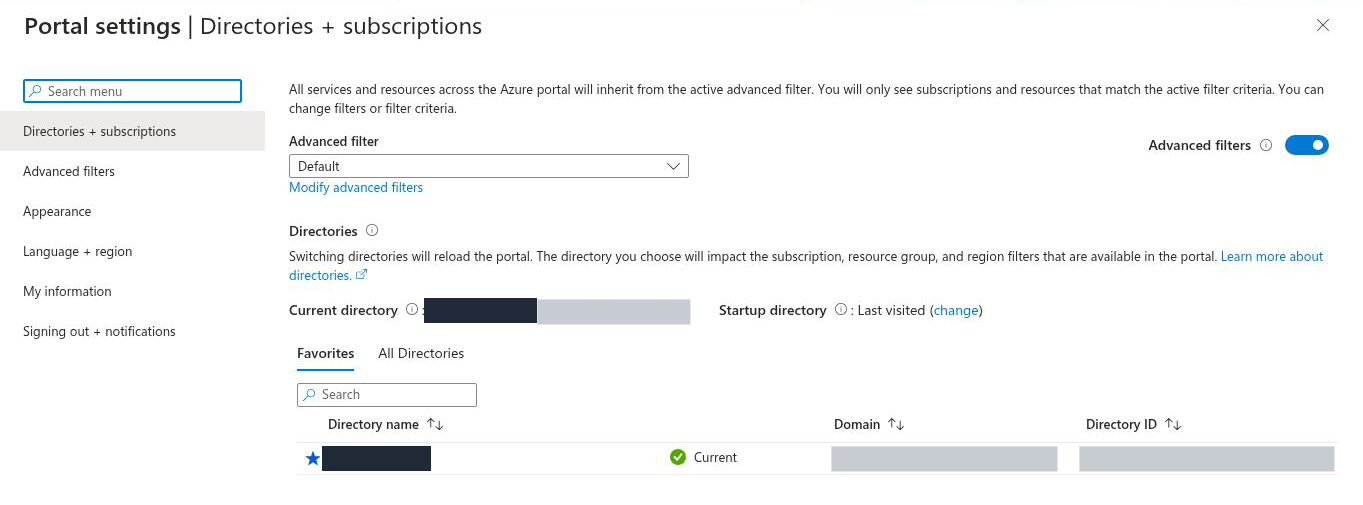
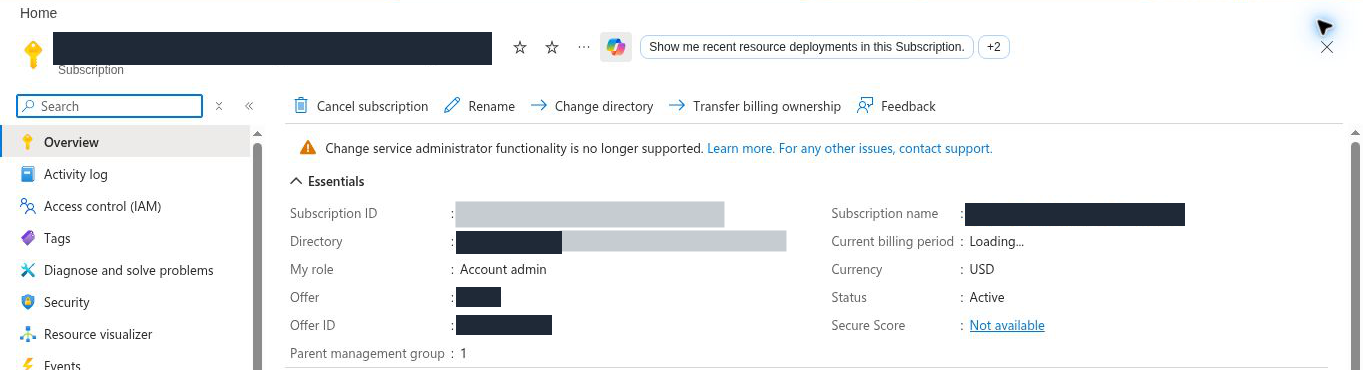
- Open Subscriptions, then the subscription you intend to use. Record its name and subscription ID; confirm it is enabled for use.
- Open Microsoft Entra ID > Overview > Properties and record the tenant ID. Confirm this is the directory associated with your selected subscription.
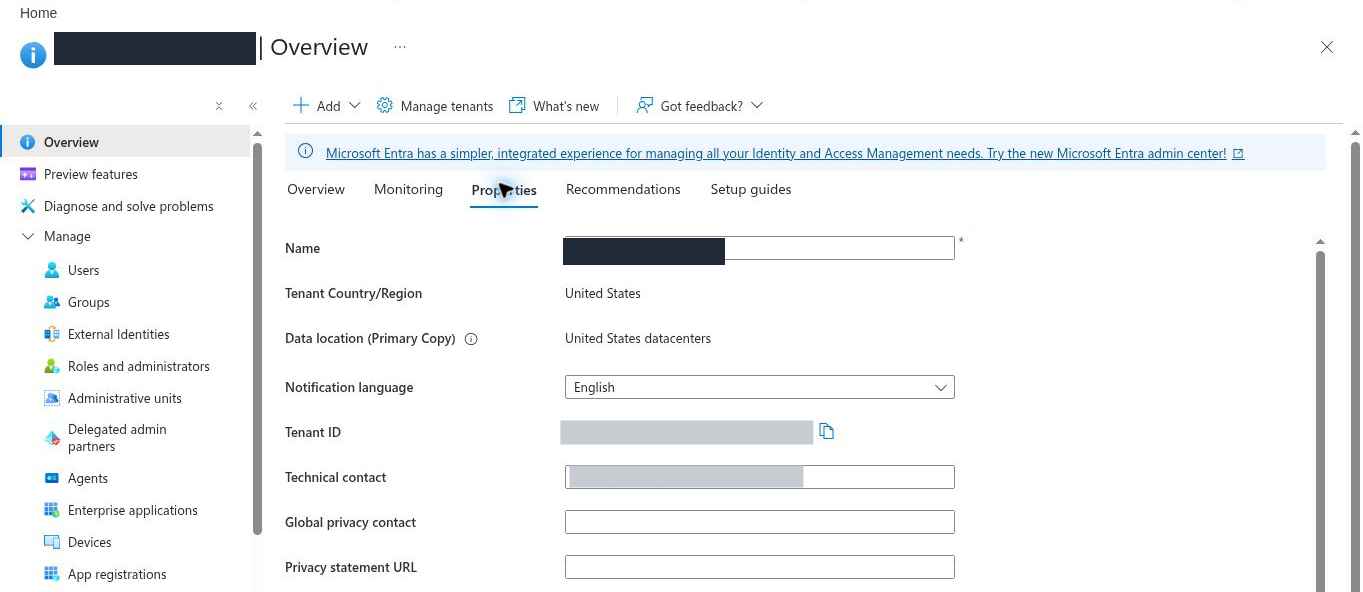
An ID identifies the exact object. Two subscriptions can have similar display names, so keep the IDs in your private build notes.
If you use an installed Azure CLI, first sign in with az login. These commands then check and select the subscription context. Replace the example text with your actual subscription ID.
az account list --output table
az account set --subscription "YOUR-SUBSCRIPTION-ID"
az account show --query "{Name:name,Id:id,Tenant:tenantId,State:state}" -o table
Check the result: the CLI subscription and tenant must match your intended deployment context. Selecting a directory in the portal does not automatically change the context of a separate local CLI session.
The AVD test user needs a supported identity in the Microsoft Entra tenant used for AVD. A personal Microsoft account used to manage an Azure subscription is different from the work or school identity used to sign in to the desktop. Prepare that test identity separately.
2. Decide where the AVD resources belong
A landing zone gives the workload a governed place to run. In an existing organization, ask for the approved AVD workload subscription and the services available from the platform team.
Management groups organize subscriptions. Azure permissions assigned at a parent scope are inherited by its children. The diagram shows the four levels where an Azure permission can be assigned.
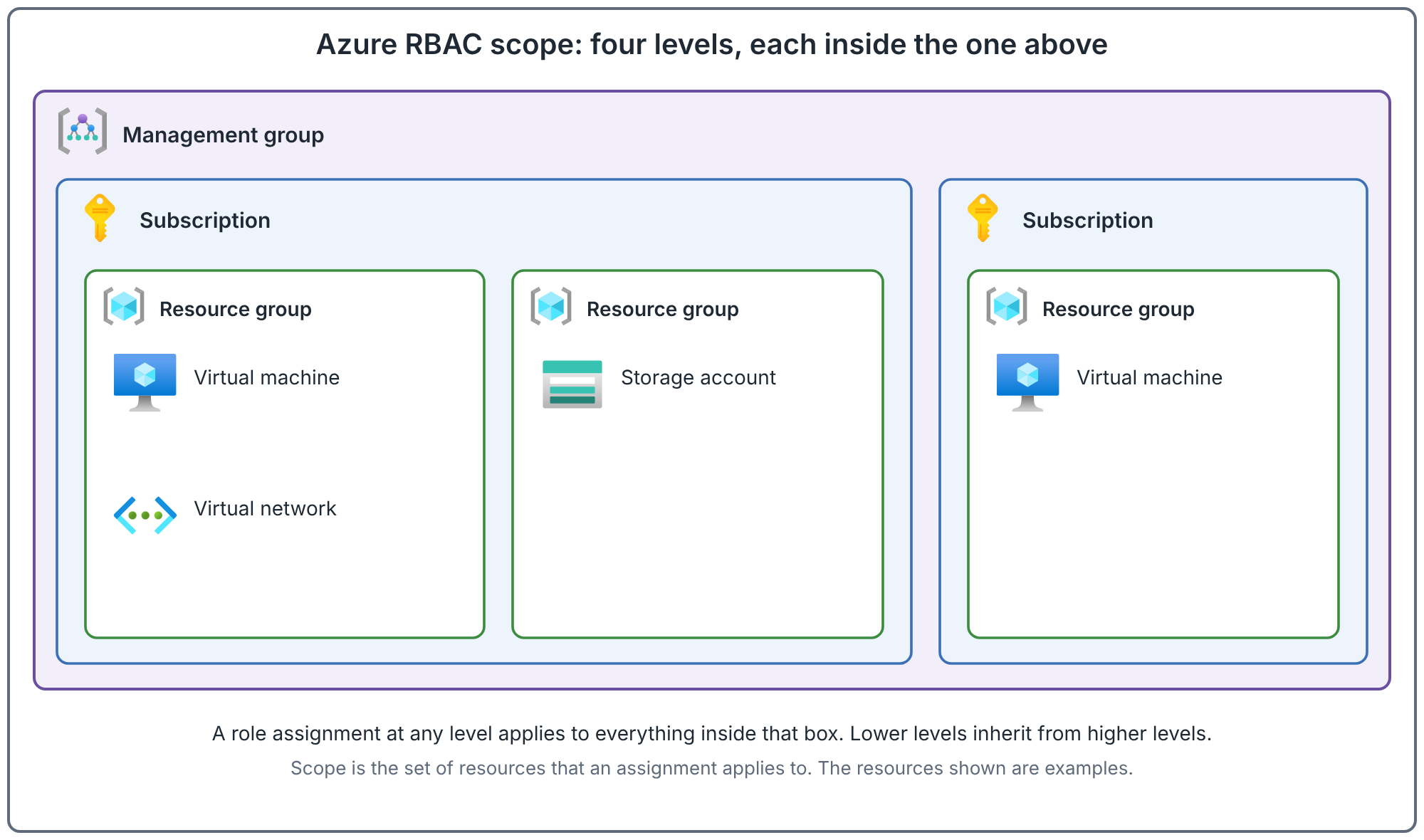
The complete Resource Organization post covers the platform hierarchy. Here, record the specific subscription and resource groups your AVD deployment will use.
The existing development group inspected here is rg-avd-dev, in East US. Its tags include Environment: dev, Project: avd and ManagedBy: Terraform (a tool that builds Azure resources from configuration files). A tag is a label on a resource. A ManagedBy tag says how the owner intends to manage it, but the tag does not prove it. Check the real configuration before you change anything. Use your organization's naming standard when one exists.
If the platform team has provided a suitable group, open Resource groups, select it and verify the subscription, name and location. Record its owner.

If no workload group exists, record the intended name and approved location. The Terraform deployment will create the group it manages. Keep a supplied group as an existing dependency in that design.
A resource group's region controls its metadata location; resources inside it can be in other regions. Use the same region for the group and its resources where you can, and choose each resource's location deliberately when it is deployed.
Keep resources that you intend to manage and retire together in the same group. Shared platform resources have a separate lifecycle: an AVD lab cleanup must not remove the shared hub, DNS or logging environment.
Record the platform services the workload will use
A virtual network is the private network for Azure resources. A subnet is a section of that network. DNS resolves names to addresses. Before building hosts, record which network and name-resolution service they will use.
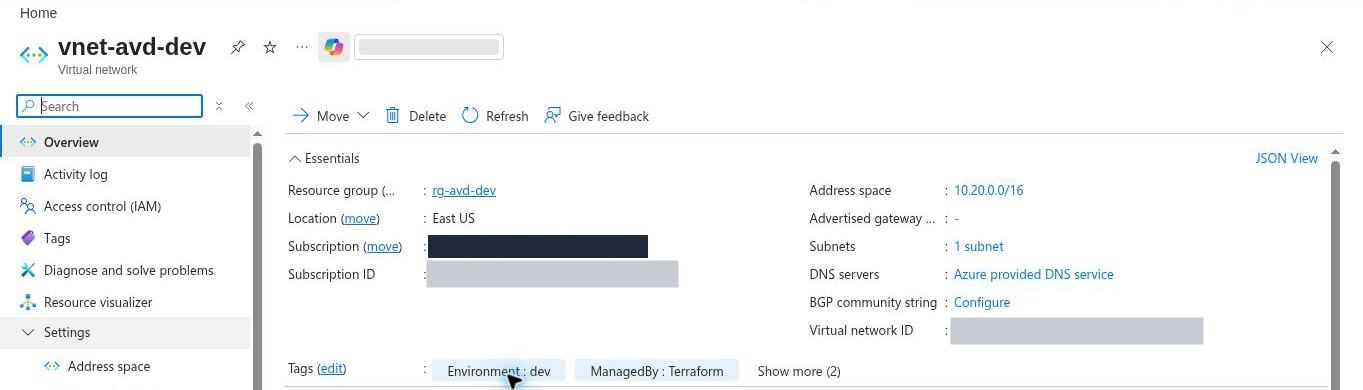
- Open the existing workload's VM Overview and read Virtual network/subnet. Here, avdsh-01 uses vnet-avd-dev/snet-sessionhosts (the VM overview is not pictured).
- Open that VNet and check its region and DNS servers. This lab uses East US and Azure provided DNS service.
- Record the dependencies below with the people responsible for them. For a personal lab, you may own each area. In an organization, use the platform team's approved services and record their owners.
| Dependency | Preparation decision |
|---|---|
| Session-host network | Record the VNet, subnet, region and network owner. The virtual network must be in the same Azure region as the session hosts. Confirm available address space before adding hosts. |
| DNS and identity | Record the DNS service. If the chosen design uses AD DS or Entra Domain Services, confirm access to the required domain controllers and DNS servers. |
| Outbound access | Identify who owns outbound routing and filtering. The later network build must allow the required AVD endpoints. |
| Applications and profiles | Identify the application/data locations and intended profile-storage service. Record who supplies their access and connectivity. |
| Monitoring | Agree where AVD diagnostics will be collected and who reviews alerts. Reuse an approved logging destination where suitable. |
Our starting point: the existing VNet is identified. In our check it had no peerings configured (a peering is a link that lets two virtual networks communicate directly), so we have not established a shared hub dependency. The peerings list and the VM overview are not pictured above. The VM overview flagged default outbound access. Default outbound access means Azure gives a VM a public outbound IP address automatically when no explicit outbound method is set. That address is owned by Microsoft and can change without notice. Subnets in new virtual networks created with the API version released after 31 March 2026 are private by default, and existing virtual networks are not changed. A later networking step will select and validate an explicit outbound design. Do not treat this inventory as proof of enterprise network readiness.
3. Confirm the user's licensing before desktop deployment
An Azure subscription pays for infrastructure. AVD access rights are a separate licensing decision.
For Windows 10 or Windows 11 desktops used for internal commercial purposes, these licenses make a user eligible:
| Eligible license family | Listed options |
|---|---|
| Microsoft 365 | E3, E5, A3, A5, F3, Business Premium, Student Use Benefit |
| Windows Enterprise | E3 or E5 |
| Windows Education | A3 or A5 |
| Windows VDA | Per user |
Confirm the exact eligible product assigned to every test user. Similar product names are easy to confuse: the list names Microsoft 365 E3, not Office 365 E3, so check the exact product name on the user.
Contractors working for an organization can fall under internal commercial use. Selling application access to customers is a different scenario: external commercial use has per-user access pricing, a pay-as-you-go charge for each external user, billed by enrolling an Azure subscription. Internal means your own staff and contractors. External means your customers use your application. Do not select that pricing simply because a user is a contractor or guest. Windows Server hosts have separate RDS licensing requirements.
AVD access licensing also does not remove the Azure charges for VMs, disks, storage and networking.
Existing user: inspect the assignment
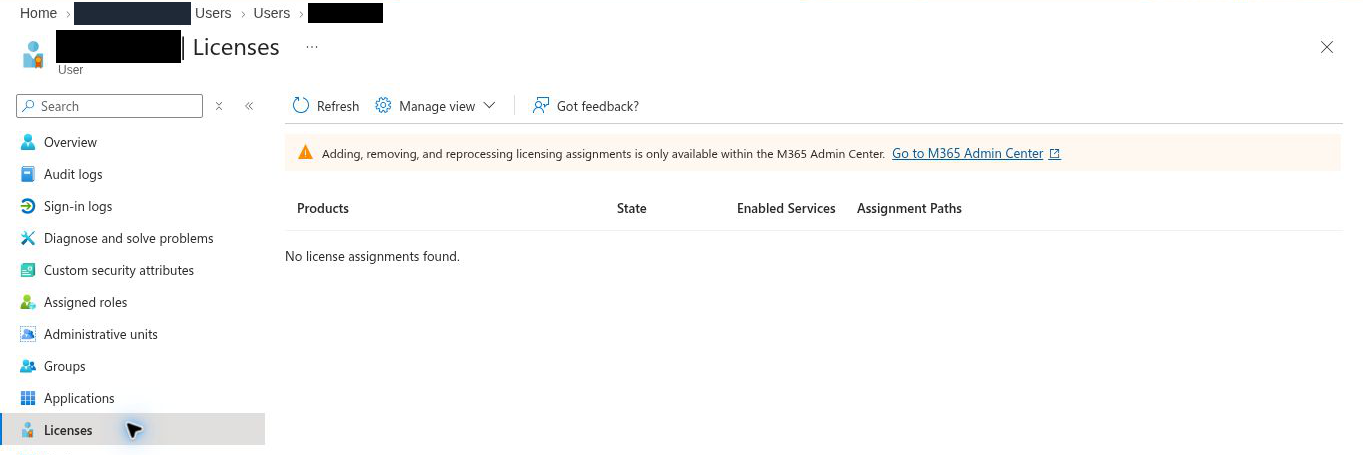
- In the Azure portal, open Microsoft Entra ID > Users, select the candidate user and open Licenses.
- Read the product, state and assignment path. This is a read-only inspection.
- For assignments or errors that need fixing, use the Microsoft 365 admin center: Users > Active users > select the user > Licenses and Apps. Use the appropriate licensing administrator account.
- Before assigning a product, check available seats, the user's usage location (the country or region set on the account; an invalid one can make an assignment fail) and the reported error.
Confirm the Dev/Test route used here
This development subscription shows offer ID MS-AZR-0063P. Visual Studio subscribers can use Azure Dev/Test credits to run Azure Virtual Desktop workloads, but no page I read states which offer ID those credit subscriptions carry, so the link between this offer ID and the Dev/Test benefit is unconfirmed. We read the actual offer ID, rather than relying on the subscription name or a dev tag.
- Open Subscriptions > selected subscription > Overview.
- Read Offer ID and Status. Compare the offer with the published Azure Dev/Test terms.
- Confirm what the users will do. In an Azure Dev/Test subscription, users may connect without a separate license to run acceptance tests or give feedback. Be aware that the page for Visual Studio subscribers says Azure Dev/Test credits can pay for Azure Virtual Desktop usage but that access still requires eligible user licenses, so the two pages need reconciling for a Visual Studio subscription.
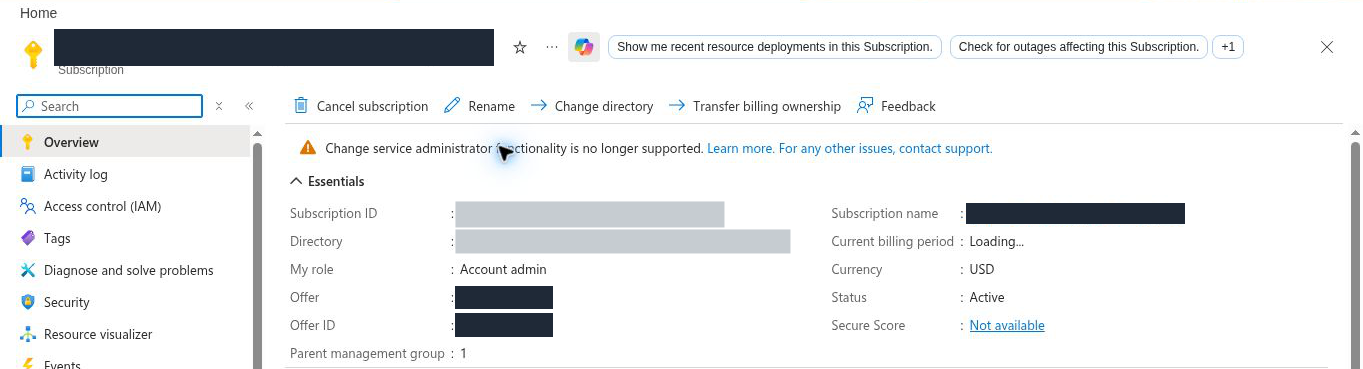
Our result: the subscription shows offer MS-AZR-0063P. If that offer counts as an Azure Dev/Test subscription, the test user may be able to connect for acceptance tests without a separate license; confirm this in the Azure Dev/Test terms before relying on it. The test user still has zero assigned product licenses; no Microsoft 365 license was assigned. No page I read states that this offer qualifies, so treat it as unconfirmed. For a production deployment, confirm the eligible user entitlement before providing desktops.
New user: confirm the licensing route first
If the user does not exist yet, confirm the eligible product and an available seat with the licensing owner. User creation and assignment follow the identity decision. Record this as planned, rather than already assigned.
For Windows Enterprise, Education or VDA arrangements managed outside this screen, obtain confirmation from the licensing owner.
4. Check the administrator's permissions at the right scope
There are two administration systems to distinguish. Microsoft Entra roles manage directory tasks, such as creating users. Azure RBAC roles manage Azure resources, such as a host pool or VM. RBAC means role-based access control.
An Azure subscription Owner is not automatically a Microsoft Entra user administrator. A Microsoft Entra Global Administrator does not automatically receive access to every Azure resource.
For the later standard-management AVD deployment, check the following permissions or their equivalent. This table is for these tasks; networking, storage and additional integrations have their own access requirements.
| Task | Access to check |
|---|---|
| Create host pools, workspaces and application groups | Desktop Virtualization Contributor on the target resource group or subscription. |
| Create session-host VMs | Virtual Machine Contributor on the target resource group or subscription. |
| Assign users/groups to an application group | Microsoft.Authorization/roleAssignments/write at that scope. User Access Administrator and Owner include it. |
| Register a resource provider | register/action at subscription scope; included in Contributor and Owner. |
| Create a budget on the resource group | Contributor, Cost Management Contributor or Owner on that resource group. |
| Create the test user | User Administrator in the Microsoft Entra directory. |
| Create/manage the ordinary test security group | Groups Administrator or User Administrator in the Microsoft Entra directory. |
The account you inspect below is the human administrator. Later, we will separately check the identity used by Terraform and the operations its deployment needs. A deployment identity is the user, application or managed identity under which the code runs.
Inspect the access you already have
- Open the target subscription or resource group.
- Select Access control (IAM) > Check access. Read your assignments in the current view. If your portal shows the previous layout, select the link under Check access that offers the previous view.
- Read both direct and inherited assignments. Record the role and where it was assigned.
- If your organization uses eligible PIM roles, activate the approved role for the task. PIM is Privileged Identity Management: a process for activating eligible privileged access when needed.
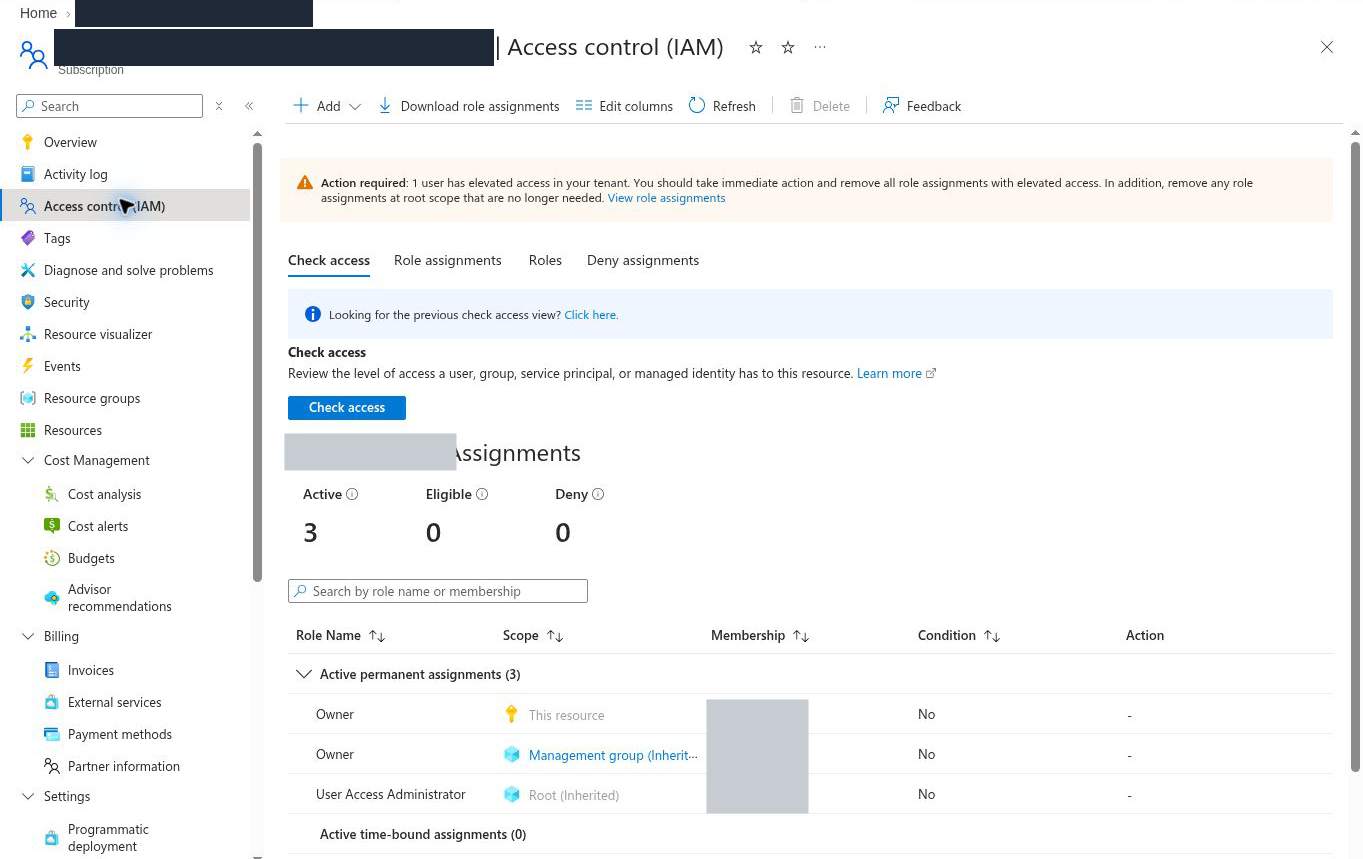
What this tells us: this lab administrator has broad access. The portal also flags elevated access at root scope. These existing assignments are evidence of the current environment, not a production permission template. Have the access owner review unnecessary elevation; grant the deployment identity only the operations and scope it needs.
Check the result: access covers the scope where you will deploy. A role on one resource group does not grant access to a neighboring group. Checking a parent scope also does not list assignments made only on its child resources.
If something is missing, give the access owner the task, required permission and target scope. Use the narrowest scope that supports the work. The Identity and Access post explains the shared access foundation.
5. Prepare the test user's group membership
Use an existing suitable identity before creating another account. Active Directory Domain Services (AD DS) is the Windows domain directory. A synchronized user has an identity maintained in another directory and synchronized into Microsoft Entra ID. A cloud-only user is created directly in Entra ID.
- Open Microsoft Entra ID > Users in the verified tenant and select the test user.
- Record its sign-in name, called the user principal name (UPN), and object ID privately.
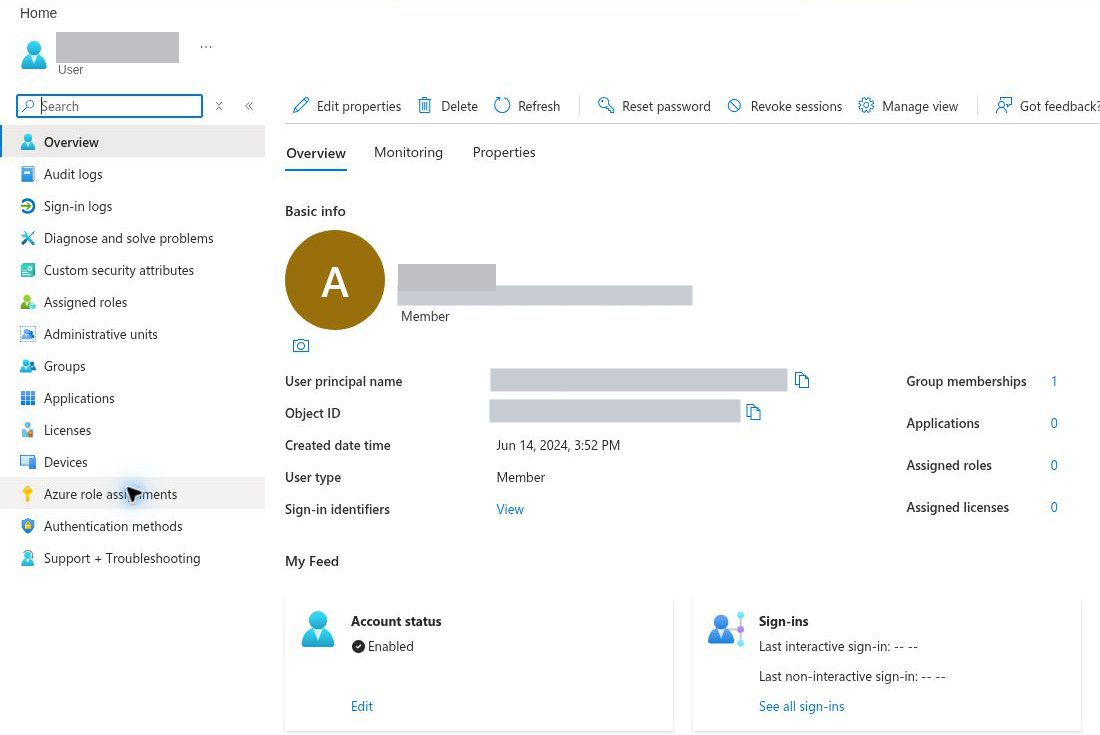
- Open Properties and check the identity's source. Here, the test user shows On-premises sync enabled: Yes. We reuse this synchronized account. The Properties tab is not pictured; the screenshot below shows the Overview tab.
- Check its directory roles and licensing route. Use a non-administrator for desktop testing.
Check what the group already grants
- Open Microsoft Entra ID > Groups > All groups and select AVD_Users.
- Check that this is the intended security group. Its membership type is Assigned.
- Open Azure role assignments before adding a user. Understand the permissions the user will receive through this group.
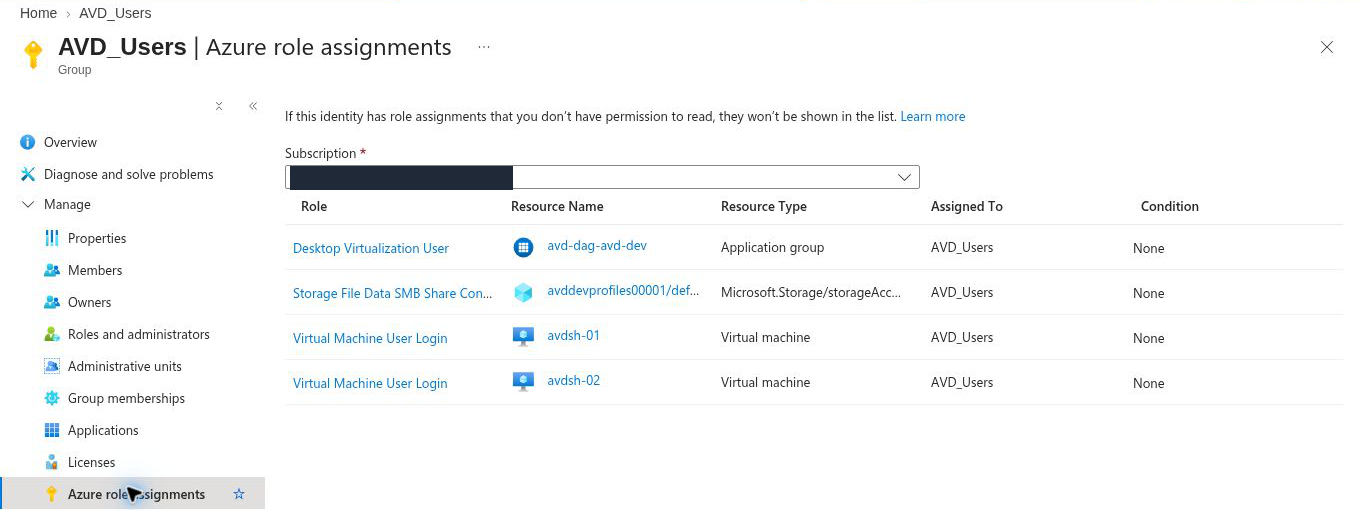
| Existing role | Scope in this environment |
|---|---|
| Desktop Virtualization User | Application group avd-dag-avd-dev |
| Virtual Machine User Login | Session-host VM avdsh-01 |
| Virtual Machine User Login | Session-host VM avdsh-02 |
| Storage File Data SMB Share Contributor | Storage account avddevprofiles00001 (the screenshot cuts off the share name) |
These are different access layers: the published desktop, Windows sign-in and the profile share. Their presence is useful preparation; successful sign-in and profile creation still need a functional test.
Add the selected user and verify the saved result
- In AVD_Users, open Members > Add members.
- Search for the test user's account name. Match the account against the private identity record before selecting it.
- Select the account, then Select to save the membership.
- Refresh Members and check that the test user appears in the saved member list. The screenshot below hides the account names.
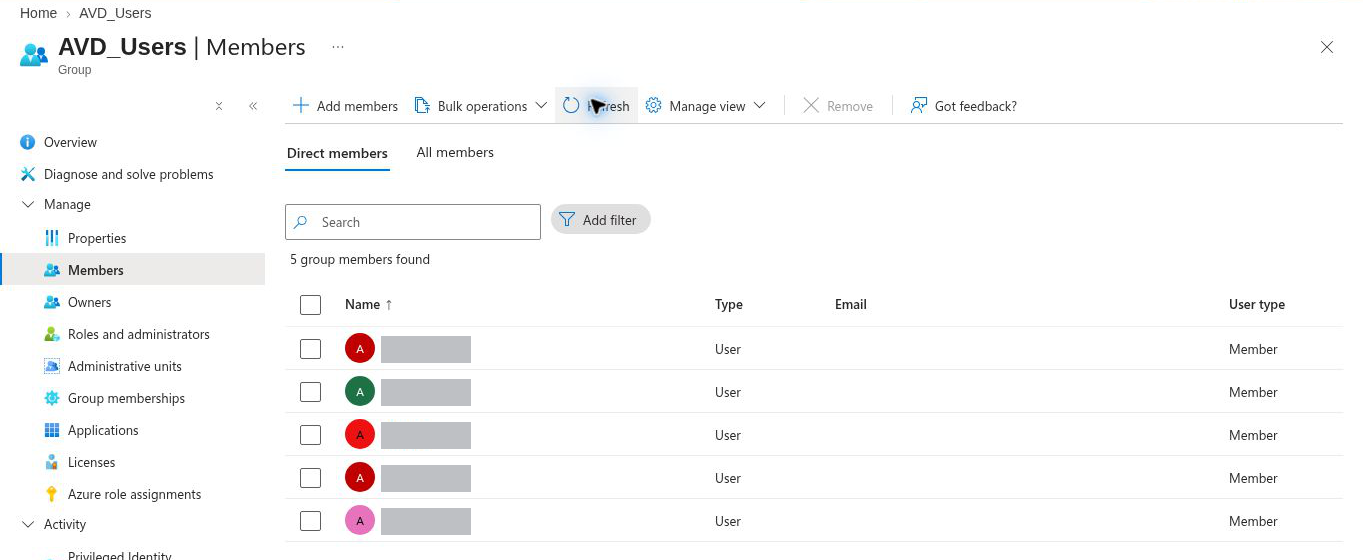
For a fresh environment, creating a security group and adding a user does not grant desktop access. The required assignments must be configured for the chosen identity, session-host and storage design. We will explain those decisions in the following posts. Here, we reused an existing access group after inspecting its assignments.
6. Prepare the subscription for the workload
A resource provider makes a service's resource types available to an Azure subscription. AVD uses Microsoft.DesktopVirtualization.
- Open Subscriptions, then the verified subscription.
- Select Resource providers and search for Microsoft.DesktopVirtualization.
- If it is NotRegistered, select it and Register, using an account with subscription-level registration permission.
- Refresh and check for Registered.
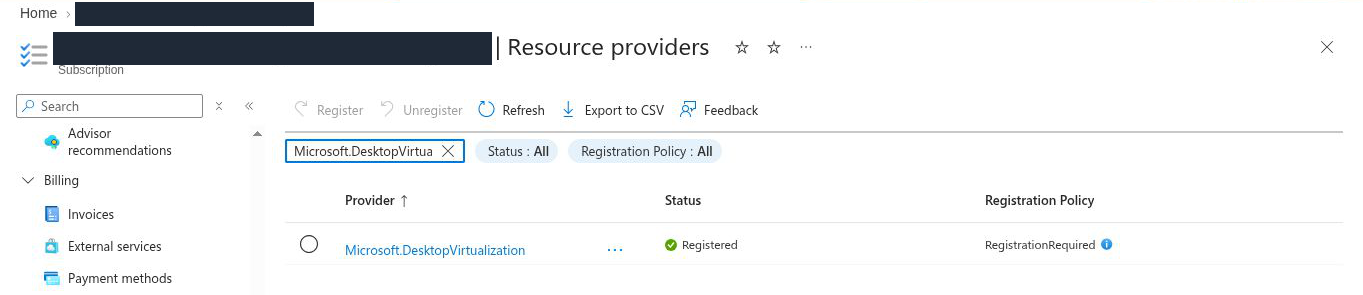
Register the providers required by the actual deployment; do not register every service as a preparation shortcut.
Check quota in the intended host region
A quota is an allocation limit. For VM vCPUs, both the total regional quota and the selected VM-family quota matter. Existing consumption uses part of each allowance.
- From the subscription, open Usage + quotas. You can also use Quotas > My quotas to inspect quotas across subscriptions.
- Filter to Compute and the intended host region.
- Search for Total Regional vCPUs, then separately check the family you plan to use. A VM family is a group of VM sizes that share one quota. Record usage, limit and remaining allowance.
Our existing session host avdsh-01 is in East US, using Standard D4s v5 with four vCPUs. We checked the corresponding Standard DSv5 Family vCPUs quota in that same region.
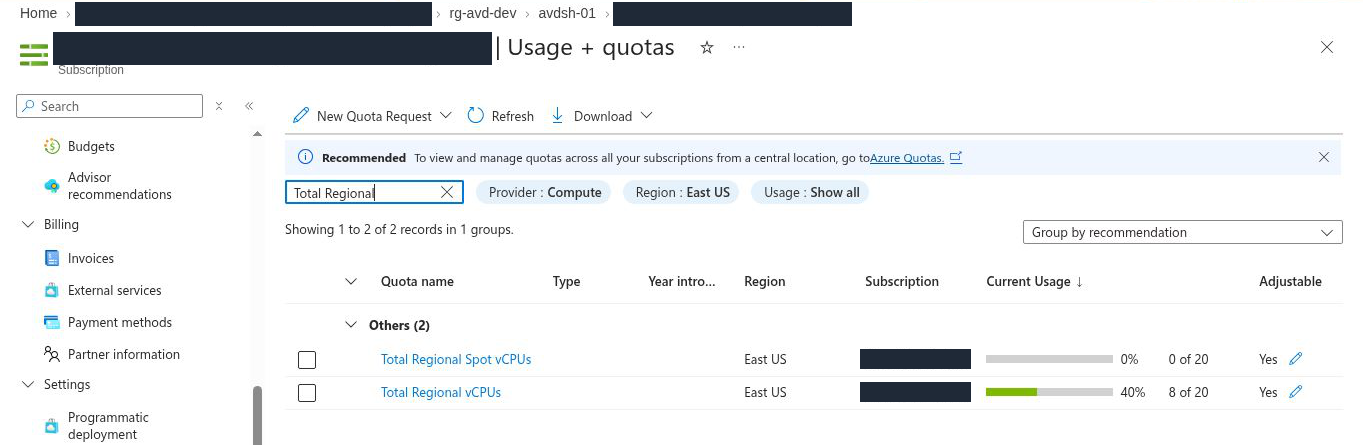
- Keep the same region selected, then search for the matching VM family. Do not use another family's allowance.
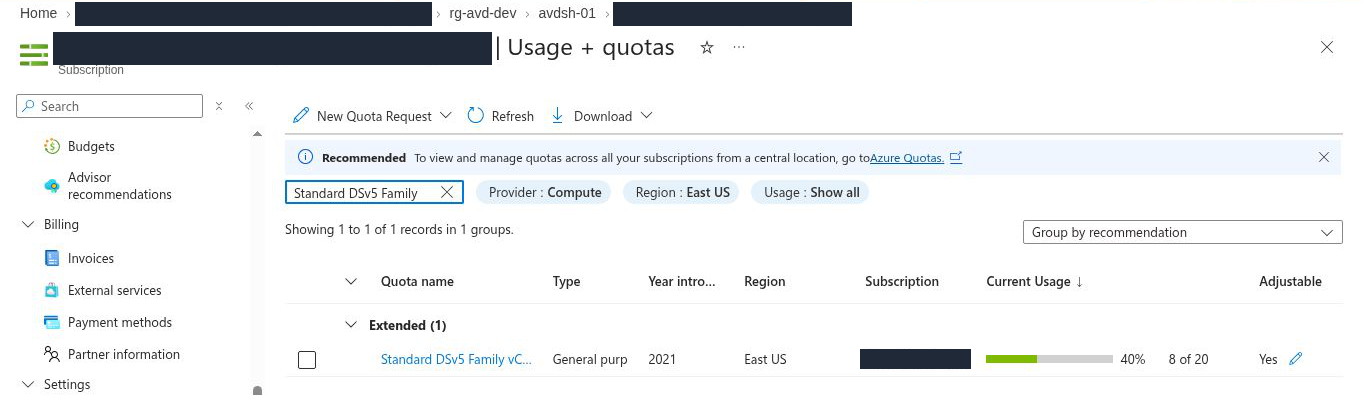
For example, adding two more 4-vCPU hosts would require eight additional vCPUs. At this check, both allowances have room for that increase. This is quota arithmetic, not a user-capacity or production sizing recommendation. Existing consumption is already included; do not count the existing hosts again as new capacity.
Quota and Azure capacity are separate. Available quota does not guarantee that a VM size can be allocated in the selected region or zone. Recheck both quota tiers if the later design changes the region or VM family.
Create and verify the workload budget
Our agreed budget is $106 per billing month for rg-avd-dev. This is the amount chosen for this development environment, not a recommended production budget.
- Open Resource groups > rg-avd-dev > Budgets. Check the resource-group scope before selecting Add.
- Enter budget-avd-dev. Select Billing month and enter 106 USD.
- Check the evaluation start and expiry dates. The saved budget uses the billing period starting 18 September 2026 and expires 17 September 2028. Choose dates appropriate to your own environment.
- Continue to the alert settings and enter the following conditions.
| Alert type | Threshold | Amount |
|---|---|---|
| Actual cost | 80% | $84.80 |
| Actual cost | 100% | $106.00 |
| Forecast cost | 100% | $106.00 |
- Add the agreed cost owner's email recipient. We used the signed-in owner's address; it is hidden in the published evidence. No action group (a saved list of people or tools to notify) was selected.
- Select Create. Open budget-avd-dev from the saved budget list and verify its scope, amount, reset period, alert conditions and recipient.
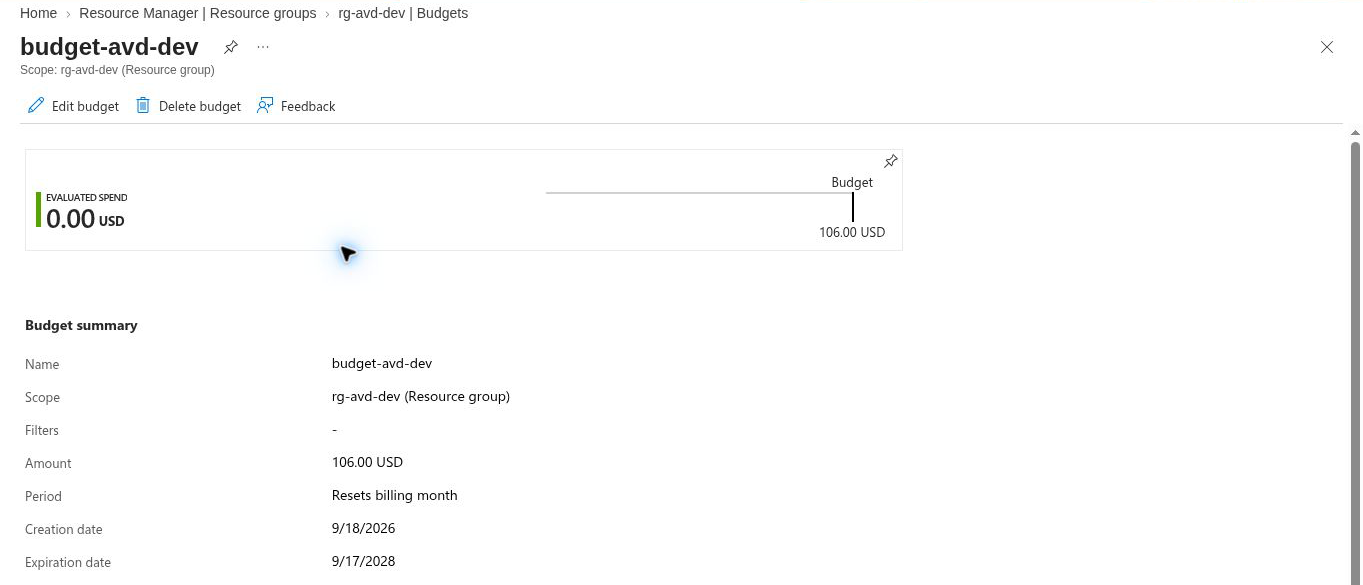
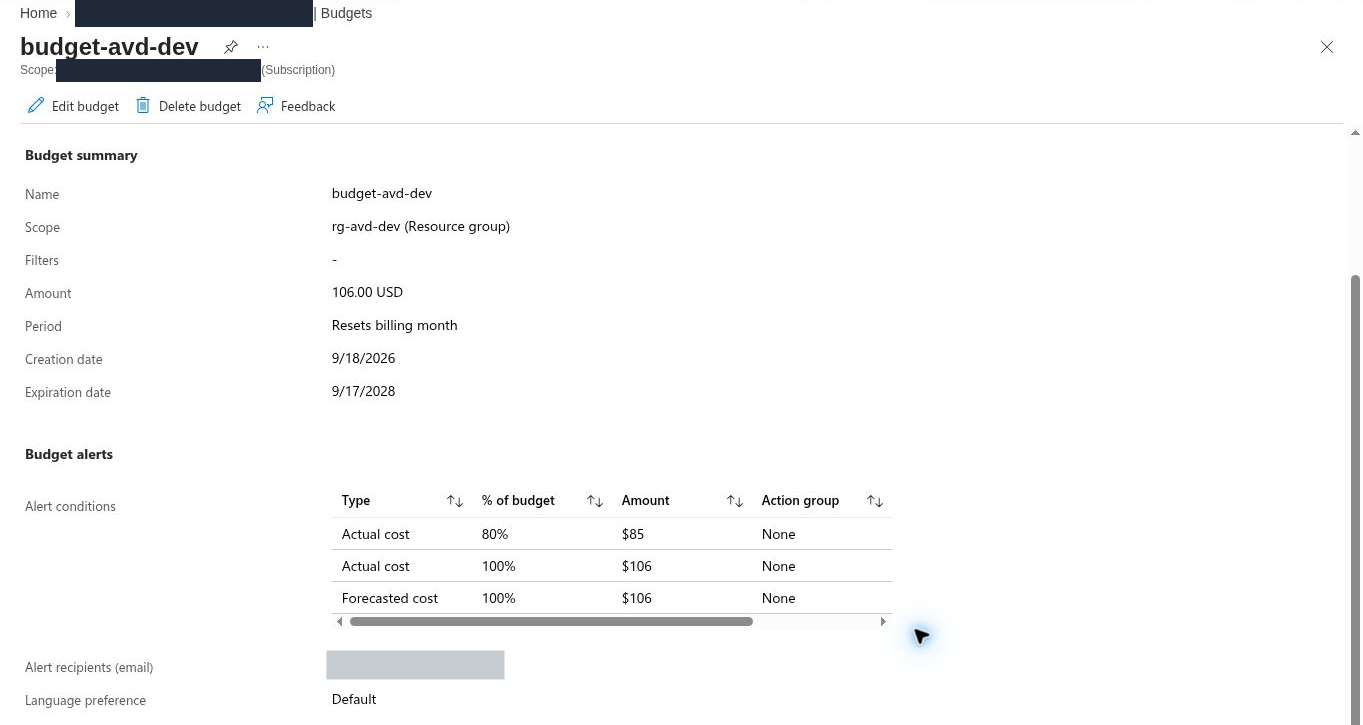
Read the scope carefully: this budget covers the workload resource group. Resources in other groups, shared platform services and separate licensing costs need their own cost ownership and appropriate budget scopes. This is not a budget for every cost associated with AVD.
A billing month can differ from a calendar month for Visual Studio subscriptions. Use the selected reset period when interpreting an alert. Cost data can take 8 to 24 hours to appear, and budgets are evaluated every 24 hours. A newly created budget showing zero evaluated spend does not prove the resources have incurred no charges.
A budget sends alerts; it does not stop consumption. The cost owner must review the alert and act. Keep a retirement plan for the lab and a cost-review process for production. Record this as an existing portal-managed budget so a later Terraform deployment does not create a duplicate.
7. Check policies and record the preparation result
Azure Policy evaluates resources against assigned rules. An initiative groups several policies. An assignment specifies where those rules apply. A rule that audits a resource is different from one that denies a deployment.
Read the rules that apply to the workload
- Open Subscriptions > selected subscription > Policies, then Assignments.
- Check the scope and filters. Include applicable parent assignments when reviewing the workload's rules.
- Open each relevant assignment. Read its scope, excluded scopes, enforcement mode and parameters. Check any exemptions that apply.
- Record region, tag and resource-type requirements when they are assigned. Use these values in the later deployment configuration.
- Open Compliance to inspect reported findings. A successful deployment does not mean the environment meets every policy.
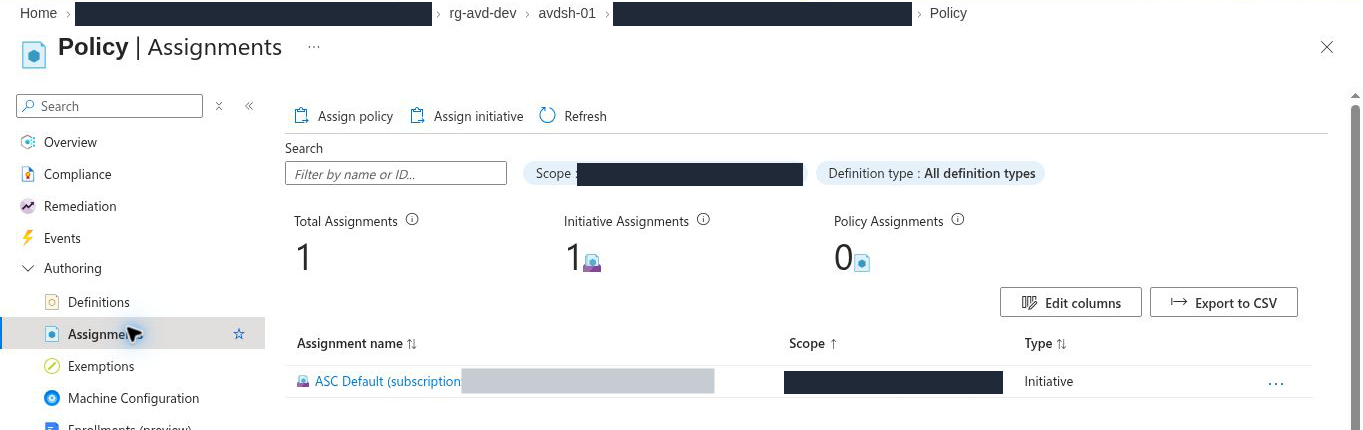
Our result: the assignment detail page (not pictured) describes ASC Default as the default security initiative of Microsoft Defender for Cloud (formerly Security Center). It has subscription scope, no excluded scopes and Default enforcement. The assignment list did not show separate region, required-tag or allowed-resource-type assignments. Existing tags alone are not evidence of tag enforcement.
The subscription Compliance view reported the initiative as Non-compliant. This preparation check is not a production compliance sign-off. Review the relevant findings with the security owner before production use. We did not change policies or create exemptions to hide findings.
Keep one readiness record
Keep IDs and private addresses in your build notes. The table below records what we actually checked or changed, and where the next design decision belongs.
| Preparation item | Result in this walkthrough |
|---|---|
| Tenant and subscription | Directory association checked; subscription Active. |
| Workload placement | Existing rg-avd-dev inspected; East US metadata location and development tags recorded. |
| Licensing route | Offer MS-AZR-0063P read from the portal; Dev/Test eligibility still to be confirmed against the Azure Dev/Test terms. The test user has no assigned product license. Production needs eligible entitlement. |
| Administrator access | Existing direct and inherited assignments inspected. Broad lab access is not the production role design. Terraform access is checked when the infrastructure code is prepared. |
| Test identity and group | Existing synchronized test user reused; saved membership in AVD_Users verified. Existing group assignments inspected. |
| AVD provider | Microsoft.DesktopVirtualization Registered. |
| Region and VM-family quota | East US regional and Standard DSv5 allowances each show 8 of 20 used; 12 vCPUs remain at this check. |
| Platform dependencies | Existing vnet-avd-dev/snet-sessionhosts and Azure-provided DNS recorded. Identity, outbound connectivity and logging decisions feed the following posts. |
| Policy check | ASC Default audit initiative inspected; non-compliance reported. No production compliance approval claimed. |
| Cost controls | Saved rg-avd-dev budget: $106 per billing month, three alert conditions and owner email recipient verified. |
You now have the deployment context, test identity, cost control and existing dependencies recorded. Next, choose the supported identity model and plan the network. Recheck quota if that design changes the region or VM family.
8. Resolve readiness checks and continue
| What you see | What to inspect first |
|---|---|
| The subscription is missing | Current directory, subscription filters and your access to that subscription |
| CLI shows another subscription | Explicitly select the intended subscription and inspect az account show again |
| User creation is unavailable | Directory role, not just an Azure subscription role |
| You can create resources but cannot assign access | Role-assignment permission at the intended scope |
| A license assignment fails | Available seats, usage location and the reported assignment error |
| The group exists but the user is absent | Membership in that exact tenant and group |
| Registration is denied | Subscription-level provider-registration permission |
| Planned VM deployment exceeds quota | Both total regional and VM-family allowances |
| Deployment is denied by policy | The reported assignment, scope, effect and parameters; work with its owner |
Keep this readiness record for the next posts. This walkthrough changed the selected user’s group membership and created a workload budget. Existing infrastructure and provider registration were inspected. Preserve shared platform services during any later cleanup.
For production, confirm production licensing and approved permissions for the selected design. The preparation completed here does not prove a successful desktop sign-in or working profile storage; those checks belong to the deployment and validation steps later in the series.
Next: Choose the Right Identity Model for Azure Virtual Desktop.
Go deeper: How Azure Virtual Desktop Fails.
Sources
Prerequisites, licensing and built-in roles for Azure Virtual Desktop.