Azure Virtual Desktop (AVD) delivers Windows desktops and applications remotely. In the Azure deployments covered by this series, they run on virtual machines called session hosts. Users connect from their own devices to work on those machines.
This article explains what users receive, why a business might choose AVD, and which parts Microsoft and your team manage. The series then moves through preparation, deployment and production operations.
Key terms
| Term | Meaning |
|---|---|
| Virtual machine (VM) | A software-based computer. |
| Session host | A machine registered with AVD that runs users' desktops or applications. |
| Host pool | A collection of session hosts. |
| Application group | Controls access to a desktop or a set of published applications from one host pool. |
| Workspace | Groups application groups so users can see their assigned desktops and apps. |
| RemoteApp | An individual published application accessed without opening a full desktop. "Published" means made available to the users you assign. |
| Multi-session | A Windows edition that lets several users each have their own separate sign-in on one VM. |
| Image | The saved copy of Windows and applications used to build new session hosts. |
| Autoscale | A setting that starts and stops session hosts on a schedule or as demand changes. |
| Windows App | The app (or web page) users open to see and start their assigned desktops and apps. |
| Microsoft Entra ID | Microsoft's cloud sign-in service, where user accounts live. |
| Azure subscription | The billing and access container in which you create Azure resources. |
| Azure region and geography | A region is one Azure datacenter location, for example East US. A geography is a group of regions. |
Full desktop or RemoteApp
A full desktop gives the user a remote Windows desktop and its applications. RemoteApp gives them individual applications without opening that desktop.
Both pooled host pools (shared hosts) and personal host pools (a host assigned to one user, explained in the next section) can deliver full desktops. RemoteApp application groups are available with pooled host pools.
Pooled or personal desktops
| Host pool type | What the user receives |
|---|---|
| Pooled | Access to shared session hosts. A supported multi-session operating system lets several users work on one host in separate sessions. |
| Personal | A session host assigned to that individual user. |
In a pooled deployment, users can reach a different host after signing out and signing in again. To keep a user's settings and files the same on every host, you store their Windows profile (their settings and personal files) in a shared file location. A tool called FSLogix does this: it attaches the profile from that location when the user signs in, and applications use it as if it were stored on the host itself.
Why a business would use AVD
Businesses use AVD to make Windows applications available remotely, share desktop resources and adjust capacity around demand. These benefits come from different parts of the service.
Give users the application they need, wherever they work
AVD can publish existing Windows business applications for remote access. Users connect through a supported app or browser. If they only need one application, RemoteApp can deliver it without a full desktop. If their work needs a complete Windows environment, you can provide that instead.
Share desktop resources between users
A separate virtual machine for every employee is not always necessary. With a pooled, multi-session deployment, several users can work on the same machine in separate sessions. This reduces the number of VMs and the operating-system overhead you pay for. The practical benefit is shared capacity; how many users a host can support still depends on their workload.
Run capacity around working hours
Demand changes during the day. Autoscale can start and stop session hosts using schedules and capacity thresholds. For example, a weekday schedule can prepare capacity before people start work and reduce it as usage falls. This can reduce compute costs. Turning off hosts does not remove every charge: disks, profile storage and other resources still need to be included in the budget.
Let Microsoft run the broker and gateway
With a traditional Remote Desktop Services deployment (the older Windows Server way of hosting remote desktops), the organization operates supporting infrastructure such as the connection broker (the service that decides which session host a user connects to) and the gateway (the service that carries the remote desktop traffic). With AVD, Microsoft operates those service components. Your team still manages the desktops themselves: their images, applications, updates, access and supporting resources. Microsoft operates the connection services; your team operates the Windows environment people work in.
Understand the cost before choosing it
AVD has both Azure resource costs and licensing requirements. An estimate needs the number of users working at the same time, their working hours, VM capacity, storage, networking and any supporting services. Shared hosts and autoscale offer ways to reduce costs; the final bill depends on the deployment. There is no fixed saving that applies to every business.
Who manages each AVD component
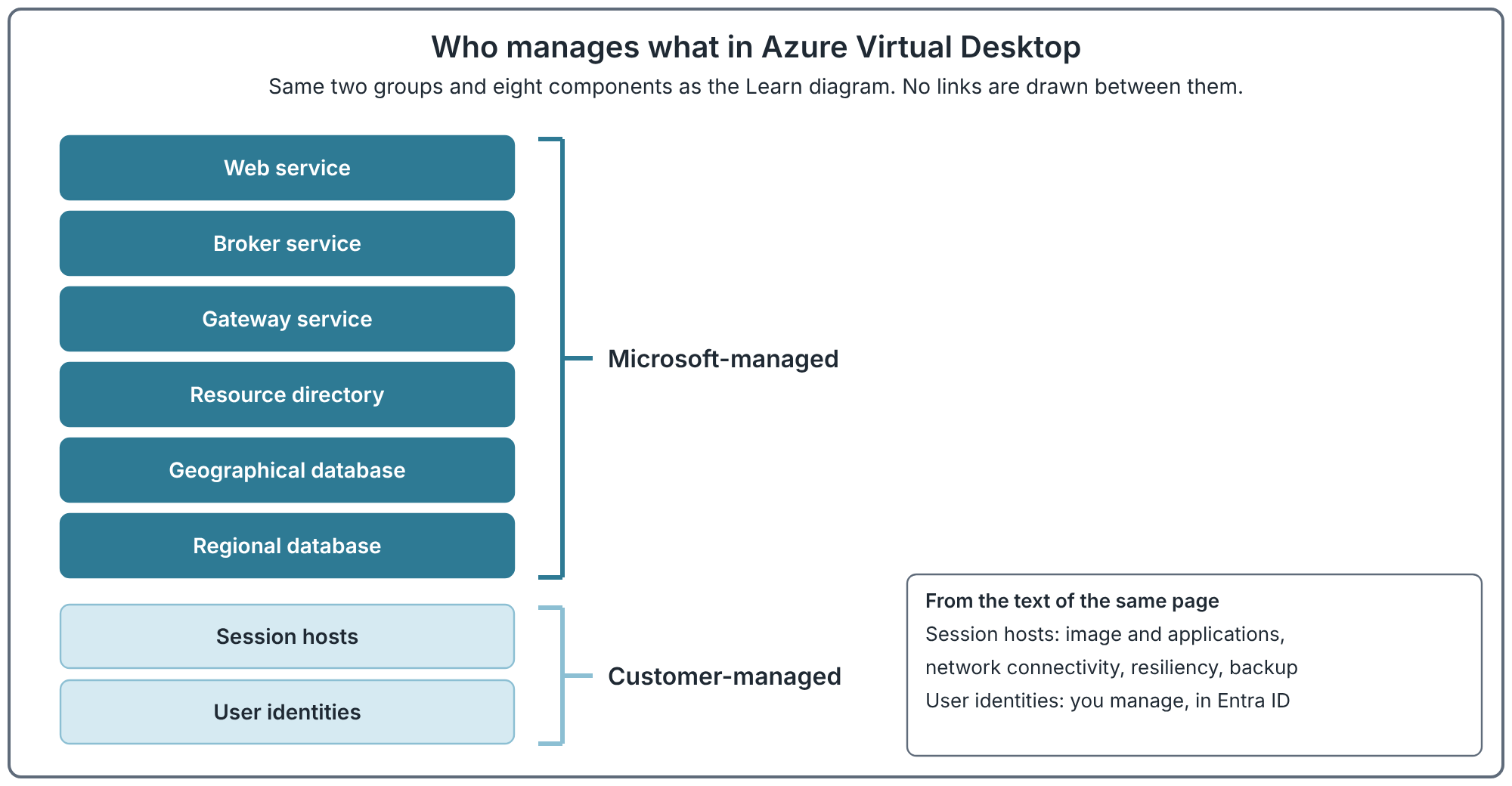
The diagram groups components by who manages them. The upper group is Microsoft's service infrastructure. The lower group contains the session hosts and user identities you manage.
| Component | Role |
|---|---|
| Web service | Returns the user's connection information to their device. |
| Broker service | Coordinates incoming connections. |
| Gateway service | Provides remote desktop connectivity between the user's device and session host. |
| Resource directory | Identifies which database holds the user's connection information. |
| Geographical database | Stores the connection files and app icons for host pools whose deployment scope is Geographical. One database serves all Azure regions in that geography. |
| Regional database | Stores the same information for host pools whose deployment scope is Regional, inside one Azure region only. |
| Session hosts | Run the users' desktops and applications. |
| User identities | Identify the users whose access you manage. |
You choose the session-host images and applications, configure network connectivity, and manage identities and access. Your team is also responsible for the resilience, backup and recovery of the session hosts. Microsoft manages the service components shown above them.
Deployment scope is a setting you choose when you create a host pool. It decides where AVD stores the pool's service information, and it cannot be changed later.
The architecture article follows a user connection through these components and explains the responsibilities in more detail.
How users connect
Users access their assigned desktops and applications through Windows App on a supported device or in a web browser. They sign in with a work or school account. AVD does not support personal Microsoft accounts for user access.
You assign users to application groups and associate those groups with a workspace so users can see their published resources. The application runs on a session host; Windows App provides access from the user's device.
What must be ready before deployment
| Requirement | What to prepare |
|---|---|
| Azure subscription | An active subscription for the deployment. |
| Identity | User accounts in Microsoft Entra ID and a supported identity configuration for the session hosts. |
| Operating system | A supported Windows edition and version for the session hosts. |
| Licensing | The appropriate user access rights for the operating system and commercial-use scenario. |
| Networking | Connectivity for the AVD service, identity services, applications and data. |
| Administrative access | The Azure permissions needed to create and configure the resources, including registering the Microsoft.DesktopVirtualization resource provider (the Azure switch that turns the service on for a subscription). |
| User access | A supported client or web experience and the required resource assignments. |
An Azure subscription and user licensing are separate requirements. Windows client and Windows Server deployments have different licensing options. The preparation article explains the supported choices before we create resources.
Where the series goes next
After the architecture, the series prepares the tenant and subscription, compares identity models, and plans networking and host pools. It then covers whether AVD fits, how it fails, the rules that connect its objects, the connection sequence, operating system and licensing, clients, sign-in, Conditional Access, administration roles, required connectivity and network topology.
Each article marks which statements come from product documentation and which are the author's judgement.
Next: Azure Virtual Desktop Architecture: From Sign-in to a Working Desktop.
Go deeper: Decide Whether Azure Virtual Desktop Fits.
Sources
Terminology, service architecture and resilience and prerequisites.