A user opens Windows App and sees nothing. The session hosts are healthy and nothing is wrong with the network. The cause is often one of the rules that connect the four AVD objects: a missing assignment, an application group that is not in a workspace, or a setting that hides what you published.
This article explains those objects and the rules between them, shows which choices cannot be changed after creation, and gives a short order of checks for an empty feed. The architecture article introduced the objects. This one goes deeper into how they fit together.
Key terms
| Term | Meaning |
|---|---|
| Host pool | A collection of Azure virtual machines that are registered to AVD as session hosts. All hosts in one pool should come from the same image. |
| Session host | A virtual machine in a host pool that runs the users' desktops or apps. |
| Pooled host pool | Users are load balanced (spread across hosts) to any session host in the pool. Several users can be on one host at the same time. |
| Personal host pool | Each session host is assigned to one user. |
| Application group | Controls access to a full desktop, or to a set of applications, from a single host pool. |
| Desktop application group | An application group that publishes the full Windows desktop. |
| RemoteApp application group | An application group that publishes individual applications you select. |
| Workspace | A logical grouping of application groups. It is what users see in their client. |
| Assignment | Giving a user or group access to an application group. |
| Azure RBAC role | A set of permissions you give to a person or group at a scope. A scope is a resource, such as an application group. |
| Security group | A Microsoft Entra group used for permissions. A distribution group is a different kind of group, made for sending email to a list of people, and AVD does not support it. |
| Microsoft Entra tenant | Your organization's own instance of Microsoft Entra ID, which holds its users and groups. |
| Metadata | The information AVD stores about your objects, such as host pool, application group and workspace names. |
| Conditional Access | A Microsoft Entra feature that allows or blocks sign-ins based on conditions you set, such as user, app or device. |
| Windows App | The Microsoft app that users run to connect to AVD and Windows 365. |
| Cloud Solution Provider (CSP) | A Microsoft partner that sells and manages Azure subscriptions for customers. |
| Resource provider | The part of Azure that handles one kind of resource. AVD objects are handled by the Microsoft.DesktopVirtualization resource provider, which must be registered in the subscription. |
| Preferred application group type | A host pool setting that decides which type users see when they are assigned to both a desktop and a RemoteApp application group on that pool. |
| Deployment scope | A choice made at creation: Geographical or Regional. It decides where AVD stores an object's metadata. |
| Management approach | A choice made at host pool creation: standard management, or session host configuration. |
The four objects in one picture
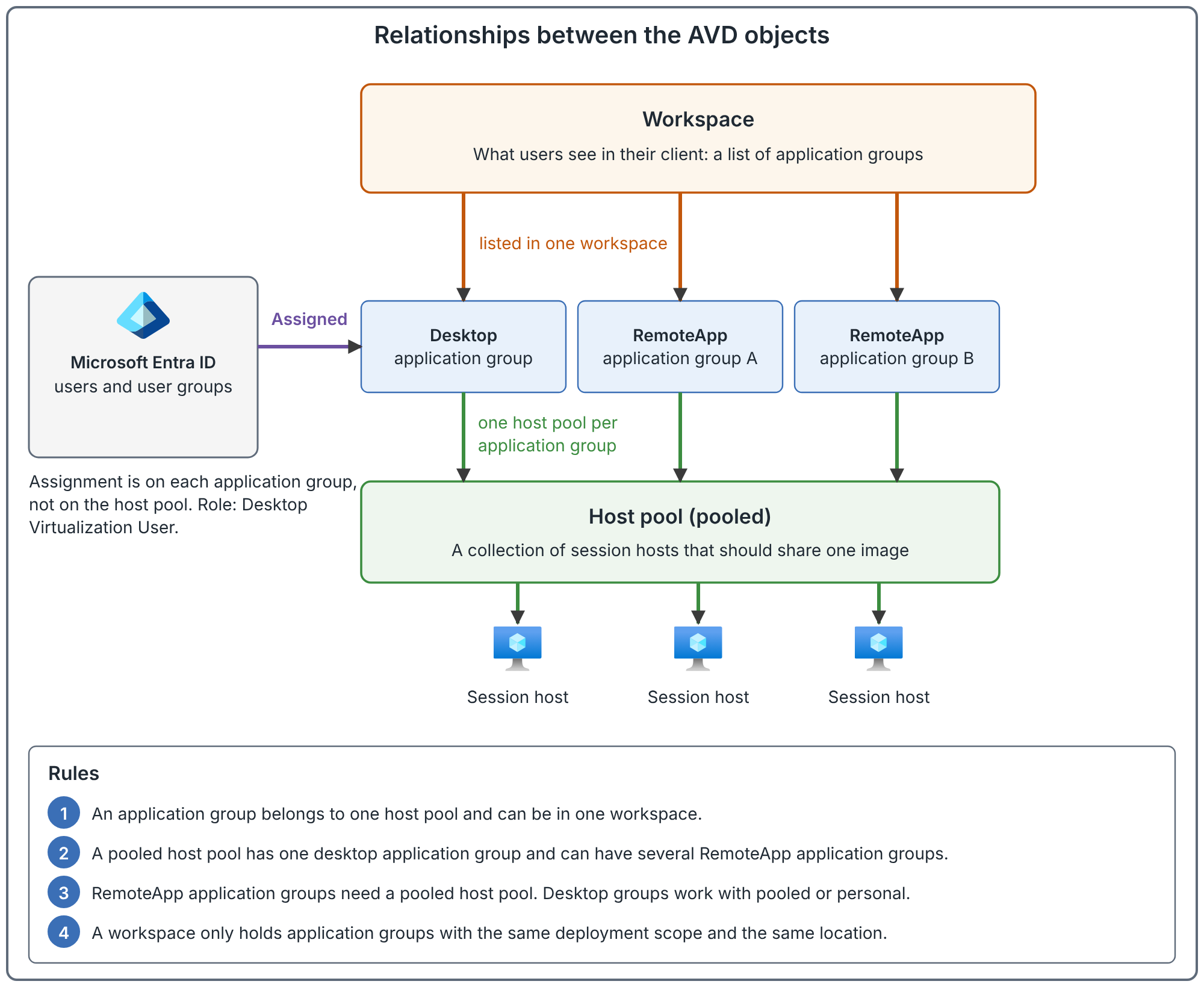
Read it from the bottom up. Session hosts live in a host pool. An application group publishes something from one host pool. A workspace lists application groups. Users are assigned to application groups, not to host pools and not to workspaces.
The rules
These rules are documented. Several of them decide whether a design works.
| Rule | Detail |
|---|---|
| Application group to host pool | An application group can be assigned to a single host pool. You can assign several application groups to the same host pool. |
| Application group to workspace | An application group can be assigned to a single workspace. Each application group must be associated with a workspace for users to see what it publishes. |
| Desktop groups per pool | A host pool can have only one desktop application group. It can have many RemoteApp application groups. |
| Where each type works | Desktop application groups work with pooled or personal host pools. RemoteApp application groups work with pooled host pools only. |
| An application group needs a host pool | An application group cannot exist without one. |
| Users to groups | Users can be assigned to several application groups across several host pools. Users in several RemoteApp groups on one pool get the combined list of applications. |
| Same tenant | Users must be in the same Microsoft Entra tenant as their workspace, host pool and application group. Session host virtual machines can be in a different tenant if they are joined to the user's Active Directory, or one that trusts it. |
| Same deployment scope | Regional and Geographical objects cannot be mixed. A regional host pool can only be in a regional workspace and can only contain regional application groups. |
| Same location | The application group's location should be the same as its host pool's. A workspace must be in the same location as its application groups, and the service requires workspaces to be associated only with application groups created in the same location. |
Notice the wording on location. For the application group and host pool it says "should", which makes it a design rule. For the workspace it says the service "requires" it, which makes it a hard constraint. A consequence, which follows from the rule and is not stated in these words: a design that spans several locations needs more than one workspace, and users who need resources from several locations subscribe to more than one workspace.
What can be changed later
Three choices are fixed when you create the object. Plan them before the first deployment.
| Choice | Can it change later? |
|---|---|
| Host pool type (pooled or personal) | No. You can move registered virtual machines to a pool of the other type. |
| Management approach (standard or session host configuration) | No. A pool created without a session host configuration cannot get one later. |
| Deployment scope (Geographical or Regional) | No. |
| Preferred application group type | Yes. You must set it when you create the pool, and you can change it afterward. |
The management approach decides who looks after session hosts. With a session host configuration, AVD creates, updates and scales the hosts using a stored configuration. It works with pooled host pools only, and you cannot create, update or scale hosts outside the service with tools built for standard management. With standard management you create, update and scale the hosts yourself, which suits existing pipelines and scripts. Later articles in this series cover host management in more depth.
Where assignment happens
AVD publishes an application group to users by assigning the Desktop Virtualization User role to the user or group, with the application group as the scope. The documentation shows this with the New-AzRoleAssignment PowerShell command (cmdlet), and the same assignment can be made in the portal. The person who makes the assignment needs the User Access Administrator role on the application group. Creating host pools and other objects needs the Contributor role on the subscription or resource group.
Two points to remember.
- Use security groups. AVD does not support Microsoft Entra distribution groups. If a user is in the group only through a distribution list, they will see nothing.
- Assignments belong to the tenant. If a subscription moves from one Microsoft Entra tenant to another, the service loses track of the assignments, because they are tied to the old tenant. Assign the users to their application groups again.
Desktop and RemoteApp on the same host pool
A pooled host pool can have both a desktop application group and RemoteApp application groups. That can give one user two sessions on the same pool: one for the desktop and one for an application. The documentation warns that two sessions to the same host pool can overload session hosts, leave users stuck at sign-in, make connections fail, turn the remote session black and crash applications.
The preferred application group type setting reduces this. If a user is assigned to both types on one pool, the client shows only the preferred type.
| Application group types on the pool | The user is assigned to | Preferred type | The client shows |
|---|---|---|---|
| Desktop and RemoteApp | Both | Desktop | Desktop |
| Desktop and RemoteApp | Both | RemoteApp | RemoteApp applications |
| Desktop and RemoteApp | Both | Not set | Desktop |
| Desktop and RemoteApp | Desktop only | Either | Desktop |
| Desktop and RemoteApp | RemoteApp only | Either | RemoteApp applications |
Four details from the documentation.
- The setting affects only users who are assigned to both types on the same pool. A user can still see a desktop from one pool and RemoteApp applications from another.
- In the Azure portal, the default is Desktop. The portal also creates a desktop application group named after the host pool with the suffix
-DAG, for examplehp01-DAG, whichever preferred type you choose. You can delete it afterward if you want only RemoteApp. These two portal behaviors do not happen when you create the pool with PowerShell or the Azure CLI. - Older pools with no preferred type now show only the desktop to users assigned to both types. The documentation says this enforcement is still rolling out to all Azure regions.
- The setting controls what the client shows, not what the service allows. The
ms-avd:connectURI scheme can still open both, and the documentation does not recommend this.
A recommendation, not a documented rule: if the same users need both a full desktop and RemoteApp applications, consider separate host pools. It costs more compute, but it removes the two-sessions problem instead of hiding it.
Plan the objects for your design
This section is a recommendation, because the documentation gives the rules but not a design.
- Create a host pool for each group of users whose compute, image or security needs differ. Do not create one just because a department asked. The host pool planning article shows how to group users.
- Create an application group for each distinct set of resources and each distinct audience. Assign security groups to application groups so that adding a person is a group membership change.
- Create a workspace for each audience and location that should see a set of application groups together. Name them so users can tell them apart.
- Write down the settings that cannot change before the first host pool is created: pool type, management approach and deployment scope.
When a user sees nothing
The documentation's no-feed troubleshooting steps cover the first four rows and the tenant move row: the assignment, the account, cached credentials in the web client, the security group, and a moved or transferred subscription. The workspace, scope, location and preferred type rows come from the rules above, not from that page, and the Conditional Access row comes from a separate section of the same page. The order is how quickly each is to rule out, which is a judgement.
| Check | What it tells you |
|---|---|
| Is the user assigned to an application group, directly or through a group? | The documentation suggests confirming the assignment, for example with Get-AzRoleAssignment -SignInName <userupn>. |
| Is the user signing in with the expected account? | A different account has a different assignment. In the web client, also rule out cached credentials. |
| Is the user in the group through a security group? | Distribution groups are not supported. |
| Is the application group in a workspace? | Each application group must be associated with a workspace for users to see it. |
| Is the workspace the same deployment scope and location as the application group? | Mixed scope is not allowed, and the service requires the same location. |
| Does the preferred application group type hide what you published? | A user assigned to both types sees only the preferred type. |
| Did the subscription move between tenants, or change owner? | After a tenant move, assign users again. For a subscription transferred by a Cloud Solution Provider, re-register the Microsoft.DesktopVirtualization resource provider. |
| Is a Conditional Access policy blocking an app? | In the web version of Windows App, the user needs access to both the AVD and Windows 365 apps. The Windows Cloud Login app matters when single sign-on is on. |
If the desktop appears but will not open, the object model is working and the problem is in the connection or the session host. The failure article separates those cases, and the connection article walks through a connection step by step.
Common mistakes
- Assigning users to a host pool. The assignment belongs on the application group.
- Building a host pool for each department. Pools exist to group hosts with the same needs.
- Deleting the
-DAGapplication group without knowing why it exists. That is fine for a RemoteApp-only pool. It surprises people who later want to publish a desktop. - Expecting one workspace to hold everything. Location and deployment scope rules limit what one workspace can hold.
- Assigning both desktop and RemoteApp groups on one pool without thinking about sessions. The preferred type hides one of them, which may not be what you intended.
- Choosing pool type, management approach or deployment scope casually. None of these can be changed later.
How to validate your object model
These are recommended checks. Run them before you add users.
- For each application group, note its host pool and workspace, and confirm both are in the same location and deployment scope.
- Assign a test user through a security group and sign in with Windows App. Confirm the expected resources appear and nothing extra.
- Test a user who is in two groups, one for each application group type, on a pool with each setting of the preferred type. Confirm the client shows what the table says.
- Remove the test user from the group and confirm the resources disappear after the client refreshes.
Related book chapter, labs and project
Chapter 3 of the book covers the object model. Lab 2 builds the Terraform foundation (Terraform is a tool that describes Azure resources as code), Lab 7 creates the host pool, workspace and desktop application group, and Lab 9 publishes a RemoteApp. The labs walk through those steps. None has been run end to end in Azure. Project 10 is a fictional case study.
Next: Follow a Connection Step by Step: Reverse Connect, RDP Shortpath and Where It Breaks.
Sources
Azure Virtual Desktop terminology, preferred application group type and FAQ.