Getting an application to a user in Azure Virtual Desktop takes two jobs. The first is to get the application onto the session hosts the user connects to. The second is to decide what the user sees: a full desktop, or only the applications you choose. This article covers the first job in depth and the publishing sources for the second. The rules that connect host pools, application groups and workspaces are in Host Pools, Application Groups and Workspaces: The Rules That Connect Them, which this article does not repeat.
It covers three ways to put an application on session hosts (in the image, installed by Microsoft Intune, or attached with App Attach), how App Attach works and what it needs, and where you can publish RemoteApp applications from. App Attach is a feature of Azure Virtual Desktop that dynamically attaches an application from an application package to a user's session. The application is not installed on the session host or in the image: the package sits on a file share, and App Attach mounts it to the user's session during sign-in. This article is where the series explains App Attach. It does not cover how to build an image or package an application.
Key terms
| Term | Meaning |
|---|---|
| Image | The template a session host virtual machine is built from. |
| RemoteApp | The way to give users individual applications instead of a full desktop. The applications run on a session host and appear to the user as individual applications in Windows App. |
| App Attach | A feature of Azure Virtual Desktop that dynamically attaches an application from an application package to a user's session. The application is not installed locally on the session host or in the image. The package is stored on an SMB file share and mounted to the user's session during sign-in. |
| Application package | The file that holds an application. App Attach accepts MSIX and MSIX bundle (.msix, .msixbundle), Appx and Appx bundle (.appx, .appxbundle), and App-V (.appv). |
| MSIX and Appx | Windows application package formats. The applications run in containers that keep user data, the operating system and other applications apart. MSIX is a superset of Appx: it supports everything Appx does, plus more features that suit enterprise use. |
| App-V | Microsoft Application Virtualization: it delivers Win32 applications to users as virtual applications. |
| Disk image (App Attach) | The MSIX or Appx package expanded into a disk image file on a file share. Allowed formats are CimFS (Composite Image File System), VHDX and VHD. |
| SMB file share | A shared folder on the network, reached with the Server Message Block protocol. Azure Files is an Azure service that offers SMB file shares. |
| Azure role-based access control (RBAC) | The Azure way to give a person or a service a role on an Azure resource. |
| Service principal | An identity that a service, rather than a person, uses to sign in to Microsoft Entra ID. Azure Virtual Desktop has its own service principals. |
| Microsoft Intune | Microsoft's device and app management service. |
| System context | An install that runs for the device as a whole, not for one signed-in user. Intune's wording is "system/device context", as opposed to "user context". |
| Hybrid account | A user account created in Active Directory Domain Services (AD DS) and synchronized to Microsoft Entra ID. |
How an application gets onto a session host
There are three routes. They can be mixed in one environment.
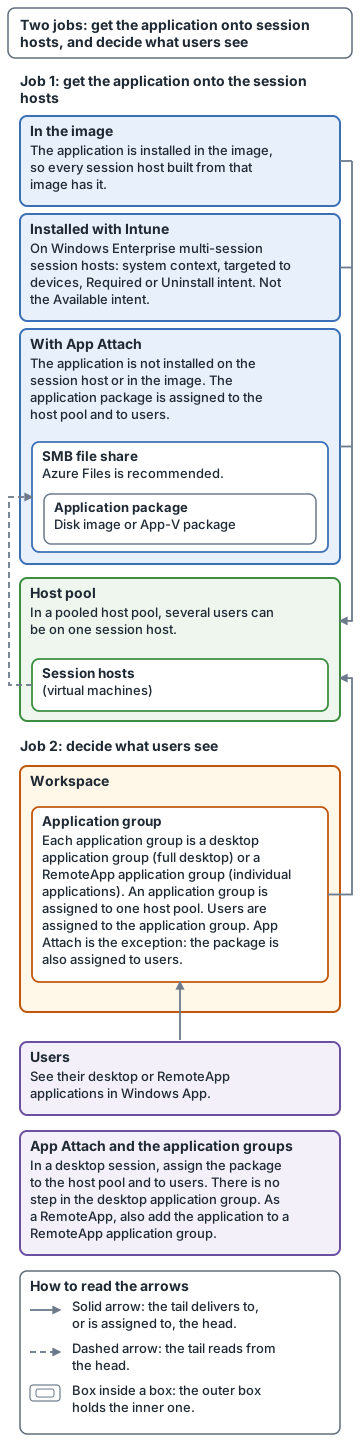
Text description of the diagram
The diagram has a title, "Two jobs: get the application onto session hosts, and decide what users see", and a key that explains the arrows: a solid arrow means the box at its tail delivers to, or is assigned to, the box at its head; a dashed arrow means the box at its tail reads from the box at its head; a box inside a box means the outer box holds the inner one. It reads from top to bottom.
Job 1, get the application onto the session hosts. Three boxes, one for each route. "In the image": the application is installed in the image, so every session host built from that image has it. "Installed with Intune": on Windows Enterprise multi-session session hosts, system context, targeted to devices, Required or Uninstall intent, not the Available intent. "With App Attach": the application is not installed on the session host or in the image; the application package is assigned to the host pool and to users. Inside this box is an "SMB file share" box (Azure Files is recommended), and inside that an "Application package" box (a disk image or an App-V package). A solid arrow leads from each of the three route boxes to a "Host pool" box. The host pool box says that in a pooled host pool several users can be on one session host, and holds a "Session hosts (virtual machines)" box. A dashed arrow leads from the session hosts box to the SMB file share box: the session hosts read from the file share.
Job 2, decide what users see. A "Workspace" box holds an "Application group" box. Each application group is a desktop application group (full desktop) or a RemoteApp application group (individual applications). A solid arrow leads from the application group box to the host pool box: an application group is assigned to one host pool. A "Users" box, which says users see their desktop or RemoteApp applications in Windows App, has a solid arrow to the application group box: users are assigned to the application group. The application group box adds that App Attach is the exception, because the package is also assigned to users.
A note box below the users box says: in a desktop session, assign the package to the host pool and to users, with no step in the desktop application group; as a RemoteApp, also add the application to a RemoteApp application group.
In the image. The application is installed in the image, so every session host built from that image has it.
For Windows updates and operating system upgrades, the documentation on Windows update methodologies for session hosts describes image-based servicing: create a new image version, deploy new session hosts from it, then drain and remove the old session hosts. It recommends this approach, through session host update, for pooled environments, and the methodologies tables on that page mark session host update as "Not recommended" for Windows Server. This article does not say which of the two applies to a given host pool. Session host update needs a host pool with a session host configuration. User data and local storage on the old hosts are not saved. That page covers Windows updates and operating system upgrades and does not cover updating applications, so this article says nothing about how to update an application that is installed in the image.
Installed with Intune. Intune can install applications on Windows Enterprise multi-session session hosts, with these restrictions:
- The host pool must be pooled and deployed through Azure Resource Manager, in the same tenant as Intune. The session hosts must be Microsoft Entra joined or hybrid joined and enrolled in Intune, and run Azure Virtual Desktop agent version 1.0.2944.1400 or later.
- The app must install in the system (device) context and be targeted to devices. Web apps are applied in the user context by default, so they do not apply.
- The assignment intent must be Required or Uninstall. The Available intent is not supported.
- A Win32 app set to install in the system context will not install if it depends on, or supersedes, an app set to install in the user context. Create a separate system-context copy, or make sure every dependency installs in the system context.
- The same page lists "Azure Virtual Desktop RemoteApp and MSIX app attach" as not currently supported in Intune. See the caveats at the end: the wording is unclear.
With App Attach. The application is not installed on the session host or in the image. A package is stored on a file share and attached to the user's session when they sign in. The next sections cover it.
A way to read these features when choosing a route (a design recommendation, not a documented rule): put the application in the image if everyone in the host pool needs it. Consider App Attach if users in the same host pool, or on the same session host, need different applications, or if you want to supply a new version of an application as a new disk image, which the App Attach documentation says needs no maintenance window.
How App Attach works
As defined above, App Attach attaches an application from an application package to a user's session without installing it on the session host or in the image. It mounts the disk image (or App-V package) from a file share to the user's session during sign-in, then a registration process makes the application available to that user. The applications run in containers that separate user data, the operating system and other applications.
Documented benefits:
- Applications are delivered as RemoteApp or as part of a desktop session. Permissions are set per application per user, and desktop users only see the App Attach applications assigned to them.
- The same package can be used across several host pools.
- Applications run on any session host with a supported Windows client or Windows server operating system, in the same Azure region as the package. The setup documentation says Windows Server 2022 and 2025 are supported as of April 14, 2026.
- A new version is supplied as a new disk image, with no maintenance window.
- Users can run several versions of the same application at once on the same session host.
- Usage and health telemetry is available in Azure Log Analytics.
What the user needs to get an application
During sign-in, all three of these must be true:
- The application is assigned to the host pool.
- The user can sign in to the session hosts, so they are in a desktop or RemoteApp application group. For a RemoteApp application group, the App Attach application must also be added to that group. For a desktop session, you do not add it to the desktop application group.
- The application is assigned to the user, as a user or as a group.
Because of this, two users on the same pooled session host can have different applications. Users who do not meet all three requirements do not get the application. Assigning to groups is recommended (setup documentation).
The mounting itself works at two levels. What a user gets is decided per user at sign-in. VHDX and CimFS disk images are mounted with the session host's computer account, so Azure Files sees one open handle per session host per disk image, not one per user.
Disk image types
The disk image can be CimFS, VHDX or VHD. VHD is not recommended. CimFS mounts and unmounts faster than VHD and VHDX and uses less CPU and memory, and it is recommended only if the session hosts run Windows 11.
Registration and state
Registration here means making a mounted application available to the user. It is not the host pool registration key that authorizes a session host to join a host pool (the installer and some pages call that key a registration token). The two are unrelated.
There are two registration types:
- On-demand is the default and the recommended type. The application is only partly registered at sign-in, and full registration waits until the user starts the application, so sign-in time is not affected.
- Log on blocking fully registers each assigned application while the user signs in, which can lengthen sign-in. The setup page names the two portal choices On-demand and Register at log on, so Register at log on is most likely this option, but the pages do not state the match in so many words.
Each package is either active or inactive. Inactive packages are ignored and not added at sign-in.
New versions
A new version can go in two ways. Side by side: create a new application from the new disk image and assign it to the same host pools and users. In place: create a new image with a different version number and update the existing application to use it. The new version can be higher or lower, but not the same. Do not delete the old image until all users have finished with it. Users get the new version at their next sign-in, and the update keeps the existing assignments.
The file share
App Attach needs the disk images on an SMB file share that is mounted on each session host at sign-in. Azure Files is recommended, because it works with Microsoft Entra ID or AD DS and balances cost and management effort. Azure NetApp Files also works. The file share paragraph of the App Attach overview says it needs session hosts joined to AD DS, and other statements on that page differ (see caveat 4).
| Identity provider | Status for App Attach |
|---|---|
| Microsoft Entra ID | Supported |
| Active Directory Domain Services (AD DS) | Supported |
| Microsoft Entra Domain Services | Listed as "Not supported" in this table; other statements on the same page differ (see caveat 4) |
Each session host's computer account needs read access to the files and the share. How you set that depends on the storage and the identity provider:
- Azure Files with session hosts joined to Microsoft Entra ID: assign the Reader and Data Access Azure role to both the Azure Virtual Desktop and the Azure Virtual Desktop ARM Provider service principals. Assigning the ARM Provider one gives the service access to everything in the storage account, so keep only App Attach apps in that account and rotate the access keys regularly. A future update will remove the need for the ARM Provider assignment. The storage account must be in the same subscription as the session host virtual machines.
- Azure Files with AD DS: assign the Storage File Data SMB Share Reader role as the default share-level permission, and set NTFS permissions that give read access to each session host's computer account.
- Azure NetApp Files: create an SMB volume and set NTFS permissions that give read access to each session host's computer account. See the caveats for a conflict in the identity wording.
For speed, keep the file share in the same Azure region as the session hosts, exclude the read-only disk images from antivirus scans, and avoid using the same file share as FSLogix profile containers. Include the file share in your disaster recovery plan.
Certificates
Every MSIX and Appx package must be signed with a code signing certificate, and the session hosts must trust the whole certificate chain. You are responsible for that. Certificates from a public certificate authority are trusted by default. Timestamp the package so it stays valid after the certificate expires. Self-signed certificates are covered in caveat 3, where the pages word their support differently.
Setting it up in short
You need a host pool with session hosts joined to Microsoft Entra ID or AD DS, an application group and a workspace, a file share in the same region as the session hosts, a disk image or App-V package on that share, and at least one session host powered on. You add the package under App Attach in the Azure portal or with Azure PowerShell (add and manage App Attach applications). Azure CLI cannot add or manage App Attach applications. The minimum role to add images is Desktop Virtualization Contributor on the resource group. Assigning users also needs Microsoft.Authorization/roleAssignments/write permission on the application group, which the User Access Administrator and Owner roles include.
More points from the setup documentation:
- Deployment scope. A package takes its deployment scope from the host pool it is created for. A package for a regional host pool can be assigned only to host pools with the same scope in the same Azure region, and not to geographical host pools. The scope cannot be changed after the package is created.
- Removing a package. You do not need to unassign it first.
- Automatic updates. Disabling automatic updates for MSIX and Appx applications is recommended. The documentation gives three registry values for this (Microsoft Store
AutoDownloadset to 2, and two content delivery values). You can set them with Group Policy or Intune, or with PowerShell on each session host and in the image.
Publishing applications with RemoteApp
Applications are published by adding them to a RemoteApp application group. This article covers where a published application comes from. The group rules, the workspace needed for users to see the group, the desktop group that the portal creates, and the preferred application group type are in Host Pools, Application Groups and Workspaces: The Rules That Connect Them, and this article does not repeat them. A user can be assigned to both a desktop group and a RemoteApp group on a pooled host pool; the host pool's preferred application group type then decides which one the client shows, as that article explains. In Azure PowerShell and Azure CLI, RemoteApp is written RailApplications for this setting (setting the preferred application group type). The sample output on that page shows None for one host pool, and the page does not state in words what a host pool with no type set shows.
Where a published application comes from. In the Azure portal you pick one of three sources when you add an application to a RemoteApp application group:
| Source | What it means |
|---|---|
| App Attach | The application comes from an App Attach package that is already added and assigned to the host pool. |
| Start menu | The application is picked from the Windows Start menu of a session host. |
| File path | You give the path to the .exe file on the session hosts. |
At least one session host must be powered on in the host pool when you publish. You can publish with the Azure portal or Azure PowerShell, but not with Azure CLI. The minimum role is Desktop Virtualization Application Group Contributor on the resource group or subscription. Applications to publish from the Start menu or a file path must already be installed on the session hosts. For App Attach applications, the prerequisites on the publishing page differ between its tabs: the portal tab refers to adding and assigning MSIX, Appx or App-V packages, and the PowerShell tab refers to an MSIX package only. For the PowerShell route for App Attach applications, see the module version caveat below.
For the file path source, the portal also has a toggle named Create desktop shortcut (Preview), which pins the RemoteApp. It needs more Intune setup to take effect. A PowerShell script that creates RemoteApp desktop shortcuts is also described as being in preview.
Applications are not assigned one by one: users are assigned to the application group and get every application in it. App Attach is the exception, because the package is also assigned to users.
Applications from the Microsoft Store. The install path of a Store app contains a version number that changes on each update, so a published path can stop working. Publish it with the shell:appsFolder location instead, in the format shell:AppsFolder\<PackageFamilyName>!<AppId>. The icon is not picked up from the app then, so supply an icon file on a local drive on each session host, in a path that does not change.
Caveats: where the documentation disagrees
These are open conflicts or mismatches in Microsoft's pages as read in full on 2026-10-19. The article does not settle them. Check the current wording before you plan around any of them.
| # | Topic | What the pages say | How this article treats it |
|---|---|---|---|
| 1 | Cloud-only users | The setup page notes that user accounts assigned to a package need to be hybrid accounts (the page words this with the name Azure AD, where this article says Microsoft Entra ID), but groups do not. The overview lists Microsoft Entra ID as a supported identity provider with no such condition. | Not resolved. Check before planning for cloud-only users. |
| 2 | Preview status | The PowerShell step on the setup page says "During the preview". Nothing else on that page or the overview labels App Attach as a preview. | No status stated for the cmdlets. |
| 3 | Self-signed certificates | The overview and setup pages say they are supported with the appropriate chain of trust. The certificate section of the overview says to use them only in a test environment and does not recommend distributing the certificate with Group Policy or Intune. | Not resolved. The pages do not reconcile these statements, and this article does not say whether self-signed certificates suit anything beyond a test environment. |
| 4 | Azure NetApp Files identity | On the App Attach overview page, the permissions bullet says session hosts must be joined to AD DS or Microsoft Entra Domain Services, the file share paragraph says AD DS only, and the identity table says Microsoft Entra Domain Services is not supported. A link sentence under the Azure Files bullet also mentions Microsoft Entra Domain Services. | Not resolved. The page does not reconcile these statements, and this article does not say whether Microsoft Entra Domain Services can be used. Check the page. |
| 5 | Intune and App Attach | The Intune multi-session page says "Azure Virtual Desktop RemoteApp and MSIX app attach aren't currently supported in Microsoft Intune". It uses the old name "MSIX app attach" and does not say what exactly is unsupported. The App Attach pages use Intune in other places, for example to set registry values and distribute certificates. | Not resolved. Do not assume either way. |
| 6 | Module version | The setup page requires version 4.2.1 or later of the Az.DesktopVirtualization module. The RemoteApp publishing page (PowerShell tab) requires 4.2.0 or later to publish an App Attach application. | Not resolved. The pages do not explain the difference between the two minimums, and this article does not say which one applies to a given task. |
Common mistakes
- Publishing with nothing powered on. Publishing needs at least one session host powered on in the host pool.
- Adding an App Attach app to the desktop application group. The setup page says you can't add MSIX or Appx applications to the desktop application group with App Attach. For a desktop session, assign the package to the host pool and users.
- Untrusted package certificates. The session hosts must trust the whole certificate chain of every MSIX and Appx package, and making sure of that is the administrator's job.
- Putting the App Attach file share in another region, or sharing it with profile containers. Keep it in the same region as the session hosts, and avoid using the same file share as FSLogix profile containers.
- Assuming Microsoft Entra Domain Services works without checking caveat 4. The App Attach overview page lists it as not supported in its identity table, and other statements on the same page differ.
- Planning to use Intune for RemoteApp or App Attach without checking caveat 5.
- Planning the whole job in Azure CLI. Applications cannot be published, and App Attach applications cannot be added, with Azure CLI.
Sources
App Attach overview, add and manage App Attach applications and publish applications with RemoteApp.