A user signs in on Monday and gets their own desktop settings, app settings and files. On Tuesday the pooled host pool (a group of shared virtual machines, explained in Key terms below) puts them on a different virtual machine, and they expect the same desktop. Nothing in a plain Windows virtual machine makes that happen, because Windows keeps each person's settings on the disk of the machine they signed in to.
FSLogix profile containers solve this (both terms are defined in Key terms below). This article explains the idea from the start: what a profile is, what the container is, what happens at sign-in and sign-out, what is kept out of the container, and what the user sees when the container cannot be attached. It does not cover how to choose or secure the storage. That is a separate decision.
Key terms
| Term | Meaning |
|---|---|
| Virtual machine | A computer that runs as software on a physical server. Each session host is a virtual machine. |
| Session host | A virtual machine that runs the desktops or apps users connect to. |
| Pooled host pool | A group of session hosts that many users share. A user can land on a different session host each time they sign in. |
| User profile | The settings and files that belong to one person on a Windows computer: desktop settings, app settings, network connections and their personal folders. Windows normally keeps it in C:\Users\<username>. |
| Local profile | The profile Windows creates by default, stored on the disk of the computer the person signed in to. |
| FSLogix | A Microsoft product that keeps a user's profile outside the virtual machine, so it follows the user. It is installed on the session host. |
| Profile container | One virtual disk file that holds a user's whole profile. FSLogix attaches it at sign-in. |
| VHD or VHDX | A virtual hard disk file: a whole disk stored as one file. |
| Attach and detach | To attach a container is to make its virtual disk available to the user's session, so Windows can use it as a disk. To detach it is to release it again. |
| SMB file share | A shared folder on the network, reached with the Server Message Block protocol. Azure Files is an Azure service that offers SMB file shares. |
| Storage provider | The place where the containers are stored. The most common one is an SMB file share. |
VHDLocations |
The FSLogix setting, stored as a registry value (a setting kept in the Windows registry), that tells FSLogix where the containers are stored, for example the path of an SMB file share. |
| Filter driver | Low-level Windows code that sits between apps and the file system and can change where a file request goes. |
| Redirect | Pointing a known location, such as C:\Users\<username>, at somewhere else, so apps use it as normal without knowing. |
| ODFC container | A second, optional container that holds only Microsoft 365 app data (Outlook, OneDrive, Teams, SharePoint and similar). |
| Concurrent connections | One user has a second session on the same computer, using the same container. |
| Multiple connections | One user has a session on each of two different computers, using the same container. |
| Remote application | A single application the user connects to instead of a full desktop. In Azure Virtual Desktop it is published as a RemoteApp; the post on host pools, application groups and workspaces covers that. |
| Temporary profile | A profile Windows issues when an error stops the user's real profile from loading. It is deleted at the end of the session, so the user's changes to settings and files are lost at sign-out. |
| Cloud Cache | An optional FSLogix setup that can keep a container in more than one place. Not covered here. |
Why pooled desktops need a profile stored elsewhere
By default Windows creates a local profile, which is stored on the disk of that one computer.
That is a problem in a virtual desktop service. The operating system under a user can change in three situations: the operating system is upgraded, a session host is replaced, or the user is in a pooled host pool and connects to a different session host each time. A local profile is tightly integrated with the operating system, so the user's data is not kept apart from changes like these.
If the profile is stored remotely, the user's data is separate from the operating system. You can change or replace the operating system without affecting the user data. FSLogix profile containers are the recommended way to do this in Azure Virtual Desktop.
There are two more reasons. FSLogix profile containers can resolve performance problems that historically blocked cached Exchange mode in Outlook (the mode that keeps a local copy of the mailbox), and without them OneDrive is not supported in non-persistent virtual desktop setups (setups where the user does not return to the same machine).
What a profile container is
A profile container is a single virtual disk file (VHD or VHDX) that holds the data of a user's profile. Nearly all files and folders under C:\Users\<username> are included. The container is stored on a storage provider, and an SMB file share is the most common one.
FSLogix is not part of Windows. It has to be installed on each session host. The Azure Marketplace Windows 10 and Windows 11 multi-session images include it, but the version should be checked. After installation, none of its features is turned on until you configure them.
What happens at sign-in and sign-out
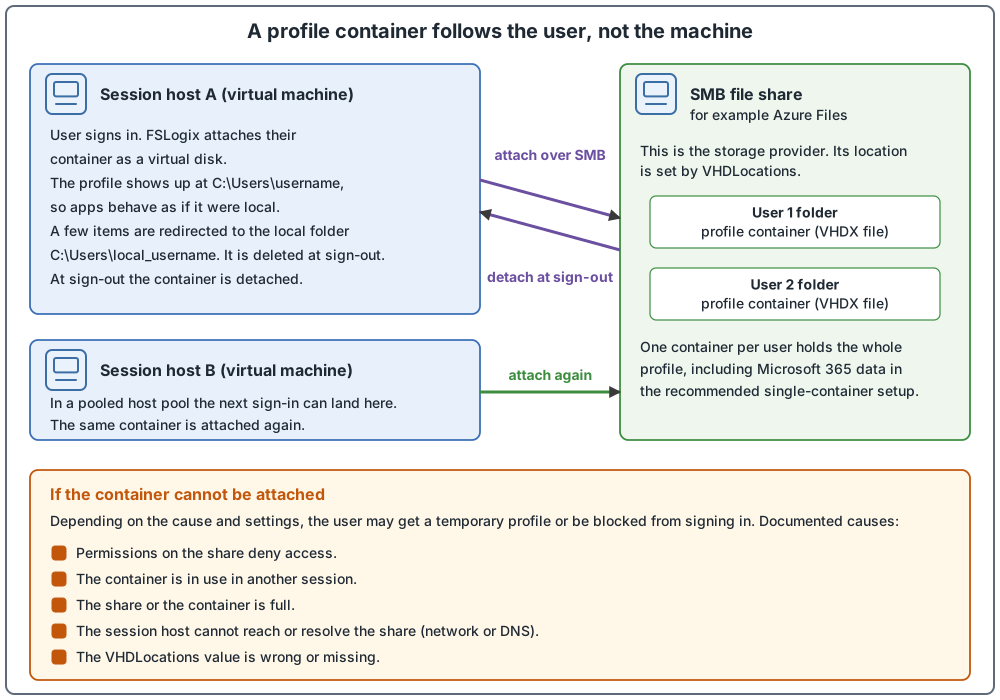
VHDLocations setting and the local_ folder in the drawing are explained in the text below it. DNS in the drawing is the system that turns a name into an IP address.Tap or click the image to enlarge.The steps are:
- The user signs in to a session host.
- FSLogix finds the user's container on the storage provider. The location comes from a setting called
VHDLocations. - FSLogix attaches the container to the session in the form of a natively supported virtual hard disk. The profile is available at once and looks like a normal profile.
- Apps use the profile as if it were on the local disk. FSLogix uses a filter driver to redirect the profile at the file system level, so apps do not know it is on the network. This matters because many apps cannot work with a profile stored remotely.
- At sign-out the container is detached. Next time, on any session host configured to use the same container, that container is attached.
Because the container is attached as a disk, the profile is not copied to and from the network at sign-in. This avoids the delays often linked to solutions that copy profiles to and from a network location.
Container size does not affect sign-in time, according to the FSLogix FAQ. Other factors are much more important when sign-in is slow, and the long sign-in troubleshooting page is the place to start.
What goes in the container and what stays out
Almost everything in the profile goes in. FSLogix leaves out a few items in two ways.
Redirected to a local folder. Some content cannot be kept inside the container. FSLogix redirects these paths to a folder named C:\Users\local_<username> on the session host. That folder is deleted at sign-out. The local copy exists so apps and processes still work if the storage provider is unavailable. The redirected paths are the Protect folder, the roaming and local Credentials folders, and the Office file cache folder.
Deleted at sign-out. Content that is not meant to move between virtual machines is deleted from the container at sign-out. This covers some data of apps packaged as MSIX and identity data such as sign-in token caches. Roaming the identity data with the RoamIdentity setting (off by default) is not recommended.
You can also write your own exclusions in a file called redirections.xml. The FSLogix FAQ advises against excluding profile data unless the application owner has documented that the data can be excluded, and says that a long list of rules can slow the virtual machine down. Excluding data later does not remove it from containers that already exist.
One container or two
FSLogix has two container types:
- The profile container holds the whole profile.
- The ODFC container holds only Microsoft 365 data.
One container, the profile container, holding everything is the recommended setup. ODFC is optional. It is mostly used when another roaming profile product handles the rest of the profile. Use two containers only for a specific reason, such as keeping Office data in a different storage location or giving it a different size.
One session at a time
By default FSLogix allows one session per container. The container is locked while the user is signed in. If the same user starts a second session on another virtual machine without signing out of the first one, the second session cannot attach the container and, in the default configuration, the user gets a temporary profile.
There are three choices for that situation: accept the temporary profile, teach users to sign out before they start a new connection, or turn on multiple or concurrent connections (both defined in Key terms). Four FSLogix pages word concurrent and multiple connections differently, and the pages do not say how the wordings relate:
- The concurrent and multiple connections page defines concurrent connections as two sessions on the same computer and says they are "NOT supported" on session hosts in an Azure Virtual Desktop host pool.
- The same page defines multiple connections as one session on each of two different computers and says they need virtual disk differencing disks.
- The attach and detach troubleshooting page says "Concurrent access is supported" and points to the concurrent and multiple connections article.
- The locked container troubleshooting page, in its section on concurrent or multiple connections to a single container, says they are "supported in some configurations".
- The configuration examples page, in its complex example that uses multiple connections, says Azure Virtual Desktop does not support multiple connections within the same host pool.
- The concurrent and multiple connections page calls one session per container a standard connection.
- The same page says OneDrive does not support concurrent or multiple connections to the same container.
Read the concurrent and multiple connections page, the attach and detach troubleshooting page, the locked container troubleshooting page and the configuration examples page before changing this setting. This article does not say which wording applies to a particular host pool.
The settings you meet first
The documented profile container setup uses registry values under HKEY_LOCAL_MACHINE\SOFTWARE\FSLogix\Profiles. These are the ones that matter most for understanding the model.
| Setting | Documented value or default | What it does |
|---|---|---|
Enabled |
1, required | Turns profile containers on. |
VHDLocations |
The SMB share path | Where the containers are stored. |
VolumeType |
VHDX, recommended | The disk format. VHDX is preferred for its supported size and fewer corruption cases. |
SizeInMBs |
30000, the default | The maximum container size in megabytes. |
DeleteLocalProfileWhenVHDShouldApply |
1, recommended | If a local profile already exists, delete it and use the container. Review local profiles first, because this deletes the local profile at sign-in and data can be lost. |
ProfileType |
0, the default | Single connections. |
PreventLoginWithFailure |
0, the default | When set to 1 and attaching or using an existing profile container fails, FSLogix gives the user a prompt to call support and the user can only sign out. |
PreventLoginWithTempProfile |
0, the default | When set to 1 and FSLogix determines that a temporary profile has been created, the user gets the same prompt and can only sign out. |
FSLogix also provides Group Policy templates for configuring settings, but not every setting can be set that way. For the full list of settings and the exact registry steps, use the FSLogix setup pages.
When the profile does not load
When the container cannot be attached, what the user gets depends on the cause and the settings. In a default configuration the troubleshooting page for old, temporary or local profiles documents a temporary profile when the container is in use in another session, and says users may end up with a temporary or local profile when the storage provider is full. For some of the causes below it states only the cause and the fix, not what the user sees. If PreventLoginWithFailure or PreventLoginWithTempProfile is set to 1 (both are in the settings table above), the user instead gets a prompt to call support and can only sign out. The page says users who connect to a remote application instead of a full desktop are not blocked this way. The last row is different: the container is not missing, a new empty one is created. These are the documented causes. That page says that, in general, the root cause of these problems is not FSLogix itself. Several of the causes below are about what the session host can reach and what the user is allowed to do on the share.
| Symptom | Documented cause | What to check |
|---|---|---|
| Container fails to attach, "access denied" in the log. Depending on the configuration, the user might be prevented from signing in | Permissions on the storage provider are wrong. This is one of the most common FSLogix misconfigurations. | Share-level permissions, NTFS access control lists, or Azure role-based access control (RBAC), depending on the storage provider. |
| Temporary profile after signing in on a second session host (default configuration) | The container is in use in another session. | Whether the user is still signed in on another session host. |
| Not stated on the page (symptom unverified); the page lists this cause under old, temporary or local profiles | The VHDLocations value is missing or wrong, or the session host cannot access the location. |
The VHDLocations registry value, and whether the session host can reach the path. |
| Storage provider full: users may end up with a temporary or local profile, or a hung session. Container full: the container fails to attach | The share or container is full. The size check on the attach and detach troubleshooting page says a container must have more than 200 MB to attach successfully. | Free space on the share and the container size setting. |
| Errors attaching the container | Network or DNS problems reaching the share. | Whether the session host can resolve the share's name (DNS, the system that turns a name into an IP address, covered in the networking post) and reach it over SMB. The same page uses Test-NetConnection -ComputerName <server-fully-qualified-domain-name> -CommonTCPPort SMB. |
| Long sign-in | The session host has too many users or is too small for the workload. FSLogix needs network and virtual machine performance to work. | How many users share each session host, the VM size, and disk performance. |
| Not stated on the page (symptom unverified); the page lists this cause under old, temporary or local profiles | FSLogix is installed but the profile container feature is not enabled. After installation none of its features is enabled until you configure them. | The Enabled setting. |
| Empty profile, no temporary profile | A folder-naming setting changed after containers were created, so FSLogix cannot find the old container and creates a new one. The old data is not lost. | The folder-naming settings against the folder names on the share. |
Two error codes appear in the example logs: FrxStatus: 31 with "Access is denied" or "The user name or password is incorrect", and FrxStatus: 33 for a container locked by another process.
Where to look: the profile log file at C:\ProgramData\FSLogix\Logs\Profile\Profile_<date>.log (it needs logging settings to be configured), and the FSLogix logs in Windows Event Viewer under Applications and Services Logs. In the profile log, search for LoadProfile: <username> to find a user's sign-in.
Before you design anything
- Several FSLogix pages carry a notice about a Windows change to the default Kerberos encryption type (Kerberos is the authentication protocol Windows uses for file share access), from RC4 to AES-SHA1. File shares that host containers and are not upgraded might have access problems. The notice names the April 2026 Windows Server update but is still worded as upcoming, so read the notice and the FSLogix blog post it links to, and check the current state before you deploy to SMB storage.
- The FSLogix FAQ says Microsoft Entra ID cloud-only identities (users who exist only in Microsoft Entra ID, covered in the identity model post) can be used with FSLogix, but it requires understanding the risks. The status of cloud-only identity support is worded differently on other pages. The Azure Files release notes list Entra-only identity support for SMB Azure file shares as generally available under 2026 quarter 2. The Azure Virtual Desktop what's new page lists FSLogix support for cloud-only and external identities as generally available under May 2026. The Microsoft Entra Kerberos introduction page carries Preview in its headings for cloud-only identity support. The pages do not reconcile these labels. Read the FAQ answer and check the current status before you plan for cloud-only users.
- FSLogix needs a qualifying license. The prerequisites page lists them, and an Azure Virtual Desktop per-user access license is one of them.
Common mistakes
- Turning FSLogix on without checking local profiles. The default behavior keeps an existing local profile. The
DeleteLocalProfileWhenVHDShouldApplysetting changes that, and it deletes the local profile at sign-in, so review the local profiles first. - Changing folder-naming settings after users have containers. Users get new empty profiles. Decide these at the start.
- Wrong permissions on the share. The container can fail to attach (the profile log shows "Access is denied") and, depending on the configuration, the user might be prevented from signing in. Test with a standard user before rollout.
- Letting the share fill up. Users may be unable to create new containers and end up with a temporary or local profile, a hung session, or containers that fail to mount or detach correctly.
- Skipping antivirus exclusions. A published list names the FSLogix files, drivers, registry keys and container files to exclude. Missing exclusions can cause delays or timeouts when profiles mount.
- Excluding data without the app owner's guidance. Use
redirections.xmlcarefully. - Expecting a bigger container to slow sign-in. According to the FAQ, container size does not affect sign-in time.
How to check a setup
These steps follow the FSLogix profile container setup page. Try them in a test environment first; that advice is not from the page.
- After configuring a session host, sign in as a standard user.
- In a terminal, go to
C:\Program Files\FSLogix\Appsand run.\frx.exe list-redirects(frx.exeis the FSLogix command-line tool). The output lists the active redirections, including the profile path. - Open the folder from the
VHDLocationsvalue in File Explorer, open the user's folder and confirm the VHDX file exists.
Sources
User profile management for Azure Virtual Desktop with FSLogix profile containers, Types of containers and Troubleshooting issues with old, temporary, or local profiles.