The identity, resource organization, network and security posts covered who can sign in, how resources are organized, how networks are laid out and how security is set up. Once all of that exists, someone has to keep it running. Logs have to go somewhere, machines have to be patched, alerts have to reach a person, and a workload has to have a way back after an outage. If every workload team does this alone, you get many different tools and many gaps.
For stable, ongoing operations in the cloud, a management baseline is required, and it has three parts: inventory and visibility, operational compliance, and protect and recover.
This post follows the design area called "Management for Azure environments". The goal is to understand operations management requirements and implement them consistently across all workloads in your cloud platform. The primary scope is operations tooling, also called your operations baseline. Advanced operations, tech platform operations and workload operations are out of scope. These are the later stages beyond the baseline. They can be added later with the Manage methodology of the Cloud Adoption Framework (CAF, Microsoft's guidance for adopting the cloud).
The design area is called "Management". A page about monitoring the platform sits in the same design area, so monitoring is not a separate design area. That is why this post is called "Management and Monitoring".
Key terms
The earlier posts defined these words: landing zone, workload, subscription, management group, intermediate root management group, Azure Policy, Azure RBAC, Microsoft Entra ID, managed identity, Log Analytics workspace, Azure Monitor Logs, activity log, Microsoft Defender for Cloud, Microsoft Sentinel, SIEM, ExpressRoute, recovery time objective (RTO), recovery point objective (RPO), Azure Backup, Azure Site Recovery, data residency, subscription democratization, brownfield and Microsoft Entra ID P1 or P2.
The words below are the main new ones. Each is in plain words. Other new words are explained where they first appear.
| Word | What it means |
|---|---|
| Operations baseline | The initial set of operations tooling that is used across all workloads. |
| Inventory and visibility | Knowing what you have and seeing what it is doing. Management controls that span the environment become more important as the environment grows. |
| Telemetry, metrics and logs | Telemetry is data that resources send out about themselves. Metrics are numbers, such as processor use. Logs are records of events. |
| Azure Monitor | The Azure service that collects and analyzes this data. Azure Monitor Logs, the part that stores log data in a Log Analytics workspace, was defined in Security. |
| Resource lock | A lock on a subscription, resource group or resource that protects it from accidental deletion or change. There are two kinds: CanNotDelete (authorized users can read and modify but not delete) and ReadOnly (authorized users can read but not delete or update). Locks apply to everyone, whatever their role. |
| Alert, alert rule and action group | An alert is raised when monitoring data shows a possible problem. An alert rule is the condition that decides when an alert is raised. An action group is a collection of notification preferences and automated actions that says who is told and what happens when an alert fires. Notification types include voice call, SMS, push notification and email. |
| Configuration drift | A resource or machine moving away from the configuration you expect. |
| Azure Update Manager | A unified service to help manage and govern updates for machines that run a server operating system, in Azure, on-premises or in other clouds (the last two connected by Azure Arc, a service that lets you manage servers outside Azure, such as on-premises, with Azure tools). You can monitor update compliance and install updates in real time or on a schedule. |
| Business continuity and disaster recovery (BCDR) | Keeping your data safe and your apps and workloads online when planned and unplanned outages occur. |
| High availability (HA) | Keeping a workload running day to day, including through small failures such as a failed server or a short network fault. |
| Disaster recovery (DR) | Planning how to recover from a rare, large event such as a region outage. DR is not an automatic Azure feature: you design it, configure it and test it. Many services give you capabilities to use in that plan. |
| Business continuity | The wider plan to keep the business running through risks of every kind, including mistakes, bad deployments and attacks. HA and DR are parts of it. |
| Zone-redundant and zonal | A zone-redundant resource is spread across several availability zones by the service, which manages failover between zones. A zonal resource sits in one zone you choose, so you deploy copies in other zones and design the failover yourself. |
What the design area covers
The overview page names three parts of the operations baseline and links a page for each. There is also a page on monitoring the platform components, which this post adds as a fourth part.
| Part | The question it answers |
|---|---|
| Inventory and visibility | Where do logs go, who sees them, and who is told about problems? |
| Operational compliance | How do you patch machines and notice when they drift away from the expected configuration? |
| Protect and recover | What basic business continuity and disaster recovery can every workload depend on? |
| Monitor the platform | Which alerts exist for the landing zone itself, and how are they deployed? |
Inventory and visibility
The cloud operating model decisions you made early (the operating model post) directly influence how management operations are delivered, and how centralized management is for your platform is a key example.
For basic inventory, consider two things: using tools such as an Azure Monitor Log Analytics workspace as administrative boundaries (a boundary that decides who can see which logs and how they are managed), and deciding which teams should use the system-generated logs from the platform and who needs access to them.
Also think about these kinds of logging data:
- Application-centric platform monitoring. Metrics and logs, which use a hot path and a cold path (a fast route and a slower route). They include operating system performance counters and custom metrics, and operating system logs such as Internet Information Services logs (Windows web server logs), Event Tracing for Windows, syslogs and resource health events (resource health is about a single resource, and service health is about problems in Azure services).
- Security audit logging. The aim is a horizontal security lens across the whole Azure estate. Possible integration includes on-premises SIEM systems (the security post) and software as a service (SaaS) offerings, which are applications delivered as a service. The data includes Azure activity logs, Microsoft Entra audit reports, Azure diagnostic logs and metrics, Key Vault audit events, network flow logs (records of traffic; NSG flow logs retire on 30 September 2027 and new ones can no longer be created, so use virtual network flow logs) and event logs. The tools are Azure Monitor, Azure Network Watcher (a network monitoring service), Microsoft Defender for Cloud and Microsoft Sentinel.
- Retention and archiving. Data retention is how long data is kept. The default periods are 30 days for Azure Monitor Logs, 30 days for Microsoft Entra reports (premium, meaning Microsoft Entra ID P1 or P2), and 90 days for the Azure activity log and Application Insights logs (Application Insights is Azure's application monitoring feature). There is also a link to extending retention for a table in a Log Analytics workspace.
- Operational requirements. Dashboards with native or third-party tools, centralized roles for privileged activities, managed identities for access to Azure services, and resource locks to protect from editing and deleting.
Visibility questions: Which teams need to receive alert notifications? Do you have groups of services that need multiple teams to be notified? Do you have existing service management tools (ticketing or IT service tools) that alerts must be sent to? Which services are business critical and need high priority notifications?
Recommendations:
- Use a single Azure Monitor Logs workspace to manage platforms centrally, except where Azure RBAC, data sovereignty requirements and data retention policies need separate workspaces. Centralized logging is critical to the visibility that operations teams need, and a centralized workspace model reduces administrative effort and the chance of gaps in observability.
- Workload teams can deploy their own Log Analytics workspaces in their own subscriptions, next to the central platform workspace, for logs and metrics that are specific to their workload.
- A workspace table can keep data for up to 12 years in total retention. Export logs to Azure Storage when you want an archive outside the workspace. Use immutable storage with a write-once, read-many (WORM) policy. This policy makes data non-erasable and non-modifiable for a user-specified interval.
- Use Azure Policy for access control and compliance reporting.
- Use Traffic Analytics, a tool to gather deep insights about IP traffic within virtual networks (Network topology).
- Use resource locks to prevent accidental deletion of critical shared services.
- Use deny policies to supplement Azure role assignments. A deny policy is an Azure Policy effect that blocks resource deployments and settings that do not meet your standards. It blocks requests before they are sent to resource providers, the Azure services that create resources. Together, role assignments and deny policies control who can deploy and configure resources and which resources they can deploy and configure.
- Include service health and resource health events in platform monitoring.
- Do not send raw log entries back to on-premises monitoring systems. The principle is that data born in Azure stays in Azure. If you need on-premises SIEM integration, send critical alerts instead of logs.
Operational compliance
Your environments will keep growing, so you need capabilities that monitor for deviations from the expected configuration, and your tools should include automation wherever possible.
Configuration drift. Azure Policy can audit and remediate Azure resources. It can also audit settings inside a machine, using Azure Automanage Machine Configuration. This is an extension and client, which means software that Azure puts on the machine. It checks operating system configuration, application configuration or presence, and environment settings. Infrastructure as Code (IaC: managing infrastructure with code that you can repeat and review) can also help you monitor for configuration drift and keep your landing zone up to date.
Update management. Ask four questions. Does your organization use update management tools, and can they cover the cloud, or do you need new ones? Which teams oversee update management? Do some groups of resources share update schedules? Do some groups of resources not update at the same time for business continuity reasons?
Recommendations:
- Use Azure Update Manager as a long-term patching mechanism for Windows and Linux VMs (virtual machines). Enforce Update Manager configurations with Azure Policy so all VMs are included. This lets workload teams manage patch deployment for their VMs and gives the central IT team visibility and enforcement across all VMs.
- Use Azure Policy to monitor in-machine VM configuration drift. Enabling Machine Configuration audit capabilities through policy lets workload teams use the feature with little effort.
Protect and recover
Enterprise workloads have RTO and RPO requirements (the business requirements post), and BCDR design should provide platform-level capabilities that meet them. To design that, capture the platform's disaster recovery (DR) requirements.
Two ideas keep this section clear. High availability is about day-to-day uptime. Disaster recovery is about rare, large events, and it is not an automatic Azure feature, so it needs deliberate design, configuration and testing (business continuity, high availability and disaster recovery). The same risk can fall under high availability for one workload and disaster recovery for another: a region outage is a disaster recovery risk for a workload in one region, but a high availability risk for one that runs active-active in several regions with automatic failover.
For zones, many services can be zone-redundant (the service spreads your resource across zones and fails over for you), while others are zonal (you pin resources to one zone and design failover yourself). Each service's reliability guide says which it supports (what are availability zones?). Zone redundancy protects against the loss of one zone, not of a whole region. Zone numbers are logical and map to physical zones per subscription, so zone 1 in one subscription may not be the same physical zone as zone 1 in another (regions and zones on Azure and AWS).
Design considerations:
- Application and data availability: RTO and RPO for each workload, and support for active-active and active-passive patterns (in active-active, more than one copy of a workload serves users at the same time; in active-passive, one copy serves users and another waits to take over).
- BCDR for platform as a service (PaaS), a type of cloud service where Azure runs the platform for you: native DR and high availability features, and geo-replication.
- Multiregion deployments for failover, with components close enough for performance. Failover means moving to a secondary location when the primary one is down. Failback means moving back when the primary is running again.
- Running with reduced functionality or degraded performance during an outage.
- Whether workloads suit Availability Zones or availability sets. An Availability Zone is a separated group of one or more datacenters within an Azure region, with independent power, cooling and networking. An availability set is a logical grouping of VMs that reduces the chance of failures bringing down related VMs at the same time. It has less resiliency than availability zones. Also consider data sharing between zones, the effect on update domains (groups of VMs that are updated together), what share of workloads can be under maintenance at once, and whether a VM SKU supports zones. A SKU (stock-keeping unit) is a specific size or type of a product.
- Consistent backups for applications and data: snapshots of VMs, and Azure Backup Recovery Services vaults, which store backups and provide built-in management of recovery points. Azure Backup also has a second vault type, the Backup vault. Consider the subscription limits on the number and size of Recovery Services vaults.
- Network connectivity during a failover: ExpressRoute bandwidth planning and traffic routing during a regional, zone or network outage.
- Planned and unplanned failovers: IP address consistency after failover and failback, keeping engineering DevOps capabilities, and Key Vault disaster recovery for application keys, certificates and secrets.
- Data residency: in-country or in-region rules that affect cross-region replication.
Design recommendations:
- Use Azure Site Recovery for Azure-to-Azure VM disaster recovery. It uses real-time replication and recovery automation, can run recovery drills without affecting production, and can use Azure Policy to enable replication and audit VM protection.
- Use native PaaS disaster recovery capabilities.
- Use Azure-native backup capabilities. Azure Backup and PaaS-native backup remove the need for third-party backup software and infrastructure, and backup settings can be set, audited and enforced with Azure Policy.
- Use multiple regions and peering locations for ExpressRoute connectivity (peering locations are the places where your network connects to Azure's).
- Avoid overlapping IP address ranges in production and DR networks. Overlapping ranges need a failover process that can complicate and delay application failover.
Key Vault and disaster recovery. Check the behavior for your own vault and region in Reliability in Azure Key Vault (checked October 2026). The points that matter here:
- Zone failures: in regions that support availability zones, Key Vault is zone-redundant by default, with no extra configuration or cost.
- Region failures: a vault lives in one region. Microsoft-managed replication to the paired region (asynchronous) and failover applies to most paired regions, but not to Brazil South, Brazil Southeast, West US 3, or regions that have no pair. Microsoft starts the failover, possibly after a significant delay, and on a best-effort basis. After a failover the vault is read-only, and you cannot change vault properties or firewall settings.
- If your recovery targets need more than that, the documented custom approach is separate vaults in more than one region, backup and restore to keep their contents consistent, and application logic to fail over between vaults. Backups restore only within the same subscription and Azure geography.
- Soft delete and purge protection guard against deletion. They do not recover you from a region failure.
Monitor the platform landing zone
Monitoring platform components helps your organization detect and resolve issues quickly, watch performance and health, and plan capacity.
Baseline metric, activity log and log query alerts are available for the landing zone platform components and other selected components. Components with one or more alerts defined are: Azure ExpressRoute, Azure Firewall, Azure Virtual Network, Azure Virtual WAN, Azure Monitor Log Analytics workspace, Azure Private DNS zone, Azure Key Vault, Azure Virtual Machine and Azure Storage account.
Alerts only help if someone is told. Configure action groups with the right notification channels and test the alerts. Following the principle of subscription democratization, configure at least one action group for each subscription. The action group should include at least an email notification channel. If you use alert processing rules (rules that route alerts to one or more action groups) to route alerts, note that service health alerts do not support them, so configure service health alerts directly with the action group.
To scale alerting, a framework solution called Azure Monitor baseline alerts (AMBA) uses Azure Policy with the DeployIfNotExists effect (an Azure Policy effect that deploys something, such as alert rules, when a resource is created). It deploys the alert rules, alert processing rules and action groups when you create a resource, in platform services and in landing zones. The default baseline can be changed, and you can write your own policies for other metrics. Alerts are only deployed when the matching resources are created, which avoids unnecessary cost and keeps alert settings current at deployment time. The solution is part of the Azure landing zone installation experience, so new deployments can set up baseline alerting at installation time.
The monitor page has a diagram of this baseline alert topology, which I describe here instead of redrawing. The initiatives (groups of Azure Policy definitions that you assign together) for the platform management groups (connectivity, identity and management) apply to those groups. The landing zone initiative applies to the landing zones management group. The service health initiative and the notifications assets initiative apply at the intermediate root management group (the resource organization post), so they reach all subscriptions.
If you use another way to deploy alerts, such as Azure Resource Manager, Bicep, Terraform or the portal, the guidance for alerts, severity and thresholds still applies.
Testing and existing environments
Test policies and alerting before a deployment to production, to make sure resources are properly monitored and to find problems early. Follow the testing approach for Azure landing zones.
For a brownfield environment (an existing Azure footprint, aligned to a landing zone or not), there are three high-level steps for baseline monitoring: import the relevant policies and initiatives from the AMBA repository, assign the required policies, and remediate the noncompliant ones. If the environment is not aligned to a landing zone, import them to the top-most management group where you want to assign them.
What the landing zone reference architecture includes
The reference architecture deployment includes key management and monitoring tools such as a Log Analytics workspace, Microsoft Defender for Cloud monitoring, and diagnostic settings (settings on a resource that say which logs and metrics to send, and where) for activity logs and PaaS resources sent to Log Analytics. Data from inside a virtual machine (event logs, syslog, performance counters) comes from the Azure Monitor Agent, which collects what its data collection rules say to collect and sends it where they say. The older Log Analytics agent was retired on 31 August 2024.
Centralized logging in the reference architecture is mainly about platform operations. The same workspace can be used for VM-based application logging, because in resource-centric access control mode (a workspace setting), Azure RBAC makes sure workload teams only see logs from their own resources. For non-compute resources, such as web apps or databases, workload teams can use their own Log Analytics workspaces. Workload teams can also duplicate some logs from the central workspace for their own efficiency, and this is a supported approach.
Management and monitoring at a glance
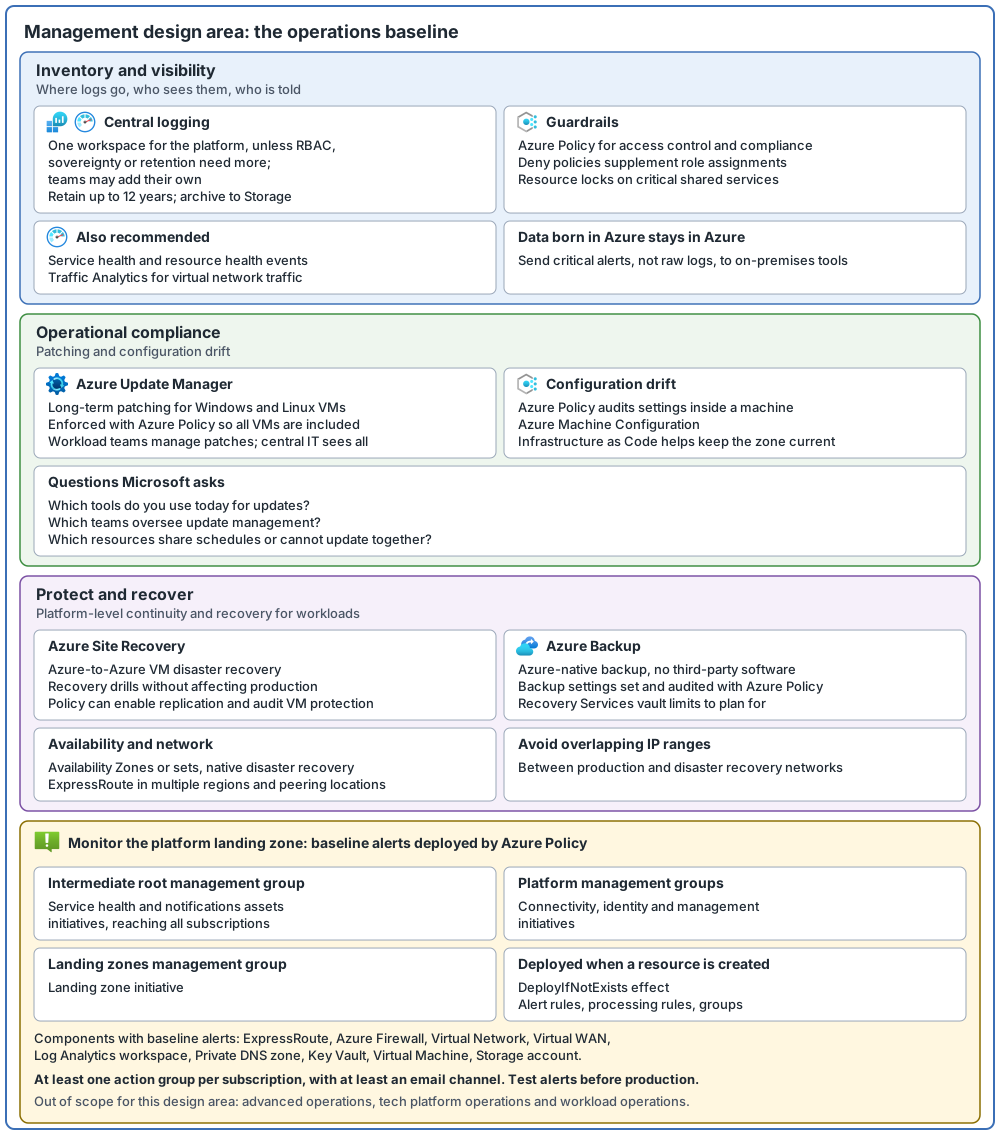
Common mistakes
- Many workspaces with no reason. Use a single workspace except where Azure RBAC, data sovereignty or retention rules need separate ones.
- Alerts that nobody receives. Configure action groups with real notification channels, at least one per subscription, and test them.
- Raw logs copied to on-premises tools. Data born in Azure stays in Azure. Send critical alerts instead.
- Retention never planned. The defaults are 30 or 90 days. Extend retention for a table in a workspace (up to 12 years in total), and use immutable Azure Storage for write-once archives.
- Critical shared services with no lock. Use resource locks to prevent accidental deletion.
- Machines outside the patching plan. Enforce Update Manager with Azure Policy so all VMs are included.
- No recovery drill. Site Recovery can run drills without affecting production.
- Overlapping IP ranges in production and DR. This complicates and delays failover.
- Alerts never tested before production. Test policies and alerting before a deployment to production.
From my own projects
From the list above, these came up in my own work: alerts that nobody gets, patching gaps, and disaster recovery and backup. I leave out project details.
The files in my repo
- Management for Azure environments: logging, patching, drift and alerts: management.md
- Business continuity and disaster recovery questions for the platform: business-continuity.md
Sources
Microsoft Learn, checked October 2026: Design area: Management for Azure environments · Inventory and visibility · Monitor platform landing zone components
The operational compliance and business continuity pages are linked from the first page. Short definitions of Azure Update Manager, action groups, resource locks, Availability Zones, availability sets, Azure Site Recovery and Azure Backup come from their own overview pages.