"Greenfield" means a new environment where nothing is built yet. You have an Azure account, or can get one, and no governed environment. This post walks you through that start.
No documentation page is named "greenfield". The page "Journey toward the target architecture" uses the word for its Start on-ramp. This post follows that page, the pages it links to, and the subscription, management group and network pages they rely on. Where the order or the reading is mine, I say so.
Key terms
Earlier posts defined these words: landing zone, platform landing zone, workload landing zone, workload, platform team, workload team, guardrail, design area, design principle, Azure Policy, Microsoft Sentinel, Log Analytics workspace and subscription vending; subscription, management group and Microsoft Entra tenant; Billing agreements and shadow IT; Azure RBAC and Active Directory Domain Services; Privileged Identity Management, multifactor authentication, Conditional Access and emergency access; intermediate root management group, Corp, Online, Local, Sandbox, Cloud Center of Excellence and landing zone archetype; hub-and-spoke network, Virtual WAN, ExpressRoute, VPN Gateway and Azure Firewall; Microsoft Defender for Cloud; and, in the platform automation post, infrastructure as code (IaC), Bicep, Terraform, accelerator, Azure Verified Modules, version control and pipeline. Other new words are explained where they first appear.
| Word | What it means |
|---|---|
| Greenfield | A new environment where nothing is built yet. Its opposite, brownfield, is an environment that already exists. |
| On-ramp | A starting point on the journey to the target architecture (the end state every on-ramp leads to). There are three: Start (a new environment), Align (an existing environment that is brought in line) and Enhance (an environment already in line, to which you add more controls). |
| Reference architecture | An example design, with a diagram, of the end state of a landing zone for a large organization. You use it as a starting point and change it to fit your needs. |
| Platform subscriptions | The subscriptions that hold the shared platform: management (monitoring), security, connectivity (networking) and identity. |
| Portal accelerator | A graphical tool in the Azure portal (Azure's web interface) that deploys the reference architecture with preset settings for key parts such as management groups and policies. |
| IaC accelerator | A ready-made tool that sets up and deploys the platform landing zone from code, with Bicep or Terraform. |
| Custom build | You design and build the landing zone yourself, or with help from Microsoft or a Microsoft partner. |
| Tenant root group | The single top management group of a tenant. Everything in the tenant sits under it, and anything assigned on it applies to the whole tenant. |
| Elevated access | A way for a Global Administrator (a top Microsoft Entra role) to give themselves the User Access Administrator role at the top of the Azure hierarchy (the tenant root). It lets them view all resources and assign access in any subscription or management group. You remove it when the work is done. |
| Commercial agreement | A billing agreement such as an Enterprise Agreement, a Microsoft Customer Agreement or a Microsoft Partner Agreement. You need one to create subscriptions from code. |
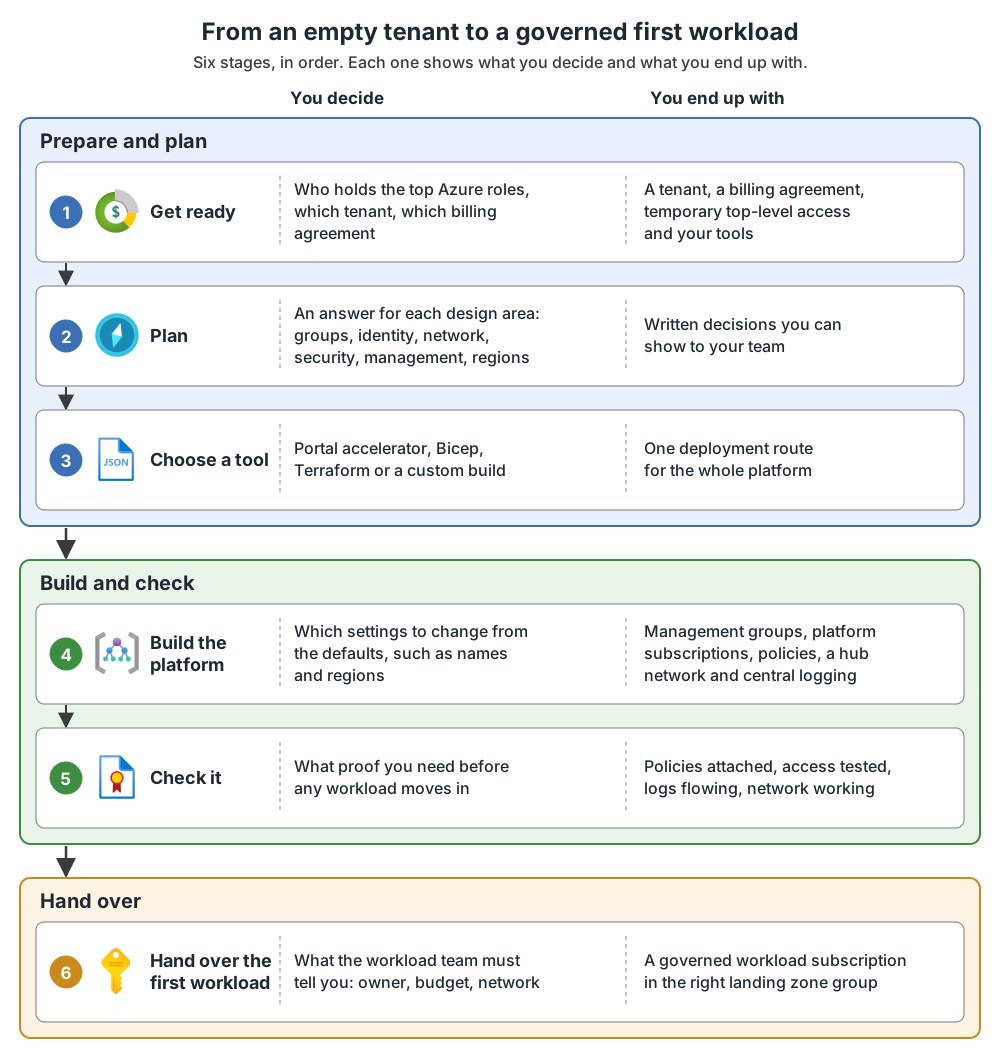
The greenfield path at a glance
The sections below follow these six stages in order.
Figure 1. The greenfield path, from preparation to the first workload.
What you will have at the end
The Start on-ramp begins with the reference architecture, so look at the end state first. The deployment options differ in technology and in how you customize them, so the result might not be identical for each option.
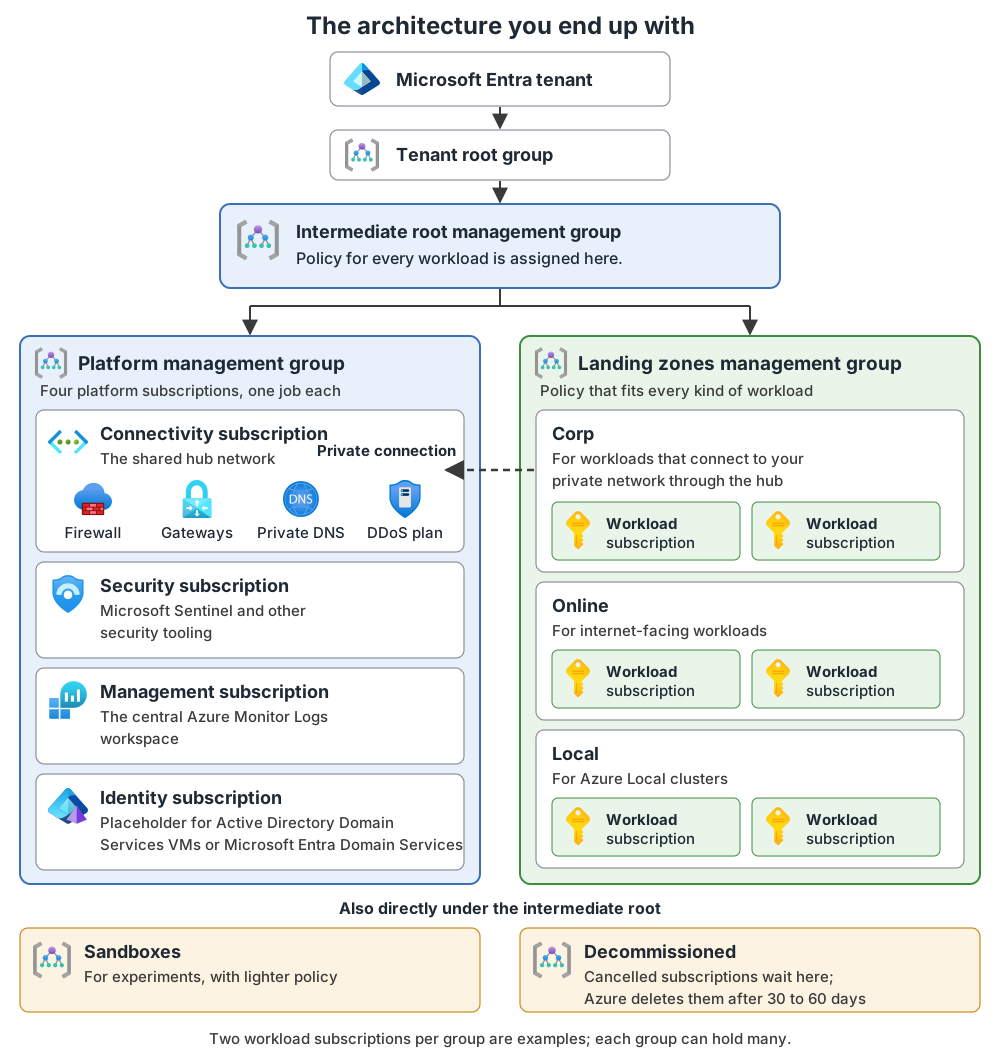
- Management groups. One intermediate root management group sits below the tenant root group, named with your organization's prefix (the Microsoft example is Contoso) so you do not build on the tenant root group. Below it: Platform (Security, Management, Identity and Connectivity), Landing zones (Corp, Online and Local), Sandboxes, and Decommissioned. For many organizations, Corp, Online and Local are an ideal starting point.
- Platform subscriptions. One dedicated subscription under each Platform group. Security holds Microsoft Sentinel and other security tooling. Management holds the central Azure Monitor Logs workspace (the Log Analytics workspace, where logs are stored). Connectivity holds the shared network: a hub network or Virtual WAN, Azure Firewall, private DNS zones and gateways. Identity is a placeholder for Active Directory Domain Services (AD DS) virtual machines or Microsoft Entra Domain Services. Large deployments can have quota limits and may add dedicated connectivity subscriptions per region.
- Policy. Azure Policy is assigned at management group level and inherited downward. Rules for all workloads go on the intermediate root. Landing zones get rules that fit every kind of workload. Sandboxes get a less restrictive set.
The architecture you end up with at a glance
Figure 2. The architecture you end up with.
Before you start
These are the things to have in place before you deploy anything. Each has a reason.
| What you need | Why |
|---|---|
| An Azure account | You need one to create subscriptions. |
| One Microsoft Entra tenant | A subscription trusts only one tenant, and the landing zone is deployed to one tenant. Avoid several tenants for one organization unless a business need requires it: they add complexity and security risk. The onmicrosoft.com name must be globally unique and cannot be changed, so choose it with care. Add your own custom domain names. |
| A billing offer | Subscriptions come from a billing offer, such as an Enterprise Agreement, a Microsoft Customer Agreement or a Cloud Solution Provider agreement. Any of them works. Creating subscriptions from code needs a commercial agreement. Without one, create them by hand and automate the rest. |
| A Global Administrator, for set-up only | By default no one has access to the root management group. Only a Global Administrator can give themselves access (steps below), and then assign roles to others, including making their own account an Owner of the root management group. Global Administrator is a highly privileged role, so use it only for this step. |
| An Owner for the person who deploys | In my reading: Owner is the built-in role that can create management groups, assign access and assign policy, which setting up the platform does at the top of the hierarchy (the intermediate root management group and below). Contributor can create groups but cannot assign access or policy. The Global Administrator grants the role. The accelerator's own guide states the exact role and scope it needs. |
| Emergency access, multifactor authentication and privileged access | Plan emergency access (break-glass) accounts, which are accounts kept aside so you cannot lock yourself out of the tenant. Enforce multifactor authentication and Conditional Access for privileged accounts, and use Privileged Identity Management (PIM). |
| The tools for your option | The portal option needs a browser and a sign-in. The IaC option needs your choice of Bicep or Terraform, a version control system (Azure DevOps or GitHub, which stores your code and its history), a PowerShell module (a package of PowerShell commands) that does the one-time bootstrap, and pipelines (automated steps that deploy your code, run on machines called runners). |
Each accelerator's own guide lists its detailed prerequisites, so read the guide for your option first. The IaC accelerator has a prerequisites phase for this.
How to elevate access. Sign in to the Azure portal as a Global Administrator. If you use Privileged Identity Management, activate the role first. Go to Microsoft Entra ID, then Manage, then Properties. Under Access management for Azure resources, set the toggle to Yes and save. Sign out and back in. You now hold the User Access Administrator role at the root, which lets you view all resources and assign access in every subscription and management group of the tenant. In my reading, it covers assigning access and policy only, so the person who deploys also holds Owner for the rest of the work. This setting applies only to you.
When the set-up is done, set the toggle back to No, as the same user, and sign out. If you use PIM, set the toggle to No before you deactivate your role: deactivating the role does not reset the toggle.
Plan the decisions in each design area
Define your organization's requirements across the design areas before you build the platform landing zone. The design principles are a compass for these decisions. You may deviate from them, but know what you give up. In my reading, a new environment has settled none of the eight areas, so expect to work through all of them. The table gives the main decisions, the simple choices, and what to pick if you are unsure. The last column is my reading of the Microsoft recommendations, not a default set by Microsoft. Where Microsoft gives no default, the table says so.
| Design area | Decide | Simple choices | If unsure (my reading) |
|---|---|---|---|
| Billing and tenant | Which billing offer. How many tenants. | Enterprise Agreement, Microsoft Customer Agreement or Cloud Solution Provider. One tenant or several. | No offer is preferred, so use the agreement you have. Use one tenant. |
| Identity | How people and workloads sign in. | Microsoft Entra only; Microsoft Entra with on-premises Active Directory; Microsoft Entra Domain Services; domain controllers in the identity subscription. | With no identity infrastructure, start Microsoft Entra-only. Use groups, least privilege and PIM. |
| Resource organization | The management group layout. The subscriptions. | The standard hierarchy, or a tailored one. | Use the standard one. Keep it to three or four levels, and never more than six. Do not make management groups for departments, regions or environments: use separate subscriptions for those. A location rule such as data residency is the exception for regions. Add a new group under Landing zones only for a real need, such as a payment card (PCI) rule. Start with a small set of subscriptions. |
| Network | The topology. The link to your office or datacenter. The address ranges. | Hub-and-spoke or Virtual WAN. VPN Gateway or ExpressRoute, or none yet. | Hub-and-spoke for fewer than 30 site-to-site tunnels, one or several regions that do not all need to reach each other, and full control of the routing. Virtual WAN for more than 30 branch sites, several regions needing global transit, or Microsoft-managed hub routing. Never use overlapping address ranges in one routing domain. |
| Security | Who gets alerts. How long logs are kept. Who holds keys. How traffic enters and leaves. | A decision for each. | Enable Microsoft Defender for Cloud standard on all subscriptions and use Azure Policy to check it. Export activity logs to Azure Monitor Logs. |
| Management and monitoring | Where logs go. How much recovery you need. | One central Log Analytics workspace or one per region. Recovery time objective (RTO, how long a service may be down) and recovery point objective (RPO, how much data you may lose). | No default for the workspace choice: each has pros and cons, including cross-region network charges. Capture the RTO and RPO requirements, because workloads depend on the platform's basic continuity. |
| Governance | Which policies. How to track cost. | The reference architecture's policies as a start. Budgets and tags. | Use built-in policies to cut effort. Assign at the highest sensible group. Create a budget with alerts when you create each subscription. |
| Platform automation and DevOps | Portal or code. Which language and version control. | See the next section. | Infrastructure as code is the recommended route. |
Regions. The architecture works in any region, but you must name the regions you deploy to. Management groups, policies and role assignments are global, but a region is still needed for their metadata. The Log Analytics workspace and the network resources are regional. You can start with one region and add more later, so design connectivity, identity and management to fit more. When you add a region, update any allowed-locations policy.
Choose how to implement it
You can use an accelerator or a custom build. The reference implementations help an organization get started quickly. The three standard options (portal, Bicep, Terraform) all work in Azure public clouds. An accelerator does the platform build for you, so the next section is what to check afterward, not a list of manual steps. You only do those steps yourself in a custom build.
| Option | What it is and deploys | Pick it when | Watch for |
|---|---|---|---|
| Portal accelerator | A deployment in the Azure portal that gives a complete implementation of the reference architecture, with preset settings for key parts, including management groups and policies. | Your organization lacks IaC expertise or prefers a visual approach. | Less flexible and scalable. Updates and version control are hard without IaC. Move to IaC when you can. |
| IaC accelerator with Bicep or Terraform | A customizable deployment built on Azure Verified Modules. It also sets up the delivery environment: version control, deployment pipelines and runners, with Azure DevOps or GitHub. | You can work with code. It is the recommended approach. | Four phases: planning, prerequisites, bootstrap and run. The platform automation post explains them. |
| Azure Verified Modules alone | The same building blocks, used without the accelerator. | You want to assemble your own deployment. | In my reading, you then set up the delivery environment yourself. |
| Custom build or partner | You design and build it, or work with Microsoft or a partner. Partner programs such as Azure Accelerate can help. | Neither standard option fits. | More design and maintenance work for you. Verified modules reduce the maintenance burden of custom code. |
Between Bicep and Terraform, the planning phase asks you to select your preferred language and version control system. Choose the one your team knows.
Where to start with each route.
- Portal: open the portal accelerator, a Deploy to Azure button, signed in with the account that has the rights from the previous section. Read its prerequisites first.
- IaC with Bicep or Terraform: do phase 0 first. Pick the language and version control system, then open the IaC accelerator and follow the getting-started guide for your language: Bicep or Terraform. Phase 1 configures credentials and subscriptions, so have your platform subscriptions in mind. Phase 2 bootstraps (the PowerShell module sets up Azure and your version control system), and phase 3 customizes the code and runs the pipelines.
- Azure Verified Modules alone: start at Azure Verified Modules.
- Custom build or partner: start with Azure Accelerate.
I could not open the accelerator guides on azure.github.io from my environment, so I do not describe their steps here. Open the guide and read its prerequisites before you start.
Two special cases. If you must deploy to Azure US Government or Azure operated by 21Vianet, none of the three standard options is supported as an automated deployment. Only the Bicep and Terraform code can be modified for those clouds: use the Bicep code or the Terraform code as a starting point. If you have strict sovereignty and data residency needs, a sovereign landing zone variant exists.
Build the platform, then check it
With an accelerator, the tool performs the build for you, so the table below is what to check afterward. The steps are manual only in a custom build. The lifecycle runs in this order: create the platform subscriptions, create the platform, set up subscription vending, then deploy workloads. Inside "create the platform", the grouping below is mine. It follows what the reference architecture contains. The checks are adapted from the readiness checks in the minimum viable platform landing zone post. That post is written for migrations from on-premises, so skip checks about an on-premises network if you have none.
| Step | What gets created | How to check |
|---|---|---|
| 1. Platform subscriptions | The security, management, connectivity and identity subscriptions. Do not combine these roles in one subscription: that way you can apply different policies and roles to each, and bill each separately. | They appear in the Subscriptions list with a clear name, an owner, tags and a budget. |
| 2. Management groups | The hierarchy from the section above. | Each subscription sits in the right group. New subscriptions land in the tenant root group by default, so move them. |
| 3. Policy and access | Azure Policy assignments and role assignments on the management groups. | The assignments are attached and the compliance state is reviewed. Access through Microsoft Entra groups works on the scopes you expect. The privileged access process is tested. |
| 4. Management and security tooling | The Log Analytics workspace, alerts, Defender for Cloud and Microsoft Sentinel. | The policy that sends diagnostic settings to the central workspace works, and one expected alert reaches the right place. |
| 5. Connectivity and identity | The hub network or Virtual WAN, Azure Firewall, gateways, private DNS, and the identity services you chose. | Names resolve from a representative spoke network once one is connected, and the path that traffic takes through the firewall is confirmed. |
To create a subscription by hand, go to Subscriptions in the Azure portal and select Add. Give it a name that shows the workload and the environment. Choose the billing account and plan, the directory and the management group. Assign an owner, set a budget for spending alerts, and apply your standard tags.
Two settings protect the hierarchy while you build it. By default any user can create management groups, and new subscriptions land in the root group. It is recommended to turn on Azure RBAC authorization for management group operations (the "require authorization" setting) and to set a default, dedicated management group for new subscriptions, with sandbox as a good candidate. Both are set on the root management group, and you need permission to change hierarchy settings (the Hierarchy Settings Administrator role has it).
When the checks pass, remove the elevated access you used.
A cost note. A full platform deployment creates billable resources. Hub resources such as Azure Firewall, gateways and Azure Bastion are billed separately; that is my reading of the pricing pages. My suggestion: before you apply a full-platform profile, review the services that can keep charging while idle, such as Azure Firewall, Azure Bastion, DNS Private Resolver, Log Analytics ingestion and public IP addresses, and set a subscription budget first. That is my suggestion, not a Microsoft rule.
Hand over the first workload
Before the first workload, you need a repeatable way to give teams their landing zones. That is subscription vending. It involves three groups. A cloud center of excellence (the team that sets the business rules) builds the approval process. The workload team asks for a subscription. The platform team creates and configures it, then hands it over.
Collect these facts when a team asks: the expected budget, the owners, networking expectations, and how critical and confidential the workload is. You also say whether it is Production or DevTest (a cheaper offer for non-production). The answers tell you which management group fits: Corp for workloads that connect to your private network, Online for internet-facing ones, Local for Azure Local clusters, and Sandboxes for experiments.
The platform team then does this:
- Places the subscription in that management group, so it inherits the policies.
- Names the subscription owner and gives groups the minimum access they need.
- Assigns subscription-level policies and enrolls it in Defender for Cloud.
- Creates a virtual network peered to the hub, if the workload needs one.
- Creates a first budget.
Then the platform team hands the subscription over, usually empty but already governed. The workload team updates the budget, builds its resources and runs the workload. The platform team keeps control of governance.
In my reading, you can do this by hand for the first few requests. As requests grow, automate it: vending modules exist for Bicep and for Terraform. Without vending, teams wait, or create subscriptions elsewhere without management, which is shadow IT.
What comes next
A landing zone is not finished when it is built, and the journey takes time. How long depends on the size of the organization, its technical footprint and the skills of its teams. A later post in this series covers keeping it up to date. The next post covers environments that already exist (brownfield).
Common mistakes
- Too many policy assignments at the root. Debugging inherited rules in lower groups becomes hard. Keep root assignments to the ones that must apply everywhere.
- Giving workload teams access at management group level. It over-permissions them. Give access on their own subscriptions or resource groups.
- Elevated access left on after set-up. Set the toggle back to No.
From my own projects
I have not marked any item in the list above as something I saw in my own projects. I leave out project details.
The files in my repo
My repo is a learning implementation, and its own order and habits are the repository's approach, not the documentation's.
- Learning path: the order I suggest, in six phases from understanding the platform to two end-to-end cases. Its build phase uses Terraform and it does not cover the portal accelerator: learning-path.md
- Prerequisites: the knowledge, tools and Azure access I assume, with advice to use a dedicated lab tenant. It assumes you already know basic Azure resources and Terraform syntax, so it is not a zero-knowledge start: prerequisites.md
- Lab versus enterprise: a table of what a personal lab can and cannot reproduce: lab-vs-enterprise.md
- Build Azure from the beginning: an end-to-end case for a fictional company with 600 employees and no governed Azure platform, in twelve phases, each with evidence and an exit condition. The repository's habits include starting new policies in audit mode and giving every shared service an owner. The phases are the repository's own process, not an official one: greenfield.md
- IaC accelerator and Azure Verified Modules: the four accelerator phases, the Terraform modules, and how my learning repo differs from the official implementation. It has no steps for the portal accelerator or for Bicep: avm-and-accelerator.md
- Deployment guide: the eight Terraform steps for my lab, from checking the Azure context to cleanup: deployment-guide.md
- Cost and safety: which services keep charging while idle, and the controls the lab setup uses, such as a dedicated lab subscription and audit-mode policies: cost-and-safety.md
Sources
Microsoft Learn, checked October 2026: Journey toward the target architecture · Deploy Azure landing zones · Platform landing zone implementation options